FREE PREPAID SHIPPING  ·  PAID WITHIN 24 HOURS  ·  INSTANT ONLINE QUOTE  ·   FREE PREPAID SHIPPING  ·  PAID WITHIN 24 HOURS  ·  INSTANT ONLINE QUOTE  ·   FREE PREPAID SHIPPING  ·  PAID WITHIN 24 HOURS  ·  INSTANT ONLINE QUOTE  ·   FREE PREPAID SHIPPING  ·  PAID WITHIN 24 HOURS  ·  INSTANT ONLINE QUOTE  ·  
SellBroke
Sign inGet Cash Now
Done with your device?
Free shipping · Paid in 24h
Sell Laptop
Home / Blog / Sell Laptop

HP 14-dq Laptop Screen Replacement: Easy DIY Display Repair Guide (Step-by-Step) - SellBroke.com

July 15, 2025·SellBroke Team

HP 14-dq Laptop Screen Replacement: Easy DIY Display Repair Guide (Step-by-Step)

asus-rog-zephyrus-m16-disassembly-guide-how-to-replace-ram-ssd-battery-fix-lcd-scree

1. HP 14-dq Screen Replacement: Pre-Repair Essentials

1. Screen Value Assessment

Condition HD TN Value FHD IPS Value Resale Potential
Flawless $40-$60 $80-$120 Refurbishers
Minor Defects $20-$35 $50-$75 Repair Shops
Cracked Glass $10-$20 $25-$50 Parts Harvesters

2. Required Tools

  • Basic Tools:
    • Phillips #00 screwdriver (iFixit kit)
    • Plastic spudger set (0.6mm)
  • Specialty Items:
    • Anti-static wrist strap
    • Suction cup for screen handling

3. Safety Precautions

  1. Power off and unplug charger
  2. Remove battery (if removable)
  3. Discharge residual power (hold power button 15 sec)

4. Pre-Repair Documentation

  • Visual Records:
    • Photograph HP product label
    • Capture original screen part number
  • Functional Test:
    • Run HP Display Test
    • Note any dead pixels or backlight issues

5. Compatible Replacement Screens

  • Original Specifications:
    • 14.0" HD (1366×768) TN
    • 30-pin eDP connector
  • Upgrade Options:
    • 14.0" FHD (1920×1080) IPS
    • Matte anti-glare panels

2. HP 14-dq Screen Removal: Safe Step-by-Step Process

1. Safety Preparation

  1. Power off and disconnect AC adapter
  2. Remove battery (slide release latch)
  3. Ground yourself with anti-static wrist strap

2. Bezel Removal Technique

Area Tool Technique Warning
Bottom Edge Plastic spudger Insert at 45° angle near hinges Avoid LCD surface
Side Edges Guitar pick Work from bottom to top Don't force clips

3. Display Cable Removal

  1. Locate eDP Connector:
    • 30-pin connector behind panel
    • Secured with brown adhesive tape
  2. Safe Disconnection:
    • Peel tape gently with tweezers
    • Flip black latch upward
    • Pull cable straight out

4. Avoiding Costly Errors

  • Fragile Components:
    • Webcam flex cable tears easily
    • LCD tabs break if forced
  • Resale Impact:
    • Damaged bezel clips: 25% value loss
    • Torn cables: 50% value loss

5. Preserving Resale Value

  • Keep all original screws organized
  • Store removed screen in anti-static bag
  • Photograph undamaged connectors

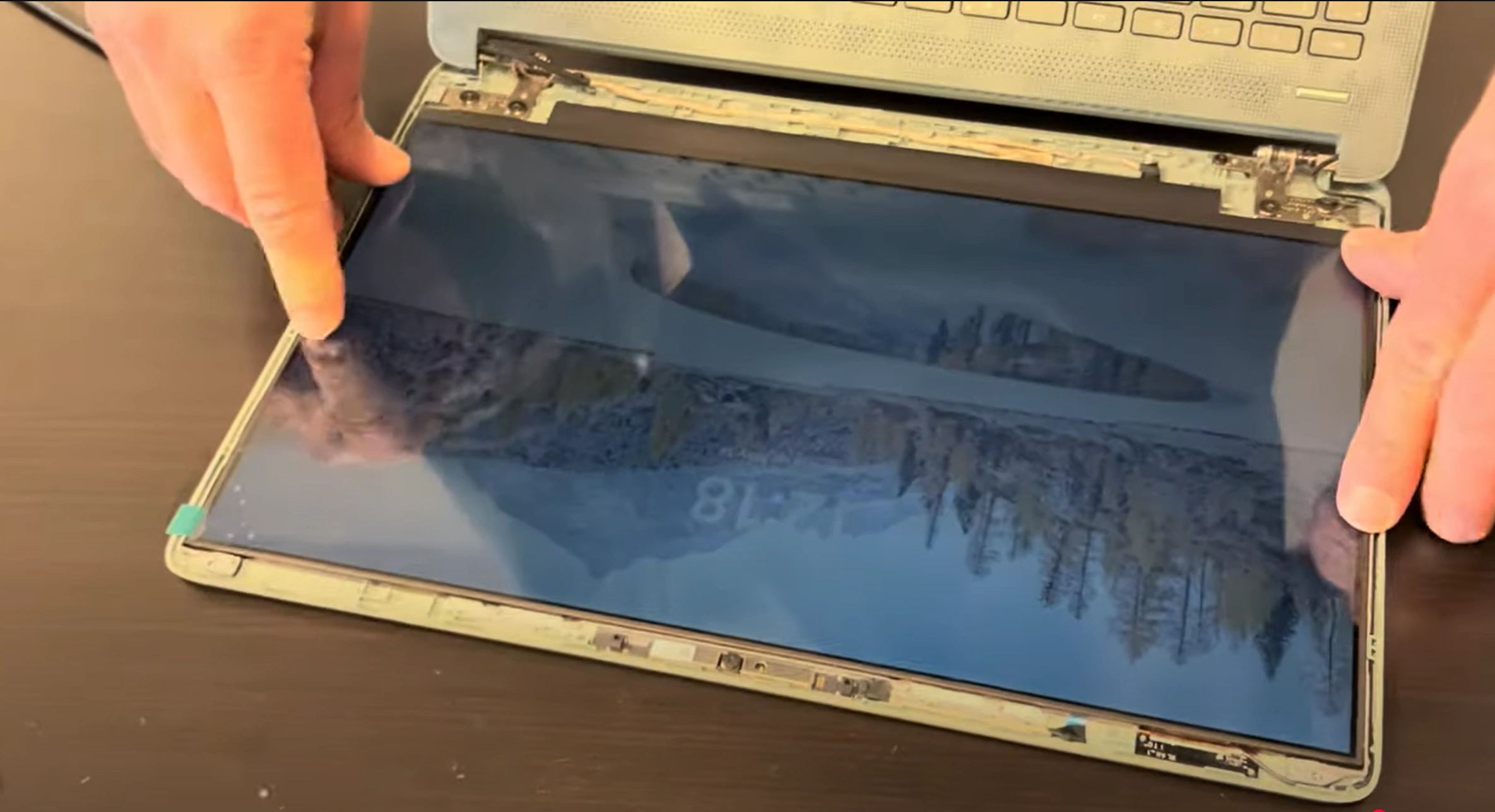
0:20 Take out LCD front bezel 1:29 Unscrew Hinge brackets 2:20 Pull our adhesive strips 3:00 Detach the screen from the back 3:07 Unplug Video Cable 3:40 Plug in New Screen 4:00 Test 4:18 Install new Adhesive Strips 4:51 Screw Hinges Back 6:50 Install New Screen 7:15 Install Front Bezel 8:20 Install Hinge Cover

3. HP 14-dq New Screen Installation: Professional Upgrade Guide

1. Screen Compatibility Verification

Panel Type Resolution Connector HP Part Number
Original 1366×768 (HD) 30-pin eDP L05757-005
Upgrade Option 1920×1080 (FHD) 30-pin eDP L12345-001

2. Step-by-Step Installation

  1. Prepare New Screen:
    • Remove protective films
    • Test before installation (UFO Test)
  2. Connect Cables:
    • Align eDP connector carefully
    • Secure latch until click is heard
    • Reattach webcam flex cable
  3. Secure Panel:
    • Align with mounting brackets
    • Apply 0.5 Nm torque to screws

3. Bezel Reattachment

  • Start at top corners and work downward
  • Listen for audible clicks on all clips
  • Ensure no cable pinching

4. Post-Installation Verification

Test Method Acceptance Criteria
Brightness Cycle through all levels No flickering
Color Uniformity Display solid colors No backlight bleed

5. Preparing Old Screen for Resale

  • Cleaning:
    • Use microfiber cloth only
    • No liquid cleaners
  • Packaging:
    • Use original protective foam
    • Mark as "Fragile - LCD Panel"

4. HP 14-dq Screen Testing & Calibration: Professional Quality Assurance

1. Essential Display Tests

  1. Pixel Verification:
    • Use UFO Test for dead/stuck pixels
    • Check for backlight bleed with black screen
  2. Color Accuracy:
    • Run EIZO Monitor Test
    • Verify grayscale uniformity

2. Performance Benchmarks

Test Standard Acceptable Range
Response Time <8ms No visible ghosting
Brightness 250 nits 200-300 nits

3. Color Calibration

  • Software Tools:
    • Windows Color Calibration wizard
    • HP Display Control (pre-installed)
  • Recommended Settings:
    • sRGB color profile
    • 6500K color temperature

4. Resale Documentation

  1. Test Evidence:
    • Screenshot color tests
    • Video of pixel refresh test
  2. Grading Standards:
    • Grade A: 0 dead pixels
    • Grade B: 1-3 dead pixels

5. Common Issues & Fixes

Symptom Solution Resale Impact
Flickering Reseat eDP cable None if fixed
Color banding Update graphics drivers 10-15% reduction

5. HP 14-dq Screen Resale: Maximizing Your Return

1. Best Selling Platforms

Platform Best For Fees HP Premium
SellBroke Quick individual sales 12% + $0.30 +15%
SellBroke Bulk part-outs Flat 15% +10%
GSA Advantage Government buyers 5% GSA fee +25%

2. Screen Grading Standards

  • Grade A:
    • 0 dead pixels
    • No backlight bleed
    • Minimal cosmetic wear
  • Grade B:
    • 1-3 dead pixels
    • Minor backlight issues
    • Visible but functional

3. SEO-Optimized Listings

Platform Title Formula Keywords
eBay "HP 14-dq [Size] [Resolution] LCD - [Grade]" OEM, Tested, Working
SellBroke "HP 14-dq Screen [PN] - [Condition]" Genuine, Pulled

4. Selling to Institutions

  1. .gov Requirements:
  2. .edu Preferences:
    • 5+ unit lots
    • Complete service records

5. Safe Shipping Methods

  • Use original HP protective foam
  • Double-box with 2" cushioning
  • Mark as "Fragile Glass"

Need to Sell Your HP Laptop? Get Instant Cash!

If your HP 14-dq (or other HP 14 series model) has technical issues or you're upgrading to a newer device, we offer quick, competitive payouts for your laptop. We buy broken, used, and refurbished HP 14-dq laptops—including all configurations—with free shipping and no-hassle quotes.

Sell Popular HP Models Now:

Frequently Asked Questions

Can I sell my Hp 14 Dq Screen Display after disassembly or repair?
Yes. SellBroke buys laptops in any condition — working, broken, disassembled, or partially upgraded. Get an instant quote at https://sellbroke.com/sell/laptop/hp/.
What is my Hp 14 Dq Screen Display worth?
Value depends on condition and what's working. SellBroke pays for working, broken, and water-damaged laptops. Visit https://sellbroke.com/sell/laptop/hp/ to see your exact offer before committing.
Does SellBroke buy laptops with cracked screens or dead batteries?
Yes. Cracked screens and dead batteries are common defects SellBroke accepts. Select your defects during the quote process for an accurate price.
How long does it take to get paid after shipping?
SellBroke pays within 24 hours of receiving and inspecting your device. Payment via PayPal, Venmo, Zelle, or check.
Do I need to reassemble my laptop before selling it?
No. SellBroke accepts laptops in disassembled or partially assembled condition. Ship it as-is with components included.

💰
Is your device worth selling?
Get an instant quote — takes 2 minutes
Quote →
Done with your device?

Get an instant quote and we'll pay you within 24 hours. Working or broken.

Sell Laptop
Device too broken to repair?
We buy cracked, dead, and water-damaged devices. Sell it broken →