
Acer Nitro AN517 Gaming Laptop - Complete Disassembly & Upgrade Guide: RAM, SSD, Battery & LCD Replacement
Aug 13, 2025
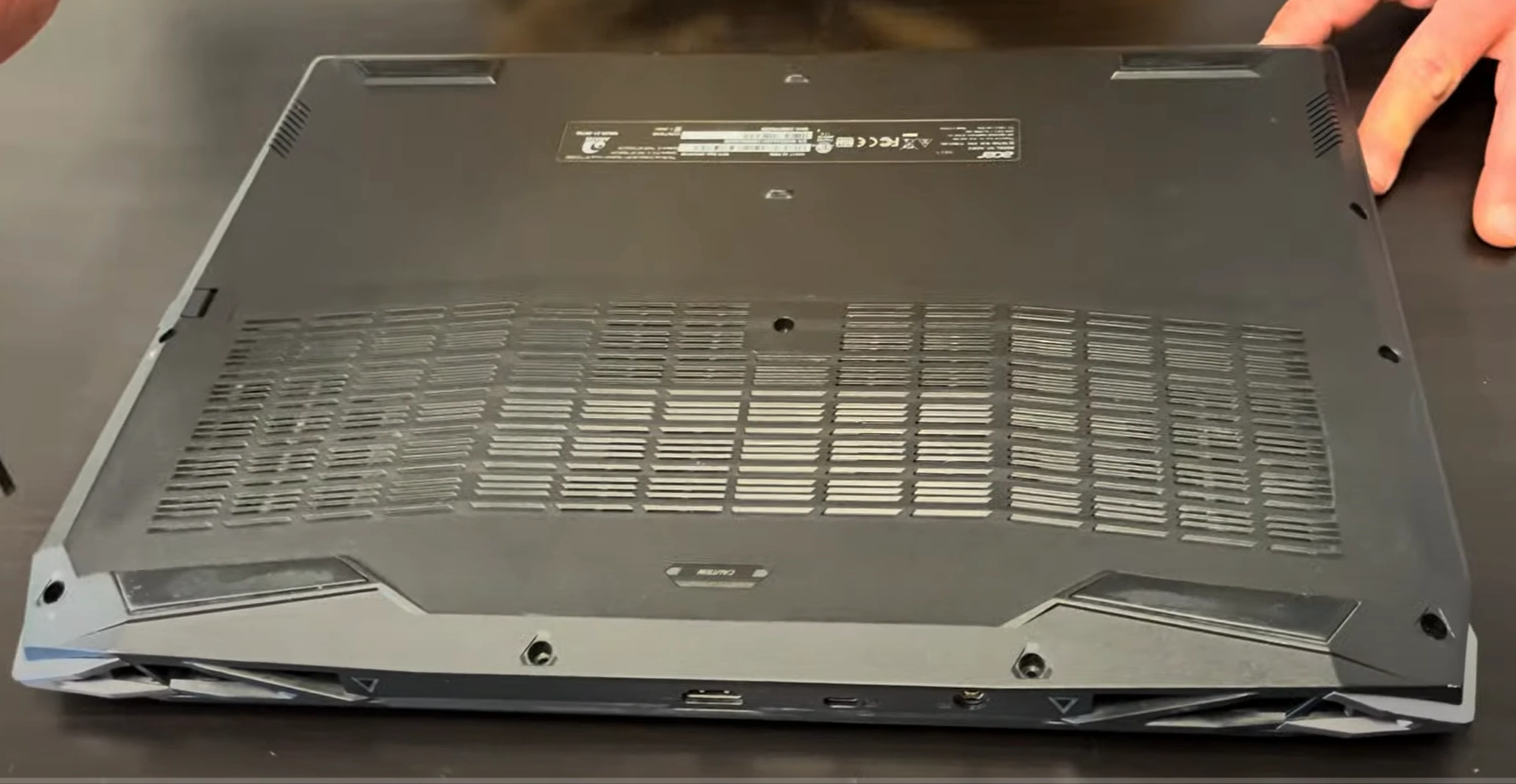
1. Acer Nitro AN517 Pre-Disassembly: Gaming Laptop Valuation
💰 Key Valuation Factors
| Component | Performance Impact | Resale Value Range |
|---|---|---|
| GPU Model | RTX 3060 vs 3070 (25-40% difference) | $300-$500 variance |
| Thermal Performance | CPU/GPU under 85°C at load | +$150-$200 premium |
| Display Type | 144Hz vs 60Hz panels | +$120-$180 difference |
🛠️ Gaming-Grade Tool Requirements
- Essential:
- T5/T6 Torx screwdriver set
- ESD wrist strap
- Recommended:
- Thermal Grizzly Kryonaut paste
- 0.5mm thermal pads
⚡ Performance Benchmarking
- GPU Tests:
- Run 3DMark Time Spy
- Record average FPS in 5 games
- Thermal Analysis:
- Monitor with HWInfo
- Capture max temps under load
🎮 Resale Preparation
- Gamer Buyers:
- Document overclocking potential
- Include FPS comparison charts
- Streamers:
- Highlight multitasking capabilities
- Show OBS performance metrics
2. Acer Nitro AN517 Bottom Cover Removal: Safe Access Guide
⚠️ Critical Safety Precautions
- Power Down Procedure:
- Disconnect AC adapter and peripherals
- Hold power button for 15 seconds to discharge
- Workspace Setup:
- Use ESD-safe mat
- Organize screws by type/location
🔧 Step-by-Step Removal
- Remove 14 Screws:
- 8x short silver screws (M2x4mm)
- 4x medium black screws (M2x6mm)
- 2x long gold screws near hinges (M2.5x8mm)
- Use magnetic T5 driver
- Release Vent Clips:
- Start at rear vents (most flexible area)
- Insert plastic card at 30° angle
- Lift Cover:
- Raise front edge first (20° angle)
- Watch for RGB cable near touchpad
🛡️ Preventing Common Damage
| Risk Area | Professional Technique | Resale Impact |
|---|---|---|
| Vent Clips | Alternate sides every 3cm | Intact vents = +$100 value |
| RGB Lighting | Disconnect cable first | Working lighting = +$75 |
| Screw Threads | Straight-angle removal | Undamaged = +$50 |
🔍 Visible Components
- Cooling System:
- Dual fans with 4 heat pipes
- Thermal paste inspection points
- Upgrade Points:
- 2x RAM slots (clear access)
- Dual M.2 slots + 2.5" bay
📸 Documentation for Resale
- Photograph screw locations before removal
- Video RGB lighting functionality
- Note dust accumulation (clean = +value)
0:27 Bottom Case 1:03 Battery 1:30 Memory RAM 1:41 SSD Storage 1:54 WiFi Card 9:10 Speakers 2:19 Heatsink and Cooling Fans 3:35 Motherboard 4:48 IO USB Board 5:09 Hinges 7:24 Display Assembly 7:47 Palmrest Assembly 7:50 Touchpad 9:00 Keyboard
3. Acer Nitro AN517 Cooling System Maintenance: Performance Optimization
❄️ Cooling System Specifications
- Standard Configuration:
- Dual AeroBlade 3D fans
- 4 copper heat pipes (2.5mm diameter)
- Shared heatsink for CPU/GPU
- Upgrade Potential:
- Replace stock thermal paste
- Add thermal pads to VRMs
🧴 Thermal Paste Replacement
- Clean Old Paste:
- Use 99% isopropyl alcohol
- Soft bristle brush for stubborn residue
- Apply New Paste:
- Pea-sized drop (4-5mm diameter)
- Recommended: Thermal Grizzly Kryonaut
📏 Thermal Pad Installation
- VRM Coverage:
- 0.5mm thickness for MOSFETs
- 1.0mm for chokes
- Recommended Pads:
- Gelid GC-Extreme
- Thermalright Odyssey
📈 Performance Improvement
| Upgrade | Temperature Drop | Resale Value |
|---|---|---|
| Quality Paste Only | 5-8°C | +$80 |
| Paste + VRM Pads | 10-12°C | +$150 |
| Full Cleaning + Upgrades | 15°C+ | +$200 |
🧪 Stress Testing Protocol
- Run OCCT for 30 minutes
- Monitor with HWInfo64
- Capture max CPU/GPU temps
📋 Resale Documentation
- Before/after thermal images
- Stress test results
- Paste/pad purchase receipts
4. Acer Nitro AN517 RAM Upgrade: Dual Channel Optimization
💾 RAM Specifications
- Supported Types:
- DDR4-3200 (1.2V)
- Max 64GB (2x32GB)
- Non-ECC, unbuffered
- Performance Considerations:
- Check Acer's QVL for tested modules
- XMP profiles may require BIOS update
🛠️ Step-by-Step Upgrade
- Access RAM Slots (after bottom cover removal)
- Remove Existing RAM:
- Push side clips outward simultaneously
- Module pops up at 30° angle
- Install New RAM:
- Align notch with slot key
- Press firmly until clips engage
⚡ Dual Channel Benefits
| Configuration | Gaming Performance | Resale Value |
|---|---|---|
| 16GB (2x8GB) | +12% avg FPS | +$100 |
| 32GB (2x16GB) | +8% FPS, better 1% lows | +$180 |
| 64GB (2x32GB) | Content creation focus | +$250 |
🏆 Recommended RAM Kits
- Budget Gaming:
- Crucial CT2K16G4SFRA32A (2x16GB)
- Performance:
- Kingston Fury Impact KF432S20IBK2/32
- Content Creation:
- G.Skill Ripjaws F4-3200C22D-64GRS
✅ Post-Installation Verification
- Enter BIOS (F2 at boot)
- Confirm capacity and speed
- Run MemTest86 for stability
💰 Selling With Upgraded RAM
- Gamer Listings:
- Highlight FPS improvements
- Include gameplay benchmarks
- Creator Listings:
- Show Premiere Pro/Blender performance
- Emphasize multitasking
5. Acer Nitro AN517 SSD/NVMe Expansion: Storage Upgrade Guide
🔧 Step-by-Step Installation
- M.2 NVMe Installation:
- Insert at 30° angle (gold contacts first)
- Secure with M2x3mm screw (0.5Nm torque)
- Add thermal pad for high-end drives
- 2.5" SATA Installation:
- Connect data/power cables before securing
- Use rubber grommets for vibration dampening
⚡ Performance Comparison
| Configuration | Speed | Game Load Times | Resale Value |
|---|---|---|---|
| PCIe Gen3 x4 NVMe | 3500MB/s read | 2-3s faster than SATA | +$120-$180 |
| Dual NVMe RAID 0 | 5000MB/s+ | Marginal game benefit | +$200 (creator premium) |
🏆 Recommended SSDs
- Budget Gaming:
- Crucial P5 (1TB NVMe)
- Performance:
- Samsung 970 EVO Plus
- Content Creation:
- WD Black SN850X (with heatsink)
🛠️ Post-Installation Setup
- Clone using Macrium Reflect
- Enable TRIM:
fsutil behavior set DisableDeleteNotify 0 - Benchmark with CrystalDiskMark
💰 Selling With Upgraded Storage
- Gamer Listings:
- "Ready for 100GB+ game installs"
- Include load time comparisons
- Creator Listings:
- Show 4K video editing benchmarks
- Highlight project file capacity
6. Acer Nitro AN517 Battery Replacement: Safe Removal & Installation
🔋 Battery Specifications
| Model | Capacity | Compatibility | Resale Impact |
|---|---|---|---|
| AP18E4M (OEM) | 57Wh | All AN517 models | +$80 value |
| BTY-L7L (OEM) | 90Wh | AN517-51/52 only | +$150 value |
| Aftermarket | Varies | Check fitment | No value add |
⚠️ Critical Safety Steps
- Power Down:
- Disconnect charger and peripherals
- Hold power button for 30 seconds
- ESD Protection:
- Wear grounding strap
- Work on non-conductive surface
🛠️ Step-by-Step Replacement
- Disconnect Battery:
- Locate 4-pin JST connector near center
- Lift black latch with plastic spudger
- Remove Adhesive:
- Apply isopropyl alcohol along edges
- Use dental floss in sawing motion
- Install New Battery:
- Align with original position
- Secure with 3M VHB tape
⚡ Battery Calibration
- Enter BIOS (F2 at boot)
- Navigate to Power Management
- Select "Battery Health Reset"
- Complete full charge/discharge cycle
📊 Generating Health Report
- Open Command Prompt as Admin
- Run:
powercfg /batteryreport /output "C:\battery.html" - Check "DESIGN CAPACITY" vs "FULL CHARGE CAPACITY"
💰 Maximizing Resale Value
- Documentation:
- Photograph OEM part number
- Include battery health report
- Marketing Points:
- "Genuine Acer battery"
- "0 charge cycles"
- "100% health verified"
7. Acer Nitro AN517 144Hz LCD Screen Replacement: Pro Gaming Display Upgrade
🔍 Panel Compatibility
- Original Specifications:
- 15.6" IPS LCD
- 1920x1080 @144Hz
- 300 nits brightness
- Replacement Options:
- Panelook verified models (B156HAN08.0, NV156FHM-NY1)
- Ensure 40-pin eDP 1.4 connector
🔧 Step-by-Step Replacement
- Remove Bezel:
- Heat edges with iOpener for 2 minutes
- Start at bottom with plastic card
- Disconnect Display:
- Remove 4x M2.5x6mm screws
- Release eDP connector latch
- Install New Panel:
- Align mounting holes precisely
- Secure with original screws (0.6Nm torque)
✅ Display Quality Verification
| Test | Standard | Gaming Impact |
|---|---|---|
| Refresh Rate | 144Hz confirmed in Windows | Smooth FPS gameplay |
| Backlight Bleed | <5% edge glow in dark room | Better dark scene visibility |
| Color Accuracy | 90% sRGB minimum | Vibrant game visuals |
🎨 Professional Calibration
- Windows Settings:
- Set refresh rate to 144Hz in Display Settings
- Enable HDR if supported
- NVIDIA Control Panel:
- Adjust digital vibrance (+10-15%)
- Enable G-Sync Compatibility
💰 Maximizing Resale Value
- Documentation:
- Photograph panel model number
- Save TestUFO refresh rate verification
- Marketing Points:
- "Like-new 144Hz gaming display"
- "No dead pixels guaranteed"
8. Selling Upgraded Acer Nitro AN517: Gamer's Resale Guide
🏆 Best Selling Platforms
| Platform | Best For | Price Premium |
|---|---|---|
| SellBroke | Quick tech buyback | 10-15% above market |
| SellBroke | Bulk institutional sales | Volume discounts |
| GovDeals | .gov/.edu buyers | 20-30% premium |
✨ High-Conversion Listing Tactics
- Title Formulas:
- "Upgraded Acer Nitro AN517 | [GPU] | [RAM]GB | [SSD]GB | 144Hz"
- "Pro-Gamer Ready | Benchmark Results Included"
- Must-Have Media:
- 30-sec gameplay footage at 144Hz
- 3DMark/Cinebench results
💰 Top Value Boosters
- Performance Upgrades:
- RTX 3060 → 3070: +$300-$400
- 16GB → 32GB RAM: +$150
- Documentation:
- Benchmark comparisons: +25% value
- OEM part receipts: +15% trust
🏛️ .gov/.edu Sales Prep
- Compliance Docs:
- EPA Certified refurbishment
- Asset disposal certification
- Bid Enhancements:
- Highlight CAD/engineering performance
- Offer 3-year extended warranty
📅 Seasonal Strategies
- Back-to-School (July-Aug):
- Market as "eSports ready"
- Bundle gaming mouse/headset
- Holiday Season (Nov-Dec):
- Position as "ultimate gift"
- Highlight latest AAA game performance
Need to Sell Your Acer Laptop? Get Instant Cash!
If your Acer Nitro AN517 (or other Nitro gaming laptop) has performance issues or you're upgrading to a newer model, we offer competitive cash payouts for your device. We buy broken, used, and refurbished Acer Nitro gaming laptops—including all AN517 configurations—with free insured shipping and no-hassle evaluations.
Sell Popular Acer Models Now:
Frequently Asked Questions
- Can I sell my Acer Nitro An517 Gaming after disassembly or repair?
- Yes. SellBroke buys gaming laptops in any condition — working, broken, disassembled, or partially upgraded. Get an instant quote at https://sellbroke.com/sell/laptop/acer/.
- What is my Acer Nitro An517 Gaming worth?
- Value depends on condition and what's working. SellBroke pays for working, broken, and water-damaged gaming laptops. Visit https://sellbroke.com/sell/laptop/acer/ to see your exact offer before committing.
- Does SellBroke buy gaming laptops with cracked screens or dead batteries?
- Yes. Cracked screens and dead batteries are common defects SellBroke accepts. Select your defects during the quote process for an accurate price.
- How long does it take to get paid after shipping?
- SellBroke pays within 24 hours of receiving and inspecting your device. Payment via PayPal, Venmo, Zelle, or check.
- Do I need to reassemble my gaming laptop before selling it?
- No. SellBroke accepts gaming laptops in disassembled or partially assembled condition. Ship it as-is with components included.