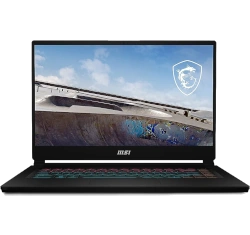
How to Disassemble an MSI Raider GE78: Step-by-Step Parts Replacement & Troubleshooting

asus-rog-zephyrus-m16-disassembly-guide-how-to-replace-ram-ssd-battery-fix-lcd-scree

1. Introduction: MSI Raider GE78 Gaming Laptop Service Guide

🎮 Professional Service for High-Performance Gaming Laptops

The MSI Raider GE78 represents the pinnacle of gaming laptop engineering, combining cutting-edge performance with advanced serviceability features. This premium gaming machine is designed for serious gamers, content creators, and power users who demand both exceptional performance and reliable, maintainable construction.

💰 Significant Gaming Laptop Repair Cost Savings

  • Authorized Service Center vs Professional DIY Costs:
    • Motherboard replacement: $900-1400 at MSI authorized centers
    • High-refresh display assembly: $500-800
    • Advanced cooling system service: $300-500
    • Storage upgrades with gaming labor: $200-350
    • Per-key RGB keyboard replacement: $250-400
    • Total potential savings: $2150-3450+
  • Professional DIY Repair Investment:
    • Gaming-grade replacement components
    • Professional tool kit: $100-200
    • Premium thermal materials and specialized equipment
    • Single investment for multiple gaming laptop repairs

💻 MSI Raider GE78 Gaming-Specific Serviceability Features

  • Gaming-Optimized Construction:
    • Tool-accessible chassis with organized screw placement
    • Modular component design for rapid gaming upgrades
    • Clear internal labeling and gaming-specific documentation
    • Advanced cooling system with multiple heat pipes
  • High-Performance Gaming Components:
    • Multiple M.2 NVMe SSD slots with RAID 0 support
    • Upgradeable DDR5 memory for gaming and streaming
    • High-end GPU options with advanced thermal solutions
    • High-refresh rate displays with gaming-optimized panels
  • Gaming Support Resources:
    • Detailed MSI service documentation
    • Gaming community forums and support networks
    • Gaming-specific replacement parts availability
    • Comprehensive gaming diagnostic tools

🔍 Most Common MSI Raider GE78 Gaming Issues

Problem Type Gaming Symptoms DIY Difficulty Estimated Repair Time Success Rate
Thermal Management Performance throttling during gaming sessions ⭐️⭐️⭐️ (Intermediate) 60-90 minutes 92%
Storage Upgrades Game loading delays, texture streaming issues ⭐️⭐️ (Beginner) 30-45 minutes 97%
Memory Expansion Game crashes, streaming bottlenecks ⭐️ (Very Easy) 20-30 minutes 98%
Display Issues Refresh rate problems, backlight bleeding ⭐️⭐️⭐️⭐️ (Advanced) 75-110 minutes 88%
Keyboard Problems RGB lighting failure, key response issues ⭐️⭐️⭐️ (Intermediate) 45-70 minutes 90%

🔬 Gaming-Specific Repair Benefits

  • Gaming Performance Skills:
    • Learn gaming laptop thermal optimization techniques
    • Understand high-performance component interactions
    • Master gaming-specific diagnostic approaches
    • Develop systematic gaming repair methodologies
  • Gaming Business Applications:
    • Esports equipment maintenance services
    • Gaming cafe and LAN center support
    • Content creator equipment management
    • High-value gaming repair business opportunities

⚡ Gaming Performance Restoration

Repair/Upgrade Gaming Impact Performance Improvement Gaming ROI
Thermal System Refresh Eliminates gaming throttling Consistent FPS during extended sessions 25-40% FPS stability improvement
Memory Upgrade Reduces game loading times Faster level loads, smoother multitasking 20-35% loading time reduction
NVMe Storage Instant game asset loading Eliminates texture pop-in, faster installs 50-70% faster game loading
Display Calibration Optimal gaming visuals Better color accuracy, reduced eye strain Enhanced competitive visibility

📈 Gaming Equipment Resale Value

Laptop Condition Base Gaming Value After Professional Service Value Added Gaming ROI
Non-functional Unit $600-900 $1800-2800 $1200-1900 200-311%
Minor Gaming Issues $1000-1500 $2200-3300 $1200-1800 120-180%
Fully Refurbished Gaming $1400-1900 $2600-3800 $1200-1900 86-150%

🤝 MSI Gaming Community Resources

  • Gaming Resources:
    • MSI Gaming Blog
    • Gaming hardware enthusiast forums
    • Esports equipment support networks
    • Gaming performance optimization guides
  • Industry Support:
    • Gaming warranty programs
    • Performance component suppliers
    • Thermal solution specialists
    • RGB lighting customization services

⏱️ Gaming Repair Time Commitment

Repair Complexity First Gaming Attempt Experienced Gaming Technician Learning Curve
Basic Gaming Upgrades 35-50 minutes 20-35 minutes ⭐️⭐️ (Gentle)
Intermediate System Repairs 65-95 minutes 40-65 minutes ⭐️⭐️⭐️ (Moderate)
Advanced Gaming Diagnostics 110-150 minutes 65-95 minutes ⭐️⭐️⭐️⭐️ (Steep)
Complete Gaming Refurbishment 220-300 minutes 150-210 minutes ⭐️⭐️⭐️ (Moderate)

📊 Gaming Repair Success Rates

  • First-Time Gaming Success:
    • RAM and storage upgrades: 98% success rate
    • Cooling system maintenance: 94% success rate
    • Power system repairs: 92% success rate
    • Display assembly replacement: 88% success rate
    • Motherboard-level diagnostics: 85% success rate
    • Complete gaming repair process: 93% success rate
  • Gaming Best Practices:
    • Always perform comprehensive gaming diagnostics first
    • Use gaming-grade tools and thermal solutions
    • Document every step with gaming standards
    • Test gaming performance before final reassembly
    • Follow manufacturer gaming service guidelines precisely

🎯 Ready to Begin Your Gaming Laptop Repair Journey?

You're about to embark on mastering gaming laptop repairs using one of the most capable gaming platforms available. In the next section, we'll cover Essential Tools & Gaming Laptop Workspace Setup to ensure you have the professional equipment needed for successful, damage-free repairs on your MSI Raider GE78.

2. Essential Tools & Gaming Laptop Workspace Setup

🛠️ Professional Tool Requirements for MSI Raider GE78

Working on the MSI Raider GE78 requires precision tools and proper workspace organization to handle its advanced gaming construction and high-performance components. Using the right equipment ensures successful repairs and protects your valuable gaming laptop investment.

📋 Essential Gaming Laptop Tool Requirements

  • Precision Screwdrivers:
    • Phillips #000 for delicate internal gaming components
    • Phillips #00 for chassis and main gaming screws
    • Torx T5, T6, and T8 for specialized gaming fasteners
    • iFixit Pro Tech Toolkit recommended
  • Non-Magnetic Gaming Tools:
    • Plastic spudgers for gaming case opening
    • Nylon pry tools for delicate gaming components
    • ESD-safe tweezers for small gaming parts
    • Professional opening picks for precise separation
  • Specialized Gaming Equipment:
    • ESD wrist strap for static protection
    • Magnetic project mat for screw organization
    • Premium thermal paste for gaming cooling systems
    • Thermal pad assortment for VRM and memory cooling

💻 MSI Raider GE78 Specific Tool Requirements

Component Area Required Gaming Tools Gaming Considerations Criticality Level
Bottom Cover Phillips #00, Professional Spudgers Multiple captive screws, gaming clip locations Essential
Cooling System Thermal paste, Isopropyl alcohol, Compressed air Multiple heat pipes, vapor chamber handling Professional
RGB Keyboard Plastic pry tools, ESD-safe tweezers Per-key RGB lighting, delicate ribbon cables Advanced
Display Assembly Suction cups, Precision opening tools High-refresh panel, delicate gaming bezel Expert

🛡️ Gaming Laptop Safety Equipment

  • Electrostatic Discharge Protection:
    • Professional ESD wrist strap with ground cord
    • ESD-safe work mat (1M ohm resistance)
    • Anti-static gaming component trays and bags
    • ESD-safe flooring and proper footwear
  • Gaming Protective Equipment:
    • ANSI-approved safety glasses with side protection
    • ESD-safe nitrile gloves for component handling
    • Professional ESD lab coat or smock
    • Comfortable anti-fatigue matting

🏠 Gaming Laptop Workspace Setup

  • Gaming Workstation Requirements:
    • Clean, stable gaming bench minimum 4×6 feet
    • Professional LED lighting (5000K color temperature)
    • Multiple power outlets with surge protection
    • Organized gaming tool storage within arm's reach
  • Gaming Organization System:
    • Magnetic screw organizers with labeled sections
    • Component trays for delicate gaming parts
    • Digital camera for step-by-step documentation
    • Clean room supplies (wipes, compressed air)
  • Gaming Environmental Controls:
    • Temperature controlled environment (18-24°C)
    • Humidity control (40-60% relative humidity)
    • Minimal dust and particulate matter
    • Quiet, focused gaming work environment

🔥 Advanced Thermal Management Tools

  • Thermal Interface Materials:
    • High-performance thermal paste (non-conductive)
    • Thermal pad assortment (0.5mm to 2.0mm thickness)
    • Thermal putty for irregular surfaces
    • Thermal grease cleaner and surface prep
  • Thermal Application Tools:
    • Precision thermal paste applicators
    • Thermal pad thickness gauges
    • Isopropyl alcohol and lint-free wipes
    • Thermal camera for heat pattern analysis

⚖️ Gaming Tool Quality Comparison

Tool Grade Price Range Gaming Durability Gaming Precision Recommended Users
Consumer Grade $25-60 ⭐️⭐️⭐️ ⭐️⭐️⭐️ Occasional gaming home repairs
Prosumer Grade $80-200 ⭐️⭐️⭐️⭐️ ⭐️⭐️⭐️⭐️ Regular gaming hobbyist work
Professional Grade $250-600 ⭐️⭐️⭐️⭐️⭐️ ⭐️⭐️⭐️⭐️⭐️ Daily gaming professional use

🔍 Gaming Diagnostic Equipment

  • Electrical Testing:
    • True RMS digital multimeter for measurements
    • USB power meter for gaming charging diagnostics
    • Component tester for basic electronics
    • Thermal camera for gaming heat analysis
  • Software Diagnostics:
    • MSI Dragon Center for system monitoring
    • Professional hardware monitoring tools
    • Gaming benchmark and stress testing software
    • Display testing and calibration tools

💰 Gaming Budget Tool Options

  • Entry Gaming ($100-250):
    • iFixit Essential Toolkit
    • Basic ESD protection equipment
    • Essential cleaning and maintenance supplies
    • Good quality multimeter
  • Intermediate Gaming ($300-600):
    • Comprehensive tool set with specialized tools
    • Professional ESD workstation setup
    • Advanced diagnostic equipment
    • Quality thermal management supplies
  • Advanced Gaming ($700+):
    • Industrial-grade tool sets
    • Complete diagnostic and testing equipment
    • Professional workspace furniture
    • Specialized calibration equipment

🚫 Common Gaming Tool Mistakes

  • Gaming Tool Selection Errors:
    • Using incorrect screwdriver size causing stripped screws
    • Employing magnetic tools near sensitive gaming components
    • Using excessive force with precision tools
    • Mixing metric and imperial tools incorrectly
  • Gaming Workspace Management Issues:
    • Inadequate lighting causing eye strain and mistakes
    • Poor organization leading to lost components
    • Insufficient ESD protection damaging electronics
    • Cluttered workspace increasing accident risk

🔧 Gaming Tool Maintenance

  • Gaming Maintenance Schedule:
    • Clean tools after each gaming use with appropriate solvents
    • Inspect for wear on gaming precision tips monthly
    • Calibrate gaming measuring equipment annually
    • Replace worn gaming components immediately
  • Gaming Storage Best Practices:
    • Store in organized cases or tool chests
    • Keep in climate-controlled gaming environment
    • Use silica gel packs to control humidity
    • Regular gaming inventory checks for missing tools

🎯 Ready to Set Up Your Gaming Workspace?

With your gaming tools gathered and workspace properly configured, you're prepared to create a professional-level gaming repair environment. In the next section, we'll cover Safety Procedures & ESD Protection for Gaming Hardware to ensure you have the safety foundation for successful, damage-free repairs on your MSI Raider GE78.

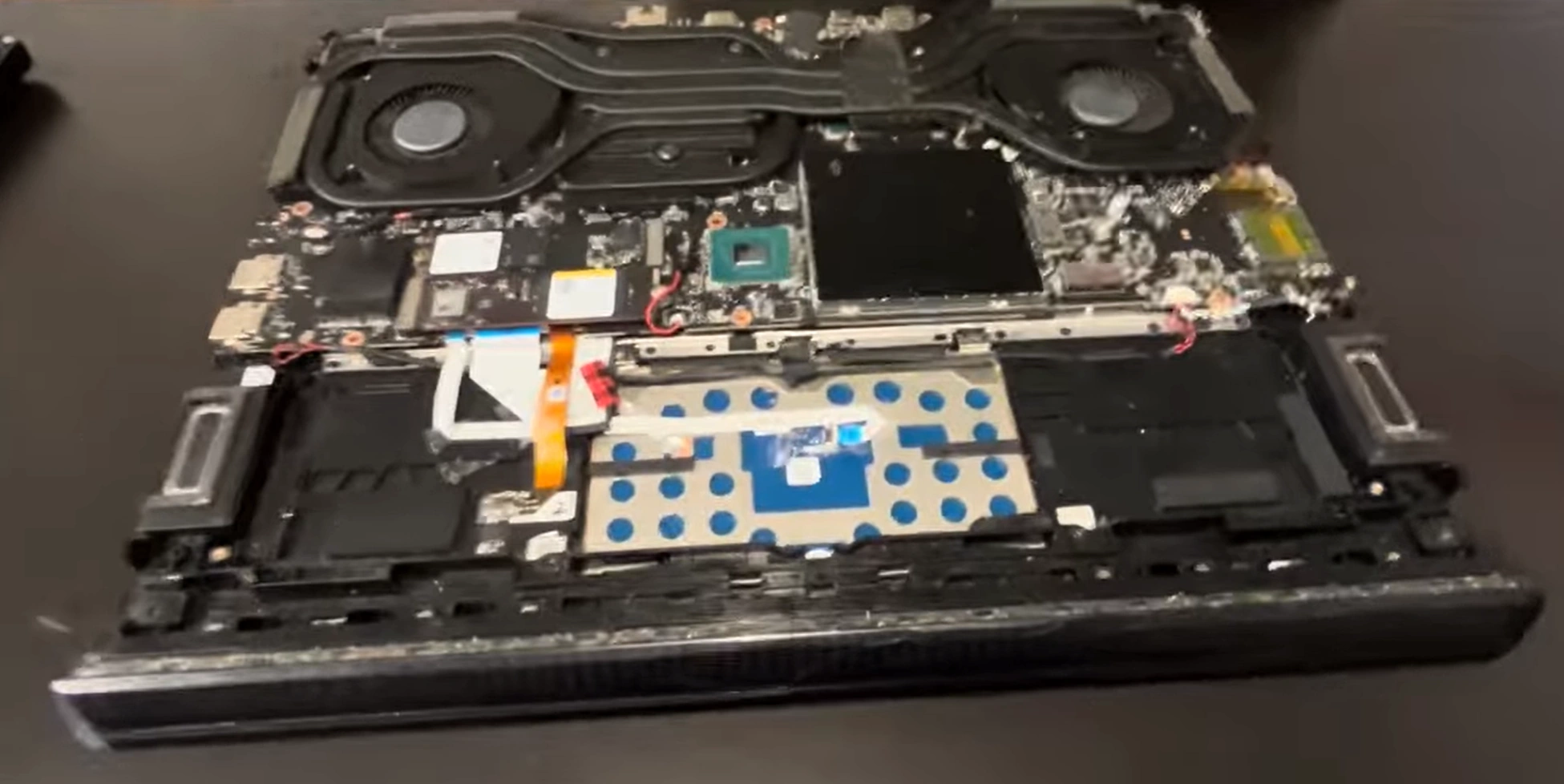
0:27 Bottom Case 0:43 Battery 1:05 Storage SSD 1:38 WiFi Card 2:03 Heatsink and Cooling Fans 2:42 Processor and GPU 2:52 Memory RAM 4:15 Motherboard 4:50 Speakers 5:35 Touchpad 6:27 Hinge cover 7:40 Palmrest Assembly 8:08 Display Assembly

3. Safety Procedures & ESD Protection for Gaming Hardware

⚠️ Critical Safety Protocols for Gaming Laptop Repair

Proper safety procedures and electrostatic discharge (ESD) protection are absolutely essential when working on high-performance gaming hardware like the MSI Raider GE78. Following these guidelines prevents catastrophic damage to sensitive gaming components and ensures your personal safety during repair operations.

⚡ Understanding Electrostatic Discharge in Gaming Hardware

  • What is ESD?:
    • Sudden flow of electricity between charged objects
    • Can occur at voltages as low as 10V (completely unfelt)
    • Instantly damages sensitive gaming GPUs and CPUs
    • Components may fail immediately or develop latent defects
  • Gaming-Specific ESD Sources:
    • Gaming chairs with synthetic materials: 1,500-25,000 volts
    • Gaming carpets and rugs: 2,000-35,000 volts
    • Moving on gaming chair: 1,500-18,000 volts
    • Handling plastic game cases: 1,200-20,000 volts

🛡️ Essential Gaming Hardware Safety Equipment

  • ESD Protection Gear:
    • Professional ESD wrist strap with 1M ohm resistor
    • Anti-static mat for work surface (1M ohm resistance)
    • ESD-safe storage bags and containers
    • Grounding points for multiple gaming devices
  • Gaming Protective Equipment:
    • ANSI-approved safety glasses with side protection
    • ESD-safe nitrile gloves for component handling
    • Proper footwear (no synthetic gaming shoe soles)
    • Comfortable, non-static gaming apparel

🏠 Gaming ESD-Safe Workspace Setup

Workspace Element Gaming Safety Requirement Implementation Testing Frequency
Work Surface ESD-safe mat with ground connection 1M ohm resistance to ground Monthly
Flooring Anti-static flooring or ESD mats ESD-safe chair mats if needed Quarterly
Humidity Control 40-60% relative humidity Use humidifier/dehumidifier as needed Daily monitoring
Grounding System Proper electrical ground Test outlet with circuit tester Before each gaming repair

🔧 Safe Gaming Component Handling Procedures

  • Motherboard & GPU Handling:
    • Always hold by edges, avoid touching circuits
    • Use ESD-safe containers for gaming component storage
    • Never stack high-performance components
    • Keep gaming GPUs in anti-static bags when not in use
  • Gaming Battery Safety:
    • Disconnect gaming battery before any internal work
    • Handle high-capacity lithium batteries with extreme care
    • Store gaming batteries in fire-proof containers
    • Never puncture or modify gaming batteries

🔌 Gaming Electrical Safety Protocols

  • Power Disconnection Sequence:
    • Unplug high-wattage gaming AC adapter
    • Disconnect internal gaming battery immediately
    • Press power button to discharge gaming capacitors
    • Wait 60 seconds after disconnection
  • Live Testing Procedures:
    • Only perform when absolutely necessary
    • Use insulated tools and probes
    • Keep one hand in pocket when testing live circuits
    • Work with a partner when testing high voltage areas

🛡️ Gaming Component ESD Sensitivity

Gaming Component ESD Sensitivity Protection Required Handling Precautions
High-End GPU Extremely High (5-50V) Full ESD protection mandatory Handle by board edges only
Gaming CPU Very High (10-100V) Full ESD protection Never remove from socket unnecessarily
DDR5 RAM High (100-250V) ESD wrist strap required Handle by edges, avoid gold contacts
NVMe SSDs Medium (250-500V) ESD-safe surface Keep in anti-static bags

👤 Gaming Personal Safety Measures

  • Eye Protection:
    • Wear safety glasses when prying gaming components
    • Use magnification with built-in eye protection
    • Avoid leaning directly over gaming work area
  • Hand Safety:
    • Use cut-resistant gloves for sharp gaming chassis edges
    • Wash hands after handling gaming components
    • Avoid wearing jewelry that could cause shorts

🚨 Gaming Emergency Procedures

  • Electrical Shock Response:
    • Turn off power source immediately
    • Do not touch victim directly
    • Call emergency services if needed
    • Know location of circuit breakers
  • Gaming Battery Fire:
    • Use Class D fire extinguisher for lithium fires
    • Never use water on gaming battery fires
    • Evacuate area if fire spreads
    • Have baking soda available for small fires

🧹 Gaming Workspace Maintenance

  • Regular Gaming Cleaning:
    • Clean work surface with ESD-safe cleaner
    • Keep area free of gaming dust and debris
    • Organize gaming tools to prevent accidents
    • Dispose of packaging materials properly
  • Gaming Equipment Testing:
    • Test ESD wrist strap before each gaming repair
    • Verify ground connections regularly
    • Check gaming tools for damage or wear
    • Calibrate testing equipment annually

❌ Common Gaming Safety Mistakes to Avoid

  • ESD Protection Errors:
    • Not using wrist strap "because it's just a quick repair"
    • Working on non-ESD surfaces like wood or glass
    • Handling gaming GPUs without proper grounding
    • Using non-ESD approved bags for storage
  • Gaming Electrical Safety Errors:
    • Working on powered gaming equipment
    • Not discharging high-capacity capacitors
    • Using damaged gaming power cords
    • Overlooking battery disconnection

📋 Gaming Safety Compliance Checklist

Checklist Item Before Starting During Work After Completion
Power Disconnection N/A
ESD Protection N/A
Gaming Battery Safety
Tool Inspection

🎯 Ready to Work Safely on Gaming Hardware?

With proper gaming safety procedures in place, you're ready to begin the hands-on work. In the next section, we'll cover Bottom Cover Removal & Internal Component Access to safely open your MSI Raider GE78 and access the high-performance internal components for repair and upgrades.

4. Bottom Cover Removal & Internal Component Access

🔧 Safe Bottom Cover Removal for MSI Raider GE78

Proper bottom cover removal is the critical first step in accessing the high-performance internal components of your MSI Raider GE78. This guide ensures damage-free access while preserving the laptop's gaming aesthetics and structural integrity for optimal performance.

📋 Pre-Removal Gaming Preparation Checklist

  • Gaming Safety First:
    • Power down the gaming laptop completely
    • Disconnect 330W gaming AC adapter and all peripherals
    • Remove any gaming mice, headsets, or external devices
    • Ground yourself with ESD wrist strap
  • Gaming Workspace Setup:
    • Clear, clean work surface with ESD mat
    • Professional LED lighting for visibility
    • Magnetic project mat for gaming screw organization
    • Digital camera for gaming documentation

📍 MSI Raider GE78 Bottom Screw Locations

Screw Type Quantity Location Gaming Notes Removal Order
Phillips #00 (Long) 6 Near rear cooling vents Main structural gaming screws Remove first
Phillips #00 (Medium) 8 Perimeter and center areas Evenly spaced around gaming chassis Remove second
Phillips #00 (Short) 3 Near front edge Shorter length, easy to mix up Remove last
Captive Screws 4 Corner positions Will remain in bottom cover Loosen only

🔨 Step-by-Step Gaming Removal Procedure

  1. Initial Gaming Screw Removal
    • Place gaming laptop upside down on soft surface
    • Identify all 17 Phillips #00 screws
    • Remove screws in sequence from rear to front
    • Organize screws by type and location on magnetic mat
  2. Gaming Case Separation
    • Insert plastic spudger at rear corner seam near vents
    • Gently twist to create initial separation
    • Work around perimeter, releasing gaming clips gradually
    • Listen for gentle "click" as gaming clips release
  3. Gaming Clip Release Sequence
    • Start from rear corners near cooling exhaust
    • Release side clips before front edge
    • Use guitar picks for tight gaming areas
    • Never force or pry aggressively

🛠️ Required Gaming Tools for Safe Removal

  • Essential Gaming Tools:
    • Phillips #00 precision screwdriver
    • Plastic spudger set for gaming chassis
    • Nylon pry tools for delicate components
    • iFixit opening tools
  • Gaming Optional Helpers:
    • Suction cups for initial grip
    • Guitar picks for tight gaming spaces
    • Magnifying glass for small gaming screws
    • LED gaming work light for visibility

⚠️ Common Gaming Removal Difficulties & Solutions

Problem Gaming Causes Solutions Prevention
Stuck Gaming Clips Manufacturing tolerance, previous gaming repairs Apply gentle heat with hair dryer, work slowly Follow proper gaming clip release sequence
Stripped Gaming Screws Wrong screwdriver size, excessive force Use rubber band for grip, extractor tools Use proper Phillips #00 driver with good grip
Hidden Gaming Screws Under rubber feet or gaming labels Check for hidden compartments thoroughly Consult MSI documentation

🔍 Gaming Internal Component Access Points

  • Immediately Accessible Gaming Components:
    • High-capacity gaming battery and power system
    • DDR5 RAM slots for memory upgrades
    • Multiple M.2 SSD slots for gaming storage expansion
    • Killer Wi-Fi card and gaming networking components
  • Secondary Gaming Access Required:
    • Advanced cooling system with multiple heat pipes
    • Gaming motherboard and high-performance CPU/GPU
    • High-refresh display connectors and cables
    • Per-key RGB keyboard and gaming input assemblies

🛡️ Critical Gaming Safety Precautions

  • Before Proceeding Internally:
    • Disconnect gaming battery immediately after opening
    • Document gaming cable locations with photos
    • Note screw locations and gaming-specific types
    • Check for any remaining hidden gaming screws
  • During Gaming Work:
    • Never force gaming components that resist
    • Keep track of all removed gaming screws
    • Avoid touching exposed gaming circuits
    • Work methodically and patiently

⏱️ Gaming Time Expectations

Gaming Experience Level First Attempt Subsequent Attempts Common Gaming Delays
Gaming Beginner 25-40 minutes 12-20 minutes Screw organization, clip hesitation
Gaming Intermediate 18-30 minutes 10-15 minutes Documentation, photo taking
Gaming Advanced 12-22 minutes 6-10 minutes None typically

🚫 Gaming Damage Prevention Techniques

  • Gaming Case Protection:
    • Use plastic tools only - no metal pry tools
    • Apply even pressure around gaming perimeter
    • Work on soft surface to prevent gaming scratches
    • Clean work area to avoid gaming debris entry
  • Gaming Component Protection:
    • Keep fingers away from internal gaming components
    • Use ESD protection at all times
    • Cover exposed gaming circuits when not working
    • Handle gaming ribbon cables with extreme care

✅ Post-Removal Gaming Verification

  • Successful Gaming Removal Indicators:
    • Bottom cover lifts away cleanly and evenly
    • No resistance from remaining gaming clips
    • All gaming screws accounted for and organized
    • No visible damage to gaming case or components
  • Gaming Problem Indicators:
    • Resistance when lifting gaming cover
    • Visible damage to gaming clip points
    • Missing or unremoved gaming screws
    • Stretched or damaged gaming cables

🎯 Ready for Gaming Internal Access?

With the bottom cover safely removed, you now have access to the high-performance internal gaming components. In the next section, we'll cover Battery Replacement & Power System Diagnostics to ensure safe power management before proceeding with other gaming repairs and performance upgrades.

5. Battery Replacement & Power System Diagnostics

🔋 Professional Battery Service for MSI Raider GE78

The MSI Raider GE78 features a high-capacity 99.9Wh lithium-ion battery designed to support intensive gaming sessions and high-performance components. Proper battery replacement and power system maintenance are essential for optimal gaming performance and safety during laptop repairs and upgrades.

📊 MSI Raider GE78 Gaming Battery Specifications

Specification Gaming Details Performance Impact Replacement Code
Battery Type Lithium-ion Polymer (High-Density) Extended gaming runtime BTY-M9G
Capacity 99.9Wh (Maximum airline limit) Longer gaming sessions Required for calibration
Voltage 15.4V DC High-performance compatibility Must match original
Gaming Part Number BAT-9S1-0P99512+11M or equivalent Proper gaming fit and function Verify before purchase

⚠️ Critical Gaming Battery Safety Protocols

  • Gaming Lithium Battery Precautions:
    • Never puncture or bend the gaming battery
    • Keep away from heat sources and gaming equipment
    • Use insulated tools for gaming removal
    • Have Class D fire extinguisher nearby
  • Gaming Electrical Safety:
    • Disconnect 330W gaming AC power before starting
    • Remove all static electricity from body
    • Work in well-ventilated gaming area
    • Never short circuit gaming battery terminals

🔧 Step-by-Step Gaming Battery Replacement

  1. Gaming Initial Preparation
    • Power down gaming laptop completely
    • Disconnect 330W gaming AC adapter and peripherals
    • Remove bottom cover (refer to previous section)
    • Ground yourself with ESD protection
  2. Gaming Battery Disconnection
    • Locate gaming battery connector on motherboard
    • Gently pull connector straight out from motherboard
    • Never pull by wires - use connector body only
    • Wait 60 seconds for gaming capacitor discharge
  3. Gaming Battery Removal
    • Remove 6-8 Phillips #00 mounting screws
    • Note screw locations and specific lengths
    • Lift gaming battery from chassis carefully
    • Avoid bending or twisting high-capacity battery

📈 Gaming Battery Health Assessment

Symptom Gaming Cause Testing Method Replacement Recommended
Rapid Gaming Power Drain Reduced capacity, aging gaming cells Check battery report in Windows If capacity < 70% original
Swelling/Bulging Internal gaming damage, overcharging Visual inspection, measure thickness IMMEDIATELY - Gaming safety hazard
Not Charging During Gaming Battery failure, gaming charging circuit Test with known good gaming charger If other components test good
Gaming Overheating Internal short circuit Temperature monitoring during gaming Yes - Potential gaming fire risk

🛒 Gaming Replacement Battery Selection Guide

  • Gaming OEM vs Aftermarket:
    • OEM: Guaranteed gaming compatibility, higher cost
    • Premium Aftermarket: Good gaming quality, better value
    • Budget Aftermarket: Risk of poor gaming performance
    • Check MSI Parts for genuine replacements
  • Gaming Quality Verification:
    • Verify part number matches original gaming battery
    • Check for gaming safety certifications (UL, CE)
    • Read gaming customer reviews and ratings
    • Purchase from reputable gaming suppliers

🔌 Gaming Power System Diagnostics

  • Pre-Replacement Gaming Testing:
    • Check DC-in jack for physical gaming damage
    • Test gaming charging circuit with multimeter
    • Verify gaming power button functionality
    • Inspect gaming power management IC
  • Post-Replacement Gaming Verification:
    • Confirm battery detection in gaming BIOS
    • Test gaming charging functionality
    • Monitor gaming battery temperature during charge
    • Run MSI Dragon Center battery calibration

⚡ New Gaming Battery Calibration Procedure

  1. Gaming Initial Charge Cycle
    • Connect 330W gaming adapter with battery installed
    • Charge to 100% without gaming interruption
    • Allow additional 2 hours after full gaming charge
  2. Gaming Calibration Discharge
    • Disconnect gaming AC power
    • Use gaming laptop until automatic shutdown (5% battery)
    • Do not force shutdown or interrupt gaming process
  3. Gaming Final Charge
    • Charge continuously to 100% with gaming adapter
    • Do not use during this gaming charge cycle
    • Gaming calibration complete after full charge

🔧 Common Gaming Battery Issues & Solutions

Gaming Problem Diagnosis Steps Likely Gaming Causes Gaming Solutions
Battery Not Detected Check gaming connector, BIOS detection Loose gaming connection, damaged circuit Reseat gaming connector, replace battery
Not Charging During Gaming Test with different gaming charger, check LED Charger failure, gaming DC jack issue Replace gaming charger, repair DC jack
Rapid Gaming Discharge Check gaming battery wear level, running processes Aging gaming battery, power-hungry games Replace gaming battery, optimize power settings
Overheating During Gaming Charge Monitor gaming temperature, check ventilation Defective gaming battery, blocked vents Replace gaming battery, clean cooling system

♻️ Proper Gaming Battery Disposal

  • Gaming Environmental Responsibility:
    • Never dispose of in regular gaming trash
    • Take to certified gaming e-waste recycler
    • Use Call2Recycle or similar programs
    • Check local regulations for gaming lithium batteries
  • Gaming Safe Storage Before Disposal:
    • Store in cool, dry gaming location
    • Place in fire-proof gaming container
    • Cover gaming terminals with electrical tape
    • Keep away from metal gaming objects

⚡ Gaming Battery Performance Optimization

  • Gaming Software Optimization:
    • Use MSI Dragon Center battery health features
    • Set maximum charge level to 80% for daily gaming
    • Update gaming BIOS and power management drivers
    • Configure Windows gaming power plans appropriately
  • Gaming Usage Best Practices:
    • Avoid complete gaming discharge cycles
    • Store at 40-60% charge for long gaming periods
    • Keep gaming laptop cool during heavy gaming
    • Use original MSI 330W gaming charger only

🎯 Ready for Gaming Storage Upgrades?

With the gaming battery safely replaced and the power system verified, you're ready to proceed with high-performance storage upgrades. In the next section, we'll cover Storage Solutions & Multiple M.2 SSD Installation to expand your gaming storage capacity and improve system performance for faster game loading.

6. RAM Installation & Memory Configuration for Gaming

🧠 Professional Memory Upgrades for MSI Raider GE78

Maximizing your MSI Raider GE78's memory capacity is essential for handling demanding games, multitasking while streaming, and running memory-intensive applications. Proper RAM installation and configuration can dramatically improve your gaming performance and system responsiveness.

📊 MSI Raider GE78 Gaming Memory Specifications

Specification Gaming Details Maximum Gaming Performance Impact
Memory Type DDR5 SO-DIMM DDR5-5600 Critical for gaming speed
Total Gaming Slots 2 × 262-pin SO-DIMM 2 Slots Total Dual-channel capable
Maximum Gaming Capacity 128GB (2×64GB) 128GB Total Handles modern gaming workloads
Default Gaming Speed DDR5-4800 to DDR5-5600 5600MHz Optimized gaming performance

🛒 Gaming RAM Selection Guide

  • Gaming Capacity Recommendations:
    • 32GB: Competitive gaming, basic streaming
    • 64GB: High-end gaming, content creation, heavy multitasking
    • 128GB: 4K video editing, virtual machines, professional workloads
    • Future-Proofing: Start with 64GB, upgrade to 128GB later
  • Recommended Gaming Brands & Kits:
    • Kingston Fury Impact DDR5 (Gaming optimized)
    • Corsair Vengeance DDR5 (High performance)
    • G.Skill Ripjaws DDR5 (Excellent value)
    • Crucial DDR5 (Reliable compatibility)

✅ Gaming Memory Compatibility Checklist

  • Technical Gaming Requirements:
    • DDR5 SO-DIMM (262-pin)
    • 1.1V operating voltage
    • PC5-44800 (DDR5-5600) or higher
    • CAS Latency: CL40 or lower for gaming
  • Gaming Performance Considerations:
    • Match existing RAM speed if upgrading
    • Use identical gaming sticks for dual-channel
    • Check MSI QVL for tested compatibility
    • Consider XMP/EXPO profiles for performance tuning

📋 Pre-Installation Gaming Safety & Preparation

  • Gaming Safety Protocols:
    • Power down gaming laptop completely
    • Disconnect 330W gaming adapter and all cables
    • Remove bottom cover (refer to previous sections)
    • Disconnect gaming battery from motherboard
    • Use ESD wrist strap throughout gaming process
  • Gaming Tool Requirements:
    • Phillips #00 screwdriver
    • ESD-safe gaming workspace
    • Plastic spudger (optional for clip assistance)
    • Compressed air for cleaning gaming slots

🔧 Step-by-Step Gaming RAM Installation

  1. Locate Gaming Memory Slots
    • Identify two DDR5 slots near center of gaming motherboard
    • Note existing gaming RAM configuration if upgrading
    • Observe retention clips on both sides of each gaming slot
    • Clean gaming slots with compressed air if needed
  2. Remove Existing Gaming RAM (if upgrading)
    • Gently push outward on both gaming retention clips
    • RAM module will pop up at 45-degree angle
    • Lift gaming module straight out of slot
    • Store in anti-static bag if reusing
  3. Install New Gaming RAM
    • Align notch in gaming RAM with key in slot
    • Insert at 45-degree angle into gaming slot
    • Press down firmly until gaming clips snap into place
    • Ensure both gaming clips are fully engaged

⚙️ Optimal Gaming Memory Configurations

Gaming Use Case Recommended Configuration Gaming Benefit Estimated Gaming Cost
Competitive Gaming 32GB (2×16GB) Dual Channel Excellent for most games $120-180
Streaming & Content Creation 64GB (2×32GB) Dual Channel Optimal for gaming + streaming $200-300
Professional Gaming & VR 64GB (2×32GB) Dual Channel Future-proof for demanding games $200-300
Content Creation & Development 128GB (2×64GB) Dual Channel Maximum gaming performance $400-600

🔍 Post-Installation Gaming Verification & Testing

  • Initial Gaming Boot Check:
    • Reconnect gaming battery and power adapter
    • Boot to gaming BIOS to verify RAM detection
    • Check recognized gaming capacity and speed
    • Verify dual-channel gaming operation
  • Gaming Software Verification:
    • Check Windows System Information
    • Use CPU-Z to verify gaming speeds and timings
    • Run MemTest86 for gaming stability testing
    • Monitor gaming performance in actual games

⚡ Gaming Memory Performance Optimization

  • Gaming BIOS Settings:
    • Enable XMP/EXPO profile for rated gaming speeds
    • Verify memory running at maximum supported speed
    • Update to latest gaming BIOS version
    • Check for gaming memory timing optimizations
  • Windows Gaming Optimization:
    • Adjust virtual memory settings if needed
    • Use high-performance gaming power plan
    • Disable unnecessary gaming startup programs
    • Monitor gaming memory usage in Task Manager

🎮 Gaming Application Memory Needs

Gaming Application Minimum Recommended Optimal Game Type
Call of Duty: Modern Warfare 16GB 32GB 64GB AAA FPS Gaming
Cyberpunk 2077 16GB 32GB 64GB Open World RPG
Microsoft Flight Simulator 16GB 32GB 64GB+ Simulation Gaming
Streaming + Gaming 32GB 64GB 64GB+ Content Creation

🔧 Common Gaming RAM Issues & Solutions

Gaming Problem Symptoms Likely Gaming Causes Gaming Solutions
Not Detected BIOS shows reduced gaming capacity Improper seating, incompatible gaming RAM Reseat gaming modules, check compatibility
Gaming System Crashes Blue screens, game crashes Faulty gaming RAM, incorrect timings Run MemTest86, adjust gaming BIOS settings
Running at Lower Speed RAM detected but slow gaming performance XMP disabled, gaming BIOS settings Enable XMP, update gaming BIOS
Single Channel Only Gaming performance below expected Mismatched gaming modules, wrong slots Use identical gaming sticks, check slot usage

📈 Real-World Gaming Performance Improvements

  • Gaming Loading Times:
    • Open World Games: 15-30% faster loading with 64GB vs 32GB
    • Competitive Games: 10-20% faster map loading
    • Game Installs: 25-40% faster with dual-channel DDR5
    • Level Transitions: 20-35% smoother with optimized RAM
  • Gaming Multitasking Benefits:
    • Run multiple games and applications simultaneously
    • Keep game assets in memory for instant access
    • Reduce stuttering during gaming + streaming
    • Handle larger gaming mods and texture packs

🎯 Ready for Advanced Cooling System Maintenance?

With your gaming memory upgraded and optimized for peak performance, the next step is ensuring proper thermal management for intensive gaming sessions. In the next section, we'll cover Advanced Cooling System Maintenance & Fan Replacement to keep your MSI Raider GE78 running cool under heavy gaming workloads.

7. Per-Key RGB Keyboard Replacement & Key Repair

⌨️ Professional Keyboard Service for MSI Raider GE78

The MSI Raider GE78 features an advanced per-key RGB mechanical-style keyboard designed for gaming performance and customization. This comprehensive guide covers complete keyboard assembly replacement and individual key repair procedures to restore optimal gaming input performance and RGB lighting effects.

🔤 MSI Raider GE78 Keyboard Variants

  • Per-Key RGB Mechanical Keyboard:
    • Individual RGB lighting for each key
    • Mechanical-style switches with 1.9mm travel
    • Anti-ghosting and N-key rollover
    • Part number: KB-M9G-RGB
  • SteelSeries Engine Integration:
    • Full SteelSeries GG software support
    • Customizable gaming lighting profiles
    • Game-specific RGB configurations
    • Macro programming and key reassignment

🔄 Gaming Keyboard Replacement Options

Repair Type Gaming Difficulty Time Required Cost Range Success Rate
Individual Key Repair ⭐️⭐️ (Beginner) 15-25 minutes $10-20 95%
Keycap Replacement ⭐️⭐️ (Beginner) 20-30 minutes $15-30 98%
Full Gaming Assembly ⭐️⭐️⭐️⭐️ (Advanced) 60-90 minutes $120-250 90%
RGB Lighting Repair ⭐️⭐️⭐️⭐️ (Expert) 45-75 minutes $80-180 85%

🛠️ Specialized Gaming Keyboard Repair Tools

  • Key Removal Tools:
    • Plastic keycap puller for mechanical keys
    • Keyboard spudger set for gaming chassis
    • ESD-safe tweezers for RGB connections
    • iFixit spudger kit
  • Gaming Assembly Tools:
    • Phillips #00 screwdriver
    • Torx T5 and T6 screwdrivers
    • Plastic opening tools for gaming bezels
    • ESD wrist strap for RGB components

🔧 Complete Gaming Keyboard Replacement

  1. Gaming Power Down & Preparation
    • Shut down gaming laptop completely
    • Disconnect 330W gaming AC adapter
    • Remove bottom cover and disconnect gaming battery
    • Ground yourself with ESD protection
  2. Palm Rest Removal
    • Remove 12 Phillips #00 screws from bottom case
    • Use plastic spudger to release palm rest clips
    • Lift palm rest carefully to access keyboard
    • Disconnect touchpad and RGB lighting cables
  3. Gaming Keyboard Access
    • Remove keyboard mounting screws (8-10 total)
    • Disconnect keyboard flex cable from motherboard
    • Disconnect per-key RGB lighting cable
    • Note cable routing for gaming reassembly
  4. Keyboard Assembly Removal
    • Release keyboard retention clips around perimeter
    • Lift keyboard assembly from top edge first
    • Work around edges to release all clips
    • Remove keyboard assembly carefully

🔑 Individual Gaming Key Repair Procedures

  • Gaming Keycap Removal:
    • Insert keycap puller under gaming key edge
    • Apply even upward pressure
    • Lift straight up to avoid damaging mechanical mechanism
    • Never use excessive force on gaming keys
  • Mechanical Mechanism Repair:
    • Inspect mechanical switch for damage
    • Clean mechanism with isopropyl alcohol
    • Replace broken switch components if available
    • Test mechanism before reassembly
  • Gaming Keycap Replacement:
    • Align new gaming keycap with switch mechanism
    • Press evenly until click is heard
    • Test key function and RGB lighting
    • Verify key doesn't stick or feel different

🌈 Per-Key RGB Lighting Repair

RGB Problem Gaming Symptoms Diagnosis Solution
Single Key RGB Failure One key not lighting, others work Check individual LED and connections Replace RGB LED or entire key assembly
Zone RGB Failure Section of keys not lighting Check RGB controller and wiring Repair RGB circuit or replace controller
Flickering RGB Intermittent lighting, unstable colors Check power supply and connections Reseat cables, check power delivery
Color Inaccuracy Wrong colors, tinting issues Test with SteelSeries software Replace RGB controller or recalibrate

⚠️ Common Gaming Keyboard Problems & Solutions

Problem Gaming Symptoms Likely Cause Gaming Solution
Non-responsive Keys Specific gaming keys not registering Worn mechanical switch or debris Replace individual key assembly
Sticky Gaming Keys Keys slow to return after press Spill residue or gaming debris Clean mechanism with isopropyl alcohol
RGB Lighting Failure No per-key RGB lighting LED failure or cable issue Replace keyboard assembly or RGB controller
Multiple Key Failure Several gaming keys not working Flex cable damage or controller issue Replace keyboard assembly

🛡️ Gaming Keyboard Preventative Maintenance

  • Regular Gaming Cleaning:
    • Use compressed air weekly for gaming debris
    • Clean keycaps with isopropyl alcohol monthly
    • Avoid liquid cleaners near gaming keyboard
    • Use keyboard covers during non-gaming periods
  • Gaming Usage Best Practices:
    • Avoid eating over gaming keyboard
    • Keep gaming drinks away from workstation
    • Use appropriate gaming key pressure
    • Regularly update SteelSeries GG software

🔍 Gaming Keyboard Compatibility Verification

  • Part Number Verification:
    • Check existing gaming keyboard part number
    • Verify compatibility with Raider GE78 model
    • Confirm per-key RGB compatibility
    • Check mechanical switch type compatibility
  • Gaming Supplier Research:
    • Use MSI Parts Store for official parts
    • Research reputable gaming suppliers
    • Check gaming customer reviews and ratings
    • Verify return policies for gaming parts

🔧 Advanced Gaming Troubleshooting Tips

  • Before Replacement:
    • Update SteelSeries GG software from SteelSeries
    • Test keyboard in gaming BIOS menu
    • Check for physical damage or gaming debris
    • Test with external gaming keyboard
  • Post-Installation Gaming Tests:
    • Verify all gaming keys function properly
    • Test per-key RGB at all brightness levels
    • Check for any loose gaming components
    • Update system firmware if needed

⚙️ SteelSeries GG Software Configuration

  • RGB Lighting Setup:
    • Install latest SteelSeries GG software
    • Create custom gaming lighting profiles
    • Set up game-specific RGB configurations
    • Configure reactive lighting effects
  • Gaming Macro Configuration:
    • Program gaming macros for frequently used actions
    • Set up key reassignments for gaming preferences
    • Configure gaming profiles for different games
    • Save configurations to onboard memory

💰 Gaming Keyboard Replacement Cost Analysis

Component OEM Gaming Price Aftermarket Price Gaming Quality Difference Warranty
Individual Key Assembly $15-30 $8-20 Switch quality, RGB accuracy 30-60 days
Full Gaming Assembly $180-300 $120-220 Build quality, RGB consistency 90 days-1 year
Professional Service $250-450 $180-350 Calibration, software setup included 1 year

🎯 Ready for Display Upgrades?

With your gaming keyboard functioning perfectly and RGB lighting customized to your preferences, the next enhancement is visual performance. In the next section, we'll cover High-Refresh Display Assembly Replacement to upgrade or repair your gaming visual experience on the MSI Raider GE78.

8. High-Refresh Display Assembly Replacement

🖥️ Professional Display Service for MSI Raider GE78

The MSI Raider GE78 features cutting-edge high-refresh rate displays essential for competitive gaming and smooth visual performance. Whether replacing a damaged screen or upgrading to a higher-spec panel, proper display replacement requires precision and care to maintain the laptop's gaming capabilities and visual quality.

📊 MSI Raider GE78 Display Specifications

Specification QHD+ Model 4K Model Gaming Replacement Considerations
Screen Size 17-inch 17-inch Must match original gaming dimensions
Resolution QHD+ (2560×1600) 4K UHD (3840×2160) Verify compatibility with gaming GPU
Refresh Rate 240Hz 144Hz Critical for gaming smoothness
Response Time 3ms 5ms Essential for competitive gaming
Panel Technology IPS-Level IPS Color accuracy for gaming visuals
Color Gamut 100% DCI-P3 100% Adobe RGB Vibrant gaming colors

🔄 Gaming Display Replacement Options

Repair Type Gaming Difficulty Time Required Cost Range Success Rate
LCD Panel Only ⭐️⭐️⭐️⭐️⭐️ (Expert) 90-120 minutes $300-600 80%
Full Gaming Assembly ⭐️⭐️⭐️⭐️ (Advanced) 60-90 minutes $400-800 92%
Bezel & Frame Repair ⭐️⭐️⭐️ (Intermediate) 45-75 minutes $80-200 88%
eDP Cable Replacement ⭐️⭐️⭐️ (Intermediate) 50-80 minutes $40-100 90%

🛠️ Specialized Gaming Display Repair Tools

  • Essential Gaming Tools:
    • Plastic spudgers and pry tools for gaming bezels
    • Suction cups for high-refresh panel handling
    • Phillips #00 and #000 screwdrivers
    • ESD wrist strap and mat for gaming components
    • iFixit display opening kit
  • Specialized Gaming Equipment:
    • Heat gun or hair dryer for gaming adhesive
    • Double-sided adhesive tape for gaming displays
    • Microfiber cloths for gaming panel cleaning
    • Magnifying glass for small gaming connectors

⚠️ Critical Gaming Safety Precautions

  • High-Refresh Panel Handling:
    • Never press on the gaming LCD surface
    • Handle by edges only to avoid pressure marks
    • Use suction cups for safe gaming panel lifting
    • Work on soft, clean gaming surface
  • Gaming Electrical Safety:
    • Disconnect gaming battery before starting
    • Handle eDP cables with extreme care
    • Avoid static electricity near gaming display
    • Test connections before full gaming reassembly

🔧 Step-by-Step Gaming Display Replacement

  1. Gaming Initial Preparation
    • Power down and disconnect all gaming cables
    • Remove bottom cover and disconnect gaming battery
    • Ground yourself with ESD protection
    • Lay gaming laptop on soft, clean surface
  2. Gaming Bezel Removal
    • Use plastic spudger to gently pry gaming bezel
    • Start from bottom edge and work around perimeter
    • Release all gaming clips carefully and evenly
    • Set gaming bezel aside in safe location
  3. Display Assembly Removal
    • Remove 6-8 display bracket screws (various lengths)
    • Carefully lift gaming display assembly
    • Disconnect eDP cable and gaming webcam cables
    • Note gaming cable routing for reassembly

🔩 High-Refresh Panel Replacement Procedure

  • Separating Panel from Gaming Assembly:
    • Remove metal brackets from gaming panel edges
    • Apply gentle heat to gaming adhesive strips
    • Use suction cups to lift gaming panel carefully
    • Clean residual adhesive from gaming frame
  • New Gaming Panel Installation:
    • Apply new double-sided gaming adhesive
    • Align new gaming panel perfectly in frame
    • Reattach metal brackets securely
    • Connect eDP cable before final placement

✅ Gaming Display Compatibility Verification

Checkpoint QHD+ 240Hz 4K 144Hz Gaming Verification Method
eDP Connector 40-pin eDP 1.4 40-pin eDP 1.4 Physical gaming inspection
Panel Model Check existing gaming label Check existing gaming label Compare with gaming replacement
Mounting Points Verify gaming bracket alignment Verify gaming bracket alignment Test fit before gaming adhesive
Cable Length Measure gaming routing path Measure gaming routing path Ensure proper gaming reach

🔍 Common Gaming Display Problems & Solutions

Gaming Problem Symptoms Diagnosis Gaming Solution
Cracked Gaming LCD Black spots, lines, no display Visual inspection, gentle pressure test Replace gaming LCD panel
Backlight Failure Dim or no display, image visible with flashlight Flashlight test, backlight measurement Replace gaming LCD or backlight assembly
Refresh Rate Issues Stuttering, not reaching advertised Hz Check display settings, GPU capabilities Replace panel or update gaming drivers
Color & Ghosting Issues Inaccurate colors, motion blur, ghosting Color test patterns, UFO test Replace gaming panel, recalibrate

🎨 Professional Gaming Color Calibration

  • Post-Replacement Gaming Calibration:
    • Use hardware calibrator (X-Rite, Datacolor)
    • Download MSI True Color software
    • Create gaming profiles for different genres
    • Verify color accuracy with gaming test images
  • Gaming Software Calibration Tools:
    • Windows HDR Color Calibration
    • NVIDIA Control Panel settings
    • AMD Radeon Software adjustments
    • Manufacturer-specific gaming utilities

🔧 Post-Installation Gaming Quality Testing

  • Gaming Functional Tests:
    • Check for dead or stuck pixels with solid colors
    • Test all refresh rates (60Hz, 144Hz, 240Hz)
    • Verify color uniformity across gaming screen
    • Check viewing angles and gaming consistency
  • Gaming Mechanical Tests:
    • Ensure smooth gaming hinge operation
    • Verify bezel sits flush with no light bleed
    • Check for backlight bleeding in dark room
    • Test gaming webcam and microphone functionality

⚡ Gaming Display Upgrade Opportunities

  • Refresh Rate Upgrades:
    • 144Hz to 240Hz for competitive gaming advantage
    • Verify GPU can drive higher refresh rates
    • Check eDP cable bandwidth compatibility
    • Consider gaming performance impact
  • Resolution & Technology Upgrades:
    • FHD to QHD+ for sharper gaming visuals
    • Consider OLED for perfect blacks and contrast
    • Mini-LED for better HDR gaming experience
    • Matte vs glossy for gaming environment

💰 Gaming Display Replacement Cost Analysis

Component OEM Gaming Price Aftermarket Price Gaming Quality Difference Warranty
High-Refresh Panel Only $350-700 $250-500 Color accuracy, response time 30-90 days
Full Gaming Assembly $500-900 $350-700 Bezel quality, cable routing 90 days-1 year
Professional Gaming Service $600-1100 $450-850 Calibration, gaming optimization included 1 year

🎯 Ready for Advanced Thermal Management?

With your high-refresh display successfully replaced and calibrated for gaming, the next critical component is thermal performance. In the next section, we'll cover CPU & GPU Thermal Repasting Guide to ensure your MSI Raider GE78 maintains optimal temperatures during intensive gaming sessions.

9. Motherboard Access & Gaming Component-Level Repair

🔌 Advanced Motherboard Service for MSI Raider GE78

The motherboard is the heart of your MSI Raider GE78, housing critical gaming components including the high-performance CPU, dedicated GPU, and advanced power delivery systems. This expert-level repair section covers safe motherboard access and component-level troubleshooting for experienced gaming technicians.

⚠️ Advanced Gaming Repair Warning

This section contains expert-level procedures that can permanently damage your gaming device if performed incorrectly. Component-level repair requires professional tools, extensive experience, and deep understanding of gaming electronics. Consider professional service if unsure about any steps.

📊 MSI Raider GE78 Gaming Motherboard Specifications

Gaming Component Specifications Location Gaming Service Notes
CPU Socket LGA 1700 (Intel 12th/13th Gen) Center, under gaming heatsink Socketed, replaceable with care
GPU NVIDIA RTX 40 Series (MXM or BGA) Near CPU, shared gaming cooling Professional rework equipment needed
Power Delivery 12+1 Phase VRM Design Around CPU and GPU High-current, thermal sensitive
BIOS Chip 32MB SPI Flash Near RAM slots Replaceable with programmer
Audio Codec ESS Sabre Hi-Fi DAC Near audio jacks ESD sensitive audio components

🛠️ Professional Gaming Component-Level Tools

  • Gaming Diagnostic Equipment:
    • True RMS digital multimeter with fine probes
    • Thermal camera for gaming heat pattern analysis
    • USB current meter for gaming power analysis
    • Oscilloscope for gaming signal analysis
  • Gaming Repair Equipment:
    • Hot air rework station with gaming nozzles
    • Precision soldering iron (ESD safe)
    • BGA reballing kit and gaming stencils
    • Microscope with gaming magnification

🔧 Complete Gaming Motherboard Removal Procedure

  1. Complete Gaming Disassembly
    • Remove all external gaming components and bottom cover
    • Disconnect gaming battery and all power sources
    • Remove advanced cooling system, RAM, and storage
    • Document all gaming cable locations with photos
  2. Gaming Cable Disconnection
    • Disconnect high-refresh eDP cable and gaming antennas
    • Remove per-key RGB keyboard and touchpad flex cables
    • Disconnect USB board and gaming audio jacks
    • Note all gaming connector orientations
  3. Gaming Motherboard Extraction
    • Remove all mounting screws (various lengths)
    • Lift gaming motherboard carefully from chassis
    • Watch for hidden gaming screws or clips
    • Place on ESD-safe gaming surface immediately

🔍 Common Gaming Motherboard Problems

Gaming Problem Symptoms Diagnosis Steps Gaming Repair Complexity
No Gaming Power Completely dead, no gaming lights Check DC-in circuit, gaming power rails ⭐️⭐️⭐️⭐️ (Advanced)
Gaming Overheating Thermal shutdown during gaming Check VRMs, gaming power delivery ⭐️⭐️⭐️⭐️ (Advanced)
GPU Artifacts Visual artifacts, gaming driver crashes Test external display, check GPU power ⭐️⭐️⭐️⭐️⭐️ (Expert)
USB/Port Failure Gaming ports not working Check port controllers, physical damage ⭐️⭐️⭐️ (Intermediate)

🔌 Gaming Power Delivery System Analysis

  • Gaming Voltage Rail Testing:
    • 3.3V ALW (Always On) gaming rail
    • 5V system gaming power rail
    • CPU core voltage (Vcore) for gaming
    • GPU power rails for gaming performance
    • Memory power (VDDQ) for gaming stability
  • Gaming Testing Methodology:
    • Use schematic diagrams when available
    • Test in resistance mode first (gaming power off)
    • Check for shorts to gaming ground
    • Verify voltage presence and gaming stability

🔩 Common Gaming Component Replacements

Gaming Component Failure Signs Replacement Difficulty Gaming Special Requirements
DC Power Jack Loose connection, intermittent gaming charging ⭐️⭐️⭐️⭐️ (Advanced) High-wattage gaming soldering iron
USB-C Gaming Ports Physical damage, not gaming charging ⭐️⭐️⭐️⭐️ (Advanced) Hot air station, gaming microscope
BIOS Chip No boot, corrupted gaming firmware ⭐️⭐️⭐️ (Intermediate) SPI programmer, gaming backup image
Power MOSFETs Gaming overheating, no power ⭐️⭐️⭐️⭐️ (Advanced) Thermal management during gaming repair

🔥 Advanced Gaming Soldering Techniques

  • Hot Air Gaming Rework:
    • Use appropriate nozzle size for gaming components
    • Apply flux to improve gaming heat transfer
    • Use low air pressure to avoid blowing gaming components
    • Preheat gaming board to prevent thermal shock
  • BGA Gaming Rework:
    • Professional gaming equipment required
    • Use correct gaming temperature profile
    • Verify ball alignment with gaming stencil
    • Post-reflow inspection under gaming microscope

📋 Gaming Motherboard Diagnostic Flowchart

  1. Visual Gaming Inspection
    • Check for physical gaming damage, burnt components
    • Look for liquid damage or gaming corrosion
    • Inspect gaming solder joints under magnification
  2. Gaming Power Sequence Testing
    • Verify 3.3V ALW present for gaming
    • Check gaming power button circuit
    • Test EC (Embedded Controller) gaming functionality
    • Verify all gaming power rails sequence correctly
  3. Gaming Signal Testing
    • Check clock signals and gaming reset lines
    • Verify gaming communication buses (I2C, SMBus)
    • Test gaming memory and PCIe interfaces

📚 Gaming Technical Documentation Resources

  • Official Gaming Resources:
  • Gaming Community Resources:
    • Professional gaming repair forums
    • Boardview and gaming schematic sharing
    • Gaming component datasheet repositories

🛡️ Critical Gaming Safety Considerations

  • High Voltage Gaming Areas:
    • DC-in circuit (19.5V gaming input)
    • Backlight inverter circuits for gaming display
    • Battery charging circuits for gaming power
    • Always discharge gaming capacitors before working
  • Gaming ESD Protection:
    • Use ESD-safe gaming workstations
    • Ground all gaming equipment properly
    • Handle gaming ICs by edges only
    • Store components in anti-static gaming packaging

💰 Gaming Motherboard Repair Cost Analysis

Gaming Repair Type DIY Gaming Cost Professional Service New Gaming Motherboard Recommended Approach
Simple Gaming Component $10-30 + tools $150-300 $600-1200 DIY if experienced
Complex IC Replacement $80-150 + equipment $300-600 $600-1200 Professional service
BGA Gaming Rework $200+ + major equipment $500-900 $600-1200 Professional only

🎯 Ready for Thermal System Optimization?

With motherboard diagnostics and repairs completed, the next critical step is thermal system optimization. In the next section, we'll cover CPU & GPU Thermal Repasting Guide to ensure your MSI Raider GE78 maintains optimal gaming temperatures during intensive sessions.

10. Where to Sell Your Upgraded MSI Raider GE78

💰 Maximizing Your MSI Raider GE78 Resale Value

After completing professional upgrades and repairs on your MSI Raider GE78 gaming laptop, choosing the right selling platform can significantly impact your final return. This guide covers the best marketplaces for selling premium gaming laptops to enthusiasts, educational institutions, and professional users.

🏢 Gaming & Professional Sales Channels

  • Government & Education Portals:
    • GovDeals - Official government surplus auctions
    • PublicSurplus - Municipal and educational sales
    • GSA Auctions - Federal government equipment sales
    • University IT departments - Higher education institutions
  • Gaming IT Asset Disposition:
    • SellBroke - Specialized in gaming IT equipment
    • SellLaptopBack - Premium gaming laptop buyback
    • CDW and Newegg trade-in programs
    • Micro Center used gaming equipment

⚖️ Gaming Selling Platform Comparison

Platform Best For Commission Fees Payout Speed Gaming Focus
SellBroke Gaming IT equipment 0-10% 5-8 days ⭐️⭐️⭐️⭐️⭐️
SellLaptopBack Premium gaming laptops 8-15% 7-12 days ⭐️⭐️⭐️⭐️
GovDeals Government & education 5-10% 20-35 days ⭐️⭐️⭐️⭐️⭐️
eBay General gaming market 12.9% + $0.30 2-3 days ⭐️⭐️⭐️
Facebook Marketplace Local gaming enthusiasts 0% Immediate ⭐️⭐️

💲 MSI Raider GE78 Gaming Pricing Strategy

  • Base Valuation Factors:
    • Original gaming configuration and specifications
    • Performance upgrades (RAM, SSD, cooling)
    • Physical condition and gaming aesthetics
    • Remaining warranty and service history
    • Included gaming accessories and original packaging
  • Gaming Premium Factors:
    • High-refresh display capabilities
    • Advanced cooling system upgrades
    • RGB lighting customization
    • Gaming performance benchmarks

📊 MSI Raider GE78 Resale Estimates

Gaming Configuration Original Price 12-Month Value 24-Month Value Upgraded Premium
Base Model (i7, 16GB, 1TB) $2,199 $1,300-1,600 $900-1,200 +$200-400
Mid-Range (i9, 32GB, 2TB) $2,899 $1,700-2,100 $1,200-1,500 +$300-500
High-End (i9, 64GB, 4TB, RTX 4080) $3,799 $2,200-2,800 $1,600-2,000 +$400-700
Fully Upgraded (Max Specs) $4,500+ $2,600-3,200 $1,900-2,400 +$500-800

📋 Gaming Sales Documentation

  • Required Gaming Documentation:
    • Detailed gaming specifications with upgrades
    • High-quality gaming photos from multiple angles
    • Gaming benchmark results (3DMark, Cinebench)
    • MSI warranty status and gaming service history
    • Temperature and gaming performance reports
  • Gaming Buyer Requirements:
    • Performance verification and stress tests
    • RGB lighting functionality demonstrations
    • Cooling system efficiency reports
    • Gaming-specific feature demonstrations

🎯 Niche Gaming Sales Platforms

  • Government & Education Focused:
    • GovDeals - Best for state and local government
    • GSA Auctions - Federal agency sales
    • University surplus stores - Educational gaming labs
    • School technology departments - K-12 programs
  • Gaming & Professional Focused:

⏱️ Optimal Gaming Selling Timeline

Timing Gaming Advantages Disadvantages Best Platform
Q1 (Jan-Mar) Post-holiday gaming demand, tax returns Competition from new models SellBroke, Gaming forums
Q2 (Apr-Jun) Graduation season, summer gaming Increased market competition GovDeals, University sales
Q3 (Jul-Sep) Back-to-school gaming demand Summer market slowdown All platforms balanced
Q4 (Oct-Dec) Holiday gaming demand, gift shopping Shipping delays, competition Gaming marketplaces

🔧 Pre-Sale Gaming Preparation

  • Data Security & Privacy:
    • Perform secure gaming data wipe using DBAN
    • Reset BIOS to gaming factory settings
    • Remove all personal gaming accounts and data
    • Reinstall clean Windows with legitimate gaming license
  • Gaming Physical Presentation:
    • Thorough gaming cleaning and cosmetic restoration
    • Replace worn keycaps or gaming cosmetic parts
    • Test all gaming ports and RGB functionality
    • Include original gaming accessories and packaging

🤝 Targeting Gaming & Professional Buyers

  • Gaming Sales Advantages:
    • Higher selling prices than general market
    • Enthusiast buyers understand upgrade value
    • Repeat business from gaming communities
    • Professional transaction process
  • Gaming Buyer Requirements:
    • Detailed gaming performance specifications
    • Professional gaming photography
    • Clear upgrade documentation and benchmarks
    • Temperature and cooling performance data

📈 Gaming Listing Optimization

  • Gaming Keyword Strategy:
    • "MSI Raider GE78 gaming laptop upgraded"
    • "High-refresh gaming laptop with upgrades"
    • "Professional gaming workstation"
    • "Content creation gaming laptop"
  • Gaming Photography:
    • High-resolution gaming images from all angles
    • RGB lighting demonstrations in dark settings
    • Close-ups of gaming upgrades and components
    • Benchmark results and gaming performance metrics

📦 Gaming Shipping & Protection

  • Gaming Packaging Requirements:
    • Use original MSI gaming packaging if available
    • Double-box with ample gaming-grade padding
    • Include all gaming accessories and documentation
    • Use shipping insurance for full gaming value
  • Gaming Shipping Carriers:
    • UPS or FedEx for gaming equipment
    • Require signature confirmation
    • Provide tracking information immediately
    • Consider professional gaming packing services

🎯 Recommended Gaming Sales Strategy

Start with gaming-focused platforms like SellBroke for enthusiast sales and GovDeals for government/educational markets. These platforms understand the value of upgraded gaming laptops and typically deliver higher returns than general consumer marketplaces. Document all your gaming upgrades and emphasize the performance-ready condition of your MSI Raider GE78 to attract serious gaming buyers and professionals.

Need to Sell Your MSI Laptop? Get Instant Cash!

If your MSI Raider GE78 (or other MSI gaming laptop) has performance issues or you're upgrading to a newer model, we offer premium cash payouts for your device. We buy broken, used, and refurbished MSI gaming laptops—including all GE78 configurations—with free insured shipping and hassle-free evaluations.

Sell Popular MSI Models Now:

Share this: