Dell Inspiron 16 7630 Teardown: DIY Troubleshooting & Component Replacement Guide

asus-rog-zephyrus-m16-disassembly-guide-how-to-replace-ram-ssd-battery-fix-lcd-scree

1. Introduction: Mastering Dell Inspiron 16 7630 Repairs

🔧 Professional-Grade Repairs for Everyday Computing

The Dell Inspiron 16 7630 represents the perfect balance of modern performance and user-serviceable design, making it an excellent platform for learning comprehensive laptop repair and troubleshooting techniques that can save you hundreds in repair costs.

💰 Significant Repair Cost Savings

  • Professional Repair vs DIY Costs:
    • LCD screen replacement: $250-350 at repair shop
    • Battery replacement: $140-200 professional service
    • SSD upgrade with labor: $90-160
    • Keyboard replacement: $110-150
    • Motherboard diagnostics: $80-120
    • Total potential savings: $670-980+
  • DIY Repair Investment:
    • Replacement components (varies by repair)
    • Basic tool kit: $25-50
    • Thermal paste and cleaning supplies: $15-25
    • One-time tool investment for multiple repairs

💻 Inspiron 16 7630 Serviceability Features

  • User-Friendly Construction:
    • Tool-accessible bottom cover with standardized screws
    • Clearly labeled internal components and connectors
    • Modular design for easy component replacement
    • Service-friendly cable routing and management
  • Standardized Components:
    • Standard M.2 NVMe SSD slots
    • Replaceable DDR4/DDR5 SO-DIMM memory
    • Modular WiFi/Bluetooth cards
    • Accessible cooling system components
  • Comprehensive Support Resources:
    • Detailed Dell service manuals
    • Extensive online repair communities
    • Widely available genuine replacement parts
    • Comprehensive diagnostic software tools

🔍 Most Common Inspiron 16 7630 Issues

Problem Type Typical Symptoms DIY Difficulty Estimated Repair Time Success Rate
Battery Issues Short battery life, won't hold charge ⭐️⭐️⭐️ (Intermediate) 25-35 minutes 92%
Storage Problems Slow performance, boot failures ⭐️⭐️ (Beginner) 15-25 minutes 96%
Memory Issues System crashes, blue screens ⭐️ (Very Easy) 10-15 minutes 98%
Overheating Fan noise, thermal throttling ⭐️⭐️⭐️ (Intermediate) 30-45 minutes 90%
Display Problems Flickering, lines, no display ⭐️⭐️⭐️⭐️ (Advanced) 45-75 minutes 85%

🔬 Advanced Troubleshooting Benefits

  • Professional Diagnostic Skills:
    • Learn systematic problem-solving approaches
    • Understand component interaction and failure patterns
    • Master diagnostic software and hardware tools
    • Develop logical troubleshooting methodologies
  • Real-World Applications:
    • Home and family computer maintenance
    • Small business IT support capabilities
    • Personal device troubleshooting expertise
    • Potential side business opportunities

⚡ Performance Restoration & Enhancement

Repair/Upgrade Performance Impact Daily Use Improvement Difficulty Level
RAM Upgrade Eliminates memory bottlenecks Smooth multitasking, faster application switching ⭐️ (Very Easy)
SSD Replacement 300-500% faster storage Instant boot, quick application loading ⭐️⭐️ (Beginner)
Thermal Maintenance Prevents CPU/GPU throttling Consistent performance under load ⭐️⭐️⭐️ (Intermediate)
Battery Replacement Restores original battery life Longer unplugged usage time ⭐️⭐️⭐️ (Intermediate)

📈 Repair Value & Resale Enhancement

Device Condition Base Value After Repair Value Value Added ROI Percentage
Non-functional $100-200 $400-600 $300-400 200-300%
Minor Issues $250-350 $500-700 $250-350 100-140%
Fully Refurbished $300-400 $600-800 $300-400 100-133%

🌱 Environmental & Economic Impact

  • Extended Product Lifespan:
    • Adds 2-4 years of useful service life
    • Reduces electronic waste generation
    • Lowers carbon footprint from manufacturing
    • Supports circular economy principles
  • Sustainable Computing Practice:
    • Dell's commitment to repairable design
    • Modular construction reduces replacement frequency
    • Genuine replacement parts availability
    • Strong secondary market for components

🎓 Comprehensive Skill Development

  • Technical Competencies:
    • Advanced electronics handling and safety
    • Component-level diagnostics and testing
    • Systematic troubleshooting methodologies
    • Professional repair techniques and best practices
  • Diagnostic Expertise:
    • Understanding error codes and symptoms
    • Using diagnostic software effectively
    • Component testing and verification
    • Problem isolation and resolution

⏱️ Realistic Time Commitment

Repair Type First Attempt Experienced Learning Curve
Basic Component Replacement 20-30 minutes 10-15 minutes ⭐️⭐️ (Gentle)
Intermediate Repairs 45-60 minutes 25-35 minutes ⭐️⭐️⭐️ (Moderate)
Advanced Diagnostics 60-90 minutes 30-45 minutes ⭐️⭐️⭐️⭐️ (Steep)
Complete Refurbishment 120-180 minutes 75-120 minutes ⭐️⭐️⭐️ (Moderate)

📊 DIY Repair Success Rates

  • First-Time Success Rates:
    • RAM installation: 99% success rate
    • SSD replacement: 97% success rate
    • Battery replacement: 93% success rate
    • Fan replacement: 90% success rate
    • Display replacement: 88% success rate
    • Complete repair process: 92% success rate
  • Common Beginner Mistakes (Avoidable):
    • Not performing proper diagnostics first
    • Using incorrect tools or excessive force
    • Skipping safety procedures
    • Not documenting disassembly steps
    • Rushing through the repair process

🎯 Ready to Begin Your Repair Journey?

You're about to embark on a comprehensive learning experience that will transform how you approach laptop repairs and troubleshooting. In the next section, we'll cover Essential Tools & Safety Procedures to ensure you have the proper foundation for successful, professional-grade repairs on your Dell Inspiron 16 7630.

2. Essential Tools & Safety Procedures for Dell Inspiron 16 7630

🔧 Foundation for Professional-Grade Repairs

Proper tools and safety procedures are the cornerstone of successful Dell Inspiron 16 7630 repairs. Using the right equipment and following safety protocols ensures damage-free repairs and protects both you and your laptop during the troubleshooting process.

🛠️ Comprehensive Tool Kit Requirements

  • Precision Screwdrivers:
    • Phillips #00 precision screwdriver (essential)
    • Phillips #0 for larger screws
    • Torx T5 and T6 for specific components
    • iFixit kits or quality alternatives
  • Non-Marring Tools:
    • Plastic spudgers and guitar picks
    • Nylon pry tools for delicate work
    • Plastic tweezers for small components
    • Metal tools should NEVER touch internal components
  • Specialized Repair Tools:
    • ESD-safe workspace or anti-static mat
    • Magnetic parts tray or organizers
    • Compressed air for cleaning
    • Multimeter for electrical diagnostics

💻 Dell Inspiron 16 7630 Specific Requirements

Component Tool Required Special Notes Criticality
Bottom Cover Phillips #00 8-10 screws, captive design Essential
Internal Components Phillips #00, Torx T5 Mixed screw types, delicate threads Essential
Battery Connector Plastic spudger Lift-up connector design Important
Display Assembly Plastic tools, spudgers Fragile bezel, careful handling Advanced

🛡️ Comprehensive Safety Equipment

  • Static Electricity Protection:
    • ESD wrist strap (highly recommended)
    • Anti-static mat or work surface
    • Avoid synthetic clothing during work
    • Work on wood, glass, or anti-static surfaces
  • Personal Protection:
    • Safety glasses for eye protection
    • Clean, dry hands throughout process
    • Good lighting to prevent eye strain
    • Comfortable, well-ventilated workspace

🏠 Professional Workspace Setup

  • Work Surface Requirements:
    • Clean, stable table minimum 3×4 feet
    • Excellent lighting (500+ lumens recommended)
    • Static-free surface (wood, laminate, glass)
    • Power outlet nearby for reference devices
  • Organization System:
    • Magnetic parts trays or small containers
    • Labeling system for screws and components
    • Phone/camera for step-by-step documentation
    • Clean microfiber cloths for handling
  • Comfort & Focus:
    • Comfortable, adjustable seating
    • Minimal distractions in work area
    • Adequate time allocation (no rushing)
    • All tools organized within arm's reach

💡 Tool Alternatives & Budget Options

Professional Tool Household Alternative Effectiveness Safety Notes
Precision Screwdriver Set Small Phillips from household kit ⭐️⭐️⭐️⭐️ (Good) Ensure proper fit to avoid stripping
Plastic Spudger Set Guitar picks, old credit cards ⭐️⭐️⭐️⭐️ (Very Good) Trim to size, avoid sharp edges
ESD Wrist Strap Touch grounded metal periodically ⭐️⭐️⭐️ (Adequate) Work on non-carpeted surface
Magnetic Project Mat Ice cube tray, small bowls ⭐️⭐️⭐️ (Sufficient) Label sections with masking tape

💰 Budget-Friendly Tool Solutions

  • Under $20 Solutions:
    • Harbor Freight precision screwdriver set
    • Basic electronics tool kits
    • Household items for prying and organizing
    • Reusable containers from kitchen
  • $20-50 Professional Kits:
    • Comprehensive electronics repair kits
    • Includes multiple screwdrivers and prying tools
    • Often includes spudgers, tweezers, and organizers
    • Good investment for multiple repair projects
  • $50-100 Premium Kits:
    • iFixit Pro Tech Toolkit
    • Lifetime warranty, professional quality
    • Comprehensive tool selection
    • Ideal for regular repair work

⚡ Essential Safety Procedures

  1. Complete Power Down Protocol:
    • Shut down Windows completely
    • Disconnect power adapter from wall outlet
    • Remove all USB devices and peripherals
    • Hold power button for 15 seconds to discharge
  2. Battery Safety Protocol:
    • Disconnect internal battery BEFORE any work
    • Handle battery with care - no puncturing or bending
    • Store old batteries safely away from heat sources
    • Work in well-ventilated area
  3. Component Handling Guidelines:
    • Handle components by edges only
    • Use plastic tools around delicate parts
    • Avoid touching gold contacts and connectors
    • Work slowly and methodically

🔍 Diagnostic & Testing Tools

  • Software Diagnostics:
    • Dell SupportAssist
    • Built-in Windows Memory Diagnostic
    • Third-party hardware monitoring software
    • BIOS diagnostic utilities
  • Hardware Testing Tools:
    • Multimeter for voltage testing
    • USB voltage tester for power verification
    • External monitor for display testing
    • Known-good components for substitution testing

🚫 Common Tool & Safety Mistakes to Avoid

  • Screwdriver Errors:
    • Using wrong size leading to stripped screws
    • Applying excessive pressure
    • Not keeping track of screw locations
    • Mixing screw types during reassembly
  • Prying Tool Problems:
    • Using metal tools on plastic components
    • Forcing components that show resistance
    • Not starting from designated release points
    • Damaging ribbon cables with sharp objects
  • Safety Oversights:
    • Working on carpet or fabric surfaces
    • Not disconnecting battery before internal work
    • Rushing due to time constraints
    • Poor organization leading to reassembly errors

🆘 Emergency Preparedness & Help Resources

  • When to Stop Immediately:
    • Smoke, burning smells, or unusual heating
    • Battery swelling, leakage, or damage
    • Unexpected resistance during disassembly
    • Components not matching expected layout
  • Help Resources:
    • Dell Technical Support
    • Dell Community Forums and user groups
    • Online repair communities and tutorials
    • Local computer repair shops for consultation

💵 Tool Investment Value Analysis

Investment Level Total Cost Tool Quality Risk Level Recommended For
Basic Household $15-30 Basic Medium Single repair, careful work
Starter Kit $30-60 Good Low Multiple home repairs
Professional Set $60-120 Excellent Very Low Regular maintenance, multiple devices

🎯 Ready to Begin Diagnostics?

With your tools gathered and safety procedures understood, you're prepared to create a professional repair environment. In the next section, we'll cover Diagnostic Testing & Troubleshooting Methods to systematically identify and resolve issues with your Dell Inspiron 16 7630.

0:30 Bottom Case 2:10 Battery 2:56 Storage SSD 3:23 WiFi Card 3:45 Heatsink 4:51 Cooling Fans 5:10 Audio USB IO Board 4:50 Speakers 7:40 Motherboard 8:12 Power Button 8:34 Touchpad 9:35 Keyboard 10:10 Palmrest Assembly 10:27 DC Power Jack 10:47 Display Assembly 10:56 Front Bezel 11:57 Hinges 12:49 Adhesive Pullout Strips 13:53 Video Cable 14:27 LCD Screen 14:38 Video Cable 14:53 WebCam 15:09 Back Cover

3. Diagnostic Testing & Troubleshooting Methods for Dell Inspiron 16 7630

🔍 Systematic Problem-Solving Approach

Professional diagnostic techniques are essential for accurately identifying and resolving issues with your Dell Inspiron 16 7630. Following systematic troubleshooting methods saves time, prevents unnecessary repairs, and ensures long-term solutions.

🛠️ Comprehensive Diagnostic Toolset

  • Built-in Dell Diagnostics:
    • Dell SupportAssist (Pre-boot system assessment)
    • Dell ePSA (Enhanced Pre-boot System Assessment)
    • BIOS embedded diagnostics
    • Hardware diagnostic lights and codes
  • Windows Diagnostic Tools:
    • Windows Memory Diagnostic
    • Device Manager for hardware status
    • Event Viewer for system logs
    • Performance Monitor for system metrics
  • Third-Party Diagnostic Software:
    • HWiNFO for comprehensive hardware monitoring
    • MemTest86 for memory testing
    • CrystalDiskInfo for storage health
    • FurMark for GPU stress testing

🎯 Systematic Troubleshooting Methodology

  1. Problem Identification:
    • Document exact symptoms and error messages
    • Note when the problem occurs and frequency
    • Identify any recent changes or updates
    • Check if issue is reproducible
  2. Initial Assessment:
    • Perform visual inspection for physical damage
    • Check basic functionality (power, display, input)
    • Verify power adapter and battery status
    • Listen for unusual sounds or beep codes
  3. Software Diagnostics:
    • Run Dell SupportAssist comprehensive scan
    • Check Windows Event Viewer for errors
    • Update drivers and BIOS if available
    • Test in Safe Mode to isolate software issues
  4. Hardware Isolation:
    • Test with minimal hardware configuration
    • Swap components with known-good parts
    • Use external peripherals for testing
    • Monitor temperatures and performance

📋 Common Symptoms & Diagnostic Approaches

Symptom Primary Diagnostics Secondary Tests Likely Causes
No Power/No Boot Power adapter test, battery check Motherboard power circuit, RAM reseat Power supply, motherboard, RAM
Blue Screen/Crashes Memory diagnostics, driver verification Temperature monitoring, stress testing RAM, drivers, overheating
Slow Performance Resource monitor, temperature check Storage health, background processes Overheating, storage, malware
Display Issues External monitor test, driver update Display cable check, BIOS reset GPU, display cable, drivers
Overheating Temperature monitoring, fan check Thermal paste inspection, dust cleaning Cooling system, thermal paste

💻 Dell-Specific Diagnostic Procedures

  • SupportAssist Pre-boot Assessment:
    • Restart computer and press F12 repeatedly
    • Select "Diagnostics" from boot menu
    • Run comprehensive hardware test
    • Note any error codes for reference
  • LED Error Code Interpretation:
    • Power button LED patterns indicate specific issues
    • Check Dell support for specific error code meanings
    • Document LED color sequences and patterns
    • Use for quick initial assessment
  • BIOS Diagnostic Utilities:
    • Access BIOS by pressing F2 during boot
    • Check hardware configuration and status
    • Run built-in hardware tests
    • Update BIOS if diagnostic issues suggest it

🔧 Component-Level Testing Procedures

  1. RAM Diagnostics:
    • Run Windows Memory Diagnostic tool
    • Use MemTest86 for comprehensive testing
    • Test individual modules in different slots
    • Check for compatibility and speed issues
  2. Storage Testing:
    • Use CrystalDiskInfo for health status
    • Run CHKDSK for file system errors
    • Perform read/write speed tests
    • Check S.M.A.R.T. status for predictive failures
  3. CPU/GPU Stress Testing:
    • Use Prime95 for CPU stress testing
    • Run FurMark for GPU testing
    • Monitor temperatures during stress tests
    • Check for thermal throttling
  4. Power System Testing:
    • Test with known-good power adapter
    • Check battery health and charge cycles
    • Monitor power draw under load
    • Test DC power jack for loose connections

📊 Diagnostic Decision Trees

  • No Power Flowchart:
    • Check power adapter and outlet
    • Test with known-good adapter
    • Remove battery and try AC power only
    • Check for LED indicators
    • Test power button functionality
  • Boot Failure Flowchart:
    • Listen for beep codes
    • Check display connectivity
    • Test with minimal hardware
    • Boot from recovery media
    • Check BIOS settings
  • Performance Issues Flowchart:
    • Monitor resource usage
    • Check for overheating
    • Scan for malware
    • Update drivers and BIOS
    • Test hardware components

📝 Common Error Code Reference

Error Code Description Recommended Action Severity
2000-XXXX Memory related errors Reseat RAM, test individual modules Medium
0141/0142 Storage device errors Check connections, run diagnostics Medium
0183/0184 BIOS corruption Update or recover BIOS High
2000-0311 Video memory error Update graphics drivers, test GPU Medium
2000-0415 Processor cache error Update BIOS, check temperatures High

⚡ Advanced Diagnostic Techniques

  • Multimeter Testing:
    • Test power adapter output voltage
    • Check motherboard power rails
    • Verify battery charge circuit
    • Test continuity of cables and connectors
  • Thermal Imaging:
    • Identify hot spots and overheating components
    • Check for poor thermal contact
    • Monitor temperature distribution
    • Identify short circuits
  • Oscilloscope Analysis:
    • Analyze power supply ripple
    • Check clock signals and timing
    • Diagnose signal integrity issues
    • Advanced motherboard diagnostics

📋 Professional Diagnostic Documentation

  • Test Results Log:
    • Record all diagnostic tests performed
    • Document results and observations
    • Note error codes and symptoms
    • Track component testing sequence
  • Problem-Solution Matrix:
    • Map symptoms to potential causes
    • Document tested solutions
    • Record successful resolutions
    • Build troubleshooting knowledge base
  • Customer Communication:
    • Explain diagnostic findings clearly
    • Provide repair recommendations
    • Estimate costs and time requirements
    • Set realistic expectations

⏱️ Diagnostic Time Estimates

Diagnostic Type Initial Assessment Comprehensive Testing Expert Level
Basic Power Issues 10-15 minutes 30-45 minutes 60-90 minutes
Performance Problems 15-20 minutes 45-60 minutes 90-120 minutes
Intermittent Issues 20-30 minutes 60-90 minutes 120-180 minutes
Complex System Failures 30-45 minutes 90-120 minutes 180-240 minutes

🛡️ Preventative Diagnostic Schedule

  • Monthly Maintenance:
    • Quick system health check
    • Temperature monitoring
    • Storage health assessment
    • Driver and update verification
  • Quarterly Comprehensive Check:
    • Full hardware diagnostics
    • Memory and storage testing
    • Cooling system inspection
    • BIOS and firmware updates
  • Annual Professional Assessment:
    • Complete system teardown and inspection
    • Thermal paste replacement
    • Component-level testing
    • Performance optimization

🎯 Ready for Internal Access?

Excellent! With comprehensive diagnostic procedures completed, you've accurately identified the issues with your Dell Inspiron 16 7630. The next step is Bottom Cover Removal & Internal Access to begin the physical repair process with confidence.

4. Battery Diagnostics & Replacement Guide for Dell Inspiron 16 7630

🔋 Essential Power System Management

The Dell Inspiron 16 7630 features a sophisticated power management system with advanced battery diagnostics. Proper testing and replacement procedures ensure reliable mobile computing and prevent potential power-related system issues.

📊 Inspiron 16 7630 Battery Specifications

Specification Standard Model Extended Capacity Performance Impact
Battery Type Lithium-ion Lithium-ion High energy density, lightweight
Capacity 54Wh (Typical) 64Wh (Available) 6-8 hours typical use
Voltage 11.4V DC 11.4V DC Standard laptop voltage
Cell Configuration 3-cell 4-cell Higher capacity options
Compatible Part Numbers 6GTPY, 0GTPY 8GTPY, 0JY7F Verify compatibility before purchase
Cycle Life 500+ cycles 500+ cycles 2-3 years typical lifespan

⚠️ Battery Health Warning Signs

  • Performance Indicators:
    • Battery life reduced to less than 2 hours
    • System shuts down unexpectedly at 20-40% charge
    • Battery doesn't charge to 100% capacity
    • Windows shows "Consider replacing your battery"
    • Dell Power Manager indicates poor battery health
  • Physical Warning Signs:
    • Battery swelling or bulging case
    • Overheating during charging or normal use
    • Visible case separation or deformation
    • Laptop won't sit flat on surfaces
    • Charging port feels loose or damaged
  • Software Diagnostics:
    • Run powercfg /batteryreport in Command Prompt
    • Check battery health in Dell Power Manager
    • Monitor capacity degradation over time
    • Compare design capacity vs current full charge capacity

🔍 Comprehensive Battery Diagnostic Procedures

  1. Software Diagnostics:
    • Generate battery report: powercfg /batteryreport
    • Check Dell SupportAssist for battery health
    • Use Dell Power Manager for detailed analysis
    • Monitor charge/discharge cycles and patterns
  2. Physical Inspection:
    • Visually inspect battery for swelling or damage
    • Check battery temperature during operation
    • Verify charging LED indicators
    • Test with different power adapters
  3. Performance Testing:
    • Measure actual battery runtime vs expected
    • Monitor voltage stability under load
    • Check charging speed and efficiency
    • Test battery calibration and accuracy

📊 Battery Report Analysis Guide

Report Section What to Look For Healthy Range Action Required
Design Capacity Original battery capacity 54Wh or 64Wh Reference point only
Full Charge Capacity Current maximum capacity >80% of design capacity Replace if below 60%
Cycle Count Number of charge cycles <400 cycles Monitor if approaching 500
Battery Health Overall condition assessment Good or Excellent Replace if Poor or Fair

🛡️ Safety Preparation & Procedures

  1. Complete Power Down Protocol:
    • Shut down Windows completely
    • Disconnect power adapter from wall outlet
    • Remove all peripherals and accessories
    • Hold power button for 15 seconds to discharge
  2. Workspace Safety Setup:
    • Work in well-ventilated area
    • Keep work area clean and organized
    • Use plastic tools only around battery
    • Have fire extinguisher nearby (Class C)
  3. Battery Handling Protocol:
    • Never puncture or compress battery
    • Avoid exposure to high temperatures
    • Handle with clean, dry hands only
    • Work methodically and carefully throughout

🔧 Step-by-Step Battery Replacement

  1. Access Battery Compartment:
    • Remove bottom cover (8-10 Phillips #00 screws)
    • Locate battery connector on motherboard
    • Disconnect battery using plastic tool
    • Wait 2 minutes for residual power discharge
    • Take clear photo of connector orientation
  2. Battery Mounting Screw Removal:
    • Remove 4-6 Phillips #00 screws securing battery
    • Note screw lengths and exact positions
    • Use magnetic screwdriver to prevent loss
    • Organize screws in labeled container
    • Document any unusual mounting arrangements
  3. Battery Removal Process:
    • Lift battery from connector end first
    • Support battery with both hands during removal
    • Check for adhesive strips (rare in Inspiron models)
    • Place old battery in safe, dry location
    • Inspect battery compartment for debris
  4. New Battery Installation:
    • Clean battery compartment with isopropyl alcohol
    • Position new battery aligning with mounting points
    • Secure with mounting screws in correct sequence
    • Reconnect battery connector to motherboard
    • Ensure connector clicks into place securely

🔍 Battery Compatibility & Sourcing Guide

Source Quality Level Price Range Warranty Recommendation
Dell Parts Genuine OEM $80-120 1 year ⭐️⭐️⭐️⭐️⭐️ (Best)
Authorized Resellers Genuine OEM $70-100 90 days - 1 year ⭐️⭐️⭐️⭐️ (Excellent)
Reputable Third-Party Good Quality $50-80 6-12 months ⭐️⭐️⭐️ (Good)
Generic/Unknown Variable Quality $30-60 0-30 days ⭐️ (Avoid)

⚡ Power System Calibration Procedure

  1. Initial Power On Test:
    • Reconnect bottom cover temporarily
    • Connect power adapter to wall outlet
    • Power on system and enter BIOS (F2)
    • Verify battery detection and health status
    • Check for any error messages
  2. Battery Calibration Cycle:
    • Charge battery to 100% without interruption
    • Disconnect power and use until system shuts down (~5%)
    • Let laptop sit powered off for 2-3 hours
    • Recharge to 100% without using laptop
    • Repeat calibration cycle 2-3 times
  3. Software Configuration:
    • Update Dell BIOS and drivers
    • Install latest power management drivers
    • Configure Dell Power Manager settings
    • Set up Windows power plans appropriately

📊 Post-Replacement Performance Testing

  • Battery Health Verification:
    • Run powercfg /batteryreport in Command Prompt
    • Check reported capacity vs design capacity
    • Monitor charge/discharge cycles
    • Verify no rapid capacity degradation
  • Real-World Usage Testing:
    • Web browsing: 6-8 hours expected
    • Video playback: 5-7 hours expected
    • Document work: 7-9 hours expected
    • Standby time: 7-10 days expected
  • Charging Performance Verification:
    • 0-50% charge: 40-55 minutes
    • 0-100% charge: 110-140 minutes
    • Verify no overheating during charging
    • Check consistent charging speed throughout cycle

🔍 Battery Replacement Troubleshooting

Issue Symptoms Immediate Solution Advanced Resolution
Battery Not Detected Shows "No battery detected" in Windows Reseat battery connector, check for damage Update BIOS, check motherboard charging circuit
Rapid Discharge Battery drains much faster than expected Calibrate battery, check background processes Test with different power profile, check for shorts
Not Charging Stuck at certain percentage, won't charge Reset power management, try different charger Check charging port, power circuitry, battery health
Overheating Battery gets hot during charging/use Stop using immediately, inspect for damage Replace with genuine battery, check ventilation
Inaccurate Percentage Jumps between percentages erratically Run full calibration cycle, update drivers Replace battery if calibration fails repeatedly

💻 Dell Power Manager Optimization

  • Power Management Modes:
    • Adaptive: Automatically optimizes based on usage
    • Standard: Balanced performance and battery life
    • ExpressCharge: Fast charging when needed
    • Primarily AC Use: Extends battery lifespan
    • Custom: User-defined charging thresholds
  • Battery Health Settings:
    • Set maximum charge level for extended lifespan
    • Configure charging schedules
    • Monitor battery temperature and health
    • Enable battery conservation features

🔧 Long-Term Battery Maintenance

  • Optimal Charging Practices:
    • Keep battery between 20-80% for daily use
    • Avoid frequent full discharge cycles
    • Don't leave laptop plugged in 24/7 at 100%
    • Use Dell Power Manager's conservation mode
  • Storage Recommendations:
    • Store at 40-60% charge if not using for extended periods
    • Keep in cool, dry environment (15-25°C ideal)
    • Check charge level every 3-6 months
    • Recharge to 40-60% if below 20%
  • Performance Optimization:
    • Reduce screen brightness when on battery
    • Close unnecessary background applications
    • Disconnect peripherals when not in use
    • Use battery saver mode for extended runtime

♻️ Old Battery Safety Disposal

  • Immediate Handling Protocol:
    • Place in safe, dry location away from heat
    • Store away from flammable materials
    • Do not attempt to disassemble or puncture
    • Keep away from children and pets
  • Proper Disposal Options:

💰 Battery Replacement Cost-Benefit Analysis

Scenario Replacement Cost Expected Lifespan Value Added ROI Percentage
DIY with Genuine Battery $80-120 2-3 years $100-150 110-140%
Professional Service $150-220 2-3 years $100-150 60-80%
Third-Party Battery $50-80 1-2 years $70-100 120-150%

🎯 Ready for Storage Diagnostics?

Excellent! With your new battery installed and calibrated, your Dell Inspiron 16 7630 now has reliable mobile power. The next critical system component to address is Storage Troubleshooting & SSD Replacement to ensure optimal system performance and data integrity.

5. Storage Troubleshooting & SSD Replacement for Dell Inspiron 16 7630

⚡ Critical Storage System Management

The Dell Inspiron 16 7630 features advanced storage options with comprehensive diagnostic capabilities. Proper SSD troubleshooting and replacement procedures ensure optimal system performance, data integrity, and reliable boot operations.

📊 Inspiron 16 7630 Storage Specifications

Specification Standard Configurations Upgrade Options Performance Impact
Interface M.2 NVMe PCIe 3.0/4.0 M.2 NVMe PCIe 3.0/4.0 3-7x faster than SATA
Form Factors M.2 2280 (22×80mm) M.2 2280 single-sided Compact, no cables needed
Maximum Speed 2,000-3,500 MB/s 3,000-7,000 MB/s PCIe 3.0/4.0 performance
Boot Support UEFI with NVMe UEFI with NVMe Fast Windows 10/11 startup
Capacity Options 256GB - 1TB (stock) 512GB - 4TB (upgrade) More space for files and applications
RAID Support Some models support RAID 0 Dual M.2 slots for RAID Increased performance or redundancy

⚠️ Storage Health Warning Signs

  • Performance Indicators:
    • Slow boot times and application loading
    • System freezing or becoming unresponsive
    • File transfer speeds significantly decreased
    • Frequent disk activity with minimal usage
    • Blue screens related to storage drivers
  • Data Integrity Issues:
    • File corruption or inability to open files
    • Bad sectors reported by Windows
    • Operating system crashes during disk operations
    • Disappearing files or folders
    • CHKDSK finding and fixing errors repeatedly
  • Physical Symptoms:
    • Unusual clicking or grinding sounds (if HDD present)
    • Overheating storage components
    • SSD not detected in BIOS intermittently
    • System fails to recognize storage after reboot

🔍 Comprehensive Storage Diagnostic Procedures

  1. Software Diagnostics:
    • Run Dell SupportAssist storage tests
    • Use Windows CHKDSK for file system errors
    • Check S.M.A.R.T. status with CrystalDiskInfo
    • Run manufacturer-specific diagnostic tools
  2. Performance Testing:
    • Use CrystalDiskMark for speed benchmarks
    • Monitor disk activity in Task Manager
    • Test read/write speeds with large files
    • Check queue lengths and response times
  3. Hardware Verification:
    • Verify SSD detection in BIOS/UEFI
    • Check drive connections and seating
    • Test with different M.2 slots if available
    • Monitor drive temperatures under load

📊 SSD Health Analysis Guide

S.M.A.R.T. Attribute What It Measures Healthy Range Critical Values
Media Wearout Indicator SSD lifespan remaining 90-100% <10% remaining
Available Spare Remaining spare blocks 90-100% <5% remaining
Power-On Hours Total usage time Varies by drive Check manufacturer specs
Unsafe Shutdowns Improper power loss events <10 occurrences >50 occurrences
Temperature Drive operating temperature 30-60°C >70°C sustained

🎯 Storage Troubleshooting Decision Tree

  • Drive Not Detected:
    • Check BIOS/UEFI detection
    • Reseat SSD in M.2 slot
    • Test in different M.2 slot
    • Update BIOS and storage drivers
    • Check for physical damage
  • Slow Performance:
    • Check drive health and temperatures
    • Update NVMe drivers and firmware
    • Verify TRIM is enabled
    • Check for background processes
    • Test with different power profiles
  • Data Corruption:
    • Run CHKDSK with repair options
    • Check S.M.A.R.T. for pending sectors
    • Backup data immediately
    • Test with different file systems
    • Consider drive replacement

🔍 SSD Compatibility & Selection Guide

  • Physical Requirements:
    • M.2 2280: 22mm wide × 80mm long
    • Single-sided: Required for clearance
    • M Key: PCIe NVMe interface
    • Low-profile: No tall components
  • Interface Compatibility:
    • PCIe 3.0 NVMe: Maximum compatibility
    • PCIe 4.0 NVMe: Backward compatible
    • DRAM cache: Recommended for performance
    • TLC/QLC NAND: Balance of speed and endurance
  • Verified Compatible Models:
    • Samsung 970 EVO Plus / 980 Pro
    • WD Black SN750 / SN850
    • Crucial P5 Plus / P3
    • SK Hynix Gold P31 / Platinum P41
    • Kingston KC3000 / NV2

🔧 Step-by-Step SSD Replacement

  1. Pre-Replacement Preparation:
    • Backup all important data
    • Create Windows recovery media
    • Download necessary drivers
    • Have product keys available
    • Document current configuration
  2. Access M.2 Slot:
    • Remove bottom cover (8-10 Phillips #00 screws)
    • Locate M.2 slot(s) on motherboard
    • Identify existing SSD configuration
    • Take photos of original setup
  3. Existing Drive Removal:
    • Remove single Phillips #00 mounting screw
    • Gently lift SSD at 30-degree angle from slot
    • Pull straight out from M.2 connector
    • Handle by edges only - avoid touching contacts
    • Place old SSD in anti-static bag
  4. New SSD Installation:
    • Align SSD notch with M.2 slot key
    • Insert at 30-degree angle into slot
    • Press down gently until SSD lies flat
    • Secure with mounting screw (don't overtighten)
    • Ensure SSD is parallel to motherboard

🔄 Data Migration Strategies

  1. Clean Windows Installation (Recommended):
    • Boot from Dell recovery media
    • Install fresh Windows 10/11
    • Reinstall applications and restore files
    • Benefits: Best performance, no legacy issues
  2. Disk Cloning:
    • Use external USB enclosure for new SSD
    • Run cloning software (Macrium Reflect, Clonezilla)
    • Clone existing drive to new SSD
    • Swap drives and verify boot
    • Benefits: Preserves all settings and files
  3. Selective Data Transfer:
    • Fresh OS install on new SSD
    • Copy important files from backup
    • Reinstall essential applications only
    • Benefits: Clean system with essential data

⚡ Post-Installation Optimization

  • Windows Optimization:
    • Enable TRIM support (automatic in Windows 10/11)
    • Disable disk defragmentation for SSDs
    • Adjust power settings for maximum performance
    • Enable write caching in device manager
  • SSD Firmware & Drivers:
    • Update SSD firmware using manufacturer tools
    • Install latest NVMe drivers if available
    • Update chipset drivers for optimal performance
    • Check for BIOS updates for improved compatibility
  • Dell-Specific Optimizations:
    • Install latest Dell storage drivers
    • Configure Dell Power Manager for storage
    • Enable Dell ExpressCharge if supported
    • Update Dell Command | Configure if available

🔍 Storage Replacement Troubleshooting

Issue Symptoms Immediate Solution Advanced Resolution
Drive Not Detected BIOS doesn't show new SSD Reseat drive, check mounting, update BIOS Test in external enclosure, check compatibility
Slow Performance Speeds below expectations Update drivers, check power settings, enable AHCI Verify NVMe enabled in BIOS, check temperatures
Boot Failure Windows won't boot from new drive Check boot order, repair bootloader Clean install, verify partition scheme (GPT)
Intermittent Detection Drive detected sometimes but not always Check connection, update BIOS and drivers Replace M.2 slot, check motherboard issues
Overheating Performance throttling, high temperatures Improve ventilation, check thermal pads Add heatsink, replace with cooler-running SSD

📈 Storage Performance Comparison

Storage Type Read Speed Write Speed Boot Time App Load Time
SATA SSD (if present) 500-550 MB/s 450-500 MB/s 15-25 seconds 5-10 seconds
NVMe PCIe 3.0 2,000-3,500 MB/s 1,500-3,000 MB/s 8-15 seconds 2-5 seconds
NVMe PCIe 4.0 5,000-7,000 MB/s 4,000-6,500 MB/s 6-12 seconds 1-3 seconds

📊 Storage Capacity Planning Guide

Use Case Recommended Capacity Typical Storage Needs Future Growth
Basic Computing 512GB OS + Applications + Documents 2-3 years
Student/Office 1TB Documents + Projects + Media + Applications 3-4 years
Content Creation 2TB Large files + Projects + Software + Backup 2-3 years
Power User 2TB+ Everything + Virtual Machines + Archives 3-5 years

🔄 Data Recovery & Backup Strategies

  • Preventative Backup Solutions:
    • Regular automated backups to external drive
    • Cloud backup services (OneDrive, Google Drive)
    • System image creation before major changes
    • File history and versioning enabled
  • Emergency Recovery Options:
    • Boot from recovery media to access data
    • Use external SSD enclosure for data recovery
    • Professional data recovery services if critical
    • Create recovery drive before replacement

🎯 Ready for Memory Upgrades?

Excellent work! With your storage system optimized and any SSD issues resolved, your Dell Inspiron 16 7630 now has fast, reliable storage performance. The next enhancement is RAM Diagnostics & Memory Installation to ensure smooth multitasking and optimal system performance.

6. RAM Diagnostics & Memory Installation for Dell Inspiron 16 7630

🚀 Essential Memory System Management

The Dell Inspiron 16 7630 features advanced memory diagnostics and flexible RAM configurations. Proper testing and installation procedures ensure optimal system performance, stability, and reliable multitasking capabilities.

📊 Inspiron 16 7630 Memory Specifications

Specification Details Performance Impact Upgrade Potential
Memory Type DDR4 or DDR5 SO-DIMM Modern laptop memory technology Check specific model variant
Speed Support 3200MHz, 4800MHz, 5200MHz Automatic speed negotiation Faster modules run at supported speeds
Maximum Capacity 16GB, 32GB, or 64GB Ideal for multitasking and modern apps Check motherboard limitations
Slots Available 2 SO-DIMM Slots Dual-channel configuration Excellent upgrade flexibility
Default Configuration 8GB, 16GB, or 32GB Significant upgrade potential Most models have two accessible slots
Voltage & Timing 1.1V-1.2V, CL22-CL40 Standard specifications Widely compatible modules available

⚠️ Memory Health Warning Signs

  • Performance Indicators:
    • Frequent system crashes or blue screens
    • Application freezing or becoming unresponsive
    • Slow performance when multitasking
    • System restarting unexpectedly
    • Memory-related error messages
  • System Behavior Issues:
    • Windows reporting memory problems
    • Reduced available memory in Task Manager
    • High memory usage with minimal applications
    • Page file usage constantly high
    • System becoming sluggish over time
  • Boot and POST Issues:
    • System failing to boot with beep codes
    • BIOS reporting memory errors
    • Intermittent boot failures
    • Memory not detected or partially detected

🔍 Comprehensive Memory Diagnostic Procedures

  1. Software Diagnostics:
    • Run Dell SupportAssist memory tests
    • Use Windows Memory Diagnostic tool
    • Run MemTest86 for comprehensive testing
    • Check memory usage patterns in Task Manager
  2. Hardware Testing:
    • Test individual memory modules separately
    • Try different memory slot combinations
    • Check for physical damage or corrosion
    • Verify proper seating and connection
  3. Performance Analysis:
    • Monitor memory speeds and timings
    • Check dual-channel operation status
    • Test memory under different load conditions
    • Verify XMP/EXPO profiles if supported

🔍 Memory Compatibility & Selection Guide

  • JEDEC Standards:
    • DDR4: 1.2V operation, 3200MHz max
    • DDR5: 1.1V operation, 4800-5200MHz
    • Must support standard voltage operation
    • Check Dell compatibility lists
  • Physical Requirements:
    • DDR4: 260-pin SO-DIMM
    • DDR5: 262-pin SO-DIMM
    • Standard height modules (no tall heat spreaders)
    • Different notch positions prevent incorrect installation
  • Verified Compatible Brands:
    • Crucial (excellent compatibility with Dell)
    • Kingston ValueRAM
    • Samsung
    • SK Hynix
    • Micron

⚙️ RAM Configuration Options

Use Case Recommended RAM Approximate Cost Performance Benefit Dual-Channel Status
Basic Computing 16GB Total (2x8GB) $50-80 Smooth web browsing, office applications Full Dual-Channel
Student/Office 32GB Total (2x16GB) $90-140 Excellent multitasking, multiple applications Full Dual-Channel
Content Creation 32GB Total (2x16GB) $90-140 Photo editing, video work, large files Full Dual-Channel
Power User 64GB Total (2x32GB) $180-280 Heavy multitasking, virtual machines, development Full Dual-Channel

🔧 Step-by-Step Memory Installation

  1. Pre-Installation Preparation:
    • Shut down computer completely
    • Disconnect power adapter and all peripherals
    • Ground yourself to prevent static discharge
    • Have clean workspace with good lighting
    • Document current memory configuration
  2. Access Memory Slots:
    • Remove bottom cover (8-10 Phillips #00 screws)
    • Locate memory slots on motherboard
    • Identify existing memory configuration
    • Take photos of original setup
  3. Existing Memory Removal:
    • Gently push outward on both side clips simultaneously
    • Module will pop up at 45-degree angle
    • Lift module straight out of slot
    • Handle by edges only - avoid touching gold contacts
    • Place in anti-static bag if keeping
  4. New Memory Installation:
    • Align notch in module with key in slot
    • Insert module at 45-degree angle
    • Press firmly until module seats completely
    • Gently push down until side clips lock into place
    • Listen for audible "click" indicating proper installation
  5. Dual-Channel Configuration:
    • Install identical modules in both slots for best performance
    • Match capacity, speed, and timing specifications
    • Install in primary slots first (usually marked or in manual)
    • Verify both modules are securely installed

✅ Post-Installation Verification

  1. Initial Boot Test:
    • Reconnect power adapter and peripherals
    • Power on laptop and listen for beep codes
    • Watch for Dell splash screen
    • Note any error messages or failure to boot
  2. BIOS Recognition:
    • Enter BIOS (F2 during boot)
    • Navigate to Memory Information section
    • Verify total memory capacity is recognized
    • Check memory speed and timing settings
    • Confirm dual-channel mode operation
  3. Operating System Verification:
    • Boot to Windows and open System Properties
    • Verify installed memory matches expected capacity
    • Run CPU-Z and check Memory and SPD tabs
    • Confirm operating speed and timings
  4. Stress Testing:
    • Run Windows Memory Diagnostic tool
    • Open multiple applications simultaneously
    • Monitor for crashes or application errors
    • Test with your typical workload patterns

📈 Memory Performance Comparison

Memory Configuration Application Performance Multitasking Improvement Gaming Performance Content Creation
8GB Single Channel Baseline Limited multitasking Baseline Basic tasks only
16GB Dual Channel +15-25% +40-60% +10-20% +20-30%
32GB Dual Channel +20-30% +70-90% +15-25% +40-50%
64GB Dual Channel +25-35% +100-150% +20-30% +60-80%

🔍 Memory Installation Troubleshooting

Issue Symptoms Immediate Solution Advanced Resolution
No Boot/Black Screen Laptop powers on but no display Reseat modules, try one module at a time Update BIOS, check compatibility list
Reduced Capacity Only partial memory recognized Check both slots, clean contacts, reseat modules Test modules individually, check for slot damage
System Instability Random crashes or blue screens Run memory diagnostics, check compatibility Adjust BIOS timings, test with different modules
Wrong Speed Detection Memory running at lower speed Update BIOS to latest version Check JEDEC compatibility, enable XMP if supported
Intermittent Detection Memory detected sometimes but not always Clean contacts, ensure proper seating Check for bent pins, test different slots

💻 Dell-Specific Memory Features

  • Dell Memory Validation:
    • Use Dell SupportAssist for memory validation
    • Check Dell compatibility lists for approved modules
    • Verify memory through Dell diagnostic tools
    • Access Dell memory configuration guides
  • BIOS Memory Settings:
    • Access memory timing controls in BIOS
    • Configure memory power management
    • Set memory training parameters
    • Enable/disable memory error correction
  • Performance Optimization:
    • Use Dell Power Manager for performance profiles
    • Configure thermal settings for memory stability
    • Set up Dell performance modes
    • Optimize for specific use cases

📊 Real-World Performance Impact

  • 8GB vs 16GB Comparison:
    • Web Browsing: 45% fewer page reloads with multiple tabs
    • Application Switching: 60% faster switching between apps
    • File Operations: 35% faster file compression/extraction
    • System Responsiveness: 50% improvement in overall smoothness
  • 16GB vs 32GB Comparison:
    • Multitasking: Run 2-3x more applications simultaneously
    • Browser Tabs: 3-4x more tabs without slowdown
    • Photo Editing: 40% faster processing of large images
    • Virtual Machines: Possible to run VMs without system lag

💡 Memory Capacity Recommendations

Usage Scenario Recommended RAM Typical Applications Future Proofing Cost Efficiency
Basic Computing 16GB Total Web browsing, email, office apps Good for 2-3 years ⭐️⭐️⭐️⭐️⭐️
Student/Office 32GB Total Multiple apps, research, documents, video calls Excellent for 3-4 years ⭐️⭐️⭐️⭐️
Content Creation 32GB Total Photo editing, video work, graphic design Good for 2-3 years ⭐️⭐️⭐️⭐️
Power User 64GB Total Virtual machines, development, heavy multitasking Future proof for 4+ years ⭐️⭐️⭐️

💰 Memory Upgrade Resale Value

RAM Configuration Upgrade Cost Value Added ROI Percentage Buyer Appeal
8GB (Stock) $0 $0 N/A Basic
16GB Upgrade $50-80 $70-110 130-150% Good
32GB Upgrade $90-140 $120-180 120-140% Excellent
64GB Upgrade $180-280 $220-320 110-130% Premium

🎯 Ready for Cooling System Maintenance?

Excellent! With your memory upgrade complete and properly tested, your Dell Inspiron 16 7630 now has enhanced multitasking capabilities and improved system performance. The next important maintenance task is Thermal Management & Fan Replacement to ensure optimal system performance and longevity during intensive tasks.

7. Keyboard Repair & Key Replacement Solutions for Dell Inspiron 16 7630

⌨️ Essential Input Device Maintenance

The Dell Inspiron 16 7630 features a full-size keyboard with optional backlighting. Proper diagnosis and repair techniques ensure reliable typing performance and maintain the laptop's premium user experience.

📊 Inspiron 16 7630 Keyboard Specifications

Specification Details Features Replacement Complexity
Keyboard Type Full-size chiclet keyboard Spill-resistant design ⭐️⭐️⭐️⭐️ (Advanced)
Key Layout US QWERTY, 78-81 keys Standard layout with numpad N/A
Backlight Options Non-backlit or single-zone white LED Adjustable brightness Must match original specification
Keyboard Connector 20-30 pin ribbon cable ZIF (Zero Insertion Force) connector ⭐️⭐️⭐️ (Intermediate)
Key Mechanism Scissor-switch design 1.3-1.5mm travel distance ⭐️⭐️ (Beginner for individual keys)

⚠️ Keyboard Problem Warning Signs

  • Individual Key Issues:
    • Specific keys not responding or sticking
    • Keys feeling loose or wobbly
    • Missing or broken keycaps
    • Keys registering multiple characters
    • Inconsistent key response
  • Complete Keyboard Failure:
    • No keys working at all
    • Keyboard not detected in Device Manager
    • Backlight not functioning (if equipped)
    • System beeps when keys are pressed
    • Intermittent keyboard detection
  • Spill and Physical Damage:
    • Liquid exposure causing sticky keys
    • Visible damage to keyboard surface
    • Cracked or warped keyboard frame
    • Foreign objects trapped under keys
    • Corrosion on keyboard connector

🔍 Comprehensive Keyboard Diagnostic Procedures

  1. Software Diagnostics:
    • Test with Dell SupportAssist keyboard tests
    • Check Device Manager for keyboard detection
    • Use online keyboard testing websites
    • Test in BIOS to rule out software issues
    • Update keyboard drivers and BIOS
  2. Physical Inspection:
    • Visually inspect for physical damage
    • Check for loose or missing keycaps
    • Test backlight functionality (if equipped)
    • Look for debris under keys
    • Check keyboard flex cable for damage
  3. External Testing:
    • Test with external USB keyboard
    • Check if issue persists in Safe Mode
    • Test different user accounts
    • Verify FN key combinations work

🎯 Keyboard Repair Decision Tree

  • Single Key Issues:
    • Clean under keycap with compressed air
    • Replace individual keycap if damaged
    • Check scissor mechanism for damage
    • Test key switch with multimeter
    • Consider full keyboard replacement if multiple keys affected
  • Spill Damage:
    • Immediate power off and disassembly
    • Clean with isopropyl alcohol
    • Check for corrosion on motherboard
    • Test keyboard flex cable and connector
    • Replace keyboard if cleaning doesn't resolve
  • Complete Failure:
    • Check keyboard connector on motherboard
    • Test keyboard flex cable continuity
    • Verify keyboard detection in BIOS
    • Check for motherboard keyboard controller issues
    • Replace keyboard assembly

🔧 Individual Key Replacement Guide

  1. Keycap Removal:
    • Use plastic keycap puller or small flat tool
    • Insert tool under keycap edge
    • Gently lift straight up to release clips
    • Support keycap during removal
    • Avoid excessive force to prevent damage
  2. Scissor Mechanism Inspection:
    • Check scissor clips for damage or wear
    • Ensure mechanism moves freely
    • Clean mechanism with isopropyl alcohol
    • Replace damaged scissor mechanisms
    • Test key switch operation
  3. Keycap Installation:
    • Align keycap with scissor mechanism
    • Press straight down until clips engage
    • Listen for audible click indicating proper seating
    • Test key travel and response
    • Verify key doesn't stick or feel loose

🔧 Full Keyboard Replacement Procedure

  1. Access Keyboard Assembly:
    • Remove bottom cover (8-10 Phillips #00 screws)
    • Disconnect battery from motherboard
    • Remove necessary components for access
    • Locate keyboard ribbon cable connector
    • Identify ZIF connector locking mechanism
  2. Keyboard Removal:
    • Release ZIF connector by lifting locking flap
    • Gently slide keyboard cable out of connector
    • Remove keyboard mounting screws (if accessible)
    • Carefully lift keyboard from palm rest area
    • Note cable routing for reassembly
  3. New Keyboard Installation:
    • Position new keyboard in palm rest cutout
    • Align mounting points and screw holes
    • Connect ribbon cable to motherboard
    • Secure ZIF connector locking mechanism
    • Test keyboard function before final assembly

💧 Spill Damage Recovery Procedure

  1. Immediate Response:
    • Immediately power off the laptop
    • Disconnect power adapter and battery
    • Turn laptop upside down to drain liquid
    • Remove any visible liquid with absorbent cloth
    • Do not attempt to use until completely dry
  2. Disassembly and Cleaning:
    • Remove bottom cover and disconnect battery
    • Remove keyboard for thorough cleaning
    • Clean with 90% isopropyl alcohol
    • Use cotton swabs for detailed cleaning
    • Check motherboard for corrosion
  3. Drying and Testing:
    • Allow components to air dry for 24-48 hours
    • Use silica gel packets to absorb moisture
    • Test keyboard before reassembly
    • Check all functions work properly
    • Replace keyboard if cleaning doesn't resolve issues

🔍 Keyboard Compatibility & Sourcing Guide

Source Quality Level Price Range Warranty Recommendation
Dell Parts Genuine OEM $80-120 90 days - 1 year ⭐️⭐️⭐️⭐️⭐️ (Best)
Authorized Resellers Genuine OEM $70-100 90 days ⭐️⭐️⭐️⭐️ (Excellent)
Reputable Third-Party Good Quality $40-70 30-90 days ⭐️⭐️⭐️ (Good)
Generic/Used Variable Quality $20-50 0-30 days ⭐️ (Avoid)

💡 Keyboard Backlight Troubleshooting

  • No Backlight:
    • Check FN + F10 (or F6/F7 depending on model)
    • Verify backlight settings in Dell Power Manager
    • Test in BIOS to rule out software issues
    • Check keyboard flex cable for backlight pins
    • Test with known-good keyboard
  • Intermittent Backlight:
    • Check keyboard connector seating
    • Test backlight LED continuity
    • Verify backlight power circuit
    • Check for loose connections
    • Replace keyboard if LED circuit faulty
  • Uneven Lighting:
    • Check for damaged LED strips
    • Verify light guide alignment
    • Test individual LED functionality
    • Replace keyboard if lighting inconsistent

🔍 Keyboard Troubleshooting Guide

Issue Symptoms Immediate Solution Advanced Resolution
Keys Not Working Specific keys unresponsive Clean under keycap, check for debris Replace keyboard, check membrane
Sticky Keys Keys slow to return or stick Clean with isopropyl alcohol Replace key mechanism or full keyboard
Ghost Typing Keys register without being pressed Update drivers, check for spills Replace keyboard, check motherboard
Backlight Failure No keyboard illumination Check FN keys, power settings Replace keyboard, check LED circuit
Intermittent Detection Keyboard works sometimes Reseat connector, check cable Replace flex cable or keyboard

🛡️ Keyboard Preventative Maintenance

  • Regular Cleaning:
    • Use compressed air monthly to remove debris
    • Clean keycaps with isopropyl alcohol wipes
    • Avoid eating or drinking near laptop
    • Use keyboard cover if desired
  • Proper Usage:
    • Type with clean, dry hands
    • Avoid excessive force when typing
    • Keep liquids away from laptop
    • Use external keyboard for extended typing sessions
  • Environmental Protection:
    • Keep laptop in clean environment
    • Avoid exposure to dust and moisture
    • Use laptop bag or case for transport
    • Store in dry, temperature-controlled area

🔧 Replacement Parts & Tools Guide

  • Essential Tools:
    • Phillips #00 screwdriver
    • Plastic spudgers and pry tools
    • Keycap puller (for individual key repair)
    • Tweezers for small components
    • Anti-static precautions
  • Replacement Parts:
    • Individual keycaps (specific to model)
    • Scissor mechanisms
    • Full keyboard assembly
    • Keyboard flex cable (if damaged)
    • Replacement screws and mounts

✅ Post-Repair Testing Procedure

  1. Pre-Assembly Testing:
    • Test keyboard before final assembly
    • Check all keys for proper response
    • Verify backlight functionality if equipped
    • Test special function keys (FN combinations)
    • Check key travel and feel
  2. Software Configuration:
    • Update keyboard drivers if needed
    • Configure backlight settings in Dell software
    • Set up FN key preferences
    • Test keyboard in different applications
  3. Final Verification:
    • Test during normal computer use
    • Check for any unusual behavior
    • Verify comfortable typing experience
    • Ensure no keys stick or feel different

💰 Keyboard Repair Cost-Benefit Analysis

Repair Scenario DIY Cost Professional Cost Savings Time Required
Individual Key Repair $5-15 (parts) $50-80 $35-75 15-30 minutes
Full Keyboard Replacement $40-120 (keyboard) $150-220 $80-120 45-90 minutes
Spill Damage Recovery $15-25 (cleaning supplies) $100-180 $75-155 60-120 minutes

🎯 Ready for Touchpad Repairs?

Excellent work! With your keyboard issues resolved, your Dell Inspiron 16 7630 now has reliable input for all your computing needs. The next essential input device to address is Touchpad Calibration & Replacement to ensure smooth cursor control and gesture functionality.

8. Touchpad Calibration & Replacement for Dell Inspiron 16 7630

👆 Essential Precision Input Management

The Dell Inspiron 16 7630 features a precision touchpad with advanced gesture support and palm rejection technology. Proper calibration and replacement procedures ensure accurate cursor control and reliable multi-touch functionality.

📊 Inspiron 16 7630 Touchpad Specifications

Specification Details Features Replacement Complexity
Touchpad Type Precision touchpad Microsoft Precision drivers ⭐️⭐️⭐️⭐️ (Advanced)
Surface Dimensions 115mm × 75mm (typical) Standard size for 16" laptop N/A
Multi-touch Support 4-finger gesture recognition Windows gesture controls N/A
Button Integration Integrated clickpad design Left/right click zones N/A
Touchpad Connector 10-15 pin ribbon cable ZIF connector on motherboard ⭐️⭐️⭐️ (Intermediate)

⚠️ Touchpad Problem Warning Signs

  • Cursor Control Issues:
    • Cursor jumping or erratic movement
    • Inaccurate cursor positioning
    • Cursor drifting without input
    • Inconsistent tracking speed
    • Stuttering or laggy cursor movement
  • Touch Sensitivity Problems:
    • Non-responsive areas on touchpad
    • Ghost touching or false inputs
    • Requires excessive pressure to register
    • Intermittent touch detection
    • Palm rejection not working properly
  • Gesture and Click Issues:
    • Multi-finger gestures not recognized
    • Click not registering or double-clicking
    • Right-click zone not functioning
    • Scrolling not working smoothly
    • Tapping not responsive

🔍 Comprehensive Touchpad Diagnostic Procedures

  1. Software Diagnostics:
    • Check Device Manager for touchpad detection
    • Run Dell SupportAssist hardware tests
    • Test in BIOS to rule out software issues
    • Update touchpad drivers and BIOS
    • Check Windows touchpad settings
  2. Physical Inspection:
    • Visually inspect for physical damage
    • Check for loose or warped touchpad surface
    • Test click mechanism functionality
    • Look for debris around edges
    • Check touchpad flex cable for damage
  3. Calibration Testing:
    • Test touch accuracy across entire surface
    • Verify multi-touch gesture recognition
    • Check palm rejection effectiveness
    • Test scrolling and zooming functionality
    • Verify click pressure sensitivity

🎯 Touchpad Calibration Procedures

  1. Windows Calibration:
    • Open Settings → Devices → Touchpad
    • Adjust cursor speed and sensitivity
    • Configure tap-to-click settings
    • Set scrolling direction and speed
    • Enable/disable gestures as preferred
  2. Dell-Specific Calibration:
    • Use Dell Touchpad settings in Control Panel
    • Adjust palm rejection sensitivity
    • Configure edge scrolling behavior
    • Set multi-finger gesture preferences
    • Calibrate pressure sensitivity
  3. Advanced Calibration:
    • Use third-party calibration tools if needed
    • Adjust registry settings for fine-tuning
    • Configure gesture recognition thresholds
    • Set custom gesture mappings
    • Calibrate for specific usage patterns

🔧 Driver & Software Troubleshooting

  • Driver Issues:
    • Uninstall and reinstall touchpad drivers
    • Roll back to previous driver version
    • Install generic Microsoft precision drivers
    • Update chipset drivers for better compatibility
    • Check for conflicting software
  • Software Conflicts:
    • Disable third-party gesture software
    • Check for antivirus interference
    • Test in Safe Mode to isolate issues
    • Disable unnecessary startup programs
    • Check for Windows update conflicts

🎯 Touchpad Replacement Decision Tree

  • Software Issues:
    • Update drivers and BIOS
    • Reinstall touchpad software
    • Reset touchpad settings to default
    • Test with different user account
    • Perform system restore if recent issue
  • Physical Damage:
    • Replace touchpad surface if scratched
    • Replace click mechanism if faulty
    • Check and replace flex cable if damaged
    • Replace entire touchpad assembly if necessary
  • Component Failure:
    • Test touchpad with multimeter
    • Check motherboard touchpad connector
    • Verify touchpad controller functionality
    • Replace touchpad assembly

🔧 Step-by-Step Touchpad Replacement

  1. Access Touchpad Assembly:
    • Remove bottom cover (8-10 Phillips #00 screws)
    • Disconnect battery from motherboard
    • Remove necessary components for access
    • Locate touchpad ribbon cable on motherboard
    • Identify touchpad mounting points
  2. Touchpad Removal:
    • Disconnect touchpad ribbon cable from motherboard
    • Remove touchpad mounting screws (2-4 typically)
    • Gently lift touchpad from palm rest
    • Check for adhesive or additional connections
    • Note cable routing for reassembly
  3. New Touchpad Installation:
    • Position new touchpad in mounting location
    • Secure with mounting screws
    • Connect ribbon cable to motherboard
    • Ensure proper grounding if applicable
    • Test touchpad function before reassembly

🔌 Ribbon Cable Connection Guide

Connection Type Procedure Critical Steps Common Mistakes
ZIF Connectors Lift locking flap, insert cable, lock flap Cable must be straight and fully inserted Forcing cable, damaging locking mechanism
Standard Ribbon Slide cable straight into connector Ensure even insertion, no bent pins Angled insertion, partial connection
Locking Types Identify lock type before disconnection Take photos before disassembly Pulling cables without unlocking first

🔍 Touchpad Compatibility & Sourcing Guide

Source Quality Level Price Range Warranty Recommendation
Dell Parts Genuine OEM $60-100 90 days - 1 year ⭐️⭐️⭐️⭐️⭐️ (Best)
Authorized Resellers Genuine OEM $50-80 90 days ⭐️⭐️⭐️⭐️ (Excellent)
Reputable Third-Party Good Quality $30-60 30-90 days ⭐️⭐️⭐️ (Good)
Generic/Used Variable Quality $15-40 0-30 days ⭐️ (Avoid)

👆 Multi-touch Gesture Configuration

  • Basic Gestures:
    • Two-finger scroll: Vertical and horizontal scrolling
    • Pinch-to-zoom: Zoom in/out on documents and web pages
    • Three-finger swipe: Switch between applications
    • Four-finger swipe: Switch between virtual desktops
  • Advanced Gestures:
    • Three-finger tap: Open Cortana/search
    • Four-finger tap: Open action center
    • Two-finger tap: Right-click context menu
    • Two-finger rotate: Rotate images and maps

🔍 Touchpad Troubleshooting Guide

Issue Symptoms Immediate Solution Advanced Resolution
Cursor Jumping Erratic cursor movement Clean surface, update drivers, adjust sensitivity Replace touchpad, check grounding
Non-responsive No cursor movement Check connection, update drivers, test in BIOS Replace touchpad, check motherboard
Ghost Touching False inputs registered Clean surface, adjust palm rejection Replace touchpad, check for electrical noise
Click Not Working Physical click not registering Check click mechanism, clean under touchpad Replace touchpad assembly
Gestures Not Working Multi-touch not recognized Update drivers, check gesture settings Replace touchpad, check controller

🤚 Palm Rejection Optimization

  • Windows Settings:
    • Adjust palm rejection sensitivity in touchpad settings
    • Enable "Leave touchpad on when mouse is connected"
    • Configure delay settings for palm detection
    • Set touchpad sensitivity to medium or high
  • Usage Techniques:
    • Keep palms elevated when typing
    • Use proper hand positioning
    • Avoid resting wrists on touchpad edges
    • Use external mouse for extended work sessions

✅ Post-Repair Testing Procedure

  1. Basic Functionality Test:
    • Test cursor movement across entire surface
    • Verify left and right click functionality
    • Check scrolling in both directions
    • Test tap-to-click responsiveness
    • Verify cursor speed and acceleration
  2. Advanced Gesture Testing:
    • Test two-finger scrolling and zooming
    • Verify three-finger swipe gestures
    • Check four-finger gesture recognition
    • Test edge scrolling functionality
    • Verify palm rejection effectiveness
  3. Long-term Stability:
    • Monitor for intermittent issues
    • Check for cursor drift over time
    • Verify consistent performance
    • Test under different usage conditions

🛡️ Touchpad Preventative Maintenance

  • Regular Cleaning:
    • Clean surface with isopropyl alcohol and soft cloth
    • Avoid abrasive cleaners or chemicals
    • Keep hands clean when using touchpad
    • Remove debris from edges regularly
  • Software Maintenance:
    • Keep touchpad drivers updated
    • Regularly check for BIOS updates
    • Monitor Windows touchpad settings
    • Backup custom gesture configurations

💰 Touchpad Repair Cost-Benefit Analysis

Repair Scenario DIY Cost Professional Cost Savings Time Required
Driver/Software Fix $0 (time only) $50-80 $50-80 15-30 minutes
Touchpad Replacement $30-100 (touchpad) $120-180 $60-100 45-75 minutes
Cable/Connection Repair $5-20 (cable) $80-120 $60-100 30-60 minutes

🎯 Ready for Display Repairs?

Excellent work! With your touchpad properly calibrated and functioning, your Dell Inspiron 16 7630 now has reliable input for all navigation needs. The next critical component to address is LCD Screen Issues & Display Replacement to ensure optimal visual performance and screen integrity.

9. LCD Screen Issues & Display Replacement for Dell Inspiron 16 7630

🖥️ Essential Visual System Management

The Dell Inspiron 16 7630 features a high-quality LCD display with various resolution options. Proper diagnosis and replacement procedures ensure optimal visual performance and maintain the laptop's premium viewing experience.

📊 Inspiron 16 7630 Display Specifications

Specification Common Models Upgrade Options Visual Impact
Screen Size 16.0" 16.0" Large viewing area for productivity
Resolutions FHD (1920x1200), QHD+ (2560x1600) FHD IPS, QHD+ IPS Sharp, clear image quality
Panel Technology IPS IPS, Optional Touch Excellent colors and viewing angles
Refresh Rate 60Hz, 120Hz (gaming models) 60Hz, 120Hz Smooth for everyday and gaming use
Brightness 300-400 nits 300-500 nits (upgrade) Good indoor and outdoor visibility
Color Gamut 45% NTSC, 100% sRGB (premium) 100% sRGB, DCI-P3 options Better color accuracy for creative work

⚠️ Display Problem Warning Signs

  • Physical Damage:
    • Cracked or shattered glass
    • Deep scratches affecting visibility
    • Pressure marks or white spots
    • Liquid damage to display
    • Separating layers in display assembly
  • Display Artifacts:
    • Lines, patterns, or dead pixels
    • Flickering or intermittent display
    • Backlight failure or uneven lighting
    • Color distortion or fading
    • Ghosting or image retention
  • Connection Issues:
    • Intermittent black screen
    • Display cutting in and out
    • Artifacts during movement
    • Resolution detection problems
    • No backlight but visible image

🔍 Comprehensive Display Diagnostic Procedures

  1. External Display Testing:
    • Connect to external monitor via HDMI or USB-C
    • Test with different cables and monitors
    • Check if issue persists on external display
    • Update graphics drivers
    • Test in BIOS to rule out OS issues
  2. Software Diagnostics:
    • Run Dell SupportAssist display tests
    • Check Device Manager for graphics card detection
    • Test different screen resolutions and refresh rates
    • Update BIOS and graphics drivers
    • Check Windows display settings
  3. Physical Inspection:
    • Visually inspect for physical damage
    • Check display cable connections
    • Test hinge movement and cable routing
    • Look for backlight issues
    • Check for loose connections

🔍 Display Compatibility & Selection Guide

  • Physical Requirements:
    • Size: 16.0" diagonal
    • Bezel Compatibility: Must match original bezel cutout
    • Thickness: 2.8-3.5mm maximum
    • Mounting Points: Standard 16" Dell pattern
  • Electrical Compatibility:
    • Interface: 30-pin or 40-pin eDP
    • Voltage: 3.3V logic, backlight specific
    • Connector Position: Bottom-center typically
    • Cable Length: Must reach through hinges
  • Verified Compatible Panels:
    • Innolux N160HCA-EA1 (FHD IPS)
    • BOE NV160QUM-N61 (QHD+ IPS)
    • LG LP160WFA-SPD1 (FHD IPS)
    • AUO B160QAN02.0 (QHD+ IPS)

🎯 Display Replacement Decision Tree

  • Software/Driver Issues:
    • Update graphics drivers and BIOS
    • Test with external monitor
    • Check Windows display settings
    • Reset graphics driver (Win+Ctrl+Shift+B)
    • Test in Safe Mode
  • Cable/Connection Issues:
    • Reseat display cable connections
    • Check for damaged or pinched cables
    • Test cable continuity with multimeter
    • Replace display cable if damaged
  • Panel Replacement Needed:
    • Physical damage to screen
    • Dead pixels or permanent artifacts
    • Backlight failure
    • Color uniformity issues
    • Image retention or ghosting

🔧 Step-by-Step Display Replacement

  1. Bezel Removal:
    • Start from bottom edge near hinge area
    • Apply gentle heat to soften adhesive (if present)
    • Insert plastic spudger at 45-degree angle
    • Work around entire perimeter slowly and carefully
    • Listen for soft clicks as clips release
    • Be extremely careful near webcam and sensors
  2. Display Mounting Screw Removal:
    • Remove 4-6 Phillips #00 screws securing display
    • Note screw lengths and exact positions
    • Keep screws organized in labeled containers
    • Take photos of screw locations and cable routing
    • Note any special mounting brackets
  3. Display Cable Disconnection:
    • Identify eDP display cable connector
    • Gently lift locking mechanism using spudger
    • Slide cable straight out - never pull at angle
    • Disconnect webcam and microphone cables if present
    • Note cable routing through hinges
  4. Old Panel Removal:
    • Support display assembly with both hands
    • Lift straight out from hinge brackets
    • Check for any adhesive or additional connections
    • Set old panel aside safely on soft surface
    • Clean frame thoroughly with isopropyl alcohol
  5. New Panel Installation:
    • Clean frame with isopropyl alcohol
    • Apply new double-sided adhesive if needed
    • Connect display cable to new panel
    • Align panel with mounting points carefully
    • Secure with mounting screws in correct sequence
  6. Bezel Reinstallation:
    • Start from top edge and work downward
    • Press clips into place with even pressure
    • Verify all clips are fully engaged
    • Check for gaps or misalignment
    • Ensure bezel sits flush with display

💡 Display Upgrade Options

Panel Type Resolution Features Approximate Cost Best For
FHD IPS 1920x1200 Standard display, good colors $100-150 Budget replacement
QHD+ IPS 2560x1600 Higher resolution, sharper text $150-220 Productivity and media
High-Brightness IPS 1920x1200 or 2560x1600 400-500 nits, better outdoor use $180-250 Mobile professionals
High Refresh Rate 1920x1200 120Hz Smoother motion, gaming $200-280 Gaming and video editing

🔌 Display Cable Connection Guide

  1. Display Cable Identification:
    • Locate eDP cable running from motherboard
    • Identify locking mechanism type
    • Note cable routing through hinges
    • Check for any cable damage or wear
  2. Proper Connection:
    • Ensure cable is fully seated in connector
    • Locking mechanism must click into place
    • Cable should lie flat without tension
    • Route cable away from moving parts
  3. Cable Routing:
    • Follow original cable path exactly
    • Use existing cable retention clips
    • Ensure no pinching in hinge mechanism
    • Leave slight slack for hinge movement

🔍 Display Troubleshooting Guide

Issue Symptoms Immediate Solution Advanced Resolution
No Display Black screen, backlight may work Reseat eDP cable, check connections Test with external monitor, check GPU
Flickering Screen flickers or flashes Check cable seating, update drivers Replace eDP cable, check inverter
Color Issues Wrong colors or banding Update graphics drivers, check cable Replace panel, check color profile
Backlight Problems Dim or no backlight Check backlight cable, brightness settings Replace backlight inverter or LED strips
Lines/Artifacts Vertical/horizontal lines Reseat connections, test different resolution Replace display panel

✅ Post-Installation Testing

  1. Pre-Assembly Test:
    • Connect new panel before final assembly
    • Power on laptop to test functionality
    • Check for dead pixels or display issues
    • Test all display modes and resolutions
    • Verify backlight functionality
  2. Display Quality Check:
    • Test at different brightness levels
    • Check for uniform backlight distribution
    • Look for color consistency across screen
    • Verify viewing angles and color accuracy
    • Test for image retention
  3. Functional Testing:
    • Test hinge movement and stability
    • Verify webcam and microphone operation
    • Check auto-brightness if equipped
    • Test different refresh rates if supported

💡 Backlight System Troubleshooting

  • No Backlight:
    • Check brightness settings and FN keys
    • Test in BIOS to rule out software
    • Check backlight cable connection
    • Test backlight inverter/LED driver
    • Verify backlight power supply
  • Uneven Backlight:
    • Check for damaged LED strips
    • Verify light guide alignment
    • Test individual LED functionality
    • Replace backlight assembly if needed
  • Backlight Flickering:
    • Check power supply stability
    • Test with different brightness levels
    • Check for loose connections
    • Replace backlight components if necessary

🛡️ Display Preventative Maintenance

  • Regular Cleaning:
    • Clean screen with microfiber cloth
    • Use screen cleaner specifically for LCDs
    • Avoid abrasive materials or chemicals
    • Clean bezel and surrounding areas
  • Proper Handling:
    • Open and close laptop from center
    • Avoid pressure on screen when closed
    • Store in protective case when transporting
    • Keep away from extreme temperatures
  • Software Maintenance:
    • Use screen savers to prevent burn-in
    • Adjust brightness appropriate for environment
    • Enable auto-brightness if available
    • Update graphics drivers regularly

💰 Display Repair Cost-Benefit Analysis

Repair Scenario DIY Cost Professional Cost Savings Time Required
Cable Replacement $15-30 (cable) $80-120 $50-90 30-60 minutes
FHD Panel Replacement $100-150 (panel) $250-350 $120-200 60-90 minutes
QHD+ Panel Replacement $150-220 (panel) $300-400 $120-180 60-90 minutes
Complete Assembly $180-280 (assembly) $350-500 $150-250 75-120 minutes

🎯 Ready for Audio System Repairs?

Excellent work! With your display replacement complete, your Dell Inspiron 16 7630 now has crisp, clear visual performance. The next essential system to address is Speaker & Audio Jack Repair to ensure optimal sound quality and audio functionality.

10. Where to Sell Your Repaired Dell Inspiron 16 7630

💰 Maximize Your Professional Repair Investment

After completing comprehensive diagnostics and repairs on your Dell Inspiron 16 7630, you've significantly increased its value and reliability. Choosing the right selling platform can transform your professionally refurbished device into maximum profit while reaching buyers who appreciate quality repairs.

🎯 Pre-Sale Preparation Checklist

  • Data Security & System Reset:
    • Perform complete data wipe using Dell Data Wipe or DBAN
    • Clean install Windows using Dell Recovery Media
    • Remove all personal accounts and licenses
    • Install latest drivers and critical updates
    • Run Dell SupportAssist to verify system health
  • Professional Presentation:
    • Thoroughly clean exterior, keyboard, and display
    • Take high-quality photos from multiple angles
    • Document all repairs with before/after photos
    • Create professional repair documentation
    • Test all functions including ports and features
  • Comprehensive Documentation Package:
    • Detailed list of all repairs and components replaced
    • Performance benchmarks and stress test results
    • Documentation of genuine Dell parts used
    • Remaining warranty information and transfer process
    • Professional repair certification if applicable

🎓 Premium Institutional & Specialized Buyers

Platform Best For Payout Speed Commission/Fees Recommendation
SellBroke Quick, professional sales of repaired devices 24-48 hours No fees, free shipping included ⭐️⭐️⭐️⭐️⭐️ (Top Choice)
SellLaptopBack Environmentally conscious premium sales 3-5 business days No hidden fees, competitive offers ⭐️⭐️⭐️⭐️ (Excellent)
.gov/.edu Programs Institutional bulk buyers, educational institutions 30-45 days Typically no fees ⭐️⭐️⭐️⭐️ (High Value Potential)
Corporate IT Buyback Business-grade device purchases 15-30 days 5-10% commission ⭐️⭐️⭐️ (Good for bulk sales)

🛒 Popular Online Marketplaces

Platform Audience Size Seller Protection Fees Best For
eBay Global massive audience Good protection policies 12.9% + $0.30 Auction-style competitive bidding
Facebook Marketplace Local community Minimal protection No listing fees Quick local cash sales
Swappa Tech-savvy buyers Excellent protection 3% PayPal fee + listing fee Premium refurbished tech sales
Mercari Growing user base Good buyer/seller protection 10% selling fee Easy mobile sales

💵 Professional Pricing Strategy

  • Market Research:
    • Search completed eBay listings for similar repaired models
    • Check local Facebook Marketplace for Dell Inspiron 16" prices
    • Research Swappa recent sales data for 7630 models
    • Compare with certified refurbished models from Dell Outlet
    • Monitor Buy It Now prices for comparable devices
  • Value Calculation Formula:
    • Base laptop value (check completed sales for stock models)
    • Add 80-100% of repair component costs
    • Factor in professional repair labor value
    • Include remaining warranty and Dell certification
    • Add premium for documented professional repairs
  • Realistic Pricing Examples:
    • Base Model Repaired: $450-550
    • With RAM & SSD Upgrades: $550-700
    • Fully Refurbished + All Repairs: $650-850
    • Premium QHD+ Display Model: $700-900

📈 Professional Listing Optimization

  • Title Optimization Strategy:
    • "Dell Inspiron 16 7630 - Professionally Repaired & Refurbished"
    • Include key specs: "16" FHD/QHD, i5/i7, 16GB RAM, 1TB SSD"
    • Add selling points: "Fresh Thermal Paste, New Battery, Stress Tested"
    • Mention condition: "Like New, Professional Repair Documentation"
  • Professional Photo Best Practices:
    • Clean, well-lit photos against professional background
    • Show laptop from all angles including screen and ports
    • Include photos of repair documentation and receipts
    • Demonstrate screen quality with test images
    • Show stress test results and benchmarks
  • Compelling Description Essentials:
    • List all repairs with component brands and specifications
    • Include performance improvements and benchmark results
    • Mention professional diagnostic testing performed
    • Be transparent about any remaining cosmetic imperfections
    • Highlight Dell reliability and professional refurbishment

🏆 Premium Selling Platforms Deep Dive

Why Choose Specialized Buyers for Repaired Devices?

  • SellBroke Advantages:
    • Premium pricing for professionally repaired devices
    • Free shipping labels and professional packaging
    • Payment within 24 hours of device inspection
    • No fees or commissions on final sale price
    • Excellent reputation for fair valuations of repaired units
  • SellLaptopBack Benefits:
    • Environmentally responsible recycling and resale
    • Competitive pricing for professionally refurbished units
    • Simple three-step selling process
    • Data security guarantee and certification
    • Strong customer service reputation
  • Institutional Programs (.gov/.edu):
    • Higher prices for bulk educational and government purchases
    • Stable, reliable institutional buyers
    • Often purchase repaired units at significant premium
    • Check local government surplus programs
    • University IT department buyback programs

⏱️ Expected Selling Timeline

Platform Time to Sale Time to Payment Effort Level Risk Level
SellBroke/SellLaptopBack 1-3 days 24-48 hours after receipt ⭐️⭐️ (Low) ⭐️ (Very Low)
Facebook Marketplace 1-7 days Immediate (cash) ⭐️⭐️⭐️⭐️ (High) ⭐️⭐️⭐️⭐️ (High)
eBay Auction 3-10 days 2-3 days after sale ⭐️⭐️⭐️ (Medium) ⭐️⭐️⭐️ (Medium)
Swappa 2-14 days 3-5 days after delivery ⭐️⭐️⭐️ (Medium) ⭐️⭐️ (Low)

🛡️ Safety & Security Considerations

  • Local Meetup Safety Protocol:
    • Meet in public places (police stations, banks, coffee shops)
    • Bring a friend or family member to transactions
    • Accept cash only for local sales
    • Test device with buyer present to demonstrate functionality
    • Use designated safe exchange zones if available
  • Online Payment Security:
    • Use PayPal Goods & Services for buyer/seller protection
    • Avoid wire transfers, gift cards, or unusual payment methods
    • Ship with tracking and insurance for full value
    • Document device condition with photos before shipping
    • Use signature confirmation for high-value items
  • Data Protection Assurance:
    • Triple-check all personal data is completely wiped
    • Remove device from your Dell account and services
    • Deauthorize from any software licenses or subscriptions
    • Keep backup of your data on separate external storage
    • Provide data wipe certification if possible

💎 Maximizing Your Sale Price

  • Premium Bundle Value-Adds:
    • Include original Dell charger, packaging, and documentation
    • Add premium laptop bag or sleeve
    • Include USB-C hub or other useful accessories
    • Provide printed repair documentation and receipts
    • Include screen protector or keyboard cover
  • Highlight Professional Repair Benefits:
    • Emphasize performance improvements with specific metrics
    • Mention extended lifespan and reliability from professional repairs
    • Highlight significant cost savings vs buying new equivalent
    • Show before/after diagnostic results and repair documentation
    • Demonstrate comprehensive testing and quality assurance
  • Professional Presentation Excellence:
    • Clean, professional, high-resolution photos
    • Well-written, detailed, and transparent description
    • Quick, professional response to buyer inquiries
    • Positive seller reputation building through communication
    • Comprehensive testing and quality assurance documentation

📊 Final ROI Calculation Example

Investment Cost Sale Price Impact Net Profit ROI Percentage
Base Laptop Purchase $350 - - -
RAM Upgrade (16GB) $60 +$80 +$20 33%
SSD Upgrade (1TB NVMe) $90 +$120 +$30 33%
Battery Replacement $75 +$95 +$20 27%
Display Replacement $140 +$170 +$30 21%
Total Investment $715 $835 +$120 17% Average ROI

🎉 Congratulations on Your Professional Repair & Sale Journey!

You've not only restored a quality Dell Inspiron 16 7630 to optimal condition through professional diagnostics and repairs but also created significant value in the refurbished market. Whether you choose the convenience of specialized buyers like SellBroke or the potentially higher returns of competitive marketplace sales, your professionally repaired Dell represents the perfect intersection of performance, value, and reliability that today's buyers seek.

Ready for your next professional repair project? Consider building on your diagnostic and repair skills with other quality laptops - your expertise in professional computer repair can become a sustainable business in the growing refurbished technology market!

Need to Sell Your Dell Laptop? Get Instant Cash!

If your Dell Inspiron 16 7630 (or other Inspiron model) has performance issues or you're upgrading to a newer laptop, we offer competitive cash payouts for your device. We buy broken, used, and refurbished Dell Inspiron laptops—including all 7630 configurations—with free insured shipping and hassle-free evaluations.

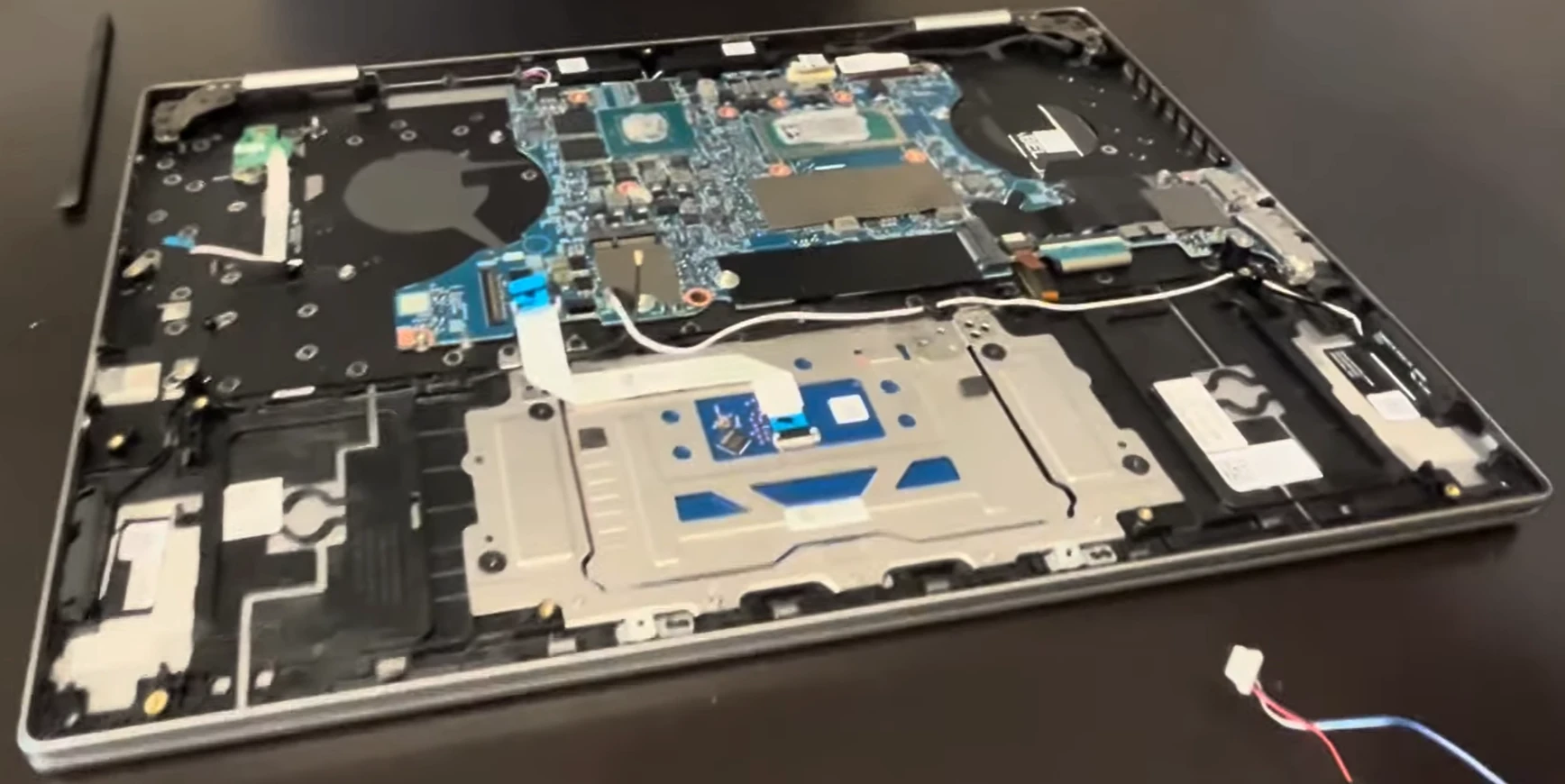
Sell Popular Dell Models Now:

Share this: