Complete Teardown: Acer Nitro 5 AN515-57 - Upgrade RAM, Storage & DIY Repair
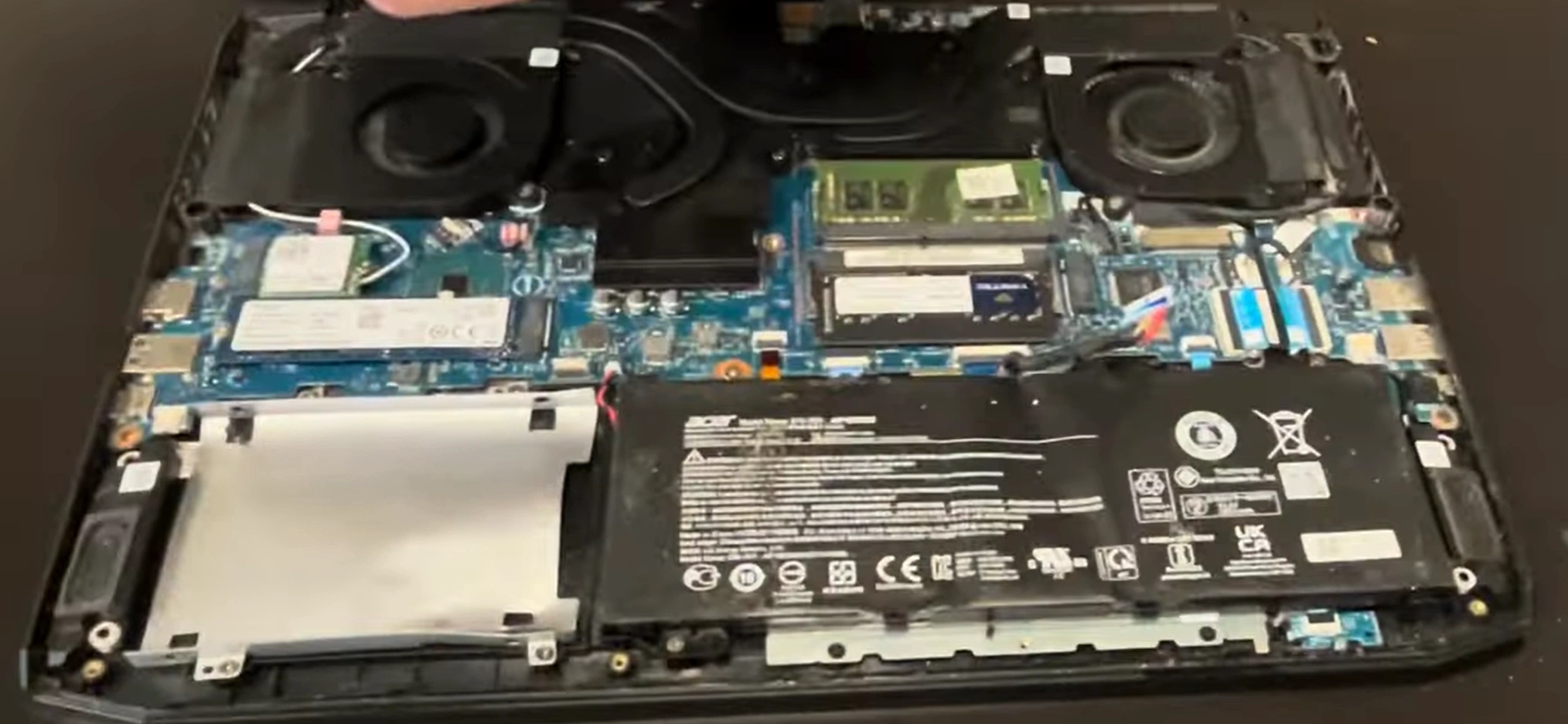
Looking to sell laptop, get cash for laptop, or trade laptop? Before you do, consider upgrading your Acer Nitro 5 AN515-57! Our complete teardown guide shows you how to replace components and potentially increase your device's value. Whether you're fixing, upgrading, or preparing to sell, this DIY guide has you covered.
Article Contents
- Why Upgrade Before You Sell Laptop?
- Tools Needed for DIY Repair
- Step-by-Step Teardown Process
- RAM Upgrade: Boost Performance
- Storage Upgrade: Add More Space
- Thermal Repaste for Better Cooling
- Reassembly Tips and Testing
- Sell Laptop for Cash or Trade Options
Why Upgrade Before You Sell Laptop?
Upgrading your laptop before selling can significantly increase its resale value. Many buyers look for devices with upgraded RAM and storage, and you can often get more cash for laptop trades when your device has recent improvements. Even if you're not tech-savvy, this guide makes the process accessible for beginners.
Tools Needed for DIY Repair
- Phillips #1 screwdriver
- Plastic pry tools or guitar pick
- Anti-static wrist strap (recommended)
- Small containers for screw organization
- Thermal paste (if repasting)
- Compressed air for cleaning
Step-by-Step Teardown Process
Before beginning, ensure the laptop is powered off and disconnected from all power sources. Remove the battery if possible. Our video guide below demonstrates the complete process:
0:28 Bottom Case 1:26 Battery 1:55 RAM Memory 2:11 SSD Storage 2:30 WiFi Card 2:52 Heatsink and Cooling Fans 13:30 Processor and Graphics Chip 5:02 Speakers 5:20 USB Board 5:57 Motherboard 6:50 Additional HDD Caddy 7:31 Touchpad 8:15 Palmrest Assembly 8:55 Keyboard 9:14 Display Assembly 9:20 Front Bezel 10:00 Hinges 10:53 Video Cable 11:20 Web Camera 11:40 Back Cover 11:57 Adhesive Pullout Strips 13:13 LCD Screen
RAM Upgrade: Boost Performance
The Acer Nitro 5 AN515-57 typically comes with 8GB of RAM, but supports up to 32GB across two slots. Upgrading to 16GB or 32GB can dramatically improve multitasking and gaming performance. This is especially valuable if you plan to trade laptop for a newer model, as upgraded devices fetch better prices.
Storage Upgrade: Add More Space
This model includes both an M.2 NVMe slot and a 2.5-inch SATA bay. You can add a second SSD or replace the existing one with a larger capacity drive. We recommend a 1TB NVMe SSD for optimal performance and storage capacity.
Thermal Repaste for Better Cooling
If your laptop runs hot or you're experiencing thermal throttling, reapplying thermal paste to the CPU and GPU can improve cooling performance. This maintenance step can extend your device's lifespan and make it more attractive if you decide to get cash for laptop later.
Reassembly Tips and Testing
When reassembling, work in reverse order of disassembly. Ensure all cables are properly connected before securing covers. Once reassembled, test all functions including keyboard, ports, and display before final closure.
Sell Laptop for Cash or Trade Options
After upgrading, you have several options: keep your enhanced laptop, sell laptop for immediate cash, or trade laptop for a newer model. Upgraded devices typically command 20-30% higher prices on the secondary market. Consider local electronics buyers, online marketplaces, or manufacturer trade-in programs when ready to sell.
Pro Tip: Keep your original components when upgrading. You can reinstall them before selling and use the upgrades in your next device, or include both sets to increase resale value.
Ready to upgrade your Acer Nitro 5? With these steps, you can breathe new life into your gaming laptop or maximize its value before selling. Whether you choose to sell Laptop, get cash for laptop, or trade laptop, proper maintenance and upgrades ensure you get the best possible return on your investment.
Sell Popular Acer Laptop Models Now: