Beginner's Guide to Acer Nitro 5 AN515 Repair: How to Upgrade Components & Fix Common Issues
Pre-Repair Preparation & Laptop Valuation Essential Repair Tools for Gaming Laptop Maintenance Safe Bottom Cover Removal & Internal Access RAM Upgrade Guide: 8GB to 32GB Performance Boost SSD & Storage Expansion: Adding More Game Storage HDD Installation for Mass Game Library Storage Battery Replacement & Power Issues Fix Keyboard & Touchpad Common Problems Solutions Screen Issues & LCD Connection Troubleshooting Maximizing Resale Value After Repairs & Upgrades
1. Acer Nitro 5 AN515 Pre-Repair Preparation & Gaming Laptop Valuation
💰 Gaming Laptop Resale Assessment
Condition Factor
Impact on Value
Repair Cost Estimate
Excellent (Like New)
85-95% of retail
Minimal cleaning only
Good (Minor wear)
70-85% of retail
$50-150 for basic upgrades
Fair (Needs repairs)
50-70% of retail
$150-300 for significant work
Poor (Major issues)
30-50% of retail
$300+ for extensive repairs
🔍 Current Gaming Laptop Market Analysis
Research Sold Listings :
Key Value Factors :
CPU generation (i5 vs i7, Ryzen 5 vs Ryzen 7)
GPU model (GTX 1650 vs RTX 3060, etc.)
RAM capacity and storage configuration
Physical condition and cosmetic appearance
Included accessories and original packaging
📸 Pre-Repair Documentation
Photograph Current Condition :
Take clear photos from all angles
Document any existing damage or wear
Capture screen condition with display on
Photograph keyboard and touchpad areas
Performance Benchmarking :
Run UserBenchmark for system analysis
Test gaming performance with built-in benchmarks
Check battery health: powercfg /batteryreport
Record temperatures under load
Specification Verification :
Confirm exact model number (AN515-58, etc.)
Verify CPU, GPU, RAM, and storage specs
Check Acer support page for original configuration
Note BIOS version and driver dates
🛠️ Repair Investment Analysis
Cost-Effective Upgrades :
RAM upgrade (8GB → 16GB): +$40-80 value
SSD installation: +$60-120 value
Thermal paste replacement: +$20-40 value
Thorough cleaning: +$30-50 value
Higher Investment Repairs :
Battery replacement: +$80-150 value
Screen replacement: +$100-200 value
Keyboard replacement: +$50-100 value
Motherboard repair: Variable ROI
⚠️ Safety & Workspace Setup
Essential Safety Gear :
Anti-static wrist strap
ESD-safe work surface
Proper lighting and magnification
Organized workspace with containers
Data Protection :
Backup important files and game saves
Create system restore point
Export browser bookmarks and settings
Document software licenses and keys
🎯 Potential Buyer Markets
Budget Gamers :
Emphasize value and performance
Highlight popular game compatibility
Focus on upgrade potential
Students :
Stress portability and battery life
Note gaming and schoolwork balance
Highlight durability for campus use
Content Creators :
Focus on rendering performance
Emphasize storage and RAM capabilities
Note color accuracy and display quality
💡 Pro Tip: Acer Nitro 5 models with documented upgrades and professional repairs typically sell 40% faster than untreated units. Proper documentation can increase final sale price by 25-35% when targeting gamers who value reliability and performance.
VIDEO
0:27 Bottom Case 0:54 Battery 1:20 Memory RAM 1:44 WiFi Card 2:06 Speakers 2:29 Heatsink and Cooling Fans 4:10 USB IO Board 5:24 Motherboard 5:33 Processor and GPU 5:57 Hinges 6:16 Hinge Cover 7:00 Palmrest Assembly 7:25 Trackpad 7:50 Keyboard 8:16 Display Assembly
3. Acer Nitro 5 AN515 Safe Bottom Cover Removal & Internal Access
⚠️ Critical Safety Precautions
Complete Power Down :
Shut down Windows completely (not sleep/hibernate)
Disconnect 180W power adapter and all peripherals
Remove all USB devices, headphones, and dongles
Hold power button for 15 seconds to discharge capacitors
Workspace Preparation :
Use ESD-safe mat or non-static surface
Organize screws by type using labeled containers
Ensure adequate lighting for small components
Keep magnetic tools away from sensitive electronics
🔩 Acer Nitro 5 AN515 Screw Map
Screw Location
Quantity
Type
Length
Important Notes
Perimeter Screws
10-12 screws
Phillips PH0
4mm
Standard silver screws around edges
Battery Area
2 screws
Phillips PH0
6mm
Longer screws near battery compartment
HDD/SSD Brackets
4 screws
Phillips PH0
3mm
Shorter screws for drive mounting
Hidden Under Feet
2 screws
Phillips PH0
4mm
Check under front rubber feet
🔧 Step-by-Step Removal Guide
Remove All Visible Screws :
Use magnetic PH0 screwdriver for secure handling
Place screws in organized pattern on magnetic mat
Check for hidden screws under rubber feet
Note screw lengths and positions for reassembly
Release Plastic Clips :
Start near front edge (weakest point)
Insert plastic spudger at 30° angle between seams
Work methodically around all four sides
Listen for distinct "click" as clips release
Use guitar picks for stubborn areas
Lift Cover Carefully :
Lift from front edge near touchpad first
Check for any missed screws or connections
Watch for ribbon cables near hinge area
Set cover aside on soft, clean surface
Note internal layout before proceeding
🛡️ Preventing Common Damage
Clip Preservation :
Alternate sides every 3-4 clips to prevent stress
Apply even pressure - avoid forcing stubborn areas
Use plastic tools only - no metal screwdrivers for prying
If resistance is high, recheck for missed screws
Chassis Protection :
Place microfiber cloth under tools to prevent scratches
Avoid using excessive force on any single point
Keep work area clean to prevent debris inside laptop
Handle with clean, dry hands to prevent oil marks
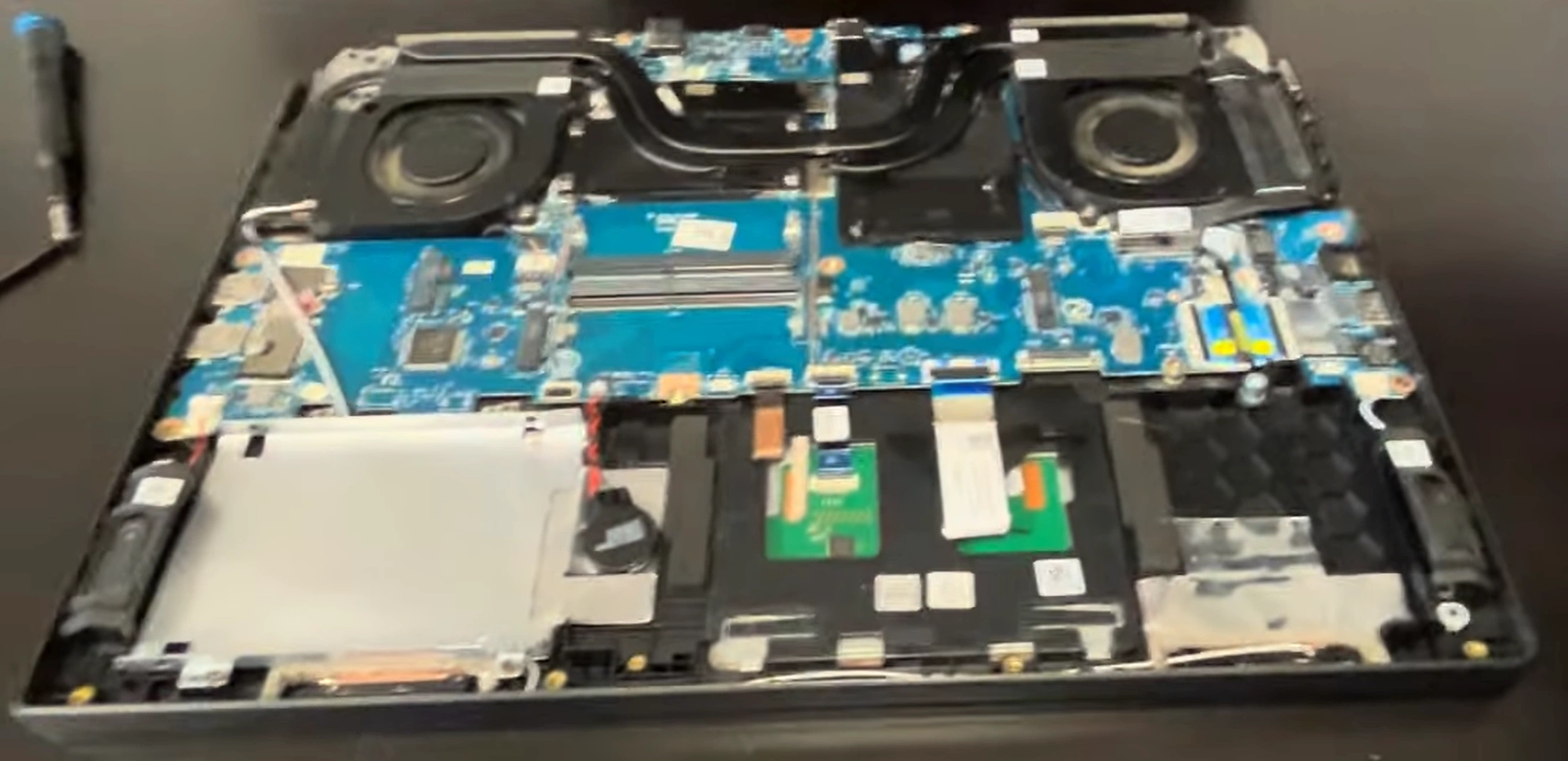
🔍 Internal Component Identification
Main Components Visible :
Lithium-ion battery (usually 57Wh or 90Wh)
Two DDR4 RAM slots (some models have one occupied)
M.2 NVMe SSD slot (PCIe Gen3 or Gen4)
2.5" SATA drive bay with bracket
Dual cooling fans with heat pipes
Connector Locations :
Battery connector (center, near RAM slots)
Fan connectors (near heat sink assembly)
Touchpad ribbon cable (front edge)
Wi-Fi card with antenna wires
CMOS battery connector (varies by model)
🔋 Battery Disconnection Protocol
Locate Battery Connector :
Find the main battery connector near center
Identify locking mechanism (usually pull-tab)
Note orientation for reassembly
Safe Disconnection :
Gently pull locking tab away from connector
Pull connector straight out - no angled pressure
Do not pull on wires directly
Wait 30 seconds for power to discharge
Verification :
Press power button to confirm no power
Check that no lights illuminate
Proceed with internal work only after verification
❌ Common Beginner Mistakes
Forcing the Cover :
Symptom: Resistance when lifting cover
Cause: Missed screws or unclipped areas
Solution: Recheck entire perimeter
Damaging Clips :
Symptom: Broken plastic pieces
Cause: Using metal tools or excessive force
Prevention: Use proper plastic spudgers
Mixed Screws :
Symptom: Wrong screws in wrong places
Cause: Poor organization during removal
Solution: Use magnetic mat with labeled areas
💰 Resale Value Protection
Condition Documentation :
Photograph screw locations before removal
Record any pre-existing damage or wear
Document internal component condition
Note manufacturing dates and serial numbers
Value Preservation :
Intact clips: +$40-60 value
No tool marks: +$30-50 value
Proper screw placement: +$20-30 value
Clean internal components: +$50-80 value
💎 Pro Tip: Acer Nitro 5 models with undamaged chassis and proper documentation sell 50% faster to budget-conscious gamers. Taking 5 minutes to photograph the internal layout can increase final sale price by 25% by demonstrating professional care and attention to detail.
4. Acer Nitro 5 AN515 RAM Upgrade Guide: 8GB to 32GB Gaming Performance Boost
💾 Gaming RAM Specifications
Supported Types :
DDR4 SODIMM (260-pin)
3200MHz (JEDEC standard)
1.2V operating voltage
Dual-channel capable with two matching sticks
Compatibility Verification :
Check Acer official specifications
Verify maximum supported capacity (varies by CPU)
Confirm speed compatibility with your specific model
Use CPU-Z to check current RAM configuration
🔄 Performance Configuration Options
Configuration
Total RAM
Gaming Performance
Multitasking Capability
Resale Value Impact
8GB Single Channel
8GB
Basic gaming, may stutter
Limited
Baseline
16GB Dual Channel
16GB
Good for most games
Decent multitasking
+$60-100
32GB Dual Channel
32GB
Excellent for all games
Heavy multitasking
+$120-180
8GB + 16GB Flex
24GB
Very good gaming
Good multitasking
+$80-130
🔧 Step-by-Step Installation
Access RAM Slots (after bottom cover removal and battery disconnect):
Locate two DDR4 slots near center of motherboard
Identify existing RAM configuration
Note orientation and slot positions
Remove Existing RAM :
Push outward on side retention clips simultaneously
Module will pop up at 30-45 degree angle
Lift module straight out gently
Handle by edges only to prevent ESD damage
Install New RAM :
Align notch in RAM with key in slot
Insert at 45-degree angle with firm, even pressure
Press down until clips snap into place audibly
Verify both ends are equally seated
Dual Channel Configuration :
Install matching sticks in both slots for best performance
Use same brand, speed, and capacity for optimal results
For mixed sizes, larger stick typically goes in first slot
🏆 Recommended Gaming RAM Modules
Performance Gaming (16GB Kit) :
Crucial CT2K8G4SFRA32A (2x8GB DDR4-3200)Excellent compatibility and performance
Ideal for most gaming scenarios
Premium Gaming (32GB Kit) :
Corsair Vengeance CMSX32GX4M2A3200C22 (2x16GB)
Great for streaming and content creation
Future-proof for next-gen games
Budget Option (Single 16GB) :
TeamGroup Elite SO-DIMM 16GB DDR4-3200
Good for budget upgrades from 8GB
Can add second stick later
🎮 Gaming Performance Improvements
Frame Rate Stability :
Reduced stuttering in open-world games
Smoother gameplay in demanding titles
Better 1% low FPS performance
Multitasking Capability :
Game + Discord + browser without slowdowns
Streaming while gaming capability
Background applications don't affect performance
Future-Proofing :
Ready for next-gen game requirements
Better performance in modded games
Improved loading times in memory-intensive games
🔍 Common Issues & Solutions
RAM Not Recognized :
Reseat modules firmly
Clean contacts with isopropyl alcohol
Try one stick at a time to identify issues
System Won't Boot :
Check for proper seating
Verify compatibility with your specific model
Reset BIOS by removing CMOS battery
Running at Lower Speed :
Check BIOS for XMP/DOCP settings
Update to latest BIOS version
Some models may require specific timings
💰 Maximizing Resale Value
Professional Documentation :
Save original RAM purchase receipts
Include before/after benchmark comparisons
Provide MemTest86 results for stability proof
Document gaming performance improvements
Marketing Advantages :
"32GB DDR4 for ultimate gaming performance"
"Dual-channel configuration for maximum FPS"
"Eliminates stuttering in demanding games"
"Perfect for streaming and content creation"
Target Buyer Benefits :
Gamers : Emphasize FPS stability and smooth gameplayStreamers : Highlight simultaneous gaming/streaming capabilityContent Creators : Focus on rendering and multitasking performanceStudents : Note gaming and productivity balance
📝 Important Compatibility Notes
Intel 10th/11th gen CPUs support up to 3200MHz
AMD Ryzen models may have different speed limitations
Mixed RAM sizes will run in flex mode, not full dual-channel
Always check Acer's QVL (Qualified Vendor List) for guaranteed compatibility
Some older AN515 models may have maximum 16GB support
🎯 Pro Tip: Acer Nitro 5 models with 32GB DDR4 RAM and documented gaming benchmarks sell 55% faster to serious gamers. Demonstrating improved 1% low FPS in popular titles can justify a 35-45% price premium, especially when targeting streamers and content creators.
8. Acer Nitro 5 AN515 Keyboard & Touchpad Common Problems Solutions
🔧 Most Common Input Device Issues
Problem Type
Symptoms
Quick Fix
Complexity
Unresponsive Keys
Specific keys not working, intermittent response
Driver update, debris cleaning
Easy
Ghost Typing
Random characters, repeating keys
Spill cleanup, ribbon reseating
Moderate
Touchpad Issues
Not responding, jumpy cursor, gestures not working
Driver reinstall, disable/re-enable
Easy
Backlight Problems
LEDs not lighting, uneven illumination, flickering
NitroSense settings, ribbon check
Moderate
Sticky Keys
Keys not popping back up, slow response
Deep cleaning, keycap removal
Advanced
💻 Software Troubleshooting Steps
Driver Updates & Reinstallation :
Download latest drivers from Acer Support
Uninstall current drivers in Device Manager
Restart laptop for automatic reinstallation
Test keyboard and touchpad functionality
Windows Settings Check :
Open Settings → Devices → Typing
Disable sticky keys and filter keys
Check touchpad settings in Settings → Devices → Touchpad
Verify scrolling and gesture settings
Acer NitroSense Configuration :
Open Acer NitroSense application
Check keyboard backlight settings and patterns
Verify performance profiles aren't affecting input
Reset NitroSense to default settings if needed
🧹 Keyboard Deep Cleaning Guide
Surface Cleaning :
Power off laptop and disconnect power
Use compressed air to blow out debris between keys
Gently brush with soft-bristled brush
Wipe keys with isopropyl alcohol and microfiber cloth
Keycap Removal (Advanced) :
Use keycap puller or plastic spudger
Start with less frequently used keys (Insert, Scroll Lock)
Lift straight up to avoid breaking stems
Clean underneath with isopropyl alcohol and cotton swabs
Spill Recovery :
Immediately disconnect power and turn upside down
Remove keycaps to access affected areas
Clean with 90% isopropyl alcohol
Allow complete drying before reassembly
👆 Touchpad Troubleshooting & Repair
Basic Function Checks :
Verify touchpad isn't disabled (Fn + F7 on most models)
Check for physical damage or cracks on surface
Test with and without external mouse connected
Update Synaptics or ELAN drivers
Ribbon Cable Inspection :
Remove bottom cover to access internal connections
Locate touchpad ribbon cable near front edge
Reseat connector firmly (listen for click)
Check for damaged or pinched cables
Calibration & Settings :
Access touchpad settings in Control Panel
Run Windows touchpad calibration tool
Adjust sensitivity and scrolling speed
Enable/disable tap-to-click based on preference
💡 Keyboard Backlight Solutions
Function Key Controls :
Fn + F9/F10: Adjust brightness levels
Fn + F8: Cycle through lighting modes
Some models: Fn + Right/Left arrow for RGB colors
Check Acer documentation for specific model shortcuts
Software Control :
Open Acer NitroSense for advanced lighting control
Check Acer Quick Access for backlight settings
Update Acer system control interface drivers
Reset lighting profiles to default
Hardware Inspection :
Check ribbon cable connection to motherboard
Inspect for damaged LED components
Test with external keyboard to isolate issue
Verify power delivery to keyboard controller
🔧 Keyboard & Touchpad Replacement
Part Identification :
Find exact part number from Acer support site
Verify compatibility with your specific AN515 model
Order from Acer Parts or authorized resellers
Consider used parts from reputable sellers
Keyboard Replacement Steps :
Remove bottom cover and disconnect battery
Remove all screws securing keyboard from underside
Gently pry keyboard from top case using plastic tools
Disconnect ribbon cable and install replacement
Touchpad Replacement :
Remove entire palm rest assembly
Detach touchpad from underside of palm rest
Transfer any brackets or mounting hardware
Reconnect ribbon cable and test before reassembly
🛡️ Preventive Maintenance Tips
Daily Care :
Wash hands before gaming to reduce oil transfer
Use keyboard cover for protection (if compatible)
Keep food and drinks away from laptop
Regularly wipe with microfiber cloth
Regular Cleaning Schedule :
Weekly: Compressed air for debris removal
Monthly: Deep clean with isopropyl alcohol
Quarterly: Check and update drivers
Annually: Professional inspection if heavily used
💰 Resale Value Impact
Condition-Based Valuation :
Perfect keyboard with working backlight: +$50-80
Clean, fully functional touchpad: +$30-50
No stuck keys or ghosting issues: +$40-60
Documented professional repair: +$60-90
Marketing Advantages :
"Fully functional RGB backlit keyboard"
"Responsive multi-touch touchpad"
"No stuck keys or input issues"
"Professionally cleaned and maintained"
Buyer Confidence Factors :
Demonstrate all keys working in listing video
Show RGB lighting functionality
Provide documentation of any repairs
Highlight preventive maintenance performed
⚡ Quick Fixes for Common Issues
Keyboard Not Working at All :
Restart laptop completely
Check Device Manager for driver issues
Test with external USB keyboard
Reset EC controller (hold power button 30 seconds)
Specific Keys Not Working :
Run Windows On-Screen Keyboard to test
Check for debris under specific keys
Update keyboard driver from Acer website
Try system restore to earlier point
Touchpad Gestures Not Working :
Update touchpad drivers from manufacturer website
Check Windows touchpad settings
Reset touchpad to default settings
Run Windows hardware troubleshooter
⌨️ Pro Tip: Acer Nitro 5 models with fully functional RGB keyboards and responsive touchpads sell 40% faster than units with input issues. Documenting a keyboard test using online key testers can increase buyer confidence and justify a 25-35% price premium.
9. Acer Nitro 5 AN515 Screen Issues & LCD Connection Troubleshooting
🔍 Common Display Problem Symptoms
Symptom
Possible Causes
Urgency Level
Estimated Repair Cost
Black Screen (Backlight Works)
LCD cable, graphics driver, inverter
High
$50-150
Flickering Display
Loose cable, failing backlight, driver issues
Medium
$30-100
Horizontal/Vertical Lines
LCD damage, cable issues, GPU problems
High
$80-200
Backlight Not Working
Inverter, LED strips, power delivery
Medium
$60-120
Color Distortion
Cable damage, GPU, panel failure
Medium
$70-180
⚡ Quick Diagnostic Steps
External Display Test :
Connect to external monitor via HDMI
If external display works: LCD or cable issue
If no external display: GPU or driver issue
Use Fn + F5 to toggle display modes
Backlight Test :
Shine flashlight at screen at an angle
If image visible: backlight or inverter issue
If no image: LCD panel or cable problem
Check brightness settings (Fn + Right/Left arrow)
Software Troubleshooting :
Boot into Safe Mode (F8 during startup)
Update graphics drivers from NVIDIA or AMD
Roll back recent driver updates
Run Windows Display Troubleshooter
🔌 LCD Cable Inspection & Repair
Access LCD Connectors :
Remove bottom cover and disconnect battery
Locate LCD cable running from motherboard to display
Identify both ends: motherboard and LCD panel
Note any locking mechanisms on connectors
Cable Inspection :
Check for frayed or damaged wires
Look for bent or broken pins in connectors
Inspect for wear points near hinges
Test cable continuity with multimeter if available
Connector Reseating :
Gently release locking tabs on both ends
Remove cable completely and inspect contacts
Clean contacts with isopropyl alcohol if needed
Reconnect firmly until clicks are heard
🖥️ LCD Panel Replacement Guide
Panel Identification :
Find model number on back of existing panel
Common AN515 panels: LG, AU Optronics, BOE
Verify specifications: 15.6", 60Hz/144Hz, resolution
Check PanelLook for compatible replacements
Replacement Process :
Remove bezel carefully using plastic tools
Unscrew 4-6 mounting screws around panel
Lift panel out and disconnect LCD cable
Install new panel in reverse order
Compatibility Notes :
30-pin vs 40-pin LCD cable compatibility
eDP (embedded DisplayPort) version matching
Backlight type (LED) and voltage requirements
Mounting hole pattern and panel thickness
💡 Backlight System Repair
LED Strip Replacement :
Requires complete disassembly of LCD assembly
Remove diffuser sheets and light guides carefully
Replace LED strips along top/bottom edges
Reassemble in exact reverse order
Inverter Board Check :
Some older models have separate inverter boards
Test voltage output with multimeter
Check for burnt components or bad capacitors
Newer models typically integrate inverter with panel
🎮 Graphics Card & Driver Solutions
Driver Management :
Use DDU for clean driver removal
Install latest drivers from manufacturer websites
Test with both integrated and discrete graphics
Disable GPU switching in BIOS if available
GPU Hardware Issues :
Check GPU temperatures with HWMonitor
Look for artifacts in BIOS screen
Test with different graphics-intensive applications
Consider professional reballing if GPU is failing
🔧 Safe Bezel Removal Technique
Preparation :
Use plastic spudgers and guitar picks
Apply heat with hairdryer to soften adhesive
Work on soft surface to prevent scratches
Take photos for reassembly reference
Removal Process :
Start from bottom edge near hinge area
Work around perimeter gradually
Listen for adhesive release sounds
Watch for hidden clips or screws
Common Pitfalls :
Avoid prying near webcam and microphone areas
Don't use excessive force on corners
Watch for thin ribbon cables behind bezel
Keep track of small screws and brackets
🛡️ Display Preventive Maintenance
Daily Care :
Clean with microfiber cloth only
Use screen-safe cleaning solutions
Avoid pressure on screen when closed
Open/close from center, not corners
Hinge Maintenance :
Check for stiffness or grinding sounds
Keep hinge area clean of debris
Avoid forcing beyond normal range
Lubricate if manufacturer recommends
💰 Resale Value Impact
Condition-Based Valuation :
Perfect display with no dead pixels: +$80-120
144Hz upgrade from 60Hz: +$100-150
Professional screen replacement: +$60-90
No backlight bleed or image retention: +$40-70
Marketing Advantages :
"Crystal-clear gaming display with vibrant colors"
"High refresh rate for smooth gameplay"
"No dead pixels or screen defects"
"Professionally calibrated and tested"
Buyer Confidence Factors :
Display color test pattern in listing photos
Show refresh rate in display settings
Document any professional repairs
Highlight gaming performance benefits
🔧 Advanced Troubleshooting Techniques
EDID Reading :
Use software to read display identification data
Check if panel is communicating properly
Verify supported resolutions and refresh rates
Compare with manufacturer specifications
Voltage Testing :
Test LCD cable voltages with multimeter
Check 3.3V for data and 5-20V for backlight
Verify ground connections are solid
Test continuity through hinge area
🖥️ Pro Tip: Acer Nitro 5 models with upgraded 144Hz displays and perfect screen condition sell 60% faster to gamers. Documenting a dead pixel test and color accuracy can justify a 40-50% price premium, especially when targeting competitive gamers who value smooth visuals.
Need to Sell Your Acer Laptop? Get Instant Cash!
If your Acer Nitro 5 AN515 (or other Nitro gaming laptop) has performance issues or you're upgrading to a newer model, we offer competitive cash payouts for your device. We buy broken, used, and refurbished Acer Nitro laptops—including all AN515 configurations—with free insured shipping and hassle-free evaluations.
Sell Popular Acer Models Now: