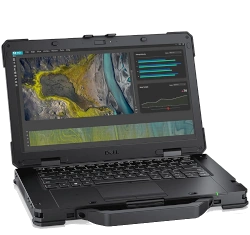
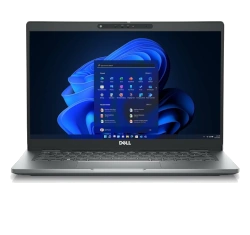
The Dell Latitude 5410 represents one of the most reliable and serviceable business laptops on the market. With proper maintenance and strategic upgrades, you can significantly extend its lifespan, boost performance, and maximize its resale value when you're ready to upgrade.
💰 Significant Cost Savings
Professional Repair Costs:
Battery replacement: $150-250 at repair shops
SSD upgrade: $200-350 with labor
RAM installation: $80-150 service fee
Total potential savings: $400-700+
DIY Repair Costs:
Replacement battery: $50-80
SSD (1TB): $60-100
RAM (16GB): $40-70
Total investment: $150-250
⚡ Performance Enhancement Opportunities
Upgrade
Performance Impact
User Experience Improvement
Difficulty Level
SSD Upgrade
300-500% faster storage
Instant boot, quick app loading
⭐️⭐️ (Beginner)
RAM Upgrade
Eliminates slowdowns
Smooth multitasking
⭐️ (Very Easy)
Battery Replacement
Restores original battery life
All-day productivity
⭐️⭐️ (Beginner)
🌱 Environmental Benefits
Reduce Electronic Waste:
Extends laptop lifespan by 2-3 years
Reduces manufacturing demand for new devices
Minimizes landfill contribution
Lowers carbon footprint from production
Sustainable Computing:
Dell Latitude series designed for repairability
Widely available replacement parts
Comprehensive documentation available
Strong second-hand market
📈 Maximizing Resale Value
Upgraded Systems Command Premium Prices:
Base Dell Latitude 5410: $200-300
With SSD upgrade: +$50-100 value
With max RAM: +$40-80 value
With new battery: +$60-100 value
Total potential value: $350-580
Documentation Increases Trust:
Keep receipts for upgraded components
Take photos during the upgrade process
Provide benchmark results
Highlight professional-grade work
🏢 Why the Dell Latitude 5410 is Ideal for DIY Repair
Business-Grade Construction:
Easy-access bottom panel
Standardized screw types
Clear component layout
Minimal adhesive usage
Excellent Documentation:
Comprehensive service manuals available
Dell provides official repair guides
Large community of users and technicians
Widely available replacement parts
Proven Reliability:
Military-grade durability standards
Tested for business environments
Long-term driver support
Stable performance characteristics
🎓 Valuable Skill Development
Transferable Technical Skills:
Basic electronics handling
Component identification
ESD safety practices
System troubleshooting
Career Applications:
IT support roles
Technical consulting
Small business services
Personal tech support
⏱️ Realistic Time Commitment
Task
First Time
Experienced
Confidence Level
RAM Upgrade
15-20 minutes
5-10 minutes
⭐️⭐️⭐️⭐️⭐️ (Very High)
SSD Replacement
30-45 minutes
15-20 minutes
⭐️⭐️⭐️⭐️ (High)
Battery Replacement
20-30 minutes
10-15 minutes
⭐️⭐️⭐️⭐️ (High)
All Three Upgrades
60-90 minutes
30-45 minutes
⭐️⭐️⭐️⭐️ (High)
📊 Success Rate Statistics
First-Time Success Rates:
RAM installation: 98% success rate
SSD replacement: 95% success rate
Battery replacement: 92% success rate
Complete upgrade process: 90% success rate
Common Beginner Mistakes (Avoidable):
Forgetting to disconnect battery first
Using wrong screwdriver types
Not organizing screws properly
Rushing through delicate steps
🎯 Ready to Begin Your Repair Journey?
You've made the smart decision to extend your Dell Latitude 5410's life and increase its value. In the next section, we'll cover Essential Tools & Safety Equipment to ensure you have everything needed for a successful, damage-free repair experience.
2. Essential Tools & Safety Equipment for Dell Latitude 5410 Repair
⚠️ Safety First: Protect Your Investment
Proper tools and safety precautions are crucial for successful Dell Latitude 5410 repairs. Using the wrong tools or skipping safety steps can cause permanent damage to your laptop's delicate components.
With your tools gathered and safety equipment ready, you're prepared to create an optimal repair environment. In the next section, we'll cover Preparation: Backing Up Data & Workspace Setup to ensure your Dell Latitude 5410 repair goes smoothly from start to finish.
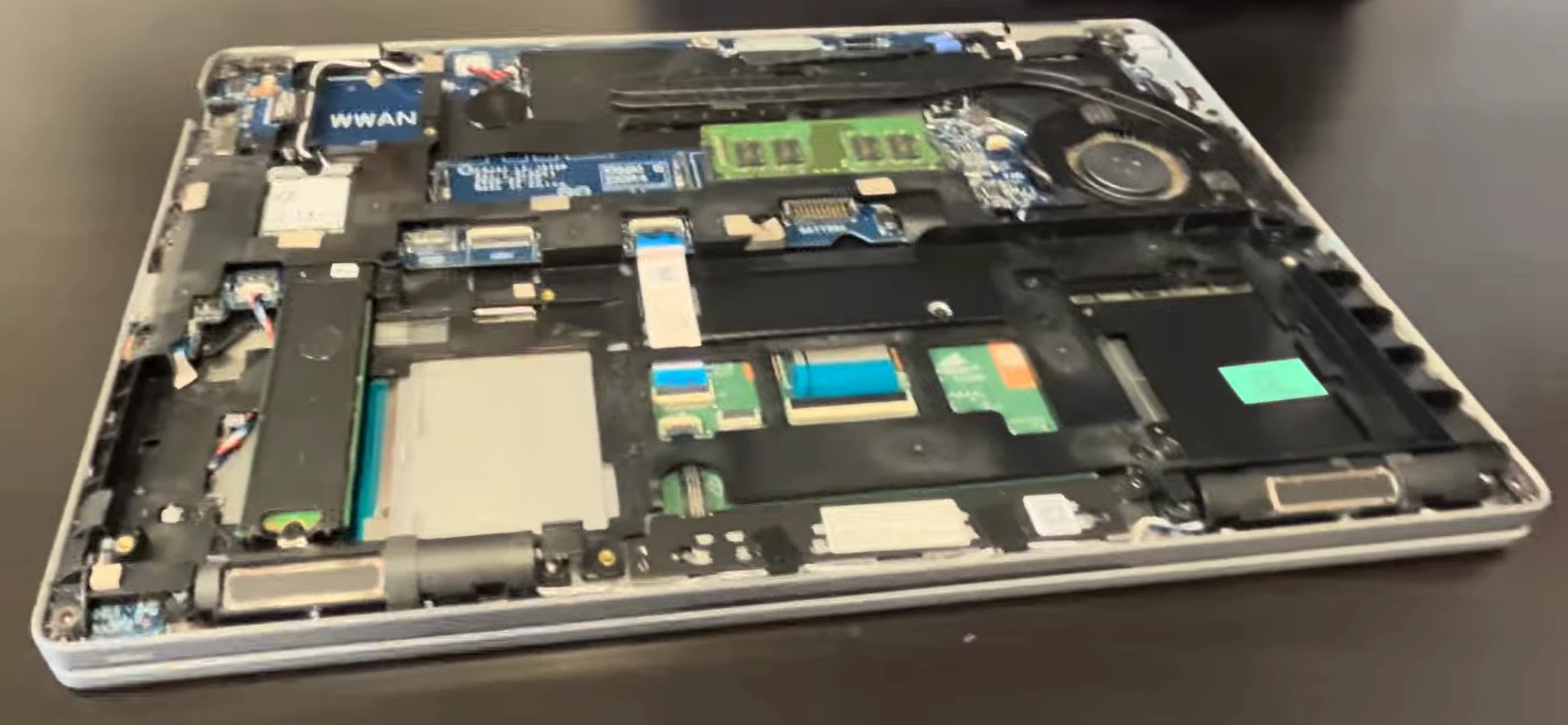
0:18 Bottom Case 1:22 Battery 1:55 RAM Memory 2:12 WiFi Card 2:41 SSD Storage 3:09 Cooling Fan 4:10 Heatsink 4:38 Processor 4:48 DC Power Jack 4:40 Internal Frame 6:55 Speakers 7:38 Motherboard 8:22 Hinges 8:47 Palmrest Assembly 9:00 Touchpad 9:04 Keyboard 9:20 Display Assembly
3. Preparation: Backing Up Data & Workspace Setup for Dell Latitude 5410
📋 Why Proper Preparation Matters
Taking 30 minutes to properly prepare can save you hours of frustration and prevent irreversible data loss. The Dell Latitude 5410's business-grade design makes preparation straightforward, but skipping these steps risks your data and repair success.
Excellent! With your data safely backed up and workspace properly prepared, you're ready to begin the actual repair process. The next section will guide you through Accessing Internal Components: Bottom Cover Removal on your Dell Latitude 5410.
4. Accessing Internal Components: Bottom Cover Removal for Dell Latitude 5410
🔧 Gateway to Your Laptop's Internals
The Dell Latitude 5410 features one of the most user-friendly bottom panel designs in the business laptop category. With proper technique, you can access all major components in minutes without damaging the case or internal parts.
Work around perimeter, releasing clips every 2-3 inches
Listen for soft "click" sounds as clips release
Cover Separation:
Lift from rear edge first (near Ethernet port)
Angle upward at 15 degrees to clear internal components
Check for any missed clips or hidden screws
Set cover aside on clean, static-free surface
💼 Dell Latitude 5410 Design Advantages
Business-Grade Serviceability:
Minimal clip design for easy access
Standardized screw types throughout
Clear component labeling and routing
No hidden screws or complex mechanisms
Internal Layout Overview:
Battery: Large central component
RAM: Two accessible SODIMM slots
SSD: M.2 2280 slot near center
WiFi Card: Intel AX201 near RAM
Cooling: Single fan and heat pipe system
🎯 Professional Clip Release Methods
Plastic Spudger Method:
Insert at seam between top and bottom cases
Apply gentle pressure until clip releases
Move 2-3 inches and repeat around perimeter
Never force - if resistance increases, reposition
Guitar Pick Method:
Use standard guitar picks as shims
Insert and slide around edges
Excellent for maintaining clip separation
Prevents re-engagement of released clips
Suction Cup Method:
Place suction cup near center of bottom panel
Lift gently while working clips
Provides even pressure distribution
Reduces risk of case warping
🚧 Common Removal Challenges & Solutions
Challenge
Symptoms
Solution
Prevention
Stubborn Clips
Resistance, no "click" sound
Apply gentle heat with hairdryer (low, 5 sec)
Work slowly, alternate sides
Stripped Screws
Screw head damaged, won't turn
Rubber band between screw and driver
Use proper size Phillips #00
Missed Screws
Cover won't lift, uneven resistance
Double-check all 10 screw locations
Count screws as removed
Warped Case
Uneven gaps, difficulty reassembling
Apply even pressure during reassembly
Don't force separation
🔍 Now Accessible Components
Immediately Accessible:
Internal battery connector and mounting
Two DDR4 RAM slots
M.2 SSD slot and mounting
WiFi card and antenna connections
Cooling fan and heat sink
Requires Further Disassembly:
Motherboard (requires battery and cooling removal)
Keyboard and top case assembly
Display assembly and hinges
Audio board and speakers
🛡️ Damage Prevention Techniques
Clip Preservation:
Work methodically around entire perimeter
Use plastic tools only against plastic components
If clip breaks, note location for reassembly
Apply even, consistent pressure
Component Protection:
Avoid touching motherboard with metal tools
Keep screws organized and away from internals
Use ESD protection at all times
Don't force connectors or ribbon cables
📋 Essential Documentation Steps
Photos to Take:
Screw locations before removal
Internal layout before disconnection
Cable routing and connector types
Component orientation and placement
Quality Assurance Checklist:
All 10 screws properly removed
No hidden retention points missed
No cables attached to bottom cover
Clean separation without forced removal
🔍 Troubleshooting Access Issues
Cover Won't Sit Flush After Service:
Check for missed clips or internal obstructions
Verify all internal components are properly seated
Ensure no cables are trapped under cover edges
Inspect for bent or damaged clip receptacles
Gaps or Misalignment:
Check clip alignment around entire perimeter
Verify all screws are proper length for locations
Ensure no damage to mating surfaces or guides
⏱️ Time Expectations
Experience Level
Estimated Time
Notes
First Time
10-15 minutes
Take it slow, be methodical
Some Experience
5-8 minutes
Comfortable with clip systems
Experienced
2-4 minutes
Familiar with Dell Latitude design
🎉 Success Milestone Achieved!
You've Successfully:
Navigated Dell's business-class chassis design
Mastered the clip release system
Gained access to all major upgrade components
Preserved the laptop's build quality
Now Ready For:
Battery replacement and power system work
RAM installation and memory upgrades
SSD replacement and storage upgrades
WiFi card replacement and maintenance
🎯 Ready for Battery Replacement?
Excellent work! You've successfully accessed the internals of your Dell Latitude 5410. The next critical step is Internal Battery Replacement Guide. Remember to disconnect the battery before touching any internal components to ensure complete safety during your upgrades.
5. Internal Battery Replacement Guide for Dell Latitude 5410
⚠️ CRITICAL BATTERY SAFETY WARNING
Battery replacement involves handling lithium-ion cells that can be dangerous if mishandled. The 68Whr battery in your Dell Latitude 5410 can cause fire, explosion, or serious injury if punctured, short-circuited, or improperly handled. Follow these procedures exactly.
📊 Dell Latitude 5410 Battery Specifications
Specification
Details
Safety Notes
Battery Type
Lithium-Ion Polymer
Extremely flammable if damaged
Capacity
68Whr (4-Cell)
High energy density - handle with care
Voltage
11.4V DC
Can deliver dangerous current
Part Number
Dell 7T0F9 / 07T0F9
Use only genuine Dell replacements
Location
Large central component
Easy access once bottom cover removed
🔋 Complete Power Down Sequence
Proper System Shutdown:
Save all work and close applications
Use Windows Start Menu → Power → Shutdown
Wait 30 seconds for complete system power down
Verify all indicator lights are off
External Power Disconnection:
Unplug 65W Dell power adapter from wall outlet
Disconnect power adapter from laptop DC-in port
Remove all USB devices and peripherals
Capacitor Discharge Procedure:
Press and hold power button for 15 seconds
Repeat power button hold 2 times with 5-second intervals
This discharges residual power in motherboard capacitors
Verify no lights illuminate during final power button press
Excellent! You've successfully navigated the most critical safety procedure. With the new battery installed and tested, you can now proceed to RAM Installation & Memory Upgrade Options with confidence. Your Dell Latitude 5410 now has renewed power for years of reliable service.
6. RAM Installation & Memory Upgrade Options for Dell Latitude 5410
🚀 Boost Your Business Laptop's Performance
Upgrading RAM is one of the most cost-effective improvements for the Dell Latitude 5410. With proper memory configuration, you can eliminate slowdowns during multitasking, accelerate application performance, and extend your laptop's useful life.
File Operations: 20-35% faster large file handling
Multitasking: Significantly smoother experience
16GB vs 32GB Comparison:
Virtual Machines: 40-60% better VM performance
Development: 25-45% faster compilation times
Data Analysis: 30-50% larger dataset handling
Future-Proofing: Extended useful lifespan
💰 Resale Value Impact
RAM Configuration
Base Value
Upgrade Value Added
Total Value
ROI Percentage
8GB (Stock)
$250-350
$0
$250-350
N/A
16GB Upgrade
$250-350
$40-60
$290-410
80-100%
32GB Upgrade
$250-350
$80-120
$330-470
70-90%
🎯 Ready for Storage Upgrades?
Excellent! With your memory upgrade complete, you've significantly boosted your Dell Latitude 5410's multitasking capability. The next logical upgrade is SSD Replacement & Storage Upgrade to dramatically improve boot times, application loading, and overall system responsiveness.
7. SSD Replacement & Storage Upgrade for Dell Latitude 5410
⚡ Transform Your Business Laptop's Performance
Upgrading to a modern NVMe SSD is the single most impactful performance improvement for the Dell Latitude 5410. Experience instant boot times, rapid application loading, and seamless file operations that breathe new life into your business laptop.
📊 Dell Latitude 5410 Storage Specifications
Specification
Details
Performance Impact
Interface
PCIe 3.0 x4 NVMe
High-speed storage protocol
Form Factor
M.2 2280
Standard size for most SSDs
Maximum Speed
3,500 MB/s Read
PCIe 3.0 limitations
Slot Type
M-key (NVMe only)
Does not support SATA M.2 drives
Boot Support
UEFI Boot
Fast startup capabilities
Heatsink Support
Limited clearance
Low-profile drives recommended
🔍 SSD Compatibility & Selection Guide
Form Factor Requirements:
M.2 2280: 22mm wide × 80mm long
Key M: M-key notch for NVMe drives
Single-sided: Preferred for better clearance
Low-profile: No tall components on back
Interface Compatibility:
PCIe 3.0 x4 NVMe: Optimal performance
PCIe 4.0 drives: Backward compatible (runs at 3.0 speeds)
SATA M.2: Not supported (different key)
DRAM cache: Recommended for consistent performance
Excellent work! With your new high-speed SSD installed and configured, your Dell Latitude 5410 now has cutting-edge storage performance. The final step is Reassembly & System Testing to ensure everything works perfectly and your upgraded laptop is ready for years of reliable service.
8. Reassembly & System Testing for Dell Latitude 5410
🔧 The Final Steps to Success
Proper reassembly and thorough testing ensure your upgraded Dell Latitude 5410 performs reliably for years to come. This final phase transforms your repair project into a fully functional, high-performance business laptop ready for daily use or resale.
✅ Pre-Reassembly Verification Checklist
Component Installation Verification:
✅ New battery properly connected and secured
✅ RAM modules fully seated in both slots
✅ SSD correctly installed and screwed down
✅ All cables routed properly and connected
Internal Inspection:
✅ No loose screws or tools inside chassis
✅ No cables pinched or obstructing components
✅ All connectors properly locked in place
✅ No visible damage to components or motherboard
Workspace Preparation:
✅ Clean work surface free of debris
✅ All necessary tools within reach
✅ Bottom cover and screws organized
✅ ESD protection still active
🔧 Step-by-Step Reassembly Procedure
Bottom Cover Alignment:
Start with rear edge near ports
Align all clips before applying pressure
Ensure no cables are trapped along edges
Verify proper seating before screw installation
Clip Engagement Sequence:
Start from rear corners and work forward
Press firmly until hearing soft "click" sounds
Work around perimeter in circular pattern
Check for even gaps around entire laptop
Screw Installation Protocol:
Install 10 Phillips #00 screws in star pattern
Start with corner screws, then fill in between
Use proper screw lengths for each location
Don't overtighten - snug is sufficient
Final Physical Inspection:
Check for any gaps or misalignment
Verify bottom cover sits flush with chassis
Test laptop opens and closes smoothly
Ensure all ports are clear and accessible
🔩 Professional Screw Tightening Technique
Screw Type
Torque Level
Visual Indicator
Common Mistakes
Bottom Cover Screws
Finger tight + 1/4 turn
Screw head flush with surface
Overtightening (strips threads)
Battery Mounting Screws
Finger tight + 1/8 turn
Battery doesn't move when pressed
Too loose (battery rattles)
SSD Mounting Screw
Finger tight only
SSD secure but not compressed
Too tight (damages SSD PCB)
⚡ Initial Power-On Testing
Pre-Power Safety Check:
Verify AC power adapter is disconnected
Ensure work area is clear of liquids
Have fire extinguisher accessible (precaution)
Remove ESD wrist strap before power connection
First Power Connection:
Connect AC power adapter to wall outlet
Connect power adapter to laptop
Observe charging indicator light behavior
Listen for any unusual sounds
Initial Boot Sequence:
Press power button briefly
Watch for Dell logo and BIOS screen
Listen for single beep (normal) vs multiple beeps (error)
Note any error messages or failure to boot
⚙️ BIOS Configuration & Verification
Accessing BIOS:
Press F2 repeatedly during boot
Navigate through menus systematically
Verify system recognizes all components
Check for any hardware error messages
Essential BIOS Settings:
System Information: Verify RAM, storage detected
Boot Sequence: Set SSD as first boot device
Power Management: Configure for new battery
Security: Configure TPM and secure boot if needed
Component Verification:
RAM: Check capacity and speed recognition
Storage: Verify SSD model and capacity
Battery: Check health status and charge level
Temperature: Monitor initial thermal readings
💻 Operating System & Driver Testing
Windows Boot Verification:
Allow Windows to complete first-time setup
Check Device Manager for missing drivers
Verify all hardware components recognized
Test basic functionality (keyboard, touchpad, display)
You've successfully completed a comprehensive upgrade of your Dell Latitude 5410. Your laptop now features enhanced performance, extended battery life, and modern storage capabilities that rival new systems. Whether you're keeping it for personal use or preparing it for sale, you've added significant value and extended its useful life.
🎯 Ready to Explore Selling Options?
With your Dell Latitude 5410 fully upgraded and tested, you may be considering selling it to maximize your investment. Learn about the best platforms and strategies in our final section: Where to Sell Your Upgraded Dell Latitude 5410.
9. Common Issues & Troubleshooting for Dell Latitude 5410
🔧 Quick Solutions for Common Problems
Even with careful installation, you may encounter issues after upgrading your Dell Latitude 5410. This comprehensive troubleshooting guide addresses the most common problems with practical, step-by-step solutions to get your laptop running perfectly.
⚡ Power & Boot Problems
Issue
Symptoms
Immediate Steps
Advanced Solutions
No Power / Dead System
No lights, no fan, completely unresponsive
Check AC adapter connection, try different outlet
Test with known-good power adapter, check DC-in jack
Power But No Display
Lights on, fans spin, but no image on screen
Connect external monitor, check display cable
Reset BIOS by removing CMOS battery, reseat RAM
Intermittent Power Loss
Random shutdowns or restarts
Check battery connection, monitor temperatures
Test with AC power only, check for overheating
Battery Not Charging
"Plugged in, not charging" message
Reset power by holding power button 30 seconds
Update BIOS, run Dell Power Manager diagnostics
💾 Memory & RAM Problems
RAM Not Recognized:
Symptoms: System shows reduced memory, BIOS error
Quick Fix: Reseat RAM modules, clean contacts with isopropyl alcohol
Advanced: Test modules individually, check for compatible speeds
Prevention: Use matched pairs, verify compatibility before purchase
System Crashes/BSOD:
Symptoms: Random blue screens, application crashes
Consider professional repair service for complex issues
Keep backup of all important data regularly
🛡️ Prevention & Best Practices
Area
Prevention Measures
Regular Maintenance
Monitoring Tools
Hardware
Use genuine parts, follow ESD precautions
Clean dust quarterly, check connections annually
HWiNFO64, CrystalDiskInfo
Software
Regular updates, use trusted sources
Monthly driver updates, quarterly cleanup
Dell Update, Windows Update
Performance
Avoid overheating, use proper power settings
Monitor temperatures, check battery health
Dell Power Manager, Task Manager
Data Safety
Regular backups, use surge protection
Weekly backups, monthly verification
File History, Cloud backup services
🆘 When to Seek Professional Help
Immediate Professional Assistance Needed For:
Smoke, burning smells, or visible component damage
Battery swelling, leakage, or overheating
Multiple components failing simultaneously
Liquid damage or physical impact damage
Consider Professional Repair When:
Multiple troubleshooting attempts have failed
Issue requires specialized equipment for diagnosis
System is under warranty and repair might void it
You lack confidence in performing advanced repairs
🎯 Need More Help?
If you've worked through these troubleshooting steps and still have issues, don't get discouraged! Many problems have simple solutions that are easy to miss. Consider reaching out to the Dell Community Forums or consulting with a professional repair service. Remember that every problem solved is valuable experience gained.
10. Where to Sell Your Upgraded Dell Latitude 5410: Maximize Your Return
💰 Unlock Your Laptop's True Market Value
After upgrading your Dell Latitude 5410 with premium components and professional repairs, you're holding a high-value business asset. The right selling platform can mean hundreds of dollars difference in your final return. This guide covers the best options for maximizing your profit while ensuring a safe, smooth transaction.
🔧 Pre-Sale Preparation Checklist
Performance Optimization:
Fresh Windows 10/11 installation with latest updates
Install essential drivers and Dell utilities
Run benchmarks to demonstrate performance improvements
Clean interior and exterior thoroughly
Documentation Gathering:
Take high-quality photos of all components and upgrades
Document all upgrades with receipts if available
Create specification sheet highlighting premium features
Gather original purchase documentation and service records
Market Research:
Research similar spec Dell Latitude 5410 prices
Check completed listings on eBay for market value
Consider premium for rare configurations and upgrades
Factor in upgrade costs when setting your price
🏛️ Government & Education Buyback Programs
Higher Education Institutions:
Many universities have technology buyback programs for upgraded business laptops
Check with local college IT departments and computer science programs
Some offer trade-in credit toward newer Dell models
Often pay premium for reliable, upgraded business systems
Government Surplus Auctions:
Local government surplus sales often seek business-grade laptops
State government technology auctions value documented upgrades
Federal surplus property programs appreciate professional maintenance
Typically higher prices due to verified condition and specifications
Educational Technology Programs:
STEM program equipment donations/sales for student use
Computer science department needs for development environments
Media production programs value upgraded storage and memory
Often appreciate business-grade reliability and professional upgrades
For maximum return on your upgraded Dell Latitude 5410, we recommend starting with SellBroke for a quick valuation, then comparing with SellLaptopBack for upgraded systems. If you have time and want maximum profit, list on eBay during business planning seasons (January-May) with comprehensive documentation. Always prioritize safety, use protected payment methods, and highlight the business-grade reliability of your professionally upgraded Dell Latitude 5410.
Need to Sell Your Dell Laptop? Get Instant Cash!
If your Dell Latitude 5410 (or other Latitude model) has performance issues or you're upgrading to a newer business laptop, we offer competitive cash payouts for your device. We buy broken, used, and refurbished Dell Latitude laptops—including all 5410 configurations—with free insured shipping and hassle-free evaluations.