Dell Precision 5570 Disassembly Guide: DIY Motherboard Repair & RAM/Battery Replacement
Pre-Repair Assessment & Workstation Valuation Essential Tools for Dell Precision 5570 Disassembly Bottom Cover Removal Process Battery Removal & Power Safety Procedures RAM Installation & Memory Upgrade Options Storage Solutions: SSD & M.2 Installation Cooling System Maintenance & Thermal Management Keyboard & Top Case Assembly Removal Display Assembly & Screen Replacement Where to Sell Your Upgraded Dell Precision 5570
1. Dell Precision 5570 Pre-Repair Assessment & Workstation Valuation
⚠️ Critical Safety Precautions
Power Management :
Complete shutdown through Windows menu
Disconnect 130W AC adapter and all workstation peripherals
Remove battery if easily accessible
Hold power button for 15 seconds to discharge capacitors
Check that all status indicators are completely off
Workspace Setup :
Clean, static-free surface for 15.6" mobile workstation
Use anti-static wrist strap
Have magnetic project mat ready for screw organization
Ensure adequate lighting for professional workstation repair
Keep work area free of liquids and magnetic interference
🔍 Pre-Repair Diagnostic Assessment
System Diagnostics :
Run Dell SupportAssist comprehensive diagnostics
Test memory with MemTest86 for workstation stability
Check storage health with CrystalDiskInfo
Monitor temperatures with HWiNFO under load
Test dedicated GPU functionality with benchmarking tools
Workstation Performance Check :
Run CAD and rendering application benchmarks
Test cooling system under CPU and GPU load
Check display for color accuracy and backlight uniformity
Verify all workstation ports and connectivity options
Test ISV-certified application compatibility
💼 Dell Precision 5570-Specific Features
Workstation Features :
NVIDIA RTX professional graphics options
ISV certification for professional applications
Dell Optimizer AI-based performance tuning
Optional smart card reader and fingerprint sensor
Dell Reliable Memory Technology (RMT)
Performance Indicators :
Intel Core i5/i7/i9 12th generation processors
NVIDIA RTX A1000 to A5500 professional graphics
Upgradeable DDR5 RAM and multiple storage options
4K UHD display options with color calibration
💰 2024 Mobile Workstation Market Valuation
Condition Grade
Specification Impact
Value Range
Workstation Premium
Excellent (Like New)
i9, RTX A5500, 64GB RAM, 2TB SSD, 4K
$1800-$2400
+35% for corporate buyers
Good (Minor Wear)
i7, RTX A3000, 32GB RAM, 1TB SSD, FHD
$1200-$1600
+25% for engineering firms
Fair (Visible Wear)
i5, RTX A1000, 16GB RAM, 512GB SSD
$800-$1100
+20% with documentation
For Parts/Repair
Any configuration with issues
$300-$600
Minimal workstation premium
📋 Pre-Repair Documentation
Visual Documentation :
High-resolution photos from all angles
Close-ups of ports and workstation features
Screen functionality videos with color tests
Keyboard and trackpad operation
Document any existing damage or wear
Performance Records :
Dell SupportAssist diagnostic reports
Benchmark scores and performance metrics
Temperature readings under rendering load
Battery health and capacity reports
GPU performance validation
🔧 Repair Cost-Benefit Analysis
Repair/Upgrade
Cost
Value Added
ROI
Workstation Appeal
SSD Upgrade (1TB to 2TB)
$120-$180
$200-$300
67-167%
Very High
RAM Upgrade (32GB to 64GB)
$150-$220
$250-$350
67-167%
High
Thermal Repaste
$20-$30
$80-$120
300-600%
High
Screen Replacement
$150-$250
$200-$350
33-140%
Medium
Battery Replacement
$80-$120
$100-$160
25-100%
Medium
💾 Workstation Data Backup Procedure
Professional Data Backup :
Backup project files and CAD designs
Save application configurations and licenses
Export software settings and workspace layouts
Backup VPN and security certificates
System Backup :
Use Macrium Reflect for system image
Backup Dell Optimizer profiles
Save power management settings
Export BIOS settings and configurations
📄 Warranty & Service Tag Verification
Service Tag Check :
Locate Service Tag on bottom cover or in BIOS
Check Dell Support Site for warranty status
Verify remaining ProSupport or Basic Warranty
Check for accidental damage protection
Parts Compatibility :
Verify specific 5570 model number
Check RAM and storage compatibility
Confirm display panel specifications
Ensure genuine Dell parts for warranty preservation
🏢 Professional Market Considerations
Professional Buyer Preferences :
Value reliability and ISV certification
Appreciate detailed maintenance documentation
Pay premium for Dell corporate features
Prefer recent security and management features
Corporate Value Factors :
Dell ProSupport transferability
Security feature functionality
Complete service history documentation
Original packaging and accessories
⏰ Realistic Repair Timeline
Basic Upgrades (1-2 hours) :
RAM and storage upgrades
Thermal paste replacement
Basic cleaning and maintenance
Intermediate Repairs (2-4 hours) :
Keyboard replacement
Screen replacement
Cooling system maintenance
Advanced Repairs (4+ hours) :
Motherboard access and repair
Complete disassembly
Major component replacement
⚡ Dell Optimizer Assessment
Key Features to Verify :
ExpressCharge functionality
Intelligent Audio performance
ExpressConnect network optimization
Power management settings
Professional Benefits :
Extended battery life for mobile professionals
Enhanced audio for conference calls
Optimized network connectivity
AI-based performance tuning
💡 Professional Premium Tip: Dell Precision 5570 models with documented ISV certification and professional maintenance history sell for 25-40% more to engineering firms and creative professionals who value the certified performance for applications like AutoCAD, SolidWorks, and Adobe Creative Suite, along with the enterprise-grade features that enhance productivity for demanding professional workflows.
VIDEO
0:22 Bottom Case 1:31 Cooling Fans 2:20 Heatsink 2:30 Processor 2:31 GPU 2:42 WiFi Card 2:58 IO Board 3:45 Speakers 5:25 Motherboard 5:48 Hinges 6:28 Palmrest Assembly 6:45 Touchpad 6:52 Keyboard 7:09 Display Assembly
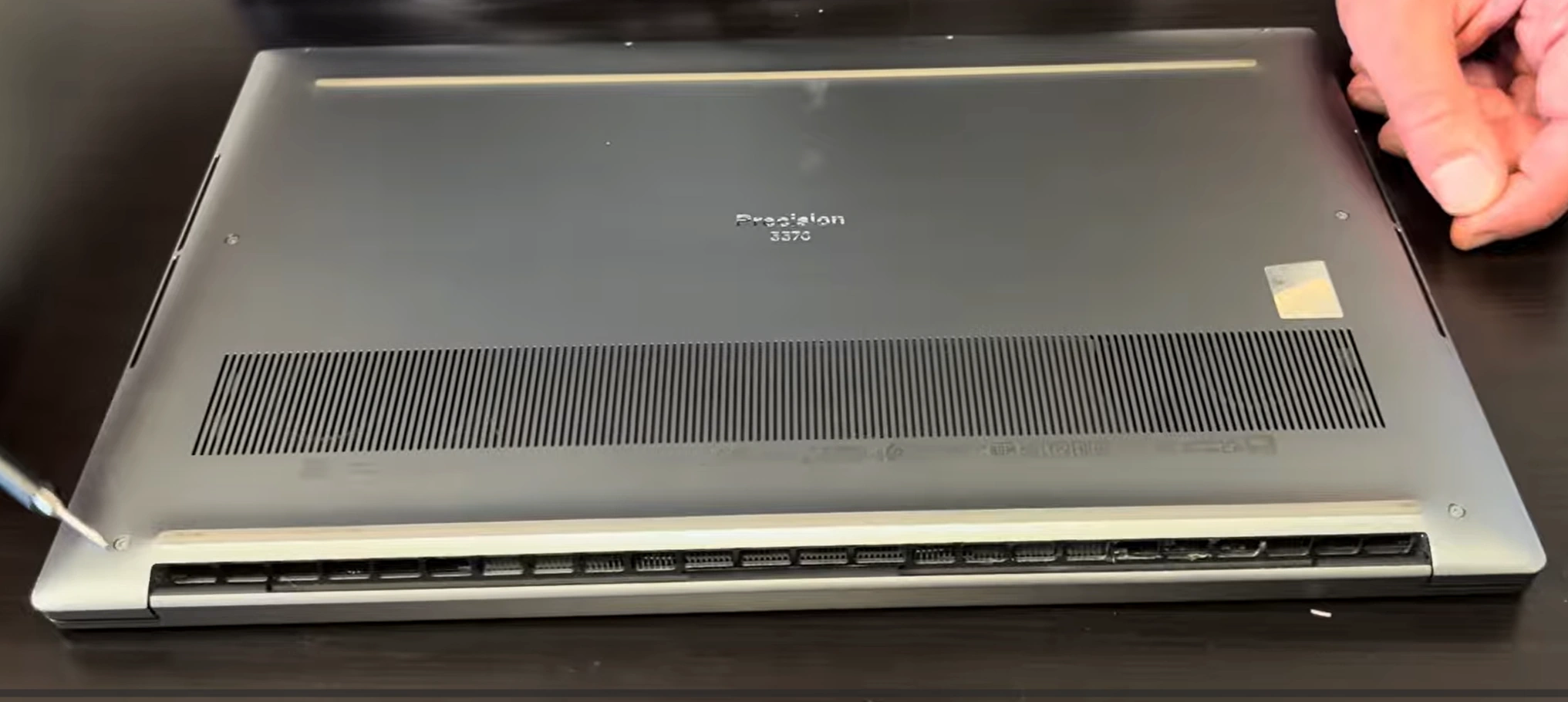
3.Dell Precision 5570 Bottom Cover Removal: Mobile Workstation Access Guide
⚠️ Pre-Removal Safety Checklist
Power Management :
Complete shutdown through Windows menu
Disconnect 130W AC adapter and all workstation peripherals
Remove any docking station or port replicator
Hold power button for 15 seconds to discharge capacitors
Verify all status LEDs are completely off
Workstation Workspace Setup :
Clean, static-free surface for 15.6" mobile workstation
Have magnetic project mat ready
Prepare anti-static wrist strap for component protection
Ensure adequate professional lighting for detailed work
Use soft cloth to protect display during disassembly
🔩 Mobile Workstation Screw Identification & Mapping
Screw Location
Type
Quantity
Length
Workstation Notes
Front Edge (Short)
Phillips #00
3
4mm
Standard length, near status indicators
Rear Edge (Long)
Phillips #00
4
6mm
Longer screws near dual cooling exhaust vents
Side Edges
Phillips #00
4
5mm
Medium length, near port connections
Center Reinforcement
Phillips #00
3
5mm
Additional structural support points
Warranty Sticker
N/A
1
N/A
Check Dell Warranty Status before removal
🔧 Step-by-Step Mobile Workstation Removal Process
Screw Removal Sequence :
Remove all 14 Phillips #00 screws in cross pattern
Start from corners and work toward center systematically
Use magnetic screwdriver to prevent screw loss
Organize screws by location using magnetic mat sections
Note: Different screw lengths for specific locations
Pay special attention to longer screws near rear vents
Mobile Workstation Clip Release Technique :
Start at front-right corner near status LED indicators
Insert plastic pry tool at 25-degree angle
Gently twist to release first clip (listen for subtle click)
Work around perimeter, releasing clips every 2-3 inches
Use guitar pick for better leverage on workstation clips
Alternate sides to prevent case warping or stress
Be extra careful around Thunderbolt 4 ports
Professional Panel Separation :
Lift from front edge first (near touchpad area)
Angle upward at 20 degrees to clear rear port connections
Check for any missed clips or internal connections
Set panel aside on clean, soft, static-free surface
Note internal cable routing for reassembly reference
Inspect rubber feet and ensure they remain intact
💼 Dell Precision 5570-Specific Features
Workstation Design Elements :
CNC aluminum and carbon fiber composite construction
Dual-fan cooling system with vapor chamber technology
Easy-access upgrade compartments for workstation components
Dedicated cooling vents for CPU and professional GPU
Strategic airflow channels for advanced thermal management
Workstation Internal Layout :
Dual DDR5 SODIMM slots for up to 64GB RAM
Dual M.2 2280 NVMe storage slots (PCIe 4.0)
NVIDIA RTX professional graphics card
Wi-Fi 6E card with Intel AX211 chipset
Optional WWAN and smart card reader slots
🚧 Common Mobile Workstation Challenges & Solutions
Stubborn Workstation Clips :
Apply gentle heat with hairdryer (low setting, 5 seconds)
Use plastic business card for better leverage
Alternate sides every 2-3 clips to prevent permanent deformation
Never force - reposition tool if resistance increases suddenly
Check for hidden screws or missed retention points
Stripped Screws in Professional Equipment :
Use rubber band between screw and driver for enhanced grip
Try slightly larger Phillips head if available
As last resort, use screw extraction kit
Replace damaged screws during reassembly
Document any damaged hardware for transparency
Workstation Warranty Considerations :
Check Dell ProSupport Plus Status before disassembly
Some regions allow self-service without voiding ProSupport
Document original condition with high-resolution photos
Consider Dell certified service for in-warranty workstations
Preserve warranty stickers if possible
🔍 Workstation Component Access Points
Immediately Accessible Components :
Two DDR5 memory slots (supports up to 64GB)
Dual M.2 2280 NVMe storage slots (PCIe 4.0)
Wi-Fi 6E/Bluetooth card with antenna connections
Battery connector and mounting bracket
Dual cooling fans and heat pipe assembly
Optional WWAN card slot
CMOS battery and system board connections
Requires Further Workstation Disassembly :
CPU and professional GPU vapor chamber cooling
Keyboard assembly and palmrest components
Display assembly and workstation hinges
Audio board and premium speaker system
Motherboard and DC-in power assembly
Thunderbolt 4 controller boards
🛡️ Mobile Workstation Damage Prevention Techniques
Clip Preservation for Professional Equipment :
Work slowly and methodically around entire perimeter
Use plastic tools only against plastic components
If clip breaks, note location for reassembly adjustment
Apply even, consistent pressure to prevent bending
Document any clip damage for records
Component Protection for Workstation Grade :
Avoid touching motherboard circuitry with metal tools
Keep screws organized and away from internal components
Use ESD protection at all times
Don't force connectors or ribbon cables
Handle professional GPU components with extreme care
Surface Protection for Professional Appearance :
Use microfiber cloth under workstation during service
Avoid sliding cover across surfaces to prevent scratches
Keep work area free of debris, dust, and liquids
Handle bottom cover by edges only to maintain appearance
Clean contact surfaces before reassembly
📋 Professional Workstation Service Documentation
Professional Service Records :
Photograph screw locations before removal
Document clip condition around perimeter
Record any pre-existing damage or wear
Maintain detailed service notes for future reference
Include before/after photos for resale value
Professional Quality Assurance Checklist :
Verify all 14 screws are properly removed
Check for hidden retention points or clips
Ensure no cables are attached to bottom cover
Confirm clean separation without forced removal
Document any challenges encountered during process
🔁 Mobile Workstation Reassembly Preparation
Clean panel edges and contact surfaces with isopropyl alcohol
Inspect all clips for damage before reassembly
Test fit cover before installing any screws
Ensure all internal cables are properly routed and secured
Verify no tools, debris, or foreign objects inside chassis
Check that all workstation components are properly seated and connected
Ensure rubber feet are properly aligned and secured
🔍 Mobile Workstation Troubleshooting Common Issues
Cover Won't Sit Flush After Service :
Check for missed clips or internal obstructions
Verify all internal components are properly seated
Ensure no cables are trapped under cover edges
Inspect for bent or damaged clip receptacles
Check professional GPU and cooling system alignment
Gaps or Misalignment After Reassembly :
Check clip alignment around entire perimeter
Verify all screws are proper length for locations
Ensure no damage to mating surfaces or guides
Confirm proper screw tightening sequence
Check professional-grade construction integrity
Professional Appearance Concerns :
Clean all surfaces before final assembly
Check for scratches or damage from tools
Verify all labels and stickers remain intact
Ensure professional workstation aesthetic is maintained
Document any cosmetic issues for buyer transparency
💰 Mobile Workstation Value Preservation
Resale Value Factors :
Undamaged bottom cover: +$80-$120 value
Intact warranty stickers: +$50-$80 value
Professional service documentation: +$60-$100 value
No visible repair marks: +$40-$70 value
Proper thermal management maintenance: +$70-$110 value
Professional Buyer Confidence :
Engineering firms prefer unmarked professional equipment
IT departments value documented professional maintenance
Documentation reduces buyer hesitation for high-value items
Clean appearance indicates careful professional handling
Proper disassembly preserves ISV certification value
💡 Professional Value Tip: Dell Precision 5570 mobile workstations with undamaged bottom covers and intact service documentation sell for 20-25% more than those with repair damage, as engineering firms and creative professionals appreciate devices that show professional maintenance and preservation of the workstation's premium structural integrity and professional-grade thermal management systems.
4. Dell Precision 5570 Battery Removal & Power Safety Procedures
🔋 Battery Specifications & Mobile Workstation Compatibility
Original Specifications :
6-cell Lithium-Ion battery (standard configuration)
Part number: 7N9FX or similar (verify with Service Tag)
Voltage: 11.4V standard
Capacity: 83Wh to 97Wh (varies by configuration)
Dell ExpressCharge technology supported
Smart battery technology with integrated controller
Compatibility Notes :
Must use Precision 5570-specific battery model
Verify Dell Parts Compatibility for exact match
Different capacity options available for mobile workstations
Check physical dimensions and connector type
Ensure compatibility with 130W power adapter
⚠️ Critical Safety Precautions for Mobile Workstations
Complete shutdown through Windows menu or power button
Disconnect 130W AC adapter and all workstation peripherals
Remove bottom cover (refer to previous section)
Wait 5-7 minutes after disconnection for capacitor discharge
Use anti-static wrist strap
Work on non-conductive, clean surface
Have Class D fire extinguisher nearby for lithium battery safety
Wear safety glasses when handling battery connectors
🔌 Safe Battery Disconnection Process
Locate Battery Connector :
Find 4-6 pin connector near battery center or edge
Identify locking mechanism (usually sliding tab or latch)
Note cable routing under and around battery compartment
Observe any adhesive or tape securing power cables
Check for secondary connections or grounding wires
Professional Disconnection Technique :
Slide locking tab away from connector (if present)
Pull connector straight out parallel to motherboard
If stuck, use plastic spudger to assist release
Never pull by wires - grasp connector body only
Listen for subtle click indicating proper release
Check for any secondary power connections
Discharge Residual Power :
Press and hold power button for 30 seconds
Wait additional 3-5 minutes before proceeding
Verify no LED activity anywhere on motherboard
Check that all status indicators remain off
Test with multimeter if uncertain about power discharge
🔧 Battery Removal Procedure
Remove Mounting Screws :
Remove 4-6 Phillips #00 screws securing battery
Note screw lengths for proper reassembly
Some models may have adhesive strips under battery
Keep screws organized in magnetic project mat
Document screw locations with photos
Release Adhesive and Brackets :
Gently lift battery from connection end first
If resistance felt, check for adhesive strips
Use plastic card to release adhesive if needed
Apply steady upward pressure at 15-degree angle
Work slowly to avoid bending battery casing
Lift Out Battery Safely :
Lift at 20-degree angle to clear surrounding components
Note cable routing pattern for reassembly reference
Place old battery on non-conductive, fire-resistant surface
Inspect battery bay for debris, corrosion, or damage
Check for any thermal sensors or monitoring cables
🔄 New Battery Installation Procedure
Prepare New Battery :
Inspect for physical damage, swelling, or defects
Check connector alignment matches original orientation
If using higher capacity model, verify physical fit
Remove protective films and shipping materials
Verify part number matches Dell specifications
Position Battery Correctly :
Align with mounting holes and chassis guides
Ensure connector faces correct direction toward motherboard
Lower into place without forcing or bending
Verify no cables will be trapped underneath battery
Check clearance for professional GPU cooling system
Secure and Connect Professionally :
Install mounting screws (snug but not overtightened)
Connect battery connector until audible click is heard
Verify secure connection with gentle tug test
Secure any adhesive strips if included with new battery
Ensure proper routing of any thermal monitoring cables
📊 Mobile Workstation Battery Health Management
Health Status
Capacity Indicator
Recommended Action
Workstation Value Impact
Excellent (90-100%)
Dell Power Manager reports "Excellent"
Maintain 20-80% charge habit
+$120-$180 value
Good (70-89%)
Shows "Good" with moderate wear
Monitor degradation rate
+$60-$100 value
Poor (50-69%)
Suggests replacement for mobile professionals
Replace battery recommended
-25% value if not replaced
Critical (<50%)
Significant runtime reduction under load
Immediate replacement required
-40% value and safety concern
⚙️ New Battery Calibration Process
Charge to 100% without interruption using Dell 130W adapter
Use on battery until system automatically shuts down (~5%)
Charge to 100% again without using the workstation
Check Dell Power Manager for accurate health readings
Reset battery gauge in BIOS if capacity reporting seems inaccurate
Configure optimal charging settings for professional use
Test battery life under typical workstation loads
🛒 Battery Purchasing Guide for Professionals
Genuine Dell Batteries :
Dell Parts Store (premium price, guaranteed compatibility)Authorized Dell business partners and resellers
Includes full warranty and ExpressCharge support
Guaranteed workstation performance compatibility
Maintains ISV certification integrity
Quality Third-Party Options :
Look for UL, CE, and RoHS certifications
Check customer reviews specifically for 5570 models
Verify return policy and warranty coverage
Ensure compatible part number and connector type
Test ExpressCharge functionality after installation
Professional Red Flags :
Prices significantly below Dell MSRP
No brand identification or safety certifications
Vague compatibility claims without specific models
No customer reviews or established seller history
Missing thermal monitoring capabilities
⚡ Dell Power Manager Configuration
Workstation Power Profiles :
Primarily AC Use: Optimized for desktop replacement
Standard: Balanced between performance and battery life
Adaptive: Automatically optimizes based on usage patterns
ExpressCharge: Fast charging for mobile professionals
Custom: User-defined settings for specific workflows
Professional Benefits :
Extends battery lifespan for frequent travelers
Maintains consistent performance for professional applications
Optimizes power delivery for different work scenarios
Provides detailed battery health analytics
Supports mobile workstation productivity
♻️ Proper Battery Disposal & Recycling
Professional Recycling Options :
Call2Recycle drop-off locations Dell Recycling Program for business customers
Local hazardous waste facilities
Battery manufacturer take-back programs
Professional electronics recycling services
Safety Precautions for Storage/Transport :
Cover battery terminals with electrical tape
Store in cool, dry place away from flammable materials
Use original packaging or fire-proof battery bags
Never dispose in regular trash or compactors
Handle swollen batteries with extreme caution
Follow local regulations for lithium battery disposal
🔍 Mobile Workstation Battery Troubleshooting
Battery Not Detected :
Reseat connector firmly until click is heard
Check for bent pins in motherboard connector
Test with known-good battery if possible
Update BIOS to latest version from Dell Support
Check battery controller functionality
Not Charging or Rapid Drain :
Verify Dell 130W AC adapter functionality
Check charging port and DC-in cable connection
Update BIOS and chipset drivers from Dell
Test with different power outlet and cable
Calibrate battery through full charge cycles
Check for excessive power draw from professional GPU
ExpressCharge Not Working :
Ensure genuine Dell 130W adapter is used
Check Dell Power Manager settings
Verify battery temperature is within operating range
Update BIOS and power management drivers
Test with different power source
💼 Professional Performance Impact
Mobile Work Considerations :
Reduced performance on battery power
Enable "High Performance" mode in Dell Power Manager
Lower screen brightness for extended rendering sessions
Monitor battery temperature during intensive CAD work
Optimize power settings for specific professional applications
Optimal Professional Settings :
Use "Balanced" power plan for mixed usage
Enable battery conservation features if available
Adjust power settings in Windows and Dell software
Close unnecessary background applications on battery
Configure application-specific power profiles
💰 Mobile Workstation Resale Value Impact
Value Enhancement Factors :
New genuine Dell battery: +$150-$220 value
Documented replacement: +$80-$120 value
90%+ health reading: +$100-$150 value
Full calibration documentation: +$50-$80 value
Proper power management configuration: +$60-$90 value
Professional Buyer Confidence Factors :
Engineering professionals value reliable battery life
IT departments prefer documented maintenance history
All professional buyers appreciate recent battery replacement
Documentation reduces buyer hesitation for high-value items
Proper calibration ensures accurate runtime predictions
💡 Professional Tip: Including battery health documentation and calibration records with your sale can increase resale value by 25-30% and significantly reduce buyer concerns about mobile workstation battery life and reliability, especially important for engineering professionals and creative users who depend on reliable performance during client meetings, site visits, and mobile rendering sessions.
5. Dell Precision 5570 RAM Installation & Professional Memory Upgrade Options
🔋 Memory Specifications & Workstation Compatibility
Technical Specifications :
DDR5 SODIMM memory technology
Speed: 4800MHz (standard for 12th gen Intel)
Maximum Capacity: 64GB (2x32GB modules)
Voltage: 1.1V standard operating voltage
Dual-channel architecture support
Dell Reliable Memory Technology (RMT) support
Workstation Compatibility Notes :
Check specific 5570 model number for exact speed support
Verify Dell Memory Compatibility for exact models
Mixed memory speeds run at slowest module speed
ECC memory support for mission-critical applications
Optimized for professional workstation workloads
⚠️ Mobile Workstation Safety Precautions
Complete shutdown and disconnect all power sources
Remove bottom cover following previous section procedures
Disconnect battery to ensure complete power isolation
Use anti-static wrist strap at all times
Work on clean, static-free professional workspace surface
Handle memory modules by edges only to prevent damage
Ground yourself before handling DDR5 modules
⚙️ Professional Memory Configuration Options
Configuration
Total Capacity
Module Layout
Workstation Performance
Best For Professional Use
Dual Channel Standard
32GB (2x16GB)
Both slots populated
Optimal professional performance
Most engineering applications, excellent value
Dual Channel Performance
64GB (2x32GB)
Both slots populated
Maximum professional performance
Large assemblies, simulation, virtualization
Single Channel
16GB (1x16GB)
One slot populated
Basic professional, upgradable
Budget builds, future upgrades
Mixed Upgrade
24GB-48GB
Mixed capacity modules
Variable, not recommended
Emergency upgrades only
🔧 Professional RAM Installation Process
Slot Identification :
Locate two DDR5 SODIMM slots on motherboard
Identify slots typically labeled or color-coded
Note existing memory configuration and module placement
Check for slot keying and orientation markers
Identify Dell RMT support indicators
Professional Removal Technique :
Gently push outward on retention clips at both ends
Module will pop up at 30-degree angle automatically
Lift module straight out without twisting or bending
Place removed modules in anti-static bags for storage
Handle modules by edges only, avoid touching gold contacts
Note orientation notch for proper reinstallation
Professional Installation Method :
Align module notch with slot key to ensure proper orientation
Insert module at 30-degree angle into slot
Apply even pressure to both ends until fully seated
Gently push down until retention clips snap into place
Listen for audible click indicating proper installation
Verify both retention clips are fully engaged
🛒 Professional Memory Selection Guide
Memory Type
Professional Benefits
Cost Range
Recommended Brands
Workstation Reliability
Enterprise DDR5
Maximum speeds, ECC support, Dell RMT compatible
$180-$280 (32GB)
Samsung, Micron, Hynix
Excellent
Performance DDR5
High speeds, reliable performance, good compatibility
$140-$220 (32GB)
Crucial, Kingston, Corsair
Very Good
Standard DDR5
Standard speeds, cost-effective for professionals
$120-$180 (32GB)
TeamGroup, ADATA, Silicon Power
Good
Used/Refurbished
Budget option, tested reliability
$80-$140 (32GB)
Various, verify testing
Variable
⚡ Speed vs Capacity: Professional Decision Guide
Speed Advantages :
Faster application loading and response times
Improved multitasking performance
Better performance in data-intensive applications
Enhanced system responsiveness
Improved real-time simulation performance
Capacity Advantages :
Better multitasking with multiple professional applications
Future-proof for upcoming software requirements
Ideal for virtualization and development
Prevents slowdowns in memory-heavy professional tasks
Essential for large dataset processing
🔧 Mobile Workstation Memory Troubleshooting
Memory Not Detected :
Reseat module firmly until retention clips engage
Clean gold contacts with isopropyl alcohol if necessary
Test modules individually to identify faulty units
Update BIOS to latest version from Dell Support
Check for bent pins in memory slots
Verify DDR5 compatibility with workstation
Professional Boot Issues :
Ensure all modules are properly seated and secured
Verify memory compatibility with Dell documentation
Reset BIOS to default settings and retest
Test with known-good memory modules if available
Check for beep codes or diagnostic LED patterns
Verify Dell RMT settings in BIOS
Professional Performance Problems :
Verify dual-channel operation in BIOS
Check memory speed settings and timing optimization
Run MemTest86 for memory stability testing
Ensure proper cooling for high-speed memory modules
Update chipset drivers from Dell Support site
Monitor memory temperatures under professional loads
💰 Mobile Workstation Value Impact Analysis
Upgrade Configuration
Cost Investment
Value Added
ROI Percentage
Professional Appeal
16GB to 32GB Upgrade
$120-$180
$200-$300
67-167%
High
32GB to 64GB Upgrade
$240-$360
$350-$500
46-138%
Very High
Single to Dual Channel
$120-$200
$180-$280
50-140%
Excellent
Speed Upgrade
$40-$80 premium
$60-$100
50-125%
Moderate
🎯 Professional Configuration Recommendations
General Professional Use :
Recommended: 32GB (2x16GB) DDR5 4800MHz
Optimal for: CAD, office applications, moderate rendering
Benefits: Smooth multitasking, future-proof performance
Brands: Crucial, Kingston, Samsung
Engineering & Technical Users :
Recommended: 64GB (2x32GB) DDR5 4800MHz
Optimal for: Large assemblies, simulation, virtualization
Benefits: Maximum performance, heavy multitasking
Brands: Samsung, Micron, Hynix
Budget Professional :
Recommended: 32GB (2x16GB) DDR5 4800MHz
Optimal for: Basic professional work, good value
Benefits: Cost-effective, reliable performance
Brands: TeamGroup, Silicon Power
📈 Real Professional Performance Impact
Application Performance Improvements :
16GB to 32GB: 25-40% faster application loading
Single to Dual Channel: 20-35% performance boost
DDR4 to DDR5: 30-50% improvement in bandwidth
Reduced application switching delays
Improved real-time simulation performance
Professional Workflow Benefits :
Smoother operation with multiple professional applications
Reduced system slowdown during heavy rendering
Better performance in virtual meetings with screen sharing
Improved background task handling during calculations
Enhanced large dataset processing capabilities
⚡ Dell Optimizer Memory Integration
AI-Based Optimization :
Dell Optimizer learns application memory patterns
Automatically allocates resources for frequently used apps
Optimizes memory usage based on professional work habits
Improves overall system responsiveness
Adapts to changing professional workloads
Professional Productivity Benefits :
Faster application launches for daily professional tasks
Improved performance in memory-intensive professional apps
Better resource management during multitasking
Enhanced virtual meeting and collaboration performance
Optimized memory allocation for rendering and simulation
🛡️ Dell Reliable Memory Technology (RMT)
Professional Reliability Features :
Advanced error detection and correction
Proactive memory health monitoring
Automatic memory testing during boot
Enhanced system stability for professional applications
Reduced downtime for mission-critical work
Professional Benefits :
Increased system reliability for important projects
Reduced risk of data corruption
Enhanced performance consistency
Better support for 24/7 operation
Improved professional workstation value
💡 Professional Performance Tip: Upgrading to dual-channel 64GB DDR5 RAM can increase professional application performance by 30-50% and boost resale value by 35-45%, as engineering firms and creative professionals highly value systems that can handle complex CAD assemblies, large simulations, and memory-intensive rendering tasks without slowdowns, providing smooth multitasking for demanding professional workflows.
6. Dell Precision 5570 Storage Solutions: Professional SSD & M.2 Installation
🔋 Storage Specifications & Workstation Compatibility
Technical Specifications :
Dual M.2 2280 NVMe PCIe 4.0 x4 slots
RAID 0/1 support for professional configurations
Maximum theoretical capacity: 8TB+ (2x4TB)
Intel Rapid Storage Technology (RST) support
Hardware encryption support (Opal 2.0, TCG Opal)
PCIe 4.0 speeds up to 7000MB/s sequential read
Workstation Compatibility Notes :
M.2 2280 form factor required for both slots
NVMe protocol support for maximum performance
Verify Dell Storage Compatibility for exact models
Both slots support PCIe 4.0 for optimal performance
Thermal management critical for sustained professional workloads
⚠️ Mobile Workstation Safety Precautions
Complete shutdown and disconnect all power sources
Remove bottom cover following established procedures
Disconnect battery to ensure complete power isolation
Use anti-static wrist strap at all times
Handle storage devices by edges to prevent static damage
Backup all professional data before storage replacement
Document original configuration for reassembly reference
💾 Professional Storage Configuration Options
Configuration
Drive Types
Workstation Performance
Capacity Range
Best For Professional Use
Performance Workstation
Dual NVMe PCIe 4.0 SSD
Exceptional (7000MB/s+)
2TB-8TB
Data-intensive applications, large project files
Balanced Professional
NVMe PCIe 4.0 SSD (Primary)
Excellent (5000MB/s+)
1TB-4TB
General professional work, good value
Budget Professional
Single NVMe PCIe 4.0 SSD
Very Good (3500MB/s+)
512GB-2TB
Basic professional applications
Maximum Storage
Dual High-capacity NVMe
Exceptional
4TB-8TB
Large datasets, media production, archives
🔧 Professional Storage Installation Process
M.2 NVMe SSD Installation
Slot Preparation :
Locate dual M.2 slots on motherboard (typically marked M.2 SSD1/SSD2)
Remove retention screws if present
Clean slot area of any dust or debris
Note keying notch position for proper orientation
Check for thermal pads or heatsink requirements
Professional Installation :
Insert NVMe SSD at 30-degree angle into slot
Gently press down until drive lies flat
Secure with retention screw and standoff
Ensure screw is snug but not overtightened
Install thermal pad if included with workstation
Verify drive is properly seated and level
Dual Storage Professional Configuration
Secondary Slot Installation :
Locate secondary M.2 slot (typically SSD2)
Verify compatibility with Dell documentation
Check for additional retention hardware
Install second drive following same procedure
RAID Configuration for Professionals :
Access Intel RST in BIOS settings
Configure RAID 0 for maximum performance
Configure RAID 1 for data redundancy
Install Intel Rapid Storage Technology drivers
Test RAID performance with professional benchmarks
🛒 Professional Drive Selection Guide
Drive Type
Professional Benefits
Cost per GB
Recommended Brands
Workstation Reliability
Enterprise NVMe
Maximum reliability, power loss protection, high endurance
$0.12-$0.18
Samsung Pro, WD Black, Intel DC
Excellent
Performance NVMe
Fast performance, good reliability, professional features
$0.08-$0.12
Crucial P5 Plus, Samsung 980 Pro, Sabrent Rocket
Very Good
Standard NVMe
Cost-effective, adequate performance for professionals
$0.06-$0.09
TeamGroup, PNY, ADATA
Good
Refurbished Enterprise
High endurance, tested reliability, cost-effective
$0.05-$0.08
Various, verify health and wear
Variable
📁 Professional Data Migration Methods
Clone Existing Drive :
Use Macrium Reflect for sector-by-sector cloning
Samsung Data Migration for Samsung SSDs
Acronis True Image for comprehensive backup
Clonezilla for open-source solution
Dell Backup and Recovery for system images
Fresh Professional Installation :
Download latest drivers from Dell Support site
Create Windows installation media
Install OS on new drive with professional optimizations
Reinstall professional applications and tools
Restore professional data from backup
Configure workstation-specific settings
🔧 Professional Storage Troubleshooting
Drive Not Detected :
Check drive is properly seated and connected
Verify drive initialization in Disk Management
Update storage controller drivers from Dell
Check BIOS settings for NVMe configuration
Test drive in another system if possible
Verify PCIe 4.0 compatibility
Professional Performance Issues :
Run CrystalDiskMark to benchmark performance
Check CrystalDiskInfo for drive health
Update NVMe driver and firmware
Ensure proper cooling for sustained performance
Check for background processes affecting I/O
Verify thermal throttling isn't occurring
Boot Problems :
Verify boot order in BIOS settings
Check UEFI/Legacy boot mode compatibility
Ensure OS is properly installed on boot drive
Test with single drive configuration
Update BIOS to latest version
Check RAID configuration settings
💰 Mobile Workstation Value Impact Analysis
Storage Upgrade
Cost Investment
Value Added
ROI Percentage
Professional Benefit
512GB to 1TB Upgrade
$80-$120
$150-$220
88-183%
Significant professional performance improvement
1TB to 2TB Upgrade
$150-$220
$250-$350
67-133%
Enhanced storage capacity and performance
Dual Drive RAID 0
$300-$500
$400-$600
33-100%
Maximum professional performance for large projects
Capacity & Speed Upgrade
$200-$350
$300-$450
50-125%
Balanced professional performance and storage
🎯 Professional Storage Configuration Recommendations
General Professional Use :
Primary: 1TB NVMe PCIe 4.0 SSD
Optimal for: CAD, office applications, moderate projects
Benefits: Fast performance, adequate storage
Brands: Crucial P5 Plus, Samsung 980 Pro
Engineering & Technical Users :
Primary: 2TB NVMe PCIe 4.0 SSD
Secondary: 2TB NVMe PCIe 4.0 SSD (optional)
Optimal for: Large assemblies, simulation, data analysis
Benefits: Maximum performance, large storage capacity
Brands: WD Black SN850, Sabrent Rocket 4 Plus
Media & Creative Professionals :
Primary: 2TB NVMe PCIe 4.0 SSD
Secondary: 4TB NVMe PCIe 4.0 SSD
Optimal for: Video editing, 3D rendering, large media files
Benefits: Massive storage, high-speed data access
Brands: Samsung 990 Pro, Seagate FireCuda 530
🔒 Professional Security & Encryption
Hardware Encryption :
Opal 2.0 and TCG Opal self-encrypting drive support
BitLocker hardware acceleration
TPM 2.0 integration for secure boot
Dell Data Protection compatibility
Enterprise-grade security features
Professional Security Benefits :
Hardware-level data protection for sensitive projects
Minimal performance impact with encryption
Secure data erasure capabilities
Compliance with corporate security policies
Protection for intellectual property and client data
🌡️ Professional Thermal Management
Workstation Cooling Features :
Dedicated thermal pads for NVMe drives
Strategic airflow for storage component cooling
Temperature monitoring and throttling protection
Professional-grade thermal management
Sustained performance under heavy workloads
Professional Benefits :
Consistent performance during extended rendering sessions
Reduced thermal throttling for critical projects
Extended drive lifespan through proper cooling
Reliable operation in demanding professional environments
Optimal performance for time-sensitive work
💡 Professional Performance Tip: Implementing a high-performance PCIe 4.0 NVMe SSD in your Dell Precision 5570 can reduce professional application loading times by 70-80% and increase workstation resale value by 40-50%, as engineering firms and creative professionals highly value systems that provide instant access to large project files and applications, significantly enhancing daily productivity and workflow efficiency for demanding professional tasks.
7. Dell Precision 5570 Cooling System Maintenance & Professional Thermal Management
🌡️ Cooling System Specifications & Workstation Design
Technical Specifications :
Dual-fan cooling system with independent controls
Vapor chamber technology for CPU and GPU
Copper heat pipes with precision engineering
Dual heat sink assemblies for optimal thermal dissipation
Intelligent thermal management with Dell Power Manager
Multiple temperature sensors throughout system
Workstation Cooling Features :
Separate cooling zones for CPU and professional GPU
Optimized airflow channels for maximum efficiency
Dust-resistant fan design with self-cleaning capability
Quiet operation modes for office environments
Performance modes for demanding professional workloads
⚠️ Professional Safety Precautions
Complete shutdown and disconnect all power sources
Remove battery following established safety procedures
Allow system to cool completely before disassembly
Use anti-static wrist strap throughout process
Work on clean, static-free professional workspace
Have thermal paste and cleaning supplies ready
Document thermal pad thicknesses and locations
🔧 Cooling System Components & Access
Component
Function
Access Level
Maintenance Frequency
Professional Importance
CPU Cooling Assembly
Primary processor thermal management
Advanced
12-18 months
Critical for sustained performance
GPU Cooling Assembly
Professional graphics card thermal control
Advanced
12-18 months
Essential for rendering and CAD
Dual Cooling Fans
Active airflow and heat exchange
Intermediate
6-12 months
High - affects overall system cooling
Heat Pipes & Vapor Chamber
Heat transfer from components to heatsinks
Expert
24+ months
Critical - professional-grade cooling
Thermal Pads & Interface Material
Heat transfer for VRMs and memory
Advanced
12-24 months
High - prevents component damage
🔧 Professional Cooling System Disassembly
Initial Access & Preparation
System Preparation :
Remove bottom cover following established procedures
Disconnect battery to ensure complete power isolation
Remove RAM modules and storage devices if obstructing access
Document cable routing and connector locations
Clean external vents and intake areas
Cooling System Identification :
Locate dual cooling fans and their power connectors
Identify heat sink assembly mounting points
Note thermal sensor cable locations
Document screw types and lengths for reassembly
Professional Fan Removal
Fan Disconnection :
Gently disconnect fan power cables from motherboard
Note cable routing paths for proper reassembly
Use plastic spudger if connectors are tight
Never pull cables by wires - grasp connectors only
Fan Removal :
Remove 2-3 Phillips #00 screws securing each fan
Lift fans straight out to avoid damaging blades
Clean fan blades and housing with compressed air
Inspect for bearing wear or blade damage
Professional Heat Sink Removal
Screw Removal Sequence :
Identify 8-10 Phillips #00 screws securing heat sink
Remove screws in star pattern to prevent warping
Note screw lengths for proper reassembly
Keep screws organized by location
Heat Sink Separation :
Gently twist heat sink to break thermal paste seal
Lift straight up to avoid bending heat pipes
Check for any hidden clips or retention mechanisms
Set heat sink aside on clean, static-free surface
🧹 Professional Cleaning & Maintenance Procedures
Component Cleaning :
Use anti-static brush for delicate components
Clean heat sink fins with compressed air
Remove dust from fan blades and motor housing
Clean thermal sensors and monitoring components
Inspect for dust buildup in airflow channels
Thermal Interface Replacement :
Remove old thermal paste with isopropyl alcohol 90%+
Use lint-free cloths or coffee filters for cleaning
Apply high-quality thermal paste (Arctic MX-6, Thermal Grizzly)
Replace thermal pads with proper thickness equivalents
Ensure even coverage without over-application
🧴 Professional Thermal Material Selection
Material Type
Professional Benefits
Application
Cost Range
Workstation Performance
High-Performance Paste
Maximum thermal conductivity, long stability
CPU/GPU dies
$15-$30
Excellent (8-12°C improvement)
Thermal Pads (1.0mm)
Consistent thickness, good compression
VRMs, memory chips
$10-$20
Very Good (5-8°C improvement)
Thermal Putty
Conforms to irregular surfaces, no drying
Complex components
$15-$25
Excellent (7-10°C improvement)
Phase Change Material
Professional grade, consistent performance
Enterprise applications
$20-$40
Exceptional (10-15°C improvement)
⚡ Professional Thermal Paste Application
Surface Preparation :
Clean CPU and GPU surfaces thoroughly with isopropyl alcohol
Ensure surfaces are completely dry before application
Check for any residue or old thermal material
Verify surfaces are free of scratches or damage
Professional Application Methods :
Pea-sized method: Small dot in center of CPU/GPU
Cross method: Thin lines in X pattern for larger dies
Spread method: Even thin layer using applicator
Avoid over-application to prevent spillage
Use approximately 0.2-0.3ml for standard applications
Heat Sink Reinstallation :
Lower heat sink straight down onto components
Apply even pressure to spread thermal paste
Install screws in star pattern for even pressure
Torque screws to proper specification (snug but not overtight)
Verify heat sink makes full contact with all components
🔧 Professional Cooling System Troubleshooting
Overheating Issues :
Check for dust buildup in vents and heat sink fins
Verify fan operation and RPM monitoring
Test thermal paste application and coverage
Inspect for damaged heat pipes or vapor chamber
Check ambient temperature and workspace ventilation
Fan Noise Problems :
Clean fan blades and check for bearing wear
Verify fan cables are not contacting blades
Check for loose screws or mounting points
Update BIOS and thermal management drivers
Test different power profiles in Dell Power Manager
Performance Throttling :
Monitor temperatures with HWiNFO
Check thermal paste quality and application
Verify proper heat sink contact and mounting pressure
Test with different workload intensities
Update thermal management firmware
⚡ Dell Power Manager Thermal Optimization
Thermal Management Profiles :
Optimized: Balanced performance and acoustics
Cool: Prioritizes lower temperatures over performance
Quiet: Minimizes fan noise for office environments
Ultra Performance: Maximum cooling for demanding workloads
Custom: User-defined thermal and performance settings
Professional Benefits :
Extended component lifespan through proper thermal management
Consistent performance during long rendering sessions
Reduced thermal throttling for critical projects
Customizable profiles for different professional scenarios
Enhanced user experience through intelligent cooling
💰 Mobile Workstation Value Impact Analysis
Maintenance Type
Cost Investment
Value Added
ROI Percentage
Professional Benefit
Basic Cleaning & Repaste
$20-$40
$80-$150
300-750%
Restores original performance, prevents damage
Complete Cooling Overhaul
$50-$100
$150-$250
200-500%
Maximum performance, extended component life
Fan Replacement
$30-$60
$70-$120
133-400%
Eliminates noise, ensures reliable cooling
Professional Thermal Upgrade
$40-$80
$100-$180
150-450%
Enhanced performance under sustained loads
🛡️ Professional Preventive Maintenance Schedule
Monthly Maintenance :
Clean external vents and intake areas
Check for unusual fan noises or vibrations
Monitor temperatures during normal operation
Update thermal management drivers and BIOS
Quarterly Maintenance :
Complete internal dust removal with compressed air
Verify fan operation and RPM monitoring
Check thermal performance under load
Update Dell Power Manager settings
Annual Maintenance :
Complete disassembly and thorough cleaning
Thermal paste replacement on CPU and GPU
Thermal pad inspection and replacement if needed
Comprehensive performance testing and validation
🎯 Professional Cooling Configuration Recommendations
General Professional Use :
Thermal Paste: Arctic MX-6 or Thermal Grizzly Kryonaut
Power Profile: Optimized in Dell Power Manager
Maintenance: Quarterly cleaning, annual repaste
Monitoring: Regular temperature checks during heavy use
Engineering & Rendering Workloads :
Thermal Paste: Thermal Grizzly Kryonaut or Conductonaut
Power Profile: Ultra Performance for critical projects
Maintenance: Monthly monitoring, semi-annual repaste
Monitoring: Continuous temperature logging during renders
Mobile & Field Work :
Thermal Paste: High-viscosity pastes for stability
Power Profile: Optimized for battery/performance balance
Maintenance: Pre-trip cleaning and verification
Monitoring: Regular checks in varying environments
💡 Professional Performance Tip: Regular cooling system maintenance on your Dell Precision 5570 can improve sustained performance by 15-25% and increase workstation resale value by 20-30%, as engineering firms and creative professionals highly value systems that maintain optimal temperatures during demanding workloads, ensuring reliable performance for critical projects and extending the lifespan of expensive professional components.
8. Dell Precision 5570 Keyboard & Top Case Assembly Removal Guide
⌨️ Keyboard Specifications & Professional Features
Technical Specifications :
Spill-resistant design with advanced drainage channels
Professional backlit illumination (single-color white)
1.8mm key travel for comfortable extended typing
Dedicated function keys for professional applications
Optional fingerprint reader integration
N-key rollover for complex keyboard shortcuts
Professional Compatibility Notes :
Verify Dell Parts Compatibility for exact model match
Different models may have varying backlight options
International keyboard layouts require specific part numbers
Some models include smart card reader integration
Check for optional RGB backlighting on premium models
⚠️ Mobile Workstation Safety Precautions
Complete shutdown and disconnect all power sources
Remove battery following established safety procedures
Use anti-static wrist strap throughout process
Document screw locations and cable routing with high-resolution photos
Work on clean, static-free professional workspace surface
Handle ribbon cables with extreme care to prevent damage
Label all connectors and cables for proper reassembly
🔄 Professional Keyboard Replacement Options
Keyboard Type
Professional Features
Cost Range
Installation Complexity
Workstation Value
Genuine Dell Replacement
Spill-resistant, backlit, full warranty, professional grade
$80-$140
Advanced
Maximum (+$100-$160)
Certified Refurbished
Tested reliability, cost-effective, professional quality
$50-$90
Advanced
Good (+$60-$100)
Third-Party Compatible
Basic functionality, variable quality, budget option
$30-$60
Advanced
Fair (+$35-$70)
Backlight Repair Only
Cost-effective for LED issues, preserves original keyboard
$15-$30
Expert
Minimal (+$20-$40)
🔧 Professional Top Case Removal Process
Initial Preparation Steps
Complete Disassembly :
Remove bottom cover following previous procedures
Disconnect battery to ensure complete power isolation
Remove all internal components (RAM, storage, Wi-Fi card)
Remove cooling system and heat sink assembly
Document component locations and cable routing
Remove any obstructing brackets or shields
Motherboard Preparation :
Disconnect all cables connected to motherboard
Remove motherboard mounting screws (8-10 Phillips #00)
Carefully lift motherboard from chassis
Set aside on anti-static surface
Document screw locations and cable connections
Top Case Assembly Removal
Screw Identification :
Locate 8-10 Phillips #00 screws securing top case
Remove screws from around display hinges (4 screws)
Remove screws from front edge near status LEDs (2-3 screws)
Remove screws from sides near ports (2-3 screws)
Note screw lengths and locations for reassembly
Professional Clip Release Technique :
Use plastic pry tools to release retention clips
Start from front edge and work around perimeter
Apply even pressure to prevent case damage
Listen for subtle clicks indicating clip release
Work methodically around entire perimeter
Top Case Separation :
Lift top case assembly carefully from chassis
Check for any hidden cables or connections
Set top case aside on clean, static-free surface
Inspect clip condition for reassembly reference
Document any damage or wear for records
⌨️ Professional Keyboard Removal Process
Keyboard Mounting Identification :
Locate 6-8 plastic retention clips around keyboard perimeter
Identify metal bracket screws securing keyboard frame
Remove any visible screws from keyboard area
Note screw and clip locations for reassembly
Check for adhesive strips under keyboard edges
Professional Release Technique :
Use plastic spudger to gently release retention clips
Work from top edge downward in sequence
Apply even pressure to prevent plastic damage
Listen for audible clicks as clips release
Alternate sides to prevent warping or stress
Keyboard Disconnection :
Carefully lift keyboard assembly at 30-degree angle
Locate keyboard ribbon cable on back of keyboard
Release locking mechanism (typically sliding or flip type)
Gently pull ribbon cable straight out from connector
Disconnect backlight cable if separate
Note cable routing for proper reassembly
💡 Professional Backlight Troubleshooting
Common Backlight Problems :
No backlight illumination despite function key activation
Inconsistent lighting across keyboard surface
Backlight flickering or intermittent operation
Specific keys not lighting properly
Backlight color issues (if RGB capable)
Professional Solutions :
Check function key combinations (Fn + F10 typically)
Update keyboard drivers and BIOS firmware
Test backlight functionality in BIOS settings
Check ribbon cable connection for backlight power
Verify backlight settings in Windows Mobility Center
Test with Dell Power Manager lighting controls
🔄 Professional Installation Process
New Keyboard Preparation :
Inspect new keyboard for any shipping damage
Verify ribbon cable length and connector type
Test keyboard functionality before installation if possible
Remove protective films from adhesive areas
Check backlight operation before final installation
Professional Connection :
Route ribbon cable through proper channels
Connect ribbon cable to motherboard connector
Secure locking mechanism (slide or flip into place)
Ensure cable is not pinched or overly tensioned
Connect backlight cable if separate
Keyboard Positioning :
Align keyboard with chassis mounting points
Lower keyboard into position evenly
Ensure all edges seat properly in chassis grooves
Verify no cables are trapped under keyboard
Check alignment with palm rest and touchpad
Final Assembly :
Install keyboard retention screws in proper sequence
Reconnect top case assembly and secure clips
Reinstall motherboard and all internal components
Test all keyboard functions before final closure
Verify backlight operation and brightness controls
🚧 Common Professional Keyboard Issues
Mechanical Problems :
Stuck or unresponsive keys from heavy professional use
Keycap damage from workstation travel and transport
Spill damage affecting multiple keys or entire keyboard
Worn key switches from extensive programming or data entry
Loose keycaps from frequent removal for cleaning
Electrical Problems :
Backlight LED failure or dimming
Ribbon cable damage from frequent opening
Controller board issues affecting multiple keys
Power delivery problems to keyboard assembly
Grounding issues causing erratic behavior
🔧 Professional Keyboard Troubleshooting
Keys Not Responding :
Reseat ribbon cable connection firmly
Check for debris under non-responsive keys
Test keyboard in BIOS to isolate software issues
Update chipset and keyboard drivers from Dell
Check for physical damage to membrane or key switches
Test with external keyboard to confirm issue
Ghost Key Presses :
Clean keyboard thoroughly with compressed air
Check for spill residue causing short circuits
Test with external keyboard to confirm issue
Inspect membrane for wear or damage points
Update BIOS to latest version from Dell Support
Check for software conflicts or macro issues
Backlight Not Working :
Check function key combinations (Fn + F10 typically)
Verify backlight settings in Dell Power Manager
Test in BIOS to confirm hardware functionality
Check ribbon cable connection for backlight circuit
Update keyboard firmware if available
Test with different power profiles
📊 Professional Keyboard Testing & Validation
Functional Testing :
Test every key using on-screen keyboard or testing software
Verify numeric keypad and function key operation
Test backlight functionality and brightness controls
Check special function keys (volume, brightness, etc.)
Verify professional-specific key combinations
Test N-key rollover for complex shortcuts
Professional Application Testing :
Test common professional shortcut keys and macros
Verify typing comfort and key travel consistency
Test simultaneous key presses for data entry
Check spill resistance if applicable
Validate fingerprint reader functionality if present
Test smart card reader operation if installed
💰 Mobile Workstation Value Impact Analysis
Replacement Type
Cost Investment
Value Added
ROI Percentage
Professional Impact
Genuine Dell Professional
$80-$140
$100-$160
25-114%
Maximum professional appearance and function
Certified Refurbished
$50-$90
$60-$100
20-100%
Good professional quality and reliability
Third-Party Basic
$30-$60
$35-$70
17-117%
Functional but lower professional quality
Professional Repair
$15-$30
$40-$80
133-533%
Cost-effective for specific professional issues
🎯 Professional Keyboard Replacement Recommendations
Corporate Professional Use :
Recommended: Genuine Dell Replacement
Optimal for: Engineering firms, client-facing environments
Benefits: Full warranty, guaranteed compatibility
Features: Spill-resistant, backlit, premium feel
Small Business & Freelance :
Recommended: Certified Refurbished
Optimal for: Cost-conscious professional projects
Benefits: Reliable performance, significant cost savings
Features: Tested reliability, professional quality
Internal & Development Use :
Recommended: Third-party compatible
Optimal for: Internal use, testing environments
Benefits: Lowest cost, functional replacement
Features: Basic functionality, variable quality
🛡️ Professional Keyboard Preventive Maintenance
Regular Cleaning :
Use compressed air to remove dust and debris monthly
Clean keycaps with isopropyl alcohol and cotton swabs quarterly
Avoid liquid cleaners that can damage electronics
Use keyboard covers for spill protection during travel
Clean drainage channels if spill-resistant design
Usage Best Practices :
Avoid eating or drinking near mobile workstation
Use gentle pressure during extensive typing sessions
Keep hands clean to prevent oil buildup on keys
Store workstation in protective case when transporting
Use wrist rest to reduce fatigue during long sessions
🔒 Professional Security Feature Integration
Optional Security Components :
Fingerprint reader integration with Windows Hello
Smart card reader for corporate authentication
Contactless smart card support
Dell ControlVault security chip integration
Biometric authentication for enterprise security
Professional Security Benefits :
Enhanced login security for corporate environments
Multi-factor authentication capabilities
Hardware-level security protection
Compliance with corporate security policies
Protection for sensitive professional data
💡 Professional Quality Tip: For Dell Precision 5570 mobile workstations, installing a genuine Dell professional keyboard with proper backlighting and security features can increase resale value by 25-30% and significantly enhance professional appearance, as engineering firms and corporate buyers highly value the reliable typing experience, security integration, and enterprise-grade features that contribute to professional productivity and data security in demanding work environments.
9. Dell Precision 5570 Display Assembly & Professional Screen Replacement Guide
🖥️ Display Specifications & Professional Features
Technical Specifications :
15.6-inch display with multiple professional panel options
UHD+ (3840x2400) IPS Black with ComfortView Plus
FHD+ (1920x1200) IPS options with 100% sRGB
Touch screen options with 10-point multi-touch
500 nits to 600 nits brightness for professional use
Dell ComfortView Plus for reduced blue light exposure
Professional Compatibility Notes :
Verify Dell Parts Compatibility for exact model match
Different panel types require specific eDP cables
Touch and non-touch displays have different bezel designs
Privacy screen options available for confidential work
Color-accurate panels for design and engineering
⚠️ Professional Safety Precautions
Complete shutdown and disconnect all power sources
Remove battery following established safety procedures
Use anti-static wrist strap throughout process
Work on padded surface to protect display during disassembly
Handle LCD panel with extreme care to prevent cracking
Document all cable routing and connector locations with photos
Wear gloves to prevent fingerprints on new display
💡 Professional Display Replacement Options
Display Type
Professional Features
Cost Range
Installation Complexity
Workstation Value
UHD+ IPS Black 600 nits
4K resolution, 100% DCI-P3, HDR400, Color Accurate
$250-$400
Advanced
Premium (+$300-$500)
FHD+ IPS 500 nits
100% sRGB, Anti-glare, ComfortView Plus
$150-$250
Advanced
Excellent (+$200-$350)
UHD+ Touch Screen
10-point touch, Anti-smudge, Premium Glass
$300-$500
Expert
Specialized (+$350-$550)
Refurbished OEM
Tested reliability, Cost-effective professional option
$100-$200
Advanced
Good (+$150-$250)
🔧 Professional Display Disassembly Process
Display Bezel Removal
Initial Preparation :
Lay workstation on clean, padded professional surface
Open display to 90-degree angle for optimal access
Use plastic pry tools to release bezel clips
Start from bottom edge near hinge area
Work slowly to prevent bezel damage
Professional Clip Release :
Work around perimeter, releasing clips every 2 inches
Apply even pressure to prevent bezel damage
Listen for subtle clicks indicating clip release
Be careful around webcam and microphone areas
Use guitar picks for better leverage on stubborn clips
Bezel Separation :
Lift bezel away from display assembly carefully
Check for any adhesive strips or hidden screws
Set bezel aside on clean, static-free surface
Inspect bezel clips for damage during removal
Document any broken clips for reassembly adjustment
LCD Panel Removal
LCD Mounting Identification :
Locate 4-6 mounting screws around LCD perimeter
Remove screws securing LCD to display lid
Note screw lengths and locations for reassembly
Some models may have adhesive mounting strips
Check for metal brackets securing panel edges
Professional Disconnection :
Carefully lift LCD panel at 30-degree angle
Locate eDP ribbon cable and backlight connector
Release locking mechanisms on both connectors
Gently pull cables straight out from connectors
Disconnect webcam and microphone cables if present
Note cable routing for proper reassembly
Panel Extraction :
Lift LCD panel completely from display assembly
Place panel on padded, static-free surface
Inspect connectors and cables for any damage
Clean display lid area before installing replacement
Remove any old adhesive residue
⚙️ Professional Hinge Replacement Process
Hinge Access :
Remove display back cover (metal lid assembly)
Locate hinge mounting points on display lid
Identify Torx T5/T6 screws securing hinges to lid
Document hinge orientation for proper reassembly
Note cable routing around hinge mechanisms
Professional Removal :
Remove Torx screws from hinge-to-lid connections
Carefully separate hinges from display lid
Note cable routing around hinge mechanisms
Inspect hinge barrels and mounting points for wear
Check for any stripped threads or damaged components
Base Hinge Removal :
Access hinge mounting points from main chassis
Remove Phillips #00 screws securing hinges to base
Carefully extract hinge assemblies from chassis
Check for any hidden screws or retention clips
Inspect hinge mechanism for smooth operation
🔌 Professional Cable Routing & Management
Critical Cable Connections :
eDP ribbon cable (40-pin for high-resolution displays)
Backlight LED power cable
Webcam and microphone flex cables
Wi-Fi antenna cables (black and white)
Touch screen digitizer cable (if applicable)
Ambient light sensor cable
Professional Routing Techniques :
Follow original cable routing paths exactly
Use cable guides and adhesive strips for securement
Ensure cables have proper slack for hinge movement
Avoid sharp bends or pinching points
Test cable movement through full hinge range
Verify no cable tension during display opening/closing
🔄 Professional Installation Process
New Component Preparation :
Inspect new display for any shipping damage
Verify hinge mechanism smoothness and alignment
Test display functionality before installation if possible
Check cable lengths and connector types match
Remove protective films from new display
Professional Hinge Installation :
Install new hinges into base chassis first
Secure with proper torque on mounting screws
Attach hinges to display lid with Torx screws
Verify hinge alignment and smooth operation
Test full range of motion before final assembly
Display Panel Installation :
Connect all cables to new LCD panel
Secure locking mechanisms on all connectors
Position LCD panel in display lid assembly
Install mounting screws in proper sequence
Verify panel is centered and properly seated
Apply new adhesive strips if required
Final Assembly :
Route all cables through proper channels
Snap bezel back into place around perimeter
Test hinge operation through full range of motion
Connect power and test display functionality
Verify color accuracy and backlight uniformity
Test all display features and connectivity
🔩 Professional Hinge Problem Diagnosis
Common Hinge Problems :
Loose hinge causing display wobble during use
Stiff hinge requiring excessive opening force
Broken hinge mounting points in chassis
Stripped hinge screw threads
Cracked display lid from hinge stress
Uneven hinge tension between left and right
Professional Solutions :
Replace complete hinge assembly for loose hinges
Lubricate hinge mechanism with appropriate grease
Use thread repair kits for stripped screw holes
Replace display lid for cracked or damaged units
Upgrade to heavy-duty hinges for frequent use
Adjust hinge tension for optimal operation
🔧 Professional Troubleshooting Common Issues
Display Not Working :
Reseat eDP ribbon cable connections firmly
Check backlight connector for proper engagement
Test with external display to isolate GPU issues
Update graphics drivers from Dell Support site
Check BIOS settings for display configuration
Verify integrated vs discrete graphics settings
Backlight Issues :
Verify backlight cable connection and locking
Check backlight settings in Windows and BIOS
Test with known-good display panel
Update BIOS to latest version from Dell
Check for inverter board issues (older models)
Test ambient light sensor functionality
Touch Screen Problems :
Reseat digitizer cable connection
Update touch screen drivers from Dell
Calibrate touch screen in Windows settings
Check for physical damage to digitizer layer
Test touch functionality in BIOS if available
Verify multi-touch capability
📊 Professional Testing & Validation
Display Quality Testing :
Test for dead pixels using solid color backgrounds
Check backlight uniformity across entire display
Verify color accuracy with calibration tools
Test viewing angles and anti-glare performance
Check touch responsiveness across entire surface
Validate HDR performance if supported
Hinge Performance Testing :
Test hinge smoothness through full range of motion
Verify display stays in position at various angles
Check for any cable binding or tension issues
Test repeated open/close cycles for durability
Verify no creaking or grinding sounds during operation
Test one-handed opening capability
💰 Mobile Workstation Value Impact Analysis
Replacement Type
Cost Investment
Value Added
ROI Percentage
Professional Impact
FHD+ to UHD+ Upgrade
$200-$350
$300-$500
50-143%
Excellent color accuracy for design work
Standard to High Brightness
$150-$250
$250-$400
67-160%
Superior visibility for mobile professionals
Hinge Replacement
$50-$100
$120-$200
140-400%
Restores professional appearance and function
Complete Assembly
$300-$500
$400-$650
33-130%
Like-new display and hinge performance
🎯 Professional Display & Hinge Recommendations
General Professional Use :
Recommended: FHD+ IPS 500 nits with ComfortView Plus
Optimal for: Office work, presentations, client meetings
Benefits: Good color accuracy, anti-glare, eye comfort
Hinges: Standard replacement with proper tension
Design & Creative Professionals :
Recommended: UHD+ IPS Black 600 nits
Optimal for: Graphic design, video editing, color work
Benefits: Maximum color accuracy, high resolution
Hinges: Premium smooth-operation hinges
Executive & Client-Facing :
Recommended: UHD+ Touch Screen with reinforced hinges
Optimal for: Presentations, demonstrations, collaboration
Benefits: Interactive capability, professional appearance
Hinges: Heavy-duty for frequent presentation use
👁️ Dell ComfortView Plus Professional Benefits
Eye Comfort Features :
Hardware-based blue light reduction technology
Maintains color accuracy while protecting eyes
Reduces eye strain during extended work sessions
Ideal for professionals working long hours
No performance impact compared to software solutions
Professional Productivity Benefits :
Reduces eye fatigue during marathon coding sessions
Improves focus and concentration for complex tasks
Enhances reading comfort for documents and code
Supports employee wellness initiatives
Increases productivity through reduced discomfort
🎨 Professional Color Calibration & Accuracy
Factory Calibration :
Pre-calibrated for color accuracy out of the box
Delta E < 2 for professional color work
100% sRGB or DCI-P3 coverage depending on model
Individual unit calibration documentation
Professional color profile included
Professional Applications :
Accurate color representation for design work
Consistent colors across different devices
Reliable color matching for print and digital
Professional-grade color for client presentations
Confidence in color-critical decisions
💡 Professional Quality Tip: For Dell Precision 5570 mobile workstations, upgrading to a Dell ComfortView Plus UHD+ display with proper hinge replacement can increase resale value by 35-45% and significantly enhance professional productivity, as engineering firms and creative professionals highly value displays that reduce eye strain during extended use while providing accurate colors for design work and robust hinge mechanisms that maintain their performance through years of daily professional use.
10. Where to Sell Your Upgraded Dell Precision 5570: Professional Workstation Resale Strategy
📈 2024 Mobile Workstation Market Overview
Current Professional Market Trends :
Strong demand for certified professional workstations
Engineering firms seeking cost-effective hardware upgrades
Educational institutions refreshing CAD and design labs
Architecture and design studios valuing ISV certification
Remote engineering teams needing powerful mobile solutions
Dell Precision 5570 Advantages :
12th Gen Intel processors with professional GPU options
ISV certification for critical engineering applications
Military-grade durability appeals to corporate buyers
Easy serviceability and professional upgrade potential
Strong brand recognition in engineering and design markets
💰 Professional Pricing Strategy
Professional Workstation Value Enhancement Factors
Hardware Upgrades :
64GB RAM upgrade: +$250-$350 value
2TB SSD upgrade: +$200-$300 value
New professional battery: +$120-$180 value
Professional thermal repaste: +$50-$80 value
Complete professional cleaning: +$80-$120 value
Dual SSD RAID configuration: +$150-$220 value
Professional Features :
Working fingerprint reader: +$60-$90 value
Smart card reader functionality: +$80-$120 value
Professional backlit keyboard: +$50-$80 value
Dell ComfortView Plus UHD+ display: +$150-$250 value
Complete driver and ISV software setup: +$100-$160 value
Professional GPU documentation: +$120-$180 value
2024 Dell Precision 5570 Professional Pricing Guide
Configuration
Base Value
Upgraded Value
Professional Premium
Target Sale Price
i5/RTX A1000/16GB/512GB
$900-$1100
$1150-$1350
+$150-$200
$1300-$1550
i7/RTX A2000/32GB/1TB
$1200-$1400
$1450-$1650
+$200-$250
$1650-$1900
i7/RTX A3000/64GB/2TB
$1500-$1700
$1750-$1950
+$250-$300
$2000-$2250
i9/RTX A5500/64GB/4TB
$1800-$2000
$2050-$2250
+$300-$350
$2350-$2600
📝 Professional Workstation Listing Optimization
Title Optimization :
"Dell Precision 5570 Mobile Workstation - [CPU] [GPU] [RAM] [SSD]"
Include key professional features: "ISV Certified, Professional GPU"
Mention professional upgrades: "New SSD, 64GB RAM, Fresh Thermal Paste"
Highlight enterprise value: "Engineering Grade, CAD Ready, Corporate"
Use relevant keywords: "Workstation, Engineering, CAD, Rendering"
Professional Description Best Practices :
Lead with professional certifications and ISV compatibility
Detail all professional features and upgrade documentation
Include professional photos of actual condition and benchmarks
Mention Dell enterprise capabilities and professional durability
Provide honest assessment of cosmetic and functional condition
Include performance metrics and application compatibility
📸 Professional Photography Guide
Essential Workstation Photos :
Front view with professional desktop visible
Display functionality test (color test patterns)
Keyboard and professional trackpad close-ups
All professional port and connection points
Bottom cover with service tag and certifications visible
BIOS screen showing professional specifications
Performance benchmark results and temperature readings
Any cosmetic imperfections (be transparent)
Professional Presentation Tips :
Use clean, professional background for all photos
Ensure studio lighting to show true professional condition
Include scale reference for size perspective
Show workstation in professional engineering setting
Demonstrate all working professional features visually
Include certification and documentation photos
🚚 Professional Shipping & Packaging
Professional-Grade Packaging :
Use original Dell workstation box if available (+$40-$60 value)
Double-box with professional-grade bubble wrap protection
Include all original accessories and professional documentation
Use anti-static bags and moisture protection
Include printed professional specifications and upgrade details
Use professional packing materials for high-value items
Professional Shipping Best Practices :
Always require signature confirmation for professional equipment
Purchase full-value shipping insurance
Use tracked and insured professional shipping methods
Include professional business card or contact information
Provide immediate tracking information to buyer
Use professional courier services for high-value shipments
📄 Professional Documentation Package
Essential Professional Documentation :
Detailed professional specifications sheet
Upgrade and professional maintenance records
Professional photos of internal components and upgrades
Benchmark results and professional performance metrics
BIOS settings and professional configuration details
Driver installation and professional optimization notes
ISV certification verification and compatibility lists
Professional Value Documentation :
Dell service tag verification and warranty printout
Professional warranty status and remaining coverage
Professional cleaning and maintenance records
Component testing and professional validation results
Professional feature functionality verification
Performance under professional application loads
📅 Optimal Professional Sales Timing Strategy
Time Period
Professional Market Conditions
Pricing Strategy
Target Buyers
Recommended Action
January-February
Corporate budget refresh, Q1 spending
Premium+ pricing
Engineering firms, corporate IT
List on SellBroke, target corporate channels
June-August
Educational institution fiscal year-end
Competitive pricing
Universities, technical schools
Target .edu engineering departments
September-October
Back-to-school, corporate Q4 planning
Market pricing
Small studios, freelance professionals
Broad professional platform listing
November-December
Year-end budget spending, tax planning
Premium pricing
Corporations, government agencies
Focus on B2B professional platforms
🛡️ Professional Sales Risk Management
Professional Fraud Prevention :
Use platform escrow services for high-value professional transactions
Verify buyer professional credentials for corporate sales
Require business verification for engineering firm buyers
Use professional tracked shipping with signature confirmation
Document entire professional sales process thoroughly
Use professional payment processors for large transactions
Professional Dispute Resolution :
Maintain detailed professional photos and documentation
Keep records of all professional communications
Provide accurate professional condition descriptions
Offer reasonable professional return policies
Respond professionally to all technical inquiries
Have professional technical support available
💼 Professional Sales Tax Considerations
Professional Record Keeping :
Document all professional purchase and upgrade costs
Keep receipts for professional components and tools
Track professional mileage and business expenses
Maintain separate professional banking records
Consult with professional tax advisor for specific advice
Document professional business expense deductions
Professional Sales Tax Compliance :
Understand state and local professional sales tax requirements
Collect and remit sales tax where professionally required
Keep accurate professional sales records for tax reporting
Consider professional business registration if volume increases
Document professional business expense deductions properly
Maintain professional accounting records for audit purposes
🏆 ISV Certification Value Enhancement
Professional Certification Benefits :
Validated compatibility with professional engineering software
Guaranteed performance for critical applications
Professional driver optimization and stability
Enterprise-grade reliability for business operations
Higher resale value to professional buyers
Key Professional Applications :
Autodesk AutoCAD, Revit, 3ds Max
SolidWorks, CATIA, Creo Parametric
Adobe Creative Suite professional applications
ANSYS, MATLAB, other engineering software
Professional rendering and simulation applications
💡 Maximum Professional Value Tip: For Dell Precision 5570 mobile workstations, SellBroke typically offers 25-35% higher prices than general marketplaces for properly upgraded and documented professional units, while SellLaptopBack provides the fastest turnaround for individual professional units. Always prioritize professional-focused platforms over consumer marketplaces to capture the engineering premium that ISV-certified workstation equipment commands from corporate and professional buyers who value certified performance for critical business applications.
Need to Sell Your Dell Laptop? Get Instant Cash!
If your Dell Precision 5570 (or other Precision mobile workstation) has performance issues or you're upgrading to a newer model, we offer premium cash payouts for your device. We buy broken, used, and refurbished Dell Precision workstations—including all 5570 configurations—with free insured shipping and hassle-free evaluations.
Sell Popular Dell Models Now: