
Dell Latitude 5531 Complete Teardown: Upgrade RAM, SSD & LCD to Sell Broken Laptop for Cash
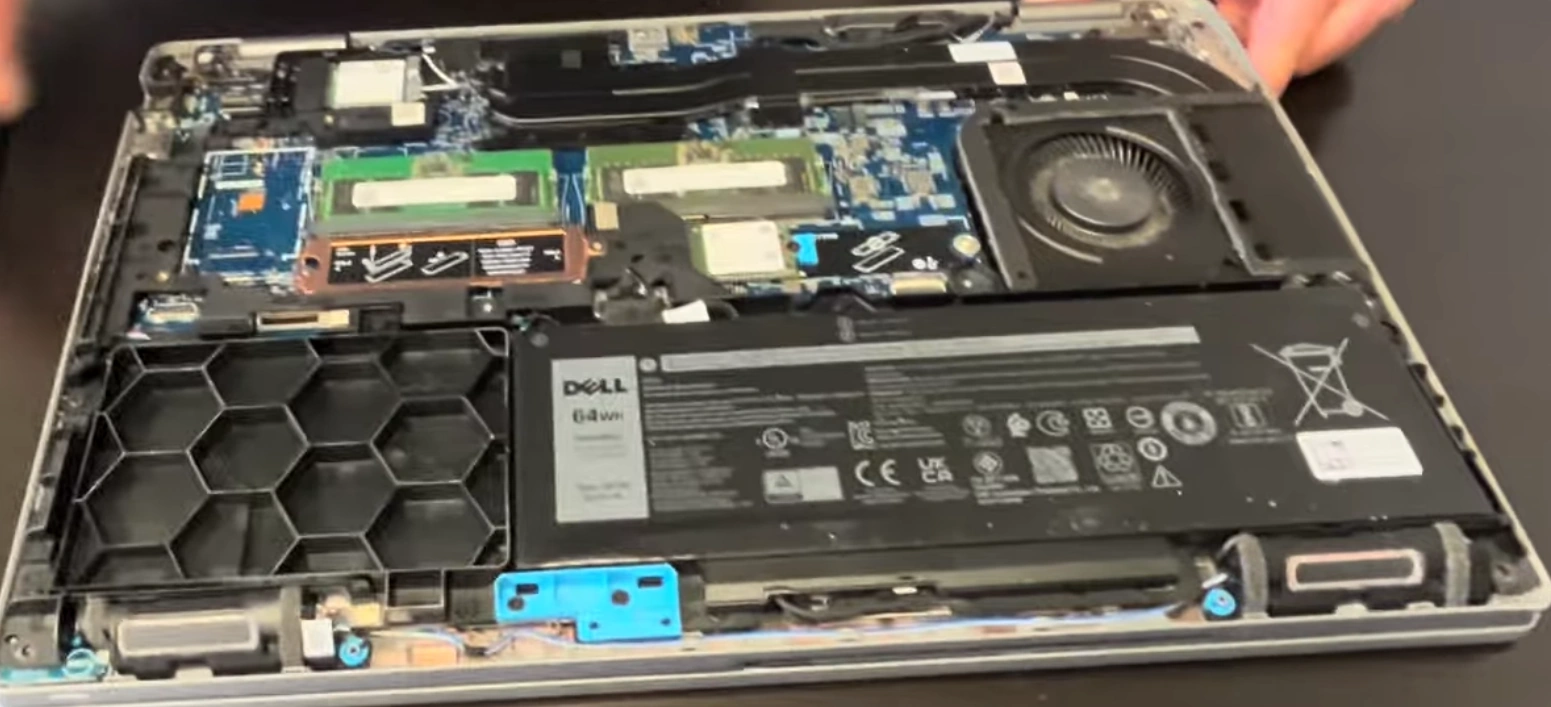
Have a damaged Dell Latitude 5531? Want to sell broken laptop or get cash for used laptop? This complete teardown guide shows you how to replace and upgrade RAM, storage, LCD, and more. Whether you're repairing to sell or looking to trade laptop + cash difference for an upgrade, these DIY repairs can maximize your laptop's value.
Article Contents
- Why Repair Before Selling?
- Tools Required for DIY Repair
- Complete Teardown Process
- RAM Upgrade Guide (Up to 64GB DDR5)
- SSD/Storage Upgrade (M.2 NVMe)
- LCD Screen Replacement
- Battery & Cooling Fan Maintenance
- Reassembly & Testing
- How to Sell or Trade Your Repaired Laptop
Why Repair Your Dell Latitude 5531 Before Selling?
The Dell Latitude 5531 is a powerful business laptop featuring 12th Gen Intel Alder Lake H-series processors [citation:1]. Even if your laptop is broken or damaged, repairing key components can significantly increase its resale value. A fully functional laptop with upgraded specs makes it easier to sell broken laptop or get cash for used laptop at a premium price [citation:5]. You might even qualify to trade laptop + cash difference for a newer model through retailer programs [citation:10].
Tools Required for DIY Repair
- Phillips screwdriver (#0 and #00)
- Plastic pry tools or spudger
- Anti-static wrist strap
- Magnetic parts tray
- Tweezers for small connectors
- Heat gun or hairdryer (for LCD removal)
- Thermal paste (if repasting CPU/GPU)
Complete Teardown Process
Before starting, power off the laptop and disconnect all cables. Enter Service Mode by holding the 'B' key and pressing the power button—the system will beep three times and shut down, indicating safe disassembly mode [citation:2]. Watch our detailed teardown video below:
0:17 Bottom Case 1:42 Battery 2:11 RAM Memory 2:31 WiFi Card 3:00 SSD Storage 3:50 Heatsink and Cooling Fan 4:38 Processor 4:46 Motherboard 8:47 Hinges 9:25 Palmrest assembly 9:34 Touchpad 10:33 Keyboard 10:46 Display assembly
RAM Upgrade Guide (Up to 64GB DDR5)
The Dell Latitude 5531 features two SODIMM RAM slots supporting up to 64GB of DDR5 memory at 4800MHz [citation:1][citation:6]. To access and replace RAM modules [citation:2]:
- Remove the base cover after entering Service Mode
- Locate the RAM modules beneath a protective shield
- Gently spread the retaining clips—the module will pop up at a 45-degree angle
- Remove and replace with compatible DDR5 RAM (note: 5600MHz modules will work but run at 4800MHz) [citation:7]
- Press down until clips lock into place
A RAM upgrade to 16GB or 32GB dramatically improves performance and resale value when you get cash for used laptop.
SSD/Storage Upgrade (M.2 NVMe)
This model has two M.2 PCIe Gen 4 slots for storage expansion [citation:1]. Both 2230 and 2280 size SSDs are supported [citation:3][citation:8]. To upgrade:
- After removing the base cover, locate the M.2 SSD slots
- Remove the single screw securing the SSD [citation:3]
- The SSD will pop up—gently slide it out
- Insert the new SSD at a 30-degree angle and press down
- Secure with the retaining screw
- Some configurations include a thermal shield—reinstall it properly [citation:8]
Upgrading to a larger NVMe SSD (512GB, 1TB, or 2TB) makes your laptop much more attractive to buyers.
LCD Screen Replacement
The Latitude 5531 features a 15.6-inch display. If your screen is cracked or malfunctioning, replacement is possible [citation:4]. Options include HD (1366x768) or Full HD (1920x1080) panels with 30-pin connectors [citation:4]. Replacement steps [citation:9]:
- Remove the bezel carefully using plastic pry tools
- Locate and remove the four screws securing the display panel (M2.5x3.5) [citation:9]
- Tilt the panel forward to access the display cable
- Disconnect the cable by lifting the latch
- Connect the new panel, secure with screws, and reattach the bezel
Note: Verify your exact model and connector type before purchasing a replacement screen [citation:4].
Battery & Cooling Fan Maintenance
The Latitude 5531 uses a 64Wh battery [citation:1]. If battery life is degraded, replacement can restore portability. The cooling system includes one fan and two heat pipes [citation:1][citation:6]. For fan replacement or cleaning:
- Disconnect the battery cable first (critical for safety) [citation:8]
- Remove the fan mounting screws
- Disconnect the fan cable from the motherboard
- Clean dust from fans and vents using compressed air
- If repasting the CPU, clean old thermal paste and apply fresh paste
Proper cooling maintenance prevents overheating and extends laptop lifespan—important whether you keep it or trade laptop + cash difference.
Reassembly & Testing
When reassembling your Dell Latitude 5531:
- Work in reverse order of disassembly
- Ensure all cable connections are secure
- Reconnect the battery cable before replacing the base cover
- Align the base cover and press along edges until it clicks into place [citation:2]
- Tighten all captive screws
- Exit Service Mode by connecting AC power and pressing the power button [citation:3]
- Test all functions: keyboard, touchpad, ports, display, speakers, and webcam
- Run Dell diagnostics (press F12 at startup) to verify hardware
How to Sell or Trade Your Repaired Laptop
After completing repairs and upgrades, you have several options [citation:5][citation:10]:
Trade-In Programs
- Pros: Quick and convenient, instant store credit, eco-friendly disposal [citation:5]
- Cons: Usually lower payouts, store credit only (not cash), limited eligibility for older/damaged models [citation:10]
- Popular options: Dell Trade-In, Best Buy, Apple [citation:5]
Sell for Cash
- Pros: Higher payouts, actual cash payment, wider acceptance of older models [citation:5]
- Cons: More time-consuming, requires shipping or meeting buyers, potential scams [citation:10]
- Popular options: Online buyback services (Gazelle, CashForUsedLaptop), eBay, Facebook Marketplace [citation:5][citation:10]
Tips to Maximize Your Sale [citation:5][citation:10]:
- Clean thoroughly: A professionally cleaned laptop sells faster and for more money
- Document upgrades: Keep receipts and photos of your repair work
- Backup and wipe data: Securely erase all personal information before selling
- Include accessories: Original charger and packaging increase value
- Compare offers: Get quotes from multiple buyers before committing
- Be honest about condition: Accurate listings build trust and prevent disputes
Pro Tip: If your laptop has minor issues after repair, you can still sell broken laptop to parts buyers or refurbishers—just be transparent about the condition [citation:10].
Whether you choose to keep your upgraded Dell Latitude 5531, get cash for used laptop, or trade laptop + cash difference for a newer model, proper repairs and maintenance ensure you maximize your return on investment. With this complete teardown guide, you're equipped to handle DIY repairs and make informed selling decisions.