DIY Lenovo Legion 5 Pro Gaming Laptop Repair: Full Teardown for Upgrades & Maintenance
Dec 16, 2025
1. Lenovo Legion 5 Pro Gaming Laptop: Professional Overview & Upgrade Potential
The Lenovo Legion 5 Pro represents a pinnacle of gaming laptop engineering, combining desktop-level performance with sophisticated thermal management and extensive upgradeability. This 16-inch powerhouse has become a favorite among gamers, content creators, and power users seeking exceptional value and serviceability.
⚙️ Legion 5 Pro Key Specifications
Component Category
Standard Specifications
Upgrade Potential
Gaming Impact
Processor
AMD Ryzen 7 5800H / Intel Core i7-11800H
Limited (soldered)
High (8-core performance)
Graphics
NVIDIA RTX 3060/3070/3080 (up to 165W TGP)
Limited (MXM/BGA)
Extreme (full-power GPUs)
Display
16" 2560x1600 165Hz IPS, 500 nits, 100% sRGB
Advanced (requires full disassembly)
Premium (QHD+ high refresh rate)
Memory
Up to 32GB DDR4 3200MHz (2 slots)
Excellent (user-upgradeable)
High (dual-channel support)
Storage
Dual M.2 NVMe slots (Gen3/Gen4 compatible)
Excellent (tool-less access on some models)
Critical (fast game loading)
🎮 Gaming-Centric Features
Advanced Cooling System:
Lenovo Coldfront 3.0 with vapor chamber (high-end models)
Some regions allow self-service without voiding warranty
Service Parts Availability:
Genuine parts through Lenovo authorized channels
Good third-party market for common components
Cross-compatibility with other Legion 5 models
Document part numbers for accurate ordering
✅ Pre-Service Assessment Checklist
Record serial number and model information
Check remaining warranty status
Backup important data and game saves
Document current performance with benchmarks
Gather necessary tools and replacement parts
Create clean, static-free workspace
Review entire guide before beginning
2. Essential Preparation & Safety Protocols for Legion 5 Pro Gaming Laptop Service
⚠️ Gaming Laptop Service Safety First
Servicing a high-performance gaming laptop like the Legion 5 Pro requires meticulous preparation. These systems contain sensitive components that can be easily damaged by static electricity, improper handling, or rushed procedures. Following professional protocols ensures both your safety and the integrity of your valuable gaming investment.
3. Required Tools & Recommended Equipment for Legion 5 Pro Gaming Laptop Repair
🔧 Essential Gaming Laptop Tool Kit
Proper tools are critical for servicing the Legion 5 Pro's precision gaming components. Using incorrect or poor-quality tools can damage delicate components, void warranties, and compromise your gaming laptop's performance. This guide covers everything from basic upgrades to professional-level repairs.
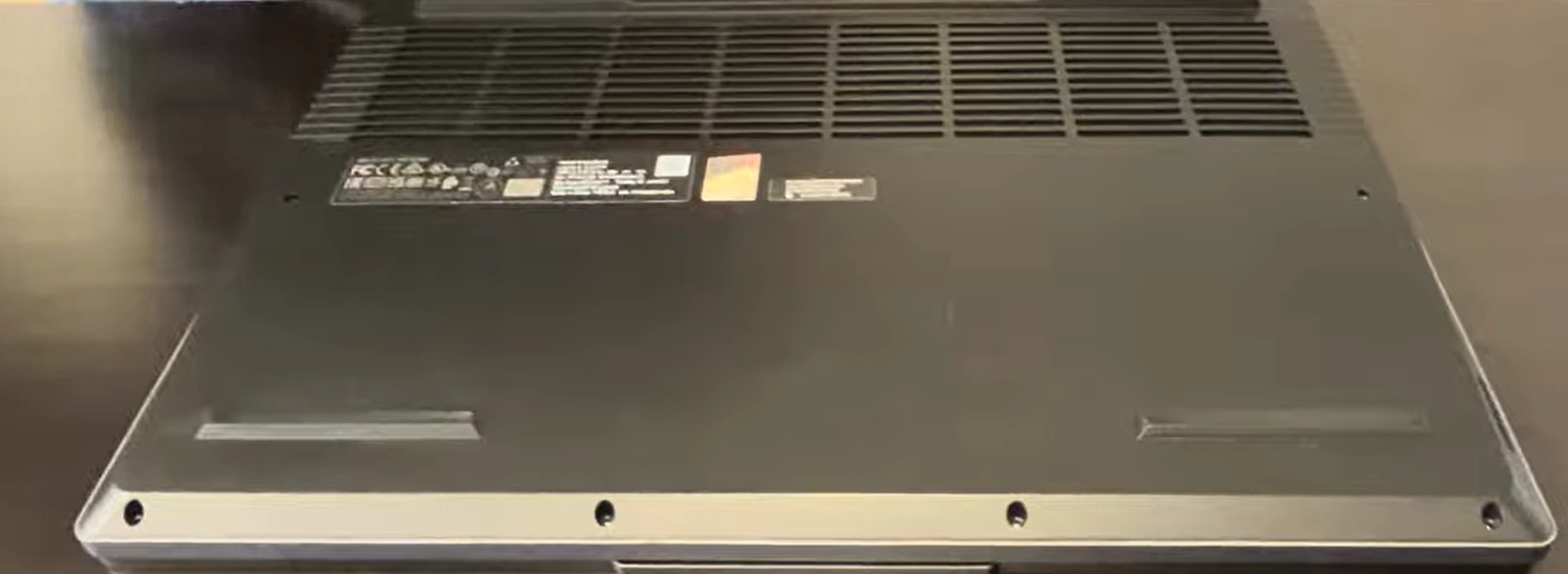
Removing the bottom panel is your first step to accessing the Legion 5 Pro's upgradeable components. This gaming laptop features thoughtful design that balances structural integrity with serviceability. Proper technique prevents damage to the premium chassis and ensures smooth reassembly for optimal cooling performance.
⚠️ Pre-Removal Gaming Laptop Preparation
Complete System Shutdown:
Save all game progress and close applications
Shut down through Windows (not sleep/hibernate)
Disconnect all gaming peripherals (mouse, keyboard, headset)
Remove AC adapter and any charging cables
Workspace & Safety Setup:
Use anti-static wrist strap connected to ground
Work on clean, soft surface to prevent scratches
Ensure good lighting for seeing small screws
Have magnetic tray ready for screw organization
🔩 Screw Identification & Location Mapping
Screw Location
Type
Quantity
Length/Color
Gaming Laptop Notes
Front Edge (Near Touchpad)
Phillips #00
4
Short (4mm), silver
Easy access, standard length
Rear Edge (Near Vents)
Phillips #00
5-6
Medium (5mm), black
Near cooling system, may have threadlocker
Side Edges
Phillips #00
3-4 each side
Short (4mm), silver
Secures structural integrity
Central Reinforcement
Phillips #00
2-3
Medium (5mm), black
Additional chassis support
Total Screws
Phillips #00
14-17
Variable
Count before and after removal
🔧 Professional Removal Technique
Screw Removal Sequence:
Use magnetic Phillips #00 screwdriver
Remove screws in diagonal pattern (not sequential)
Place screws in magnetic tray in relative positions
Note any screws that feel different (may be threadlocker)
Clip Release Methodology:
Start at front-right corner (near status indicators)
Insert plastic spudger at 30-degree angle
Gently twist to release first clip (listen for click)
Work around perimeter, releasing clips every 2-3 inches
Use guitar pick for stubborn clips
Panel Separation Protocol:
Lift from front edge first (near touchpad)
Check for any remaining connections
Set panel aside on soft, clean surface
Avoid bending or forcing the panel
🔍 Gaming Laptop Internal Layout Overview
Component Area
Accessibility
Upgrade Potential
Gaming Performance Impact
DDR4 RAM Slots
✅ Immediately accessible
Excellent (user-upgradeable)
High (affects frame pacing)
M.2 NVMe Slots
✅ Immediately accessible
Excellent (dual slots available)
Critical (game loading times)
Wi-Fi Card
✅ Immediately accessible
Good (easy replacement)
Medium (online gaming latency)
Battery
⚠️ Partially accessible
Moderate (requires disconnection)
Low (LAN party consideration)
Cooling System
❌ Not directly accessible
Advanced (requires further disassembly)
Extreme (thermal throttling prevention)
🚧 Common Challenges & Gaming Laptop Solutions
Challenge
Gaming Laptop Specific Cause
Professional Solution
Prevention for Future
Stubborn Clips
Previous improper reassembly, gaming heat cycles
Apply gentle heat (hair dryer low, 10 seconds)
Clean clip channels during reassembly
Stripped Screws
Previous over-tightening, incorrect tool use
Rubber band method, screw extraction kit
Use proper torque (finger tight + ¼ turn)
Panel Won't Separate
Missed screw, internal cable interference
Double-check all screws, look for hidden fasteners
Keep screws organized to prevent loss inside chassis
📸 Documentation & Photography Guide
Essential Photos to Take:
Overall internal layout before any changes
Close-ups of screw patterns and locations
Thermal pad and paste condition
Cable routing paths and connections
Gaming-Specific Documentation:
RGB lighting cable connections
Fan power cable routing
Any existing modifications or repairs
Component model numbers and serials
🧹 Initial Cleaning Opportunities
Cleaning Area
Gaming Performance Impact
Cleaning Method
Frequency Recommendation
Cooling Vents
High (airflow restriction)
Compressed air from inside out
Every 3-6 months
Fan Blades
Very High (fan efficiency)
Soft brush, compressed air
Every 6 months
Heat Sink Fins
Extreme (thermal transfer)
Compressed air, soft brush
Annually
Internal Surfaces
Low (aesthetics mainly)
Dry microfiber cloth
During upgrades
🔁 Reassembly Preparation Tips
Clean panel edges with isopropyl alcohol
Inspect all clips for damage before reassembly
Test fit panel before installing screws
Ensure all internal cables are properly routed
Verify no tools or debris remain inside chassis
✅ Post-Removal Performance Verification
Before Proceeding Further:
Test system boots properly (temporary reassembly)
Verify all components detected in BIOS
Check fan operation at different speeds
Ensure no new noises or issues
Gaming-Specific Checks:
Monitor temperatures in idle state
Verify RGB lighting functionality
Check game performance baseline
Ensure no new thermal throttling
5. Legion 5 Pro Battery Disconnection & Gaming Laptop Power Safety
⚠️ Critical Gaming Laptop Battery Safety
Proper battery disconnection is the most critical safety step when servicing any gaming laptop, especially the high-performance Legion 5 Pro. These systems contain large capacity batteries that can deliver dangerous current if mishandled. Following professional protocols protects both you and your valuable gaming components.
🔋 Legion 5 Pro Battery Specifications
Battery Specification
Technical Details
Gaming Impact
Safety Classification
Chemistry & Configuration
Lithium-Ion Polymer, 4-cell
2-4 hours gaming, 4-6 hours normal
Class 9 Hazardous Material
Capacity & Voltage
80Wh (typical), 11.4V nominal
Supports full GPU power briefly
High-energy density
Part Numbers
L20C4PF0, L20C4PF1 (verify exact)
Compatibility critical
Genuine Lenovo recommended
Management System
Smart battery with Lenovo Vantage
Optimizes gaming performance
Multiple safety circuits
🔌 Pre-Disconnection Safety Protocol
Complete System Shutdown:
Close all games and applications
Shut down through Windows (Start → Power → Shut down)
Disconnect AC adapter and all USB-C charging
Remove all gaming peripherals
Power Discharge Procedure:
Press and hold power button for 15 seconds
Wait 2 minutes for capacitor discharge
Verify all RGB lighting is completely off
Check for any remaining indicator lights
🔍 Battery Connector Identification
Connector Feature
Legion 5 Pro Specifics
Location Guide
Safety Notes
Connector Type
White 4-pin connector with latch
Center-left of battery, near RAM slots
Standard laptop battery connector
Latch Mechanism
Slide-to-unlock (usually left or right)
Small plastic tab on connector body
Never pull wires, use connector body
Cable Routing
Typically under battery or along edge
Follow cable from battery to motherboard
Note routing for reassembly
Visual Identification
Look for "BATT" or battery symbol nearby
Usually largest internal connector
Take photos before disconnection
🔧 Professional Disconnection Technique
Latch Release Method:
Identify latch direction (usually slides toward battery)
Use plastic spudger or fingernail to slide latch
Listen for click indicating release
If stuck, apply gentle pressure while sliding
Connector Removal:
Grasp connector body firmly (never pull by wires)
Pull straight out with even pressure
If resistance, rock gently side-to-side while pulling
Use plastic spudger for leverage if needed
Post-Disconnection Verification:
Press power button again for 5 seconds
Wait additional 1 minute before proceeding
Verify no electrical activity anywhere
Proceed only when confident system is safe
🚨 Gaming Laptop Battery Hazards & Mitigation
Potential Hazard
Risk Level for Gamers
Prevention Strategy
Emergency Response
Short Circuit
High (component damage risk)
Cover terminals immediately after removal
Power disconnect, isolate component
Thermal Runaway
Critical (fire hazard)
Work in cool environment, no heat sources
Class D fire extinguisher, evacuate area
ESD Damage
High (latent component failure)
Full ESD protection throughout
Component testing, failure analysis
Physical Damage
Medium (punctures cause fire)
Careful handling, no sharp tools nearby
Isolate damaged battery immediately
🔋 Complete Battery Removal Guide (If Required)
Screw Identification:
Locate 4-6 Phillips #00 screws securing battery
Note screw lengths (may vary)
Check for adhesive strips under battery
Document screw pattern with photos
Safe Removal Technique:
Remove screws in criss-cross pattern
Lift from connector end first (30° angle)
If adhesive present, use isopropyl alcohol to release
The Legion 5 Pro features advanced storage capabilities with dual M.2 NVMe slots, supporting lightning-fast game loading and content creation workflows. Proper storage upgrades can transform your gaming experience, reducing load times and improving overall system responsiveness for competitive advantage.
🔧 Storage Configuration Options
Configuration
Slot Utilization
Gaming Performance
Best For
Cost Range
Single SSD (Boot Drive)
Primary M.2 slot
Fast game loading
Budget gamers, casual use
$50-$150 per TB
Dual SSD (Separate)
Both M.2 slots
OS + games separation
Organized gamers, streamers
$100-$300 total
RAID 0 Configuration
Both slots striped
Maximum speed (2x)
Competitive gamers, content creators
$150-$400+
Hybrid Setup
SSD + external storage
Balanced cost/performance
Gamers with large libraries
Variable
🔍 SSD Compatibility & Selection Guide
Supported Form Factors:
M.2 2280 (22mm width, 80mm length) - PRIMARY
M.2 2242 (42mm length) - Some secondary slots
No 2.5" SATA bay in Legion 5 Pro
Check your specific model's documentation
Interface Requirements:
PCIe Gen3 x4 (most models)
PCIe Gen4 x4 (newer 2022+ models)
NVMe protocol required (not SATA M.2)
Single-sided recommended for thermal clearance
🏆 Gaming SSD Recommendations
Performance Tier
Recommended Models
Speed (Read/Write)
Gaming Benefit
Price per TB
Budget Gaming
WD Blue SN570, Crucial P3
3,500/3,000 MB/s
Good load times, reliable
$40-$60
Mainstream Gaming
Samsung 970 Evo Plus, WD Black SN770
5,000/4,500 MB/s
Excellent game loading
$60-$90
High-Performance
Samsung 980 Pro, WD Black SN850X
7,000/6,500 MB/s
Competitive edge, streaming
$80-$120
Content Creation
Sabrent Rocket 4 Plus, Seagate FireCuda 530
7,300/6,900 MB/s
Video editing, game recording
$100-$150
🔧 Step-by-Step SSD Installation
Preparation & Safety:
Complete battery disconnection (previous section)
Verify ESD protection is active
Gather tools: Phillips #00, plastic spudger
Have thermal pad/heatsink ready if using
Slot Identification:
Locate M.2 slots (typically near center)
Primary slot: Usually labeled M2_1 or similar
Secondary slot: May be under shield or near RAM
Note screw/standoff locations
SSD Installation Technique:
Insert SSD at 30-degree angle into slot
Press down gently until screw hole aligns
Secure with provided screw (do not overtighten)
Install thermal pad/heatsink if included
❄️ Gaming SSD Thermal Management
Thermal Solution
Effectiveness
Gaming Impact
Installation Complexity
Recommended For
Factory Thermal Pad
Basic cooling
Prevents basic throttling
Easy (pre-installed)
All users
Aftermarket Heatsink
Excellent cooling
Maintains max speeds
Moderate
Competitive gamers, Gen4 SSDs
Copper Shims
Good cooling
Improves sustained performance
Easy
Enthusiasts on budget
Thermal Pads Only
Better than stock
Reduces throttling
Easy
Most gamers
📁 Game Data Migration Strategies
Clean Windows Installation:
Download latest Windows Media Creation Tool
Install fresh, then reinstall games
Best for performance, eliminates bloat
Time-intensive but optimal results
Game Data Migration Tools:
Steam: Use built-in game migration tool
Epic Games: Manually move game folders
Battle.net: Scan for existing game files
Origin/EA App: Use game move function
⚡ Gaming Storage Performance Optimization
Optimization
Configuration Method
Gaming Performance Impact
Tools Required
AHCI vs RAID Mode
BIOS setting (F2 at boot)
20-30% difference in some games
BIOS access, Windows reinstall for RAID
Windows Optimization
Disable defrag, enable write caching
5-15% improvement
Windows Admin Tools
Driver Updates
Latest NVMe/storage drivers
Improved stability
Lenovo Vantage, manufacturer tools
Game Optimization
Install games on fastest drive
Faster level loading
Game client settings
🔄 RAID 0 Configuration for Gaming
RAID Advantages for Gaming:
Nearly double sequential read speeds
Faster game loading and level transitions
Improved texture streaming in open-world games
Better performance for game recording/streaming
RAID Setup Procedure:
Enter BIOS (F2 during boot)
Change SATA operation to RAID mode
Save and reboot, press Ctrl+I during POST
Configure RAID 0 array with both SSDs
Warning: RAID 0 offers no redundancy - backup important data regularly
🎮 Smart Game Installation Strategy
Game Type
Recommended Drive
Reasoning
Performance Impact
Competitive FPS
Fastest SSD (primary)
Fast map loading, asset streaming
High (get in game faster)
Open World RPG
Large capacity SSD
Texture streaming, fast travel
Very High (reduced pop-in)
Strategy Games
Any SSD
Less dependent on storage speed
Medium (faster level loading)
MMOs
Secondary SSD
Large size, frequent updates
Medium (zone transitions)
🔍 SSD Troubleshooting Guide
Issue
Potential Cause
Diagnostic Steps
Solution
SSD Not Detected
Incompatible, loose connection, BIOS setting
Check BIOS, try different slot, verify compatibility
RAM is one of the most impactful upgrades for gaming performance, especially in the Legion 5 Pro. Proper memory configuration can significantly improve frame rates, reduce stuttering, and enhance overall gaming smoothness. This guide covers professional installation techniques and optimization strategies for competitive gaming.
Warzone 2.0: 32GB recommended, helps with large maps
Microsoft Flight Simulator: 32GB+ for smooth experience
Modded Skyrim/Fallout: 32GB-64GB for heavy modding
Windows Optimization:
Disable page file if you have 32GB+ RAM
Adjust visual effects for performance
Use High Performance power plan
Close background applications before gaming
🔮 Future-Proofing Strategy
Capacity Planning:
2023-2024: 16GB minimum, 32GB recommended
2025-2026: 32GB minimum, 64GB for enthusiasts
Consider game trends (increasing requirements)
Plan for next 3-4 years of gaming
Technology Considerations:
DDR4 will be standard for several more years
DDR5 transition happening but slowly
Invest in quality modules for longevity
Consider resale value when upgrading
❄️ RAM Cooling & Thermal Management
Cooling Method
Effectiveness
Gaming Benefit
Installation Notes
Stock Thermal Pads
Basic
Prevents overheating
Usually pre-installed
Aftermarket Thermal Pads
Good
Lowers temperatures 5-10°C
Easy to install, various thicknesses
Heat Spreaders
Very Good
Improves stability during long sessions
May not fit in all laptops
Liquid Metal Pads
Excellent
Best thermal transfer
Advanced users only, conductive
✅ Performance Validation Checklist
✅ RAM detected at correct capacity in BIOS
✅ Running in dual-channel mode (CPU-Z confirmation)
✅ Operating at advertised speed (Task Manager/CPU-Z)
✅ MemTest86 passes with 0 errors (4 passes minimum)
✅ Game benchmarks show improved 1% lows
✅ No system instability or crashes during gaming
✅ Temperatures stable during extended sessions
✅ Windows reports full capacity available
8. Legion 5 Pro Cooling System: Professional Cleaning & Thermal Repasting Guide
❄️ Why Cooling Matters for Gaming Performance
The Legion 5 Pro's cooling system is engineered for extreme gaming loads, but dust accumulation and degraded thermal paste can cause thermal throttling, reducing FPS and system longevity. Proper maintenance can restore 10-20°C temperature reductions, translating to higher sustained clock speeds and smoother gaming experiences.
Torque: Finger tight + ¼ turn (do not overtighten)
Apply pressure gradually and evenly
Check paste spread after reassembly if possible
Airflow Management:
Ensure laptop sits on hard, flat surface
Use laptop stand with ventilation
Keep intake and exhaust vents unobstructed
Consider external cooling pad for marathon sessions
📊 Gaming Thermal Monitoring & Diagnostics
Monitoring Tool
Key Metrics
Gaming Thresholds
Professional Action Points
HWiNFO64
CPU/GPU temps, clock speeds, throttling
CPU: 95°C max, GPU: 87°C max
Thermal paste replacement if >90°C
MSI Afterburner
Real-time in-game monitoring
Thermal throttling <5% of runtime
Cleaning needed if throttling >10%
Lenovo Vantage
Fan speeds, performance modes
Fans should ramp appropriately
Clean if fans run at max unnecessarily
3DMark
Performance under sustained load
Score within 5% of expected
Service if score drops >10%
🎮 Game-Specific Thermal Profiles
Game Genre
Typical Temperatures
Cooling Demands
Optimization Strategy
Competitive Esports
CPU: 75-85°C, GPU: 70-80°C
Sustained high clocks
Performance mode, maximize airflow
AAA Single-Player
CPU: 85-92°C, GPU: 80-87°C
Peak thermal load
Balanced mode, monitor hotspots
Open World Games
CPU: 80-88°C, GPU: 78-85°C
Sustained rendering load
Undervolt CPU, optimize settings
Strategy/Simulation
CPU: 90-95°C, GPU: 70-78°C
CPU-intensive
CPU-focused cooling, limit boost
🔍 Cooling System Troubleshooting
Symptom
Potential Cause
Diagnostic Procedure
Professional Solution
Excessive Fan Noise
Dust accumulation, bearing wear, imbalance
Audio analysis, visual inspection
Clean thoroughly, replace fans if worn
Thermal Throttling
Poor thermal interface, dust, pump-out effect
Benchmark monitoring, temperature logging
Repaste with quality compound, clean system
Hot Spots
Uneven pressure, dried paste, poor contact
Thermal imaging, pressure testing
Reinstall heatsink with proper torque sequence
Intermittent Overheating
Fan failure, blocked vents, degraded paste
Fan speed monitoring, airflow testing
Replace failed fans, ensure clear airflow paths
🛡️ Gaming Preventive Maintenance Program
Regular Maintenance Tasks:
Monthly: External vent cleaning with compressed air
Quarterly: Internal inspection through bottom panel
Semi-annual: Full cleaning if heavy gaming use
Annual: Complete thermal system service
Environmental Considerations:
Keep gaming area clean to reduce dust
Avoid gaming on soft surfaces (beds, couches)
Use air purifier if in dusty environment
Monitor room temperature during gaming sessions
✅ Cooling Performance Validation
Pre-Service Baseline:
Record idle and gaming temperatures
Document benchmark scores (Cinebench, 3DMark)
Note fan noise levels and patterns
Capture thermal throttling percentages
Post-Service Verification:
Verify 5-15°C temperature reduction under load
Confirm benchmark score improvements
Test fan operation across all speed ranges
Validate system stability in extended gaming sessions
💰 Gaming Performance ROI Analysis
Service Investment
Cost
Performance Improvement
Gaming Benefit
ROI Period
Professional Thermal Repaste
$20-$40 (materials)
10-15°C temperature reduction
Higher sustained FPS
Immediate
Complete Cleaning Service
$0-$50 (tools)
10-20°C improvement
Reduced thermal throttling
Immediate
Premium Thermal Materials
$30-$60
5-10°C better than stock
Longer boost durations
3-6 months
Cooling Pad/Stand
$20-$100
3-8°C external cooling
Comfort, additional cooling
1-3 months
9. Legion 5 Pro Keyboard & Trackpad: Gaming Peripheral Service & Replacement Guide
⌨️ Gaming Input Device Architecture
The Legion 5 Pro features premium TrueStrike gaming keyboard and precision trackpad designed for competitive gaming and content creation. Professional service requires understanding the complex integration between these input devices and the laptop's gaming-focused chassis.
🔧 TrueStrike Keyboard Specifications
Feature
Legion 5 Pro Details
Gaming Benefit
Service Complexity
Keyboard Type
TrueStrike with soft-landing switches
Quiet yet tactile feedback
Advanced (requires full disassembly)
Key Travel
1.5mm with soft-landing mechanism
Fast actuation for gaming
Standard laptop key mechanisms
Backlighting
White LED (standard) or 4-zone RGB
Visibility in low light
Medium (RGB requires more cables)
Anti-Ghosting
N-key rollover (varies by model)
Multiple simultaneous key presses
N/A (software/hardware feature)
Spill Resistance
Basic drainage system
Protection against minor spills
Affects disassembly approach
🖱️ Precision Trackpad Specifications
Surface & Technology:
Glass surface with Windows Precision drivers
115mm x 75mm dimensions (standard size)
Multi-touch gesture support
Integrated physical click buttons
Gaming Integration:
Separate from keyboard assembly
Dedicated trackpad controller board
Multiple ribbon cable connections
Palm rejection for gaming use
🔍 Gaming Input Diagnostic Procedure
Symptom
Diagnostic Test
Gaming Tools
Likely Cause
Repair Complexity
Non-responsive Keys
Keyboard test utility, in-game testing
KeyTest, built-in keyboard tester
Damaged switch, debris, ribbon cable
Medium to High
Backlight Failure
LED test, Lenovo Vantage check
RGB control software
LED failure, controller issue, cable
Medium
Trackpad Issues
Windows calibration, gesture test
Windows settings, drawing test
Driver issue, ribbon cable, hardware
Medium to High
Sticky/Stuck Keys
Physical inspection, cleaning test
Keycap puller, compressed air
Debris, spilled liquid, mechanism
Low to Medium
🔧 Professional Keyboard Replacement
Pre-Replacement Preparation:
Complete data backup and power down
Disconnect battery (mandatory safety step)
Document keyboard layout and backlight settings
Verify replacement part compatibility
Chassis Disassembly Sequence:
Remove bottom cover (15+ Phillips #00 screws)
Disconnect battery and discharge system
Remove palmrest assembly (additional 20+ screws)
Carefully lift palmrest, noting cable connections
Keyboard Removal Technique:
Locate keyboard retention clips (8-12 around perimeter)
Release clips using plastic spudger (work from edges inward)
Disconnect backlight and data ribbon cables
Lift keyboard from chassis at 45-degree angle
🖱️ Trackpad Replacement Procedure
Trackpad Access:
Follow keyboard removal procedure for access
Trackpad is mounted under palmrest assembly
Note: Some models have integrated trackpad assembly
Document cable routing before disconnection
Component Removal:
Remove trackpad mounting screws (4-6 total)
Disconnect ribbon cable(s) using latch mechanism
Lift trackpad assembly carefully (glass is fragile)
Clean mounting area before installing replacement
📦 Gaming Parts Procurement Guide
Component Source
Gaming Advantages
Considerations
Lead Time
Gamer Rating
Lenovo Genuine
Guaranteed compatibility, full RGB support
Highest cost, may require service center
7-14 business days
Excellent (for warranty)
Authorized Resellers
Good availability, moderate cost
Verify authenticity, limited warranty
3-7 business days
Good (balance of cost/quality)
Third-Party Gaming
Lower cost, immediate availability
RGB compatibility risks, variable quality
1-3 business days
Fair (budget option)
Refurbished/Used
Cost-effective, environmentally friendly
Cosmetic imperfections, limited testing
Variable
Good (for out-of-warranty)
🔁 Professional Reassembly Guide
Keyboard Installation:
Align keyboard with chassis mounting points
Connect ribbon cables before final seating
Engage retention clips (listen for audible clicks)
Test key function before completing reassembly
Trackpad Installation:
Ensure trackpad sits flush in mounting area
Connect ribbon cable(s) with proper orientation
Secure with mounting screws (even pressure)
Test click mechanism and tracking
🎮 Gaming Performance Testing
Test Category
Testing Procedure
Gaming Tools
Acceptance Criteria
Professional Documentation
Keyboard Functional
All keys register, correct key codes
Keyboard tester, in-game testing
100% key functionality
Key test report, screenshots
Backlight Testing
All LEDs functional, brightness control
Lenovo Vantage, keyboard shortcuts
Consistent illumination
Backlight settings, photos
Trackpad Precision
All gestures, palm rejection, precision
Windows settings, drawing test
Smooth tracking, all gestures
Calibration report, photos
Gaming Integration
In-game performance, macros
Actual game testing (FPS, etc.)
No input lag, proper response
Game performance logs
🎯 Gamer Optimization & Customization
Keyboard Customization for Gaming:
Configure backlight profiles for different games
Set up macro keys for MMO or competitive games
Adjust key repeat rates for rapid-fire needs
Create game-specific profiles in Lenovo Vantage
Trackpad Optimization:
Configure gesture settings for productivity
Adjust palm rejection sensitivity for gaming
Set scrolling and pointer speeds for precision
Disable trackpad during gaming (use external mouse)
🛡️ Gaming Preventive Maintenance
Maintenance Task
Frequency
Gaming Procedure
Tools Required
Performance Impact
Keyboard Cleaning
Monthly
Compressed air, isopropyl wipes
Keyboard vacuum, cleaning gel
Prevents key sticking
Trackpad Calibration
Quarterly
Windows calibration, driver updates
Calibration software
Maintains precision
Backlight Inspection
Semi-annual
LED test, brightness uniformity
Visual inspection
Ensures visibility
Mechanical Inspection
Annual
Key switch test, travel measurement
Switch tester
Prevents switch failure
📄 Gaming Warranty & Service Considerations
Lenovo Legion Ultimate Support:
Standard 1-year warranty (check your coverage)
Accidental Damage Protection available
Check warranty status before disassembly
Consider professional service for in-warranty units
Physical Inspection: Check for damage, debris, loose connections
Component Test: Test in another system if possible
Repair Decision: Determine repair feasibility vs replacement
Documentation: Record findings and actions
💰 Gaming Performance ROI Analysis
Service Scenario
Cost (Parts + Time)
Gaming Impact
Tournament Readiness
Total Value
Keyboard Replacement
$150-$300
Restores full control
Critical for competition
$500+ (tournament value)
Trackpad Replacement
$100-$200
Mobile gaming restored
Important for LAN events
$300+ (mobility value)
RGB Repair
$50-$150
Aesthetic, streaming
Streaming/recording
$200+ (content value)
Preventive Maintenance
$20-$50 annually
Prevents downtime
Proactive readiness
Priceless (reliability)
🏆 Competitive Gaming Tips
Tournament Preparation:
Carry spare keycaps for frequently used keys (WASD, spacebar)
Test keyboard response times before events
Have external keyboard as backup for LAN events
Document keyboard settings for quick restoration
Streamer Considerations:
RGB lighting synchronization for branding
Macro keys for scene switching in OBS
Quiet keyboard for microphone quality
Backup input devices for live streams
10. Maximizing Legion 5 Pro Resale Value: Gaming Laptop Upgrade & Service ROI Guide
💰 Gaming Laptop Resale Value Strategy
The Legion 5 Pro represents a significant investment for gamers, and strategic upgrades can substantially increase its resale value. Professional service documentation and gaming-focused improvements appeal to both enthusiast buyers on platforms like SellBroke and SellLaptopBack, as well as institutional buyers (.gov, .edu).
✅ Professional photos taken (exterior, interior, benchmarks)
✅ Pricing researched and competitive
✅ Chosen platform optimized for gaming sales
✅ Shipping materials gathered and ready
✅ Backup plan for unsold unit prepared
Need to Sell Your Lenovo Laptop? Get Instant Cash!
If your Lenovo Legion 5 Pro (or other Legion gaming laptop) has performance issues or you're upgrading to a newer model, we offer competitive cash payouts for your device. We buy broken, used, and refurbished Lenovo Legion laptops—including all Legion 5 Pro configurations—with free insured shipping and no-hassle evaluations.