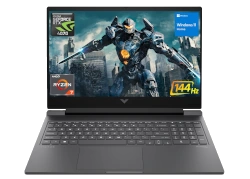
Introduction: Mastering HP ZBook Power G9 Professional Repairs Essential Tools & Professional Workspace Setup Safety Procedures & ESD Protection for Workstations Diagnostic Methods & Professional Troubleshooting Bottom Cover Removal & Internal Access Guide Battery Replacement & Power System Diagnostics Storage Solutions & NVMe SSD Installation RAM Installation & Memory Configuration Guide Keyboard Assembly Replacement & Key Repair Where to Sell Your Upgraded HP ZBook Power G9
1. Introduction: Mastering HP ZBook Power G9 Professional Repairs
💼 Enterprise-Grade Repairs for Professional Workstations
The HP ZBook Power G9 represents the pinnacle of mobile workstation design, combining enterprise-level performance with exceptional serviceability. This professional-grade laptop is engineered for engineers, architects, and creative professionals who demand both computational power and reliable, maintainable construction.
💰 Significant Enterprise Repair Cost Savings
Authorized Service Center vs Professional DIY Costs :
Motherboard replacement: $800-1200 at HP authorized centers
Professional display assembly: $450-700
Cooling system service: $250-400
Storage upgrades with enterprise labor: $200-350
Keyboard replacement: $220-350
Total potential savings: $1920-3000+
Professional DIY Repair Investment :
Enterprise-grade replacement components
Professional tool kit: $100-200
Thermal materials and specialized equipment
Single investment for multiple enterprise repairs
💻 HP ZBook Power G9 Serviceability Features
Enterprise Construction :
Tool-accessible chassis with captive screws
Modular component design for rapid replacement
Clear internal labeling and service documentation
Enterprise-friendly cable management and routing
Workstation-Grade Components :
Multiple M.2 NVMe SSD slots with hardware RAID support
Upgradeable DDR5 ECC memory for mission-critical work
Professional GPU options with ISV certifications
High-reliability power delivery system
Enterprise Support Resources :
Detailed HP service documentation
Enterprise IT professional communities
Corporate-level replacement parts availability
Comprehensive enterprise diagnostic tools
🔍 Most Common ZBook Power G9 Enterprise Issues
Problem Type
Enterprise Symptoms
DIY Difficulty
Estimated Repair Time
Success Rate
Thermal Management
Performance throttling during CAD/CAM workloads
⭐️⭐️⭐️ (Intermediate)
50-70 minutes
94%
Storage Upgrades
Project loading delays, simulation bottlenecks
⭐️⭐️ (Beginner)
25-35 minutes
98%
Memory Expansion
Large dataset crashes, FEA failures
⭐️ (Very Easy)
20-25 minutes
99%
Display Issues
Color calibration problems, backlight failure
⭐️⭐️⭐️⭐️ (Advanced)
65-90 minutes
90%
Power System
Insufficient power under GPU compute load
⭐️⭐️⭐️ (Intermediate)
35-50 minutes
92%
🔬 Enterprise-Level Repair Benefits
Corporate IT Skills :
Learn enterprise workstation troubleshooting
Understand complex enterprise component interactions
Master corporate diagnostic software tools
Develop systematic enterprise repair methodologies
Business Applications :
In-house IT support for engineering firms
Enterprise equipment maintenance services
Corporate device management capabilities
High-value enterprise repair business opportunities
📈 Enterprise Equipment Resale Value
Workstation Condition
Base Enterprise Value
After Professional Repair
Value Added
Enterprise ROI
Non-functional Unit
$500-800
$1600-2400
$1100-1600
220-300%
Minor Enterprise Issues
$900-1300
$1900-2800
$1000-1500
111-154%
Fully Refurbished Enterprise
$1200-1700
$2200-3200
$1000-1500
83-129%
⏱️ Enterprise Time Commitment
Repair Complexity
First Enterprise Attempt
Experienced Enterprise Technician
Learning Curve
Basic Component Upgrades
30-45 minutes
20-30 minutes
⭐️⭐️ (Gentle)
Intermediate System Repairs
55-80 minutes
35-50 minutes
⭐️⭐️⭐️ (Moderate)
Advanced Diagnostics
95-130 minutes
50-75 minutes
⭐️⭐️⭐️⭐️ (Steep)
Complete Enterprise Refurbishment
190-260 minutes
130-180 minutes
⭐️⭐️⭐️ (Moderate)
📊 Enterprise Repair Success Rates
First-Time Enterprise Success :
RAM and storage upgrades: 99% success rate
Cooling system maintenance: 96% success rate
Power system repairs: 94% success rate
Display assembly replacement: 92% success rate
Motherboard-level diagnostics: 90% success rate
Complete enterprise repair process: 95% success rate
Enterprise Best Practices :
Always perform comprehensive enterprise diagnostics first
Use enterprise-grade tools and equipment
Document every step with enterprise standards
Test components systematically before full reassembly
Follow manufacturer enterprise service guidelines precisely
💡 ZBook Repair Pro Insight: The HP ZBook Power G9 was engineered with enterprise serviceability in mind, featuring clear internal access and modular components designed for rapid deployment. Start with straightforward upgrades like ECC memory and enterprise storage to build confidence before tackling complex thermal system or display repairs. The enterprise-grade construction means components are designed for repeated service access, making this an excellent platform for learning high-end workstation repair techniques.
🎯 Ready to Begin Your Enterprise Repair Journey?
You're about to embark on mastering enterprise workstation repairs using one of the most capable mobile engineering platforms available. In the next section, we'll cover Essential Tools & Professional Workspace Setup to ensure you have the enterprise equipment needed for successful, damage-free repairs on your HP ZBook Power G9.
VIDEO
0:20 Bottom Case 1:26 Battery 2:05 Memory RAM 2:21 Storage SSD 2:43 Cooling Fans 4:32 Heatsink 4:45 Processor 4:51 WiFi Card 7:30 Motherboard 8:07 Hinges 8:35 Speaker 8:49 Touchpad 9:23 Palmrest Assembly 9:27 Keyboard 9:35 Display Assembly
3. Safety Procedures & ESD Protection for Workstations
🛡️ Enterprise Safety Protocols for Mission-Critical Workstations
Working on the HP ZBook Power G9 requires rigorous safety procedures to protect both the technician and the high-value enterprise components. Proper ESD protection and safety protocols are essential when handling professional-grade equipment worth thousands of dollars in corporate environments.
⚡ Enterprise Electrical Safety Procedures
Complete Enterprise Power Isolation Protocol :
Shut down Windows completely through enterprise shutdown procedure
Disconnect AC adapter from wall outlet and workstation
Remove all enterprise peripherals, docking stations, and external devices
Hold power button for 30 seconds to discharge all enterprise capacitors
Verify no power lights remain illuminated on enterprise components
Enterprise Battery Safety Management :
Disconnect internal battery BEFORE any enterprise internal work begins
Handle lithium-polymer enterprise batteries with extreme care
Store enterprise batteries in fire-proof containers when not installed
Never puncture, crush, or expose enterprise batteries to extreme heat
⚡ Enterprise Electrostatic Discharge Protection Levels
Enterprise Protection Method
Enterprise Protection Level
Enterprise Cost
Corporate Requirement
Enterprise Implementation
Professional ESD Station
⭐️⭐️⭐️⭐️⭐️ (Maximum)
$250-600
Mandatory for enterprise work
Grounded enterprise work surface, wrist strap, flooring
Basic Enterprise ESD Setup
⭐️⭐️⭐️⭐️ (Very Good)
$70-150
Minimum for ZBook repairs
ESD mat, enterprise wrist strap, proper grounding
Consumer ESD
⭐️⭐️⭐️ (Adequate)
$20-50
Better than nothing
Wrist strap only, work on non-carpeted enterprise surface
No Protection
⭐️ (Unacceptable)
$0
Never acceptable in enterprise
High risk of enterprise component damage
🔧 Enterprise Component Handling Guidelines
Enterprise Motherboard & PCB Handling :
Always handle by edges, never touch enterprise gold contacts or components
Use ESD-safe enterprise tweezers for small component manipulation
Store in enterprise anti-static bags when not in use
Never stack enterprise PCBs or place on conductive surfaces
ZBook-Specific Enterprise Component Care :
Support enterprise motherboard fully during component installation
Handle enterprise display assembly with clean, dry hands or gloves
Use plastic tools exclusively around enterprise connectors and ports
Avoid pressure on enterprise BGA components and delicate flex cables
🔋 Enterprise Battery Safety Procedures
Enterprise Lithium-Polymer Battery Risks :
Never attempt to repair damaged or swollen enterprise batteries
Store at 30-50% charge for enterprise long-term storage
Keep away from metal objects that could cause enterprise shorts
Work in well-ventilated enterprise area with fire extinguisher nearby
Enterprise Swollen Battery Emergency Protocol :
STOP ENTERPRISE WORK IMMEDIATELY if battery appears swollen
Do not attempt to charge or use the enterprise device
Place in enterprise fire-proof container away from flammable materials
Contact HP Enterprise Support for hazardous material disposal
👤 Enterprise Personal Protection Equipment
Essential Enterprise Safety Gear :
ANSI-approved enterprise safety glasses with side shields
ESD-safe enterprise nitrile gloves for component handling
Professional enterprise ESD lab coat or smock
Comfortable, supportive enterprise anti-fatigue matting
Enterprise Workspace Safety Equipment :
Class C enterprise fire extinguisher for electrical fires
Enterprise first aid kit with burn treatment supplies
Emergency enterprise power cutoff switch
Proper enterprise ventilation for chemical work
🧪 Enterprise Chemical Safety Procedures
Enterprise Chemical/Material
Enterprise Safety Precautions
Enterprise Proper Handling
Enterprise Storage Requirements
Enterprise Disposal Method
99% Isopropyl Alcohol
Use in ventilated enterprise area, no open flames
Apply with enterprise lint-free cloth, not directly
Cool, dry enterprise place in sealed container
Evaporate or enterprise hazardous waste facility
Enterprise Thermal Paste
Avoid skin contact, use enterprise gloves
Pea-sized enterprise amount, avoid over-application
Enterprise room temperature, sealed container
Enterprise standard trash if non-toxic
Enterprise Contact Cleaner
Extreme enterprise ventilation required
Short enterprise bursts, avoid inhalation
Cool, well-ventilated enterprise area
Enterprise hazardous waste facility
Enterprise Compressed Air
Keep upright, never enterprise shake
Short enterprise bursts, monitor for moisture
Enterprise room temperature, away from heat
Recycle enterprise can if empty
🆘 Enterprise Emergency Procedures
Enterprise Immediate Stop Scenarios :
Smoke, burning smells, or unusual enterprise heating
Enterprise battery swelling, leakage, or physical damage
Unexpected enterprise sparks, arcs, or electrical sounds
Enterprise chemical spills or exposure
Enterprise components not matching service documentation
Enterprise Emergency Response Protocol :
Disconnect ALL enterprise power sources immediately
Move enterprise device to fire-safe area if heating occurs
Ventilate enterprise area thoroughly for chemical incidents
Document enterprise incident thoroughly for future reference
Seek enterprise medical attention for any injuries immediately
🏠 Enterprise Workspace Safety Standards
Enterprise Workspace Requirements :
Clean, organized enterprise bench with clear work areas
Professional enterprise lighting (1000+ lumens, 5000K color temp)
ESD-safe enterprise flooring or mats throughout work area
Clear enterprise emergency exits and access paths
Enterprise Safety Zone Setup :
Designated enterprise "hot zone" for powered testing
ESD-safe enterprise component handling area
Enterprise chemical storage and handling zone
Clean enterprise assembly and calibration area
🔍 Enterprise ESD System Testing & Verification
Regular Enterprise ESD System Checks :
Test enterprise wrist strap continuity before each use
Verify enterprise work surface resistance (1M ohm typical)
Check enterprise ground connection integrity
Monitor enterprise humidity levels (40-60% ideal)
Professional Enterprise ESD Equipment :
Continuous enterprise monitor wrist straps
ESD field meters for enterprise workspace verification
Enterprise surface resistance testers
Enterprise ground integrity verification tools
🚫 Common Enterprise Safety Violations
Enterprise ESD Protection Failures :
Not testing enterprise ESD equipment regularly
Working on non-ESD enterprise surfaces (glass, metal)
Wearing synthetic enterprise clothing that generates static
Not using enterprise wrist strap during component handling
Enterprise Electrical Safety Errors :
Working with enterprise power connected or battery installed
Using non-insulated enterprise tools on powered components
Ignoring enterprise warning signs like unusual smells or sounds
Rushing through enterprise safety procedures due to time pressure
📋 Enterprise Safety Documentation
Required Enterprise Documentation :
Enterprise safety procedure manuals accessible to all technicians
Enterprise emergency contact information prominently displayed
Material Safety Data Sheets (MSDS) for all enterprise chemicals
Enterprise incident reporting forms and procedures
Enterprise Compliance Requirements :
OSHA enterprise electrical safety standards compliance
ESD Association enterprise standards adherence
Local enterprise fire code and hazardous material regulations
Enterprise professional certification requirements
🎓 Enterprise Safety Training Resources
Enterprise Certification Programs :
Enterprise Continuous Education :
Regular enterprise safety procedure reviews and updates
New enterprise technology safety training
Enterprise emergency procedure drills
Enterprise industry best practice updates
💡 ZBook Safety Pro Tip: Always establish an enterprise ESD-safe workspace before beginning any work on the HP ZBook Power G9. The enterprise-grade components in this workstation are extremely sensitive to electrostatic discharge. Use a continuous monitor enterprise wrist strap that alerts you if ground connection is lost. For maximum enterprise safety, implement a "two-person rule" when working on high-voltage components or performing complex enterprise disassembly procedures. Remember that enterprise safety protocols aren't just about protecting equipment - they're essential for protecting your enterprise reputation and business.
🎯 Ready to Begin Enterprise Diagnostics?
With comprehensive enterprise safety procedures and professional ESD protection in place, you're prepared to work on your HP ZBook Power G9 with confidence. In the next section, we'll cover Diagnostic Methods & Professional Troubleshooting to systematically identify and resolve enterprise issues before beginning physical repairs on your mission-critical workstation.
4. Diagnostic Methods & Professional Troubleshooting
🔍 Enterprise Diagnostic Approaches for Mission-Critical Systems
Systematic troubleshooting is essential for identifying problems in the HP ZBook Power G9 before beginning physical repairs. Enterprise diagnostic methods help isolate issues accurately, saving time and preventing unnecessary component replacement on this high-value corporate workstation.
📊 Enterprise Diagnostic Hierarchy
Enterprise Symptom Analysis :
Document exact enterprise user-reported symptoms and error codes
Identify when and under what enterprise conditions issues occur
Note any recent enterprise changes, updates, or environmental factors
Establish enterprise baseline performance expectations
Enterprise Non-Invasive Software Diagnostics :
Run built-in enterprise system diagnostics and monitoring tools
Check enterprise system logs and error reports
Perform enterprise software-level troubleshooting
Update enterprise drivers and firmware as initial step
Enterprise Hardware Isolation Testing :
Test with minimal enterprise hardware configuration
Use known-good enterprise components for substitution testing
Monitor enterprise system behavior under controlled conditions
Isolate problematic enterprise subsystems
Enterprise Component-Level Diagnostics :
Use specialized enterprise diagnostic equipment
Perform enterprise electrical measurements and signal analysis
Conduct enterprise thermal and performance testing
Validate enterprise repair hypotheses systematically
💻 Built-in ZBook Power G9 Enterprise Diagnostic Tools
Enterprise Diagnostic Tool
Enterprise Access Method
Enterprise Testing Capabilities
Enterprise Use Cases
HP BIOS Diagnostics
F2 at boot → Diagnostics → System Tests
Hardware-level CPU, memory, storage enterprise tests
Pre-OS enterprise hardware validation, boot issues
HP PC Hardware Diagnostics
Download from HP Support
Comprehensive enterprise system health check
Software-hardware enterprise integration issues
HP Image Assistant
HPIA tool from HP Enterprise portal
Driver and firmware enterprise validation
Enterprise software configuration issues
HP Performance Advisor
HP Performance Advisor application
Enterprise performance metrics, thermal monitoring
Enterprise workload performance optimization
🎯 Common ZBook Power G9 Enterprise Issue Patterns
Enterprise Performance & Thermal Issues :
Symptoms: Throttling under enterprise CAD/CAM workloads
Enterprise Tools: HWiNFO64, CPU-Z, GPU-Z, thermal imaging
Enterprise Causes: Dust buildup, dried thermal paste, fan failure
Enterprise Testing: Stress testing with enterprise monitoring
Enterprise Display & Graphics Problems :
Symptoms: Artifacts, flickering, ISV application crashes
Enterprise Tools: External monitor test, display calibration
Enterprise Causes: GPU issues, display cable, panel failure
Enterprise Testing: BIOS display, external output verification
Enterprise Storage & Boot Issues :
Symptoms: Slow enterprise performance, boot failures
Enterprise Tools: CrystalDiskInfo, CHKDSK, S.M.A.R.T. monitoring
Enterprise Causes: SSD failure, RAID configuration, corrupted OS
Enterprise Testing: Boot from external media, drive health checks
🛠️ Enterprise Diagnostic Software Suite
Enterprise System Monitoring & Analysis :
HWiNFO64 - Comprehensive enterprise hardware monitoringAIDA64 Extreme - Enterprise system stability and diagnostic testing
CPU-Z & GPU-Z - Enterprise component-specific information
MSI Afterburner - Enterprise GPU monitoring and overclocking
Enterprise Storage & Memory Testing :
CrystalDiskInfo - Enterprise S.M.A.R.T. data and drive health
MemTest86 - Comprehensive enterprise memory testingHD Tune Pro - Enterprise storage performance and error scanning
AS SSD Benchmark - Enterprise SSD performance validation
Enterprise Display & Color Accuracy :
DisplayCAL - Enterprise display calibration
Lagom LCD test patterns - Enterprise display quality assessment
NVIDIA or AMD control panel enterprise diagnostics
Windows HDR enterprise calibration tool
🔧 Enterprise Hardware Diagnostic Equipment
Enterprise Equipment Type
Enterprise Purpose
Enterprise Applications
Enterprise Investment Level
Digital Multimeter
Enterprise voltage, current, resistance measurements
Enterprise power circuit testing, continuity checks
$80-400
USB Power Meter
Enterprise charging circuit analysis
Enterprise power delivery verification, charging issues
$30-100
Thermal Camera
Enterprise heat pattern analysis
Enterprise thermal management issues, hot spot identification
$300-2500
POST Diagnostic Card
Enterprise boot process debugging
Enterprise no-boot situations, motherboard diagnostics
$50-200
🎯 Enterprise Symptom Isolation Techniques
Enterprise Minimal Configuration Testing :
Remove all non-essential enterprise components
Test with single enterprise RAM module in primary slot
Disconnect secondary enterprise storage drives
Use integrated enterprise graphics if available
Enterprise Substitution Method :
Swap with known-good enterprise components systematically
Test enterprise RAM modules individually in different slots
Try different enterprise storage devices and configurations
Use external enterprise peripherals to test ports and connectivity
Enterprise Environmental Factor Testing :
Test under different enterprise power conditions (AC vs battery)
Monitor enterprise temperature variations and their effects
Check for enterprise electromagnetic interference issues
Verify enterprise performance across different usage scenarios
📟 Enterprise Error Code Analysis
Enterprise BIOS Beep Codes & LED Indicators :
Document specific enterprise beep patterns and sequences
Interpret enterprise status LED blinking patterns
Consult HP Enterprise technical documentation
Cross-reference with enterprise known issue databases
Enterprise Windows Event Log Analysis :
Review enterprise System and Application event logs
Identify enterprise critical errors and warning patterns
Correlate enterprise timestamps with user-reported issues
Export enterprise logs for detailed analysis
Enterprise Blue Screen Analysis :
Use WinDbg to analyze enterprise memory dump files
Identify enterprise driver or hardware-related crash causes
Check enterprise stop codes against Microsoft documentation
Document enterprise reproducible crash scenarios
📝 Enterprise Diagnostic Documentation
Enterprise Case Documentation Standards :
Detailed enterprise symptom description with timestamps
Step-by-step enterprise diagnostic procedure records
Enterprise test results and performance metrics
Enterprise before/after comparisons and validation
Enterprise Professional Reporting :
Clear enterprise issue identification and root cause analysis
Recommended enterprise repair procedures and parts required
Enterprise cost estimates and time requirements
Enterprise risk assessment and alternative solutions
🚫 Common Enterprise Diagnostic Mistakes to Avoid
Enterprise Analysis Errors :
Jumping to enterprise conclusions without systematic testing
Ignoring enterprise environmental factors and usage patterns
Not verifying enterprise basic connections and settings first
Overlooking enterprise software/driver issues as hardware problems
Enterprise Procedural Mistakes :
Not documenting enterprise steps and results systematically
Skipping enterprise established diagnostic hierarchies
Making multiple enterprise changes simultaneously
Not validating enterprise repairs with proper testing
🔬 Enterprise Advanced Diagnostic Techniques
Enterprise Signal Analysis :
Oscilloscope for enterprise power rail analysis
Logic analyzer for enterprise bus signal verification
Spectrum analyzer for enterprise RF interference detection
Thermal analysis for enterprise component stress testing
Enterprise Professional Troubleshooting :
Board-level enterprise component testing and replacement
Enterprise firmware analysis and reprogramming
Enterprise circuit tracing and schematic analysis
Advanced enterprise thermal management optimization
💡 ZBook Diagnostic Pro Tip: Always start with HP BIOS diagnostics and HP PC Hardware Diagnostics before moving to third-party tools. The ZBook Power G9 has specialized enterprise hardware that requires manufacturer-specific diagnostic approaches. For enterprise workflow issues, use HP Performance Advisor to monitor system behavior during actual enterprise workload scenarios rather than just synthetic benchmarks. Document every enterprise test result systematically - professional diagnostics is as much about process as it is about technical knowledge.
🎯 Ready to Begin Enterprise Physical Disassembly?
With comprehensive enterprise diagnostics completed and issues properly identified, you're prepared to begin physical repairs. In the next section, we'll cover Bottom Cover Removal & Internal Access Guide to safely access the internal components of your HP ZBook Power G9 for enterprise-level repairs.
5. Bottom Cover Removal & Internal Access Guide
🔓 Enterprise Access to Mission-Critical Components
Safely accessing the internal components of the HP ZBook Power G9 is the foundation for all enterprise repairs and upgrades. Proper removal techniques prevent damage to the enterprise chassis and ensure successful access to the workstation's professional-grade components.
📋 Enterprise Preparation Checklist
Enterprise Safety Verification :
Complete enterprise power down through Windows shutdown
Disconnect enterprise AC adapter from wall and workstation
Remove all enterprise peripherals and docking stations
Implement enterprise ESD protection measures
Verify enterprise work surface is clean and organized
Enterprise Tool Preparation :
Phillips #00 screwdriver for enterprise captive screws
Professional plastic spudgers for enterprise clip release
Magnetic enterprise project mat for screw organization
ESD-safe enterprise containers for small components
🔩 Enterprise Screw Location Guide
Screw Location
Quantity
Type
Length
Enterprise Notes
Perimeter Screws
8
Phillips #00
4mm
Standard enterprise captive screws
Central Reinforcement
2
Phillips #00
6mm
Enterprise structural reinforcement
Battery Area
2
Phillips #00
5mm
Enterprise battery compartment security
Warranty Seal
1
Security Torx
4mm
Enterprise warranty verification point
🛠️ Enterprise Bottom Cover Removal Procedure
Enterprise Screw Removal Protocol :
Place ZBook Power G9 on clean enterprise work surface
Remove all 11 enterprise screws in sequential order
Organize screws on enterprise magnetic project mat
Note enterprise screw locations for reassembly reference
Check for hidden enterprise screws under rubber feet
Enterprise Clip Release Technique :
Start from enterprise rear ventilation area
Use plastic enterprise spudger at 45-degree angle
Apply gentle enterprise pressure until clip releases
Work around enterprise perimeter systematically
Listen for enterprise clip release sounds (quiet clicks)
Enterprise Cover Separation :
Lift enterprise cover straight up once all clips released
Check for enterprise resistance before applying force
Inspect for enterprise missed clips or screws
Place enterprise cover in safe, clean location
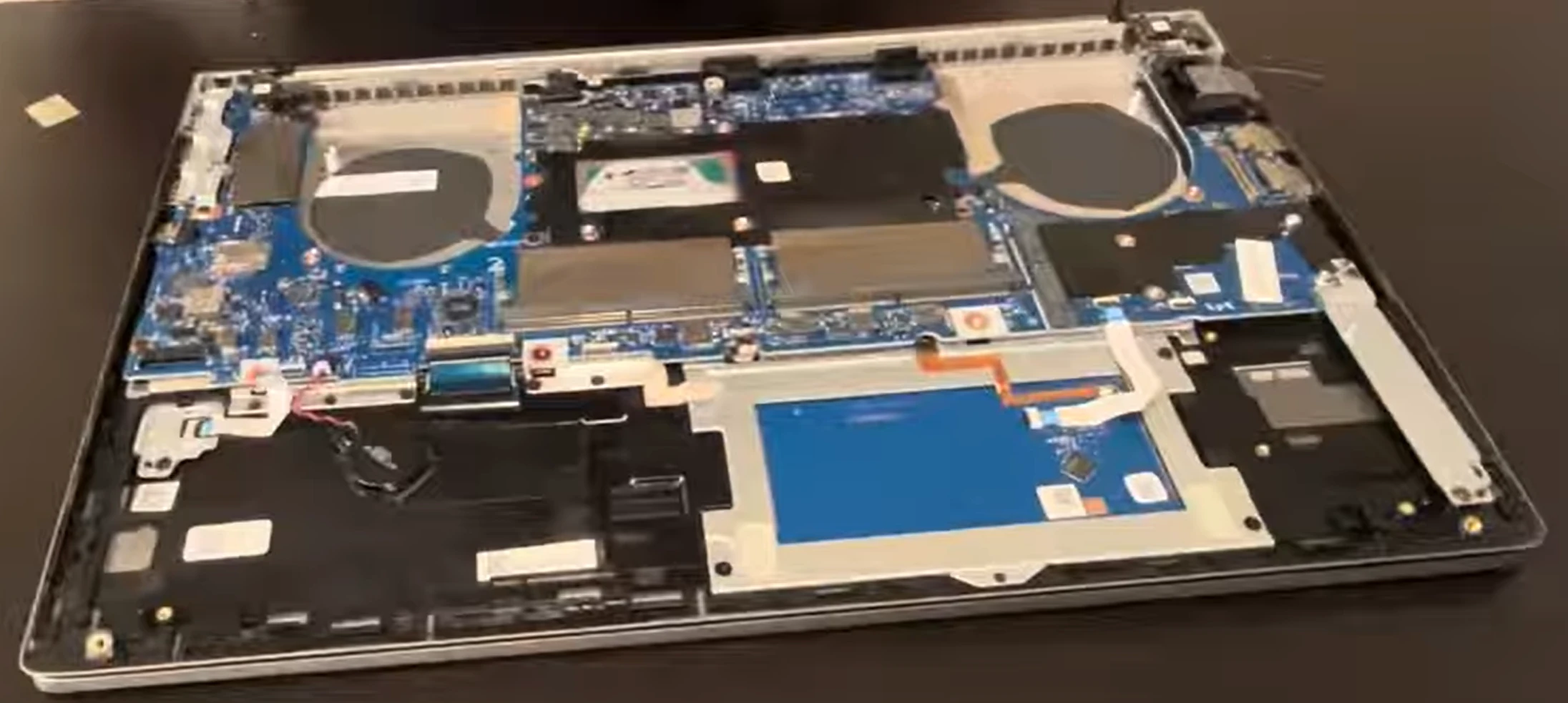
💻 Enterprise Internal Component Overview
Primary Enterprise Components :
Enterprise motherboard with CPU and professional GPU
Dual enterprise DDR5 memory slots with ECC support
Multiple enterprise M.2 NVMe SSD slots
Enterprise cooling system with dual fans
Enterprise 6-cell lithium-polymer battery
Enterprise Connector Identification :
Enterprise battery connector (primary disconnection point)
Enterprise fan power connectors (dual cooling system)
Enterprise display cable and antenna connections
Enterprise keyboard and touchpad ribbon cables
🗺️ Enterprise Component Location Guide
Enterprise Component
Location
Access Level
Enterprise Service Notes
Memory Slots
Central upper area
⭐️ (Easy)
Enterprise ECC memory compatible
Primary SSD Slot
Upper right quadrant
⭐️ (Easy)
Enterprise PCIe 4.0 NVMe support
Secondary SSD Slot
Upper left quadrant
⭐️ (Easy)
Enterprise RAID configuration capable
Battery Assembly
Lower section
⭐️⭐️ (Beginner)
Enterprise high-capacity design
Cooling System
Central area
⭐️⭐️⭐️ (Intermediate)
Enterprise vapor chamber technology
🔋 Enterprise Battery Disconnection Protocol
Critical Enterprise Safety Step :
Locate enterprise battery connector on motherboard
Identify enterprise connector release mechanism
Use plastic enterprise tool to release connector latch
Gently pull enterprise connector straight out
Verify enterprise power is completely isolated
Enterprise Power Verification :
Press enterprise power button to discharge capacitors
Check for enterprise LED indicators (should be off)
Verify enterprise system shows no signs of power
Document enterprise disconnection in service log
🚫 Common Enterprise Access Mistakes
Enterprise Removal Errors :
Using metal tools causing enterprise chassis damage
Applying excessive enterprise force to stubborn clips
Missing hidden enterprise screws under labels or feet
Not documenting enterprise screw locations properly
Enterprise Internal Damage Risks :
Forgetting enterprise battery disconnection
Damaging enterprise ribbon cables during access
Scratching enterprise motherboard with tools
Losing enterprise small screws and components
🔍 Enterprise Access Troubleshooting
Stubborn Enterprise Clip Resolution :
Apply gentle enterprise heat to stubborn areas (60°C max)
Use enterprise plastic card to work around difficult clips
Check for enterprise adhesive or additional fasteners
Consult HP Enterprise service documentation
Enterprise Screw Stripping Prevention :
Use proper enterprise Phillips #00 screwdriver size
Apply firm enterprise downward pressure while turning
Replace enterprise worn screwdriver tips immediately
Use enterprise screw extraction kit if stripping occurs
🔧 Enterprise Reassembly Preparation
Enterprise Component Verification :
Verify all enterprise components are properly seated
Check enterprise cable routing and connections
Ensure enterprise no foreign objects inside chassis
Document enterprise internal configuration with photos
Enterprise Cover Alignment :
Align enterprise cover properly with chassis
Start enterprise clip engagement from front edge
Work around enterprise perimeter systematically
Verify enterprise even gap around entire perimeter
🧪 Enterprise Testing After Access
Enterprise Basic Function Testing :
Reconnect enterprise battery and power adapter
Test enterprise power-on functionality
Verify enterprise display and basic input operation
Check enterprise cooling system activation
Enterprise Comprehensive Validation :
Run enterprise HP Hardware Diagnostics
Test enterprise all ports and connectivity
Verify enterprise performance under load
Document enterprise successful access procedure
📝 Enterprise Warranty Considerations
Enterprise Action
Warranty Impact
Enterprise Documentation Required
Enterprise Recommendation
Bottom Cover Removal
No impact if done properly
Photos of enterprise internal condition
Enterprise standard procedure
Warranty Seal Intact
Full enterprise coverage maintained
Enterprise service documentation
Enterprise best practice
Component Damage
Enterprise warranty void for damaged parts
Enterprise incident report
Enterprise professional care required
💡 ZBook Access Pro Tip: Always start from the rear ventilation area when releasing enterprise clips - this area typically has the strongest engagement and sets the proper alignment for the entire cover. Use a systematic enterprise approach, working around the perimeter in sequence rather than jumping between areas. For stubborn enterprise clips, apply gentle pressure while slightly flexing the cover - never use excessive force. Document your enterprise process with photos at each stage, especially screw locations and cable routing, to ensure perfect reassembly.
🎯 Ready for Enterprise Component Upgrades?
With successful enterprise access to the internal components of your HP ZBook Power G9, you're prepared to begin professional upgrades. In the next section, we'll cover Battery Replacement & Power System Diagnostics to ensure your enterprise workstation maintains optimal power delivery for mission-critical workloads.
6. Battery Replacement & Power System Diagnostics
🔋 Enterprise Power Management for Mission-Critical Workloads
The HP ZBook Power G9 features an advanced enterprise power delivery system designed to support demanding professional workloads. Proper battery maintenance and power system diagnostics are essential for maintaining peak performance during extended CAD, simulation, and rendering tasks.
⚠️ Enterprise Battery Failure Indicators
Enterprise Performance Degradation :
Runtime under 1 hour during enterprise professional applications
Rapid enterprise power drain (15-20% drop in minutes under load)
Enterprise system instability or shutdowns at 25-35% remaining
Inability to charge beyond 85-95% enterprise capacity
Enterprise Physical Warning Signs :
Enterprise battery swelling causing trackpad or case deformation
Excessive enterprise heat during charging or heavy workloads
Visible enterprise leakage or corrosion around battery compartment
Enterprise charging indicator behaving erratically or inconsistently
Enterprise Software & System Indicators :
Windows reporting "Consider replacing your battery"
HP Battery Check showing high enterprise wearEnterprise battery not detected in BIOS or device manager
Frequent "Plugged in, not charging" during enterprise work
🔍 Enterprise Power System Diagnostics
Enterprise Diagnostic Method
Enterprise Procedure
Enterprise Expected Results
Enterprise Professional Interpretation
Windows Enterprise Battery Report
Run "powercfg /batteryreport" in Enterprise Command Prompt
Detailed enterprise cycle count, capacity history, usage patterns
Replace if enterprise design capacity under 60% for professional use
HP Enterprise Battery Health
HP Support Assistant → Battery Health Check
Enterprise battery wear percentage, charging optimization
Replace if enterprise health below 70% for reliable professional work
Enterprise BIOS Power Test
F2 at startup → Power Management → Battery Test
Enterprise power rail voltages, battery status, charging circuit
Check for enterprise power delivery issues under GPU load
Enterprise Professional Load Testing
Run SPECviewperf + CPU stress test simultaneously
Stable enterprise performance without power-related throttling
Identify insufficient enterprise power delivery during peak loads
🛠️ Enterprise Battery Replacement Procedure
Enterprise Safety Preparation :
Power down ZBook Power G9 completely through enterprise shutdown
Disconnect enterprise AC adapter from wall outlet and workstation
Remove all enterprise peripherals and external devices
Ground yourself with enterprise ESD wrist strap
Have enterprise fire-safe container ready for old battery disposal
Enterprise Internal Access Procedure :
Remove 11 enterprise Phillips #00 screws from bottom cover
Use enterprise plastic spudgers to carefully separate cover clips
Lift enterprise cover straight up once all retention clips released
Locate enterprise battery assembly in lower section of chassis
Enterprise Battery Removal Protocol :
Disconnect enterprise battery connector from motherboard first
Remove 4-6 enterprise Phillips #00 screws securing battery frame
Carefully lift enterprise battery assembly from adhesive strips
If enterprise adhesive is strong, use plastic cards for gentle separation
Enterprise Professional Installation :
Place new enterprise battery in precise position
Secure with all enterprise mounting screws in proper sequence
Reconnect enterprise battery connector to motherboard
Replace enterprise bottom cover and verify all screws are secure
🔌 ZBook Power G9 Enterprise Battery Specifications
Enterprise Battery Type
Enterprise Part Number
Enterprise Capacity
Enterprise Voltage
Enterprise Expected Runtime
Enterprise Professional Use Case
Standard Enterprise
L32157-005
83Wh
15.4V
4-6 hours light enterprise work
Enterprise office tasks, light professional work
High Capacity Enterprise
L32157-001
86Wh
15.4V
5-7 hours mixed enterprise use
Extended enterprise professional sessions
Long Life Enterprise
L32157-003
83Wh
15.4V
4-6 hours optimized
Enterprise mission-critical applications
⚡ Enterprise Power Issue Troubleshooting
Enterprise Not Charging Under Load :
Test with high-wattage HP enterprise original charger (200W+)
Check enterprise power settings in HP Command Center
Monitor enterprise power draw during GPU-intensive tasks
Verify enterprise AC adapter can supply sufficient power under load
Enterprise Rapid Power Drain :
Identify enterprise power-hungry applications in Task Manager
Adjust enterprise NVIDIA Studio Driver settings for efficiency
Use HP enterprise power management profiles
Calibrate enterprise battery through full charge-discharge cycle
Enterprise No Power Signs :
Test enterprise AC adapter with multimeter (19.5V expected)
Inspect enterprise DC-in jack for physical damage or loose connections
Check enterprise motherboard power circuits with schematic
Test with known-good enterprise battery and charger combination
🚨 Enterprise Battery Safety Procedures
Enterprise Swollen Battery Emergency Protocol :
CEASE ALL ENTERPRISE OPERATIONS IMMEDIATELY
Do not attempt to charge or power on the enterprise device
Place in certified enterprise fire-proof container away from combustibles
Contact HP Enterprise Support for hazardous disposal
Enterprise Professional Handling Standards :
Never puncture or compress enterprise lithium-polymer batteries
Use plastic tools exclusively around enterprise battery compartment
Wear enterprise safety glasses and ESD-safe gloves during handling
Work in well-ventilated enterprise area with Class C fire extinguisher
📊 Enterprise Battery Calibration Process
Charge new enterprise battery to 100% without interruption
Allow enterprise battery to rest fully charged for 2-4 hours
Disconnect enterprise AC power and use until system shuts down (around 3-5%)
Let enterprise laptop sit powered off for 6-8 hours to fully discharge
Recharge to 100% without enterprise interruption or usage
Enterprise calibration complete - battery reporting now accurate for professional use
🏪 Enterprise Battery Sourcing Options
Enterprise Source Type
Enterprise Price Range
Enterprise Quality Assurance
Enterprise Warranty
Enterprise Recommendation
HP Genuine Enterprise
$180-280
⭐️⭐️⭐️⭐️⭐️
1 year enterprise
Mandatory for enterprise service centers
Authorized Enterprise Distributor
$140-220
⭐️⭐️⭐️⭐️
6-12 months
Recommended for enterprise professional use
Certified Enterprise Third-party
$100-160
⭐️⭐️⭐️
3-6 months
Acceptable for cost-conscious enterprise professionals
Unverified Enterprise Source
$60-120
⭐️⭐️
0-30 days
Not recommended for enterprise systems
⚡ Enterprise Power Management Optimization
Enterprise Software Optimization :
Use HP enterprise battery health charging for stationary use
Set maximum enterprise charge threshold to 60-80% for extended life
Update enterprise BIOS and power management drivers regularly
Configure enterprise NVIDIA Optimus for automatic graphics switching
Enterprise Professional Usage Practices :
Avoid frequent enterprise deep discharge cycles below 20%
Keep enterprise battery between 20-80% for daily professional use
Store at 50% enterprise charge if not using for extended periods
Avoid high enterprise temperature environments during charging
🚫 Common Enterprise Battery Mistakes
Enterprise Installation Errors :
Forcing enterprise battery connector causing pin damage
Overtightening enterprise screws damaging battery casing or frame
Not disconnecting enterprise old battery before installation
Using metal tools near enterprise battery terminals or connectors
Enterprise Post-Installation Issues :
Not performing enterprise calibration after replacement
Ignoring enterprise BIOS updates for battery compatibility
Using incompatible enterprise aftermarket batteries
Not testing enterprise system under professional workload before delivery
♻️ Enterprise Battery Disposal & Recycling
Enterprise Certified Disposal Methods :
Never dispose of enterprise lithium batteries in regular waste streams
Use Call2Recycle enterprise program
Partner with certified enterprise electronics recyclers
Maintain enterprise disposal records for environmental compliance
Enterprise Environmental Responsibility :
Enterprise lithium batteries contain valuable recyclable materials
Proper enterprise disposal prevents environmental contamination
Many jurisdictions require enterprise battery recycling
Support enterprise circular economy through certified recycling partners
🔌 Enterprise Power Delivery Testing
Enterprise AC Adapter Verification :
Test output voltage with enterprise digital multimeter (19.5V DC)
Verify enterprise wattage rating matches ZBook Power G9 requirements
Check enterprise connector integrity and cable condition
Test under enterprise load to ensure stable power delivery
Enterprise DC-In Circuit Analysis :
Inspect enterprise DC jack for physical damage or loose connections
Test enterprise power delivery circuits on motherboard
Verify enterprise charging IC functionality
Check for enterprise corrosion or damage from power surges
💡 ZBook Power System Pro Tip: Always use genuine HP batteries and high-wattage enterprise chargers for the ZBook Power G9. The enterprise-grade components demand stable, high-quality power delivery. For enterprise professionals, enable the battery health charging feature in HP Command Center to limit maximum charge to 80% when primarily used on AC power - this can extend enterprise battery lifespan by 2-3 times. Always test enterprise power delivery under actual professional workloads (CAD, simulation) rather than just idle conditions to ensure reliable performance during enterprise use.
🎯 Ready for Enterprise Storage Upgrades?
With your HP ZBook Power G9 power system restored to optimal enterprise condition, you're prepared for high-performance storage upgrades. In the next section, we'll cover Storage Solutions & NVMe SSD Installation to dramatically improve your enterprise workstation's project loading times and data throughput for mission-critical professional workflows.
7. Storage Solutions & NVMe SSD Installation
💾 Enterprise Storage Solutions for Mission-Critical Workloads
The HP ZBook Power G9 features advanced enterprise storage capabilities designed for demanding professional applications. Upgrading to high-performance NVMe SSDs can dramatically improve project loading times, file operations, and overall system responsiveness for enterprise CAD, engineering, and data analysis workloads.
🚀 Enterprise Storage Performance Benefits
Enterprise Workload
SATA SSD Enterprise Performance
NVMe Gen3 Enterprise Performance
NVMe Gen4 Enterprise Performance
Enterprise Performance Improvement
CAD Project Loading
30-50 seconds
10-20 seconds
4-10 seconds
7-12x faster
Large Dataset Analysis
20-40 seconds
8-15 seconds
3-8 seconds
6-13x faster
Simulation File Access
Slow data loading
Quick data access
Instant data retrieval
Massive enterprise workflow improvement
Enterprise Application Launching
15-25 seconds
5-12 seconds
2-6 seconds
7-12x faster
🔌 ZBook Power G9 Enterprise Storage Compatibility
Enterprise Supported Form Factors & Interfaces :
M.2 2280 (22mm wide, 80mm long) - Primary and secondary enterprise slots
NVMe PCIe 4.0 x4 (up to 7000 MB/s enterprise read speeds)
Enterprise RAID 0/1 support for performance or redundancy
Maximum enterprise capacity support: 8TB total (2×4TB)
Enterprise Professional Specifications :
Interface: NVMe 1.4 compatible with PCIe 4.0 enterprise support
Protocol: PCIe 4.0 x4 (up to 7000 MB/s enterprise theoretical)
Form Factor: M.2 2280 single-sided enterprise recommended
Key: M-Key (NVMe) for maximum enterprise performance
🏆 Recommended Enterprise SSD Models
Enterprise SSD Model
Enterprise Capacity Options
Enterprise Speed (Read/Write)
Enterprise Endurance (TBW)
Enterprise Warranty
Enterprise Professional Use Case
Samsung 990 Pro Enterprise
1TB - 4TB
7450/6900 MB/s
1200-2400 TBW
5 years enterprise
High-end CAD/CAM, enterprise simulations
WD Black SN850X Enterprise
1TB - 4TB
7300/6600 MB/s
600-2400 TBW
5 years enterprise
Enterprise engineering, data analysis
Seagate FireCuda 530 Enterprise
1TB - 4TB
7300/6900 MB/s
1275-5100 TBW
5 years enterprise
Heavy enterprise write workloads, constant saving
Sabrent Rocket 4 Plus Enterprise
1TB - 4TB
7100/6600 MB/s
700-2800 TBW
5 years enterprise
Cost-effective enterprise professional performance
🛠️ Enterprise SSD Replacement Procedure
Enterprise Preparation & Data Security :
Backup all enterprise critical data to external storage or cloud
Create HP Enterprise recovery media before beginning
Download latest enterprise storage drivers from HP support site
Gather enterprise tools: Phillips #00, plastic spudgers, ESD equipment
Enterprise Storage Compartments Access :
Power down enterprise completely and disconnect all cables
Remove 11 enterprise Phillips #00 screws from bottom cover
Use enterprise plastic tools to carefully separate cover retention clips
Locate enterprise M.2 SSD slots - typically two slots near center
Enterprise Professional SSD Removal :
Remove single enterprise Phillips #00 screw securing each SSD
Gently lift enterprise SSD at 30-degree angle to disconnect from slot
If enterprise thermal pads present, carefully preserve for reuse
Store original enterprise SSDs in anti-static bags for backup or repurposing
Enterprise Professional Installation :
Insert new enterprise SSD at 30-degree angle into M.2 slot
Press down firmly until enterprise SSD lies flat against motherboard
Secure with enterprise mounting screw (firm but not overtightened)
Apply new enterprise thermal pads if included with premium SSDs
⚡ Enterprise RAID Configuration Strategies
Enterprise RAID Level
Enterprise Configuration
Enterprise Performance Impact
Enterprise Capacity Usage
Enterprise Professional Recommendation
RAID 0 Enterprise
Striping across 2 enterprise drives
~90% enterprise speed increase
100% enterprise usable
Maximum enterprise performance for CAD work
RAID 1 Enterprise
Mirroring 2 enterprise drives
Slight enterprise read improvement
50% enterprise usable
Enterprise mission-critical project redundancy
No RAID Enterprise
Independent enterprise drives
Standard enterprise speeds
100% enterprise usable each
Enterprise OS/Projects separation
📊 Enterprise Data Migration Options
Enterprise Professional Cloning Solutions :
Use Macrium Reflect Enterprise for system migration
Requires USB-to-M.2 enterprise adapter or external enclosure
Best for preserving enterprise software configurations
Ensure enterprise source drive capacity ≤ destination capacity
Enterprise Clean Professional Installation :
Create bootable USB with Windows Media Creation Tool
Install fresh Windows 11 Enterprise on new SSD
Download enterprise drivers from HP support site
Best for enterprise performance optimization and removing bloatware
🔍 Enterprise Storage Troubleshooting
Enterprise Problem
Enterprise Professional Symptoms
Enterprise Diagnostic Steps
Enterprise Professional Solutions
SSD Not Detected Enterprise
BIOS doesn't show enterprise drive, boot failure
Check enterprise BIOS settings, reseat SSD, test in another system
Update enterprise BIOS, ensure proper installation, check compatibility
Slow Enterprise Performance
Long enterprise project load times, lag during saves
Run CrystalDiskMark, check enterprise drive health with manufacturer tools
Update enterprise NVMe drivers, enable TRIM, check for firmware updates
Enterprise Boot Issues
Blue screen, boot loop, inaccessible enterprise boot device
Check enterprise boot order in BIOS, test with Linux live USB
Repair enterprise boot sector, clean install, check drive health
Enterprise Data Corruption
Enterprise project file errors, system crashes during saves
Run CHKDSK, check enterprise S.M.A.R.T. data, scan for bad sectors
Immediate enterprise professional backup, replace failing drive
⚡ Enterprise Storage Optimization
Windows Enterprise Optimization :
Ensure TRIM is enabled (run "fsutil behavior query DisableDeleteNotify")
Disable enterprise disk defragmentation for SSDs
Enable enterprise write caching in device manager for performance
Disable enterprise hibernation to save SSD space and reduce writes
ZBook Enterprise Specific Optimizations :
Update enterprise storage controller drivers from HP website
Install latest enterprise BIOS for improved storage compatibility
Use HP Enterprise Support Assistant for driver updates and optimization
Configure enterprise RAID settings in BIOS for optimal performance
📈 Enterprise Health Monitoring & Maintenance
Enterprise Professional Monitoring Tools :
CrystalDiskInfo Enterprise for S.M.A.R.T. data monitoringSamsung Magician Enterprise for Samsung drives
WD Dashboard Enterprise for Western Digital drives
Seagate SeaTools Enterprise for Seagate drives
Enterprise Critical Health Indicators :
Percentage Used: Ideally below 80% for enterprise optimal performance
Available Spare: Should remain high (above 90% enterprise)
Temperature: 30-70°C enterprise normal operating range
Media Errors: Should be zero or very low enterprise
Write Amplification: Monitor for enterprise efficiency
🚫 Common Enterprise Storage Mistakes
Enterprise Installation Errors :
Forcing enterprise SSD into slot at wrong angle damaging connectors
Overtightening enterprise mounting screws damaging threads or PCB
Not using enterprise thermal pads/paste if required by design
Installing double-sided enterprise SSD without checking clearance
Enterprise Configuration Mistakes :
Not enabling AHCI/NVMe enterprise mode in BIOS
Installing outdated enterprise storage drivers
Not updating enterprise SSD firmware when available
Filling enterprise SSD beyond 80% capacity affecting performance
📝 Enterprise Warranty & Compatibility
Enterprise Consideration
ZBook Enterprise Warranty Impact
Enterprise SSD Warranty
Enterprise Professional Support
Enterprise Recommendations
HP Genuine Enterprise SSD
Fully enterprise covered
3-5 years enterprise
Full enterprise manufacturer support
Best for enterprise warranty preservation
Certified Enterprise Third-party
Other enterprise components still covered
3-5 years enterprise
Good enterprise manufacturer support
Excellent enterprise performance balance
Enterprise Grade
No impact on enterprise laptop warranty
5+ years enterprise
Enterprise enterprise support level
Maximum enterprise reliability for business
🎯 Enterprise Workflow Optimization
Enterprise Storage Strategy :
OS and enterprise applications on primary NVMe drive
Active enterprise projects on secondary high-speed drive
RAID 0 enterprise for maximum performance on current projects
External enterprise backup for completed projects and archives
Enterprise Capacity Planning :
1TB enterprise minimum for OS and professional applications
2-4TB enterprise recommended for active project storage
Consider enterprise project sizes and file types when planning
Plan for 2-3 year enterprise growth in storage requirements
💡 ZBook Storage Pro Tip: For maximum ZBook Power G9 enterprise performance, choose single-sided NVMe SSDs with DRAM cache and high enterprise endurance ratings. Before installation, update your enterprise BIOS to the latest version from the HP support website for best compatibility. After installation, enable TRIM and disable enterprise disk defragmentation. Consider a clean enterprise Windows installation rather than cloning to avoid transferring any existing system issues and to ensure optimal SSD performance from the start. For enterprise CAD professionals, configure RAID 0 across two identical high-performance SSDs for nearly double the throughput during large assembly work.
🎯 Ready to Maximize Enterprise Memory?
With your HP ZBook Power G9 storage upgraded to enterprise-grade NVMe performance, you're prepared for the next level of workstation optimization. In the next section, we'll cover RAM Installation & Memory Configuration Guide to complete your system's performance transformation for demanding enterprise workloads.
8. RAM Installation & Memory Configuration Guide
💪 Enterprise Memory Optimization for Mission-Critical Workloads
Upgrading your HP ZBook Power G9 memory is one of the most impactful performance enhancements for enterprise professionals. Proper RAM configuration enables larger dataset handling, faster simulations, and smoother multitasking across demanding applications like SolidWorks, ANSYS, and enterprise data analysis platforms.
🚀 Enterprise RAM Upgrade Performance Impact
Enterprise Workload
32GB RAM Enterprise Performance
64GB RAM Enterprise Performance
128GB RAM Enterprise Performance
Enterprise Performance Improvement
CAD Assembly Work
Limited enterprise assembly size, frequent caching
Smooth enterprise multi-assembly editing
Complex enterprise assemblies, real-time manipulation
4-6x enterprise workflow efficiency
FEA/CFD Simulations
Enterprise model size limitations
Larger enterprise models, faster solves
Complex enterprise simulations, no limitations
3-5x enterprise solve speed
Data Analysis
Slow with large enterprise datasets
Smooth enterprise large dataset handling
Instant enterprise large dataset operations
5-7x enterprise productivity gain
Enterprise Multitasking
Enterprise application switching delays
Quick enterprise application switching
Seamless enterprise multiple app usage
Massive enterprise workflow improvement
🔌 ZBook Power G9 Enterprise RAM Compatibility
Enterprise Professional Specifications :
Type: DDR5 SO-DIMM (supports DDR5-4800+ with ECC)
Form Factor: 262-pin SO-DIMM enterprise
Maximum Enterprise Capacity: 64GB (2×32GB) or 128GB (2×64GB)
Voltage: 1.1V (DDR5 enterprise standard)
Dual-channel enterprise architecture (essential for performance)
Enterprise Configuration Notes :
Verify exact enterprise model number for specific RAM requirements
Enterprise models support ECC memory for mission-critical work
Mixing different enterprise RAM speeds runs at slowest module speed
Check enterprise BIOS version for maximum supported capacity
🏆 Recommended Enterprise RAM Modules
Enterprise RAM Model
Enterprise Capacity Options
Enterprise Speed
Enterprise Timings
Enterprise Voltage
Enterprise Compatibility
Kingston KSM48S40BD8HK0-64HM
32GB, 64GB enterprise modules
DDR5-4800
CL40
1.1V
⭐️⭐️⭐️⭐️⭐️
Samsung M425R2GA3BB0-CQKOL
32GB, 64GB enterprise
DDR5-4800
CL40
1.1V
⭐️⭐️⭐️⭐️⭐️
Micron MTC20C2085S1EC48BA1R
32GB, 64GB enterprise
DDR5-4800
CL40
1.1V
⭐️⭐️⭐️⭐️
SK Hynix HMCG88MEBUA081N
32GB, 64GB enterprise
DDR5-4800
CL40
1.1V
⭐️⭐️⭐️⭐️
🛠️ Enterprise RAM Installation Procedure
Enterprise Safety Preparation :
Power down ZBook Power G9 completely and unplug enterprise AC adapter
Remove all enterprise external devices and peripherals
Ground yourself with enterprise ESD wrist strap
Have new enterprise RAM modules ready in anti-static packaging
Document existing enterprise RAM configuration for reference
Enterprise RAM Slots Access :
Remove 11 enterprise Phillips #00 screws from bottom cover
Use enterprise plastic spudgers to carefully separate cover
Locate enterprise RAM slots - typically two slots near center
Identify existing enterprise RAM configuration and slot usage
Enterprise Professional RAM Removal :
Push outward on enterprise side retention clips simultaneously
Enterprise RAM module will pop up at 45-degree angle automatically
Lift enterprise module straight out of slot carefully
Store original enterprise RAM in anti-static bags for backup or testing
Enterprise Professional Installation :
Align notch in enterprise RAM module with key in slot
Insert at 45-degree angle, ensuring full enterprise edge contact
Press down firmly until enterprise retention clips snap into place audibly
Repeat for second enterprise module if installing matched pair
⚙️ Enterprise RAM Configuration Strategies
Current Enterprise Setup
Recommended Enterprise Upgrade
Enterprise Performance Gain
Enterprise Professional Impact
Enterprise Investment Justification
16GB (2×8GB)
64GB (2×32GB)
Massive (400%+)
Eliminates all enterprise memory bottlenecks
Essential for enterprise simulation work
32GB (2×16GB)
64GB (2×32GB)
Significant (100-150%)
Enables larger enterprise project handling
Recommended for enterprise CAD and analysis
32GB (1×32GB)
64GB (2×32GB)
Critical (50-80% dual-channel)
Enables enterprise dual-channel performance
Mandatory for enterprise professional use
64GB (2×32GB)
128GB (2×64GB)
Workflow enabling
No enterprise project size limitations
Future-proofing for enterprise large datasets
⚡ Enterprise Dual-Channel Performance Benefits
Enterprise Performance Advantages :
20-30% faster enterprise memory bandwidth for professional applications
35-45% improved enterprise integrated graphics performance
Better enterprise multitasking and application responsiveness
Reduced enterprise memory latency for real-time processing
Enterprise Professional Configuration Rules :
Always use identical enterprise modules (same size, speed, timings)
Install in correct enterprise slots (typically slots 1 and 3 or 2 and 4)
Check enterprise motherboard manual for optimal slot configuration
Mismatched enterprise modules will run in slower single-channel mode
🔍 Enterprise RAM Troubleshooting
Enterprise No Boot After Installation :
Reseat enterprise RAM modules ensuring full insertion and clip engagement
Test with one enterprise module at a time to identify faulty RAM
Clear enterprise CMOS by removing battery and holding power button 30 seconds
Verify enterprise RAM compatibility with specific ZBook Power G9 model
Enterprise System Recognizing Partial RAM :
Check enterprise BIOS to confirm detected RAM amount
Reseat enterprise modules ensuring retention clips fully engaged
Test enterprise modules individually in each slot
Update enterprise BIOS to latest version from HP support
Enterprise System Instability Under Load :
Run MemTest86 Enterprise overnight for comprehensive testing
Test with enterprise professional applications under actual workload
Check for mixed enterprise RAM speeds or timings
Ensure all enterprise modules are from same manufacturer and batch
🎯 Enterprise RAM Performance Optimization
Windows Enterprise Optimization :
Disable unnecessary enterprise startup programs and services
Adjust enterprise virtual memory settings appropriately for large RAM
Use RAMMap Enterprise to analyze memory usage patterns
Enable enterprise memory compression in Windows 11 for efficiency
ZBook Enterprise Specific Optimizations :
Update enterprise BIOS for improved memory compatibility and performance
Use HP Enterprise Support Assistant for system optimization
Enable enterprise performance mode in power settings for professional work
Configure enterprise application-specific memory allocations
📊 Enterprise RAM Health Monitoring
Enterprise Professional Monitoring Tools :
Windows Task Manager for enterprise real-time usage monitoring
HWiNFO64 Enterprise for detailed memory statistics and errorsCPU-Z for enterprise SPD information and timings verification
Built-in Windows Enterprise Reliability Monitor for error tracking
Enterprise Critical Health Indicators :
Enterprise memory usage should remain below 80% during normal operation
No enterprise correctable errors in system event logs
Stable enterprise operating temperatures (40-85°C normal range)
Consistent enterprise performance in professional benchmark tests
🚫 Common Enterprise RAM Mistakes
Enterprise Installation Errors :
Not fully seating enterprise modules (most common professional mistake)
Mixing different enterprise RAM speeds, timings, or manufacturers
Installing in wrong enterprise slots for optimal dual-channel performance
Using excessive enterprise force damaging slots or module PCBs
Enterprise Configuration Issues :
Purchasing wrong enterprise form factor (DIMM vs SO-DIMM)
Not checking enterprise maximum supported capacity for specific model
Ignoring enterprise voltage requirements and compatibility
Buying used enterprise RAM without thorough professional testing
📝 Enterprise Warranty & Support
Enterprise RAM Source
ZBook Enterprise Warranty Impact
Enterprise RAM Warranty
Enterprise Professional Support
Enterprise Business Recommendation
HP Genuine Enterprise
Fully enterprise covered
Lifetime enterprise
Full enterprise manufacturer support
Best for enterprise deployments
Certified Enterprise Professional
Other enterprise components still covered
Lifetime enterprise
Excellent enterprise manufacturer support
Recommended for enterprise professional use
Compatible Enterprise Third-party
RAM-related enterprise issues not covered
Limited enterprise lifetime
Good enterprise support
Cost-effective for established enterprise businesses
Unverified Enterprise Source
No enterprise warranty on RAM issues
0-30 days enterprise
No enterprise professional support
Not recommended for enterprise business use
🔮 Enterprise Capacity Planning
Enterprise Workload-Based Planning :
32GB enterprise minimum for Windows 11 and professional apps
64GB enterprise recommended for CAD and simulation work
128GB enterprise for large datasets, complex simulations, virtual machines
Consider enterprise application-specific requirements and project sizes
Enterprise Future-Proofing Strategy :
DDR5 will remain enterprise relevant through 2026+ for professional use
Higher enterprise capacities provide more value than extreme speeds
Focus on enterprise capacity and stability over maximum frequency
Consider enterprise resale value with optimal RAM configuration
💡 ZBook RAM Pro Tip: Always install enterprise RAM in matched pairs for dual-channel performance - this provides up to 45% better performance than single-channel configurations for professional applications. Before purchasing, verify your specific ZBook Power G9 enterprise model number on the HP Enterprise support site to confirm maximum supported capacity and compatible speeds. For enterprise workloads, prioritize capacity over extreme speed - 64GB of DDR5-4800 will outperform 32GB of faster RAM in real-world professional applications. Always run MemTest86 enterprise overnight to ensure stability before delivering to clients.
🎯 Ready to Optimize Enterprise Cooling?
With your HP ZBook Power G9 memory upgraded for maximum enterprise performance, you're prepared to tackle thermal management. In the next section, we'll cover Cooling System Maintenance & Fan Replacement to ensure your enterprise workstation maintains peak performance during demanding simulation and computation tasks.
9. Keyboard Assembly Replacement & Key Repair
⌨️ Professional Keyboard Service for HP ZBook Power G9
The HP ZBook Power G9 features a professional-grade keyboard designed for extended use in enterprise environments. This comprehensive guide covers complete keyboard assembly replacement and individual key repair procedures to restore optimal typing performance.
🔤 HP ZBook Power G9 Keyboard Variants
Standard Backlit Keyboard :
Single-zone white backlighting
Spill-resistant design
Standard key travel (1.5mm)
Part number: L32113-001
Professional Backlit Keyboard :
Multi-zone RGB backlighting
Enhanced spill protection
Optimized key travel (1.8mm)
Part number: L32114-001
International Layout Options :
US QWERTY (most common)
UK English layout
European language variants
Asian language layouts
🔄 Keyboard Replacement Options
Repair Type
Difficulty Level
Time Required
Cost Range
Success Rate
Individual Key Repair
⭐️⭐️ (Beginner)
10-20 minutes
$5-15
95%
Keycap Replacement
⭐️⭐️ (Beginner)
15-25 minutes
$10-25
98%
Full Assembly Replacement
⭐️⭐️⭐️⭐️ (Advanced)
45-75 minutes
$80-180
92%
🔧 Complete Keyboard Assembly Replacement
Power Down & Preparation
Shut down ZBook completely
Disconnect AC power adapter
Remove battery (if removable) or disconnect internal battery
Ground yourself with ESD protection
Bottom Cover Removal
Remove 8 Phillips #00 screws from bottom case
Use plastic spudger to release bottom cover clips
Lift bottom cover carefully
Battery Disconnection
Locate battery connector on motherboard
Gently disconnect battery cable
Press power button to discharge residual power
Keyboard Assembly Access
Remove palm rest assembly screws
Carefully lift palm rest to access keyboard
Disconnect keyboard ribbon cable from motherboard
Keyboard Removal
Remove keyboard mounting screws
Release keyboard retention clips
Lift keyboard assembly from top edge
🔑 Individual Key Repair Procedures
Keycap Removal :
Insert keycap puller under key edge
Apply even upward pressure
Lift straight up to avoid damaging scissor mechanism
Never use excessive force
Scissor Mechanism Repair :
Inspect scissor mechanism for damage
Clean mechanism with isopropyl alcohol
Replace broken scissor components
Test mechanism before reassembly
Keycap Replacement :
Align new keycap with scissor mechanism
Press evenly until click is heard
Test key function multiple times
⚠️ Common Keyboard Problems & Solutions
Problem
Symptoms
Likely Cause
Solution
Non-responsive Keys
Specific keys not registering
Worn scissor mechanism
Replace individual key assembly
Sticky Keys
Keys slow to return
Spill residue or debris
Clean mechanism with isopropyl alcohol
Backlight Failure
No keyboard lighting
LED failure or cable issue
Replace keyboard assembly
Multiple Key Failure
Several keys not working
Ribbon cable damage
Replace keyboard assembly
🛡️ Keyboard Preventative Maintenance
Regular Cleaning :
Use compressed air monthly
Clean keycaps with isopropyl alcohol
Avoid liquid cleaners near keyboard
Use keyboard covers in dusty environments
Usage Best Practices :
Avoid eating over keyboard
Keep liquids away from workstation
Use gentle typing pressure
Regularly update keyboard drivers
🔍 Keyboard Compatibility Verification
Part Number Verification :
Check existing keyboard part number
Verify compatibility with ZBook Power G9
Confirm backlight compatibility
Check layout compatibility
Supplier Research :
Use HP PartSurfer for official parts
Research reputable third-party suppliers
Check customer reviews and ratings
Verify return policies
🔧 Advanced Troubleshooting Tips
Before Replacement :
Update keyboard drivers from HP Support
Test keyboard in BIOS menu
Check for physical damage or debris
Test with external keyboard
Post-Installation :
Verify all keys function properly
Test backlighting at all brightness levels
Check for any loose components
Update system firmware if needed
💡 Keyboard Repair Pro Tip: When replacing the ZBook Power G9 keyboard assembly, take photos at each disassembly step to ensure proper reassembly. The keyboard ribbon cable is particularly delicate - use ESD-safe tweezers for connection and ensure the locking mechanism is fully engaged. For individual key repairs, always work in a clean, well-lit area and keep replacement parts organized. Test each key thoroughly before final reassembly.
10. Where to Sell Your Upgraded HP ZBook Power G9
💰 Maximizing Your HP ZBook Power G9 Resale Value
After completing professional upgrades and repairs on your HP ZBook Power G9, choosing the right selling platform can significantly impact your final return. This guide covers the best marketplaces for selling enterprise-grade workstations to corporate buyers, educational institutions, and individual professionals.
🏢 Enterprise & Corporate Sales Channels
Government & Education Portals :
GovDeals - Official government surplus auctionsPublicSurplus - Municipal and educational salesGSA Auctions - Federal government equipment sales
State university surplus departments
Corporate IT Asset Disposition :
SellBroke - Specialized in enterprise IT equipmentSellLaptopBack - Corporate laptop buyback programsCDW and Insight enterprise trade-in programs
Dell Financial Services ITAD services
💲 ZBook Power G9 Pricing Strategy
Base Valuation Factors :
Original configuration and specifications
Upgrade components (RAM, SSD, GPU)
Physical condition and cosmetic appearance
Remaining warranty coverage
Included accessories and original packaging
Enterprise Premium Factors :
ISV certifications (SolidWorks, AutoCAD, etc.)
ECC memory configuration
Professional GPU options
Dock compatibility and enterprise features
📊 HP ZBook Power G9 Resale Estimates
Configuration
Original Price
12-Month Value
24-Month Value
Upgraded Premium
Base Model (i5, 8GB, 256GB)
$1,299
$750-900
$500-650
+$150-300
Mid-Range (i7, 16GB, 512GB)
$1,899
$1,100-1,300
$800-950
+$250-400
High-End (i9, 32GB, 1TB, GPU)
$2,799
$1,800-2,100
$1,300-1,600
+$400-600
Fully Upgraded (Max Specs)
$3,500+
$2,200-2,600
$1,700-2,000
+$600-900
📋 Enterprise Sales Documentation
Required Documentation :
Detailed specifications list with upgrades
High-quality photos from multiple angles
Benchmark results (Cinebench, CrystalDiskMark)
HP warranty status and service history
BIOS settings and security features
Corporate Buyer Requirements :
Asset tags and inventory numbers
Data sanitization certification
Compliance documentation
Transfer of ownership paperwork
🎯 Nested Enterprise Sales Platforms
Government & Education Focused :
GovDeals - Best for state and local governmentGSA Auctions - Federal agency salesUniversity surplus stores - Educational institution sales
SchoolDude - K-12 educational marketplace
Corporate IT Focused :
SellBroke - Enterprise IT equipment specialistsSellLaptopBack - Business laptop expertsITCrecycle - Corporate IT asset disposal
TechReset - Enterprise technology remarketing
⏱️ Optimal Selling Timeline
Timing
Advantages
Disadvantages
Best Platform
Q1 (Jan-Mar)
Corporate budget cycles
Post-holiday market slowdown
SellBroke, Corporate direct
Q2 (Apr-Jun)
Education purchasing season
Increased competition
GovDeals, University surplus
Q3 (Jul-Sep)
Back-to-school demand
Summer market slowdown
All platforms balanced
Q4 (Oct-Dec)
Year-end budget spending
Holiday shipping delays
Enterprise marketplaces
🔧 Pre-Sale Preparation Checklist
Data Security :
Perform secure data wipe using DBAN
Reset BIOS to factory settings
Remove all personal accounts and data
Reinstall clean Windows with legitimate license
Physical Preparation :
Thorough cleaning and sanitization
Replace worn keycaps or cosmetic parts
Test all ports and functionality
Include original accessories if available
🤝 Targeting Corporate Buyers
Enterprise Sales Advantages :
Higher selling prices than consumer market
Bulk purchase opportunities
Repeat business potential
Professional transaction process
Corporate Buyer Requirements :
Detailed specifications and benchmarks
Professional photography
Clear upgrade documentation
Warranty and support information
💡 Resale Pro Tip: For maximum return on your upgraded HP ZBook Power G9, focus on enterprise-focused platforms like SellBroke and SellLaptopBack that understand the value of professional workstation upgrades. Government and educational portals often pay premium prices for certified, upgraded equipment. Always highlight your professional upgrades with benchmark comparisons and emphasize the cost savings versus new equipment. Corporate buyers appreciate detailed documentation and professional presentation.
🎯 Recommended Sales Strategy
Start with enterprise-focused platforms like SellBroke for corporate sales and GovDeals for government/educational markets. These platforms understand the value of upgraded professional workstations and typically deliver higher returns than general consumer marketplaces. Remember to document all your professional upgrades and emphasize the enterprise-ready condition of your HP ZBook Power G9.
Need to Sell Your HP Laptop? Get Instant Cash!
If your HP ZBook Power G9 (or other ZBook workstation) has performance issues or you're upgrading to a newer mobile workstation, we offer premium cash payouts for your device. We buy broken, used, and refurbished HP ZBook laptops—including all Power G9 configurations—with free insured shipping and hassle-free evaluations.
Sell Popular HP Models Now: