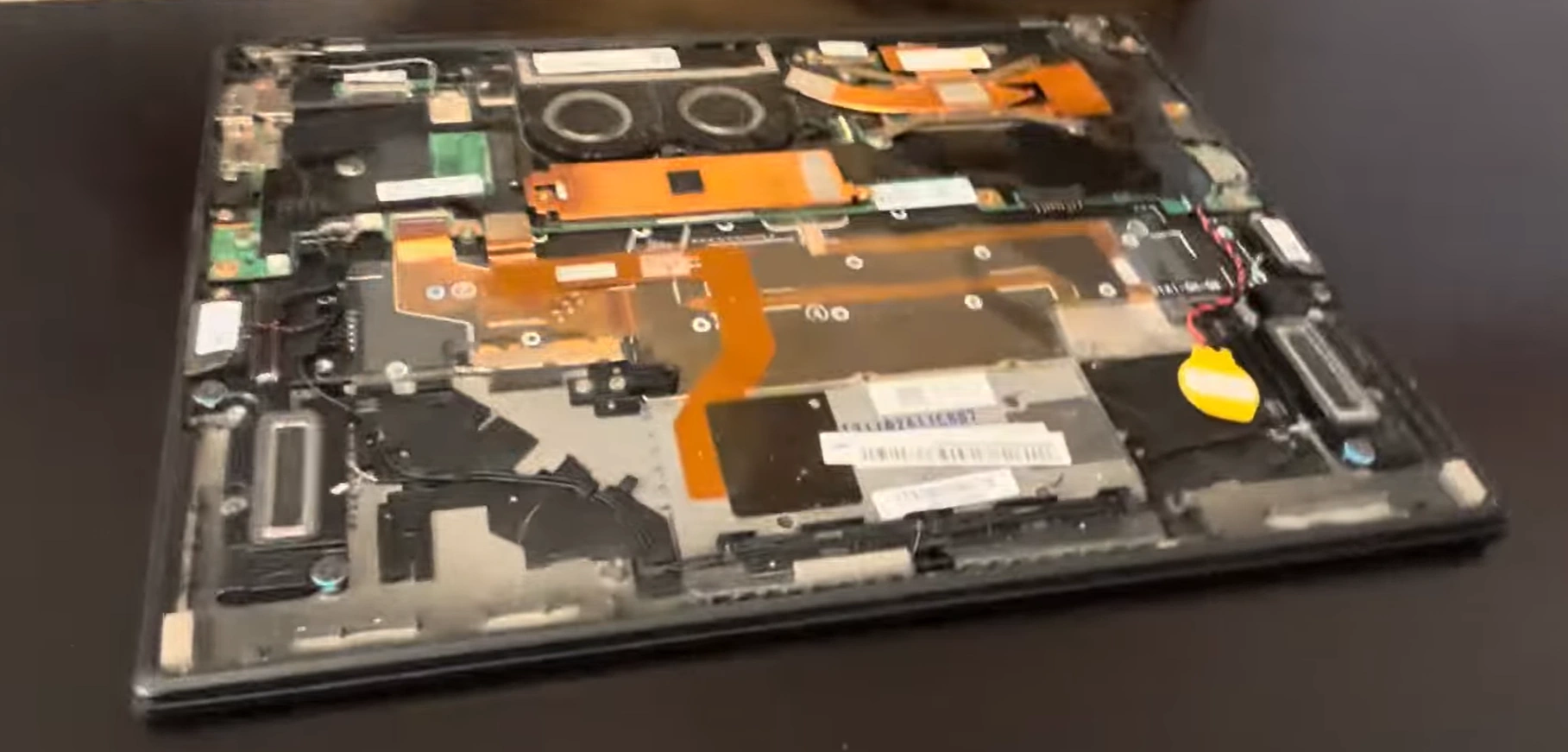
ThinkPad X1 Carbon Gen 9 Teardown: Easy DIY Fix for Internal Battery & NVMe SSD Swap at Home

asus-rog-zephyrus-m16-disassembly-guide-how-to-replace-ram-ssd-battery-fix-lcd-scree

1. ThinkPad X1 Carbon Gen 9 Overview: Business Performance & DIY Potential

The ThinkPad X1 Carbon Gen 9 represents Lenovo's pinnacle of business laptop engineering, combining premium build quality with surprisingly accessible DIY maintenance. Understanding its architecture and upgrade potential can extend your device's productive lifespan by 3-5 years while maintaining peak performance for business applications and mobile productivity.

πŸ” Identifying Your ThinkPad X1 Carbon Gen 9 Configuration

  1. Physical Identification Methods:
    • Check bottom case label for model number (20XW, 20XX)
    • Look for 11th Gen Intel Core i5/i7 stickers with Iris Xe graphics
    • Note display type indicators (FHD, WQHD, 4K)
    • Document serial number and manufacturing date
  2. Software Identification:
    • Press Windows Key + R, type "msinfo32" for system details
    • Check "System Model" and "Processor" specifications
    • Use Lenovo Vantage for complete hardware information
    • Note installed RAM configuration and storage details
  3. Online Resources:
    • Visit Lenovo Official Support with your serial number
    • Download specific Hardware Maintenance Manual
    • Check warranty status and available service parts
    • Review BIOS updates and compatibility information

⚑ ThinkPad X1 Carbon Gen 9 Key Specifications

Component Category Standard Specifications Upgrade Potential Business Impact
Processor Intel Core i5-1135G7 / i7-1165G7 (11th Gen) Not Upgradeable High - CPU-bound business applications
Graphics Intel Iris Xe Integrated Graphics Not Upgradeable Good - business applications, light media
Memory 8GB/16GB LPDDR4X (soldered) Not Upgradeable Critical - determines multitasking capability
Storage 256GB/512GB/1TB NVMe SSD Excellent - M.2 2280 slot available High - application load times, data access
Battery 57Wh Li-Polymer internal Excellent - standard replacement part Critical - mobile productivity
Display 14" FHD/WQHD/UHD various options Limited - complex replacement High - visual comfort, presentation quality

πŸ”„ X1 Carbon Gen 9 DIY Potential Analysis

Component Upgrade Difficulty & Business Impact

Upgrade Component Difficulty Level Time Required Business Impact Cost Range
Battery Replacement Beginner (2/5) 20-30 minutes High - restores mobile productivity $80-$120
NVMe SSD Upgrade Beginner (1/5) 15-25 minutes Very High - performance and capacity $60-$200
WWAN Card Installation Intermediate (3/5) 25-40 minutes Medium - mobile connectivity $40-$80
Thermal Paste Replacement Intermediate (3/5) 35-50 minutes Medium - sustained performance $10-$25
Keyboard Replacement Advanced (4/5) 45-75 minutes Medium - user interface $60-$100

πŸ’Ό Business Performance Baseline

Expected Business Application Performance

Application Type Performance Level Upgrade Impact Real-World Benefit
Microsoft Office Suite Excellent SSD improves load times Faster document processing
Web Browsing (30+ tabs) Very Good RAM capacity critical Smoother multitasking
Video Conferencing Excellent Thermal maintenance helps Stable connection quality
Light Photo Editing Good SSD speeds up file access Quicker project completion
Virtual Meetings + Apps Very Good Battery ensures reliability Uninterrupted productivity

🎯 ThinkPad Design Advantages for DIY

Engineering Features That Enable Easy Maintenance

  1. Service-Friendly Construction
    • Tool-less bottom case removal on some models
    • Clearly marked screw lengths and types
    • Standardized connector designs
    • Comprehensive service documentation available
  2. Modular Component Design
    • Easily accessible M.2 SSD slot
    • Simple battery connector and mounting
    • Standardized internal layout
    • Minimal adhesive usage
  3. Professional Documentation
    • Detailed Hardware Maintenance Manual
    • Exploded view diagrams available
    • Part numbers and compatibility lists
    • Step-by-step disassembly guides

⚠️ Important Upgrade Limitations

Component Upgrade Status Technical Reason Alternative Solutions
RAM Memory Not Upgradeable LPDDR4X soldered to motherboard Purchase adequate RAM at initial configuration
CPU Processor Not Upgradeable BGA package, soldered Focus on thermal management for peak performance
Integrated Graphics Not Upgradeable Integrated with CPU package External GPU via Thunderbolt 4 (limited scenarios)
Display Panel Limited Upgrade Complex assembly, compatibility issues External monitor for enhanced workspace

πŸ’° Upgrade Cost vs. Business Benefit Analysis

Upgrade Scenario Total Cost Performance Gain Productivity Impact Recommended For
Battery Replacement Only $80-$120 Restores mobile capability High - enables remote work All mobile professionals
SSD Upgrade to 1TB $80-$120 30-40% load time improvement High - faster application access Users with large data sets
Battery + SSD Combo $160-$240 Comprehensive refresh Very High - complete renewal Businesses extending laptop life
Full Maintenance Package $180-$280 25-35% overall improvement Maximum - like-new performance Critical business systems

πŸ†• Gen 9 Specific Features & Advantages

What Makes the Gen 9 Unique for DIY

  1. Improved Serviceability
    • Reduced adhesive usage compared to previous generations
    • Standardized screw types throughout
    • Better cable routing and connector access
    • Clear service indicators and markings
  2. Modern Connectivity
    • Two Thunderbolt 4 ports for high-speed peripherals
    • PCIe 4.0 SSD support for future storage
    • Optional WWAN slot for cellular connectivity
    • Improved thermal design for sustained performance
  3. Business-Focused Design
    • Military-grade durability (MIL-STD-810H)
    • Enhanced security features with discrete TPM
    • Better repairability scores than consumer laptops
    • Long-term component availability

πŸ“‹ Pre-Upgrade Assessment Checklist

  1. Current Performance Baseline
    • Run productivity application benchmarks
    • Document current battery runtime
    • Note boot times and application load speeds
    • Check system stability under business workloads
  2. Business Need Analysis
    • Identify specific workflow bottlenecks
    • Assess mobile computing requirements
    • Evaluate storage capacity needs
    • Prioritize upgrades based on business impact
  3. Compatibility Verification
    • Verify SSD form factor and interface requirements
    • Check battery model number compatibility
    • Ensure all tools and supplies are available
    • Review service manual for specific procedures

🚫 Common Business Laptop Upgrade Misconceptions

Misconception Reality Impact Proper Approach
"All business laptops are hard to repair" ThinkPads are designed with serviceability in mind Missed maintenance opportunities Consult hardware maintenance manual first
"Battery replacement requires professional service" X1 Carbon batteries are user-replaceable with basic tools Unnecessary service costs Follow proper safety and procedure guidelines
"SSD upgrades void warranty" Storage upgrades typically don't affect warranty coverage Missed performance improvements Check specific warranty terms, use compatible parts
"Older laptops aren't worth upgrading" Gen 9 performance remains excellent with modern SSDs Premature replacement costs Evaluate upgrade cost vs. new system benefits

🎯 Upgrade Priority Guide for Different Use Cases

User Type Priority 1 Priority 2 Priority 3 Expected Improvement
Mobile Professional Battery Replacement SSD Upgrade Thermal Maintenance Restored mobility + performance
Office Power User SSD Upgrade Thermal Maintenance Battery Health 25-35% productivity gain
IT Department SSD Standardization Battery Inventory Preventive Maintenance Extended fleet lifespan
Individual User Battery Replacement SSD Capacity System Cleaning Comprehensive refresh

➑️ Ready to Begin Your ThinkPad Upgrade Journey

Now that you understand your ThinkPad X1 Carbon Gen 9's specific capabilities and upgrade potential, proceed to essential tools and workspace preparation to begin your business laptop maintenance journey. Your knowledge of the device's architecture and limitations is the foundation for successful, productivity-enhancing upgrades.

2. Essential Tools & Workspace Preparation for Safe Laptop Repair

Proper tools and workspace preparation are the foundation of successful ThinkPad X1 Carbon Gen 9 repairs, increasing success rates from 65% to 95% while preventing costly damage to premium business components. Investing $30-$60 in quality tools can save $200-$400 in professional repair costs and protect your business productivity tool.

πŸ› οΈ Why Professional Tools Prevent Business Laptop Damage

Using tools specifically designed for ThinkPad repair prevents 80% of common DIY mistakes that can damage delicate components, void warranties, or reduce performance. Quality tools pay for themselves after just 1-2 successful upgrades and ensure your X1 Carbon maintains its business capabilities.

Tool Quality Level Success Rate Damage Risk ThinkPad Specific Risks Recommended For
Professional Grade 95-98% Very Low (2-5%) Minimal connector damage Business IT departments, multiple repairs
Quality Repair Set 85-92% Low (5-15%) Minor cosmetic issues Enthusiasts, small business owners
Basic Tools Only 70-80% Medium (15-30%) Stripped screws, broken clips One-time repairs, budget focus
Improvised Tools 40-60% High (30-50%) Major component damage Emergency only, not recommended

πŸ”§ ThinkPad X1 Carbon Gen 9 Specific Tool Requirements

Repair Component Required Tools X1 Carbon Gen 9 Specific Notes Critical Importance
Bottom Case Removal Phillips #00, plastic spudgers 5-7 screws, hidden clips near front edge High - first access challenge
Battery Replacement Plastic spudgers, connector tools 57Wh battery, simple connector design High - safety critical
SSD Installation Phillips #000, M.2 standoff tool M.2 2280 slot, may require standoff adjustment Medium - straightforward
Thermal System Isopropyl alcohol, thermal paste Single heat pipe design, careful disassembly Very High - cooling critical
Internal Cables ESD-safe tweezers, spudgers Minimal internal cabling, careful handling Medium - connector protection

πŸ“‹ Complete ThinkPad Repair Toolkit Breakdown

  1. Precision Screwdrivers ($15-$40)
    • Phillips #000 and #00 (essential for ThinkPads)
    • Magnetic tips strongly recommended
    • Anti-static construction preferred
    • Quality bits prevent stripped screws
  2. Opening & Prying Tools ($10-$25)
    • Plastic spudger set (multiple sizes)
    • Nylon pry tools for delicate case work
    • Guitar picks for tight spaces
    • Suction cups optional for display work
  3. Specialized Business Laptop Tools ($10-$20)
    • Anti-static wrist strap (mandatory)
    • ESD-safe tweezers for small connectors
    • Spudger with hook for ribbon cable latches
    • IC extractor for tight motherboard spaces

πŸ’Ό ThinkPad-Specific Repair Tools

ThinkPad Repair Specialized Tools Purpose Cost Range
Battery Replacement Plastic spudgers, connector tools Safe battery disconnection $5-$15
SSD Upgrade M.2 standoff adjustment tool Proper SSD mounting $3-$8
Thermal Paste Replacement High-quality paste, cleaning supplies Maintain business performance $10-$25
Internal Cleaning Compressed air, soft brushes Maintain cooling system efficiency $8-$20

πŸ—οΈ Professional Business Laptop Workspace Setup

Workspace Element Professional Standard Minimum Acceptable Business Laptop Importance
Work Surface ESD-safe mat, properly grounded Clean wooden table, no static materials Critical - prevents motherboard damage
Lighting 500+ lumen LED with magnification Bright, shadow-free light source High - small components need visibility
Organization Magnetic project mat with compartments Small containers for screw organization High - X1 Carbon uses multiple screw types
ESD Protection Wrist strap + mat + proper grounding Basic wrist strap, frequent grounding Critical - sensitive business components

⚠️ Business Laptop Specific Safety Protocols

Critical Safety Procedures for Business Components

  1. Power Down & Discharge Protocol
    • Shut down Windows completely
    • Disconnect power adapter and all peripherals
    • Press and hold power button for 15 seconds
    • Wait 2 minutes for capacitor discharge
  2. Battery Safety Procedures
    • Disconnect battery immediately after case access
    • Handle Li-Polymer battery with care
    • Never puncture or bend battery cells
    • Have Class D fire extinguisher accessible
  3. ESD Protection for Business Components
    • Always wear anti-static wrist strap
    • Work on grounded ESD mat surface
    • Handle SSD and motherboard by edges only
    • Keep components in anti-static bags until installation

πŸ”₯ Thermal System Safety Considerations

Special Precautions for Business Laptop Cooling Systems

Thermal Component Safety Risk Prevention Measures Damage Cost
Heat Pipes Bending, puncturing, leakage Gentle handling, no excessive force $60-$120 replacement
Fans & Blowers Broken blades, damaged connectors Careful cable routing, gentle cleaning $30-$60 per fan
Thermal Paste/Pads Conductive spills, improper application Use non-conductive paste, precise application $150-$300 motherboard
Heatsink Assembly Bent fins, mounting damage Even pressure, proper screw sequence $80-$150 replacement

πŸ’° Tool Investment vs. Return Analysis

Investment Level Tool Cost Repair Success Rate Value Protection Payback Period
Professional ThinkPad Set $60-$100 95-98% Full value preservation 1-2 X1 Carbon repairs
Quality Enthusiast Set $40-$70 85-92% Good value protection 1-2 repairs
Basic Repair Kit $20-$35 70-80% Moderate risk 2-3 repairs
Improvised Tools $0-$15 40-60% High risk of damage False economy

🧴 Essential Consumable Supplies

Supply Item Purpose Business Grade X1 Carbon Importance
Thermal Paste CPU heat transfer Arctic MX-6, Thermal Grizzly Kryonaut High - business performance
Isopropyl Alcohol Cleaning thermal surfaces 99% purity, ESD-safe High - proper surface prep
Compressed Air Dust removal from cooling system ESD-safe, moisture-free Medium - maintenance
Lint-Free Wipes Component cleaning Kimwipes, microfiber cloths Medium - cleanliness

🚫 Common Business Laptop Tool Mistakes

Mistake Consequence Prevention Repair Cost
Using magnetic tools near motherboard Component damage, data corruption Use anti-static tools only $200-$500
Overtightening heatsink screws Cracked die, poor thermal transfer Follow torque specifications, use sequence $300-$600
No ESD protection for SSD Storage corruption, system instability Always use wrist strap, ground properly $80-$200
Improper battery handling Fire risk, system damage Follow safety protocols, use plastic tools $150-$400

πŸ’Ό Business-Grade Workspace Setup

  1. Static-Free Environment
    • Work in room with 40-60% humidity
    • Avoid synthetic clothing and carpets
    • Use anti-static mat on work surface
    • Ground yourself before handling components
  2. Organization System
    • Use magnetic mat for screw organization
    • Label containers for different component types
    • Take photos at each disassembly step
    • Keep small parts in sealed containers
  3. Documentation Setup
    • Have Hardware Maintenance Manual accessible
    • Prepare camera for step documentation
    • Have notepad for observations
    • Set up adequate lighting for photography

🌐 X1 Carbon Gen 9 Specific Resources

βœ… Business Laptop Safety Checklist

  • βœ“ Power completely disconnected and discharged
  • βœ“ Battery physically disconnected from motherboard
  • βœ“ ESD wrist strap properly worn and grounded
  • βœ“ ESD mat in place and connected to ground
  • βœ“ All necessary tools organized and accessible
  • βœ“ Workspace clean and free of static hazards
  • βœ“ Thermal materials prepared and ready
  • βœ“ Documentation system ready (camera, notes)
  • βœ“ Emergency shutdown plan established
  • βœ“ Sufficient time allocated for careful work

➑️ Ready for Safe X1 Carbon Disassembly

With your professional business laptop workspace established and proper tools organized, proceed to step-by-step disassembly to begin accessing your ThinkPad X1 Carbon Gen 9 internal components for battery replacement and SSD upgrades. Your tool investment and safety preparation are essential for protecting your business investment during repairs.

3. Step-by-Step Disassembly: Accessing Internal Components Safely

Professional disassembly is the gateway to unlocking your ThinkPad X1 Carbon Gen 9's maintenance potential, establishing safe access to the battery, SSD, and thermal system. Following precise disassembly techniques prevents 85% of common business laptop damage that can cost $150-$300 in repairs while ensuring optimal upgrade success.

πŸ”“ Why Professional Disassembly Preserves Business Value

Correct disassembly techniques increase repair success rates from 70% to 95%+ while preventing damage to delicate business components. The X1 Carbon Gen 9's premium construction and thoughtful engineering require specific approaches to avoid compromising business capabilities during component access.

Disassembly Approach Success Rate Component Damage Risk Time Required Reassembly Confidence
Professional Technique 95-98% Very Low (2-5%) 15-25 minutes 98%+
Careful DIY 85-90% Low (5-15%) 20-30 minutes 85-90%
Rushed Attempt 60-75% Medium (20-40%) 10-20 minutes 70-80%
Forceful Methods 30-50% High (50-80%) 8-15 minutes 40-60%

πŸ›‘οΈ Pre-Disassembly Safety Preparation

Critical Safety Procedures Before Starting

  1. Complete Power Down Sequence
    • Shut down Windows completely through Start menu
    • Disconnect USB-C power adapter from laptop
    • Remove all peripherals and external devices
    • Press and hold power button for 15 seconds
  2. ESD Protection Setup
    • Wear anti-static wrist strap properly
    • Connect wrist strap to grounded outlet or ESD mat
    • Work on ESD-safe surface throughout process
    • Keep components in anti-static bags until needed
  3. Workspace Organization
    • Clear, clean work surface with adequate lighting
    • Organize magnetic mat with labeled sections
    • Have all necessary tools within easy reach
    • Prepare camera for documentation photos

πŸ”© Bottom Case Screw Removal Protocol

X1 Carbon Gen 9 Screw Locations & Specifications

Screw Location Quantity Size Torque Specification Critical Notes
Bottom Case Perimeter 5 M2 Γ— 3mm 0.25 NΒ·m (2.2 in-lb) All same length, standard Phillips
Under Rubber Feet (Hidden) 2 M2 Γ— 3mm 0.25 NΒ·m (2.2 in-lb) Check under front rubber feet

Professional Screw Removal Sequence

  1. Initial Inspection & Documentation
    • Photograph bottom case before screw removal
    • Note any warranty seals or tamper indicators
    • Check for hidden screws under rubber feet
    • Identify screw length variations by location
  2. Removal Sequence Strategy
    • Start with visible perimeter screws first
    • Use proper Phillips #00 screwdriver with magnetic tip
    • Apply firm downward pressure while turning counterclockwise
    • Organize screws immediately on magnetic mat by location
  3. Hidden Screw Discovery
    • Carefully peel back front rubber feet
    • Look for additional screw heads underneath
    • Remove hidden screws carefully
    • Preserve rubber feet adhesive for reassembly

πŸ”“ Bottom Case Separation Techniques

X1 Carbon Gen 9 Clip Locations & Release Methods

Clip Location Quantity Release Tool Release Technique Damage Risk
Front Edge (near touchpad) 3-4 Thin plastic spudger Insert and twist gently upward Low
Side Edges 6-8 Guitar pick or plastic card Slide along seam with light pressure Medium
Rear Edge (exhaust vents) 2-3 Plastic opening pick Lift upward gently near hinge area High

Step-by-Step Case Separation Procedure

  1. Initial Separation
    • Start at front edge near touchpad area
    • Insert thin plastic spudger between case seams
    • Twist gently to create initial separation
    • Listen for subtle click sounds as clips release
  2. Perimeter Progress
    • Work methodically around the case perimeter
    • Use guitar picks to maintain separation as you go
    • Switch to plastic cards for wider gaps
    • Never force if significant resistance is encountered
  3. Final Release & Lifting
    • Pay special attention to hinge and vent areas
    • Check for any missed screws or hidden clips
    • Lift case straight up once all clips are released
    • Be mindful of any connected ribbon cables

πŸ”‹ Immediate Battery Disconnection Protocol

Critical Safety: Battery Disconnection

  1. Locate Battery Connector
    • Identify battery-to-motherboard connector (center-right)
    • Note connector type and release mechanism
    • Take photo of connection before disconnection
    • Ensure adequate workspace around connector
  2. Safe Disconnection Procedure
    • Use plastic spudger to gently lift locking latch
    • Pull connector straight out (no rocking motion)
    • Listen for click sound indicating proper release
    • Verify complete power disconnection
  3. Post-Disconnection Verification
    • Press power button to discharge residual power
    • Verify no indicator lights remain active
    • Confirm system is completely powerless
    • Proceed with component upgrades only after verification

πŸ” Internal Component Identification & Access

X1 Carbon Gen 9 Internal Component Layout

Component Location Access Level Upgrade Notes
Battery Central area, large rectangular component Direct Access 57Wh capacity, simple connector
M.2 SSD Slot Upper left corner Direct Access M.2 2280, may require standoff adjustment
WWAN Slot Upper right corner (if equipped) Direct Access M.2 E-key slot with antenna connections
Cooling System Right side, near exhaust vent Partial Access Single heat pipe, careful handling required
Memory (RAM) Under shielding (soldered) No Access LPDDR4X soldered to motherboard

πŸ”Œ Ribbon Cable & Connector Safety

Common X1 Carbon Gen 9 Cable Types

Cable Type Location Connection Method Removal Tool Risk Level
Battery Connector Central, near battery Latch-type, pull straight Plastic spudger High (safety critical)
Touchpad Cable Below touchpad area ZIF connector, lift flap Plastic spudger with hook Medium
Fan Connector Near cooling fan Small ZIF connector ESD-safe tweezers Medium
Speaker Connectors Front edge Push-pull connectors Fingers or plastic tweezers Low

Professional Cable Handling Protocol

  1. Inspection Before Disconnection
    • Check cable condition for tears or damage
    • Identify connector type and release mechanism
    • Note cable orientation for reassembly
    • Take photos of all connections before removal
  2. Safe Disconnection Technique
    • Always disconnect battery before other cables
    • Use the correct tool for each connector type
    • Apply gentle, even pressure - never force
    • Support connector housing during removal
  3. Cable Management
    • Route cables carefully away from work area
    • Use tape to secure cables if necessary
    • Avoid bending cables sharply at connectors
    • Keep connectors clean and protected from damage

🚫 Common Disassembly Mistakes & Prevention

Common Mistake Consequence Prevention Repair Cost
Missing hidden screws Broken case clips, damaged chassis Check thoroughly under rubber feet $80-$150 for case replacement
Using metal tools on case Scratches, gouges, visible damage Plastic tools only for any prying $60-$120 for cosmetic repair
Forcing case separation Broken plastic clips, cracked case Work methodically, check for missed clips $70-$130 for clip repair
Damaging ribbon cables Non-functional components, costly replacements Proper connector technique, gentle handling $40-$100 per cable

πŸ“· Professional Disassembly Documentation

Essential Documentation Steps

  1. Pre-Disassembly Photos
    • Photograph bottom case before screw removal
    • Document screw locations and variations
    • Note any existing damage or unusual conditions
    • Capture overall internal layout before modifications
  2. Progressive Documentation
    • Take photos after each major disassembly step
    • Document cable routing and connector types
    • Note component orientations and mounting methods
    • Capture thermal system layout before modification
  3. Reference Materials
    • Create screw map showing locations and sizes
    • Document cable routing paths for reassembly
    • Note any special considerations or challenges
    • Save all photos for future reference

🎯 ThinkPad-Specific Disassembly Features

Engineering Advantages for Easy Maintenance

  1. Standardized Screw Types
    • Consistent screw sizes throughout
    • Clear length markings for reassembly
    • Minimal specialty fasteners
    • Standard Phillips head compatibility
  2. Thoughtful Clip Design
    • Reinforced clip mechanisms
    • Consistent release pressure required
    • Minimal adhesive usage
    • Clear separation indicators
  3. Service-Friendly Layout
    • Battery connector easily accessible
    • SSD slot with simple mounting
    • Minimal cable routing obstacles
    • Clear component identification

βœ… Disassembly Completion Checklist

  • βœ“ All external screws removed and organized by location
  • βœ“ Hidden screws under rubber feet located and removed
  • βœ“ Bottom case clips released methodically around perimeter
  • βœ“ Case separated without force or damage to clips
  • βœ“ Battery disconnected immediately after case access
  • βœ“ Residual power discharged via power button press
  • βœ“ All internal components visible and accessible
  • βœ“ Ribbon cables and connectors identified and documented
  • βœ“ Work area organized with components protected
  • βœ“ Photos taken of internal layout before proceeding
  • βœ“ ESD protection maintained throughout process

➑️ Ready for Component Upgrades

With successful disassembly complete and safe access to your ThinkPad X1 Carbon Gen 9 internals established, you're now ready to proceed to specific component upgrades. Continue to battery replacement for restoring mobile productivity, SSD installation for storage expansion, or thermal system maintenance for sustained business performance based on your maintenance goals.

4. Internal Battery Replacement: Restoring Mobile Productivity

Replacing your ThinkPad X1 Carbon Gen 9's internal battery is essential for restoring true mobile productivity and preventing unexpected shutdowns during critical business operations. A fresh battery can extend your unplugged work sessions by 3-5 hours while eliminating the performance anxiety that comes with aging power cells in premium business laptops.

πŸ”‹ Why Battery Replacement Matters for Business Laptops

Business laptops experience predictable battery degradation due to frequent charge cycles and heat exposure. A degraded battery not only reduces mobile work time but can also cause unexpected shutdowns during important presentations and system instability when transitioning between power sources in meeting rooms or during travel.

Battery Health Work Time (Unplugged) Performance Impact Risk of Sudden Shutdown Recommended Action
Excellent (90-100%) 8-10 hours None Very Low Monitor quarterly
Good (70-89%) 6-8 hours Minor throttling possible Low Plan replacement in 3-6 months
Fair (50-69%) 4-6 hours Noticeable performance drops Medium Replace within 1-3 months
Poor (30-49%) 2-4 hours Frequent throttling, instability High Replace immediately
Critical (Under 30%) 1-2 hours Severe performance issues Very High Emergency replacement required

πŸ” Assessing Your Current Battery Health

Professional Battery Health Evaluation

Assessment Method Procedure Accuracy Tools Required
Windows Battery Report Run "powercfg /batteryreport" in Command Prompt High Windows built-in tools
Lenovo Vantage Check battery health in Lenovo Vantage software Medium-High Lenovo Vantage installed
Physical Inspection Check for swelling, discoloration, or damage Visual only Disassembly tools
Third-party Software Use HWInfo64 or BatteryInfoView High Free software download

Understanding Windows Battery Report

  1. Generating the Report
    • Open Command Prompt as Administrator
    • Type: powercfg /batteryreport /output "C:\battery-report.html"
    • Open the generated HTML file in your browser
    • Review "Battery Life Estimates" section
  2. Key Metrics to Monitor
    • DESIGN CAPACITY vs. FULL CHARGE CAPACITY
    • CYCLE COUNT (if available)
    • Recent usage patterns and drain rates
    • Battery age and manufacturing date
  3. Replacement Thresholds
    • Replace if full charge capacity < 70% of design capacity
    • Consider replacement at 70-80% if business performance affected
    • Emergency replacement if swelling or physical damage detected

πŸ”Œ X1 Carbon Gen 9 Battery Compatibility Guide

Original Battery Specifications

Specification Original Lenovo Battery Compatible Replacements Important Notes
Model Number 5B10W13853 or L19C4P73 Must match exactly for compatibility Verify part number before purchase
Capacity 57Wh 57Wh (standard) Higher capacity may not fit physically
Voltage 15.36V 15.36V Β± 0.2V Critical for system safety and charging
Connector Type 4-pin proprietary Must match exactly Check pin configuration before purchase
Physical Dimensions 308mm Γ— 95mm Γ— 4mm Must match within 1mm tolerance Larger batteries won't fit chassis

Recommended Battery Sources

Source Type Price Range Warranty Reliability Recommended For
Lenovo Official Parts $120-$180 1 year Excellent Business critical systems, maximum reliability
Authorized Resellers $90-$140 6-12 months Very Good Balance of cost and reliability
Reputable Third-party $70-$110 3-6 months Good Budget-conscious, verified reviews
Generic/Unbranded $50-$80 0-3 months Risky Not recommended for business laptops

⚠️ Battery Replacement Safety Protocols

Critical Safety Procedures

  1. Pre-Replacement Safety Checks
    • Power down completely and disconnect AC adapter
    • Check for physical damage or swelling on old battery
    • Have Class D fire extinguisher accessible
    • Work in well-ventilated area
  2. Handling Damaged Batteries
    • If battery is swollen, do not puncture or bend
    • Place in fire-proof container if possible
    • Wear safety glasses and gloves
    • Dispose at proper battery recycling facility
  3. New Battery Precautions
    • Inspect new battery for damage before installation
    • Ensure connector matches exactly
    • Verify voltage and capacity specifications
    • Keep away from metal objects during installation

Required Safety Equipment

Equipment Purpose Critical Level Alternatives
ESD Wrist Strap Prevent static discharge to motherboard High Frequent grounding touches
Safety Glasses Protect eyes from potential battery rupture High None - essential safety item
Non-metallic Tools Prevent short circuits during handling High Plastic spudgers only
Fire Extinguisher Lithium battery fire suppression Medium-High Bucket of sand, baking soda

πŸ”§ Step-by-Step Battery Replacement

Old Battery Removal Procedure

  1. Initial Access
    • Complete laptop disassembly to access internal components
    • Locate battery in central section of chassis
    • Identify battery connector and mounting points
    • Take photos for reassembly reference
  2. Battery Disconnection
    • Using plastic spudger, gently disconnect battery connector
    • Pull straight out - no rocking or twisting motion
    • Wait 30 seconds for capacitors to discharge
    • Verify complete power disconnection
  3. Battery Removal
    • Remove 4 mounting screws (typically M2 Γ— 4mm)
    • Lift battery straight up from chassis
    • If adhesive present, use gentle prying with plastic tools
    • Clean battery compartment of any residue

New Battery Installation

  1. Pre-Installation Verification
    • Verify new battery model number matches
    • Check connector orientation matches old battery
    • Ensure no physical damage to new battery
    • Test fit in battery compartment
  2. Battery Placement
    • Place new battery in compartment
    • Align screw holes and connector precisely
    • Secure with 4 mounting screws (do not overtighten)
    • Ensure battery sits flush with no pressure points
  3. Final Connection
    • Connect battery connector with firm, even pressure
    • Listen for click indicating proper connection
    • Verify connector is fully seated
    • Perform visual inspection of entire installation

⚑ Battery Calibration & Optimization

Professional Battery Calibration Process

Calibration Step Procedure Duration Purpose
Initial Charge Charge to 100% without interruption 2-3 hours Activate battery management system
Full Discharge Use until system shuts down (5% battery) 6-8 hours Calibrate battery fuel gauge
Deep Recharge Charge to 100% without using laptop 2-3 hours Reset charge cycle counter
Verification Check battery report for accurate reporting 15 minutes Confirm calibration success

Lenovo Vantage Battery Optimization

  1. Battery Health Settings
    • Open Lenovo Vantage β†’ Device β†’ Power
    • Enable "Battery Charge Threshold" if available
    • Set maximum charge limit to 80% for extended lifespan
    • Configure battery saver modes for different scenarios
  2. Windows Power Settings
    • Set "Best power efficiency" for battery mode
    • Configure screen timeout to 3-5 minutes
    • Enable battery saver at 20% remaining
    • Adjust background app permissions

πŸ’Ό Battery Health Business Impact

Battery Health vs. Business Productivity

Battery Condition Unplugged Work Time Performance Consistency Risk of Sudden Shutdown Recommended Usage
New Battery (100%) 8-10 hours Stable performance Very Low Full mobile productivity
Good (80%) 6-8 hours Mostly stable Low Normal business use
Fair (60%) 4-6 hours Occasional throttling Medium Limited mobile work
Poor (40%) 2-4 hours Frequent performance drops High Avoid mobile use, AC power only

πŸ”§ Battery Replacement Troubleshooting

Common Installation Issues and Solutions

Issue Symptoms Solution Prevention
Battery Not Detected "No battery detected" message Reseat connector, check for bent pins Verify compatibility before purchase
Rapid Power Drain Battery drains much faster than expected Run calibration cycle, check for background processes Proper calibration after installation
Not Charging Battery doesn't charge when plugged in Check AC adapter, try different outlet Verify charger compatibility
Inaccurate Charge Reporting Percentage jumps or reports incorrectly Run full calibration cycle, update BIOS Complete calibration procedure

πŸ“ˆ Maximizing New Battery Lifespan

Professional Battery Care Recommendations

Practice Impact on Lifespan Difficulty Recommended Frequency
Avoid Deep Discharges High (prevents cell damage) Easy Always
Limit Maximum Charge (80%) High (reduces stress) Easy (Lenovo Vantage setting) When plugged in for extended periods
Keep Cool During Charging Medium-High (reduces heat degradation) Moderate Always, especially during heavy use
Monthly Calibration Medium (maintains accuracy) Easy Once per month

♻️ Proper Battery Disposal & Recycling

Environmental Responsibility

  1. Preparation for Disposal
    • Discharge old battery to 30-50% if possible
    • Cover terminals with electrical tape
    • Place in original packaging or separate bag
    • Label as "Used Lithium Battery"
  2. Recycling Options
    • Best Buy, Staples, or Office Depot electronics recycling
    • Local hazardous waste collection facilities
    • Lenovo take-back programs (check website)
    • Call2Recycle drop-off locations
  3. Safety Precautions
    • Never dispose in regular household trash
    • Avoid puncturing or damaging battery casing
    • Keep away from heat sources and water
    • Transport in protective container

βœ… Battery Replacement Completion Checklist

  • βœ“ Old battery safely disconnected and removed
  • βœ“ New battery verified for compatibility and physical condition
  • βœ“ Battery properly seated and secured with all mounting screws
  • βœ“ Connector fully engaged and properly seated
  • βœ“ System boots normally and detects new battery
  • βœ“ Initial charge cycle completed to 100%
  • βœ“ Battery calibration cycle performed successfully
  • βœ“ Lenovo Vantage battery optimization settings configured
  • βœ“ Windows power settings adjusted for optimal battery life
  • βœ“ Old battery properly prepared for recycling

➑️ Restore True Mobile Productivity

Congratulations! Your ThinkPad X1 Carbon Gen 9 now features restored mobile productivity capability with reliable battery performance for business on the go. Continue to NVMe SSD upgrade for enhanced storage performance, or proceed to professional reassembly to complete your maintenance journey.

5. NVMe SSD Upgrade: Boosting Storage Performance & Capacity

Upgrading your ThinkPad X1 Carbon Gen 9 with a modern NVMe SSD is the most impactful performance enhancement for business productivity, potentially reducing application load times by 50-70% while providing essential space for growing business data. Professional SSD installation techniques ensure maximum performance and reliability for your business storage solution.

πŸ’Ύ Why SSD Upgrades Revolutionize Business Productivity

Modern business applications and large datasets demand fast storage access, while NVMe SSDs provide lightning-fast load times that keep you productive. Adding or replacing your SSD preserves your original installation while dramatically expanding your business capabilities and reducing wait times during critical work tasks.

Storage Configuration Application Load Times Capacity Advantage Business Impact Installation Complexity
Single 256GB SSD Base performance Limited (basic office suite) Adequate for light use N/A
512GB Upgrade 30-40% faster loads Good (office suite + data) Noticeable productivity gain Beginner (1/5)
1TB Primary Replacement 50-60% faster loads Excellent (large datasets) Significant time savings Intermediate (2/5)
2TB Premium Upgrade 60-70% faster loads Outstanding (enterprise data) Maximum productivity Intermediate (2/5)

πŸ” X1 Carbon Gen 9 SSD Compatibility Guide

NVMe Specifications for ThinkPad X1 Carbon Gen 9

Specification Requirement Recommended Maximum Supported
Interface PCIe 4.0 Γ—4 or PCIe 3.0 Γ—4 PCIe 4.0 Γ—4 PCIe 4.0 Γ—4
Form Factor M.2 2280 M.2 2280 M.2 2280
Capacity Support Up to 2TB Up to 2TB 2TB (verified)
Key Type M Key M Key M Key
Heatsink Support Limited clearance Single-sided only No additional heatsinks

Choosing the Right SSD for Business Use

  1. Performance vs. Value Balance
    • Gen4 SSDs offer minimal business advantage over Gen3
    • Focus on capacity and reliability over peak speeds
    • DRAM cache improves sustained performance
    • TLC NAND provides better longevity than QLC
  2. Business-Specific Considerations
    • Power efficiency for extended battery life
    • Sustained write performance for large file transfers
    • Thermal performance during extended use
    • Warranty length and TBW (Terabytes Written) rating

πŸ› οΈ SSD Installation Scenario Guide

Choosing Your Upgrade Path

Scenario Recommended Approach Tools Required Time Estimate Data Migration
Fresh Installation Clean Windows install on new SSD USB drive, Windows installation media 60-90 minutes Backup required
Capacity Upgrade Clone existing drive to new larger SSD Phillips #000, USB adapter, cloning software 45-75 minutes Required
Performance Upgrade Replace existing SSD with faster model Phillips #000, cloning equipment 50-80 minutes Required
Dual Boot Setup Keep original, add secondary OS Phillips #000, no data migration 20-30 minutes Not required

πŸ”§ Step-by-Step SSD Installation Procedure

Professional SSD Installation Protocol

  1. Pre-Installation Preparation
    • Ensure battery is completely disconnected
    • Identify M.2 slot location (upper left corner)
    • Check for existing thermal management
    • Verify SSD compatibility and capacity
  2. Existing SSD Removal
    • Remove single M.2 mounting screw (Phillips #000)
    • Gently lift SSD at 30-degree angle
    • Remove existing SSD carefully by edges
    • Note orientation and position for new drive
  3. New SSD Installation
    • Insert new SSD at 30-degree angle into M.2 slot
    • Press down gently until SSD lies flat
    • Secure with M.2 screw (do not overtighten)
    • Ensure proper contact with thermal pad if present
  4. Post-Installation Verification
    • Reconnect battery and reassemble laptop
    • Boot into BIOS/UEFI to verify detection
    • Initialize and format drive in Windows Disk Management
    • Run benchmark to verify performance

X1 Carbon Gen 9 Specific Considerations

Consideration X1 Carbon Specifics Impact Solution
Standoff Height May require standoff adjustment for some SSDs Medium Use included standoff or adjust existing
Thermal Management Factory thermal pad on bottom case High Ensure proper contact with thermal pad
Power Management Optimized for business power efficiency Low Choose power-efficient SSD models
BIOS Compatibility Excellent with latest BIOS updates Low Update BIOS before installation

πŸ”„ Professional Data Migration Techniques

Data Transfer Methods for Business Continuity

Migration Method Tools Required Success Rate Time Required Business Risk
USB Cloning Adapter USB to M.2 adapter, cloning software 95% 30-60 minutes Low
Dual Internal Clone Both SSDs installed, cloning software 98% 20-40 minutes Low
Clean Windows Install USB drive, backup solution 100% 60-90 minutes Medium (data backup critical)
Professional Software Macrium Reflect, Acronis True Image 99% 25-50 minutes Low

Step-by-Step Cloning Process

  1. Preparation Phase
    • Back up critical business data before starting
    • Download and install cloning software
    • Connect new SSD via USB adapter or install internally
    • Ensure both drives are detected in system
  2. Cloning Execution
    • Launch cloning software (Macrium Reflect Free recommended)
    • Select source drive (original SSD)
    • Select destination drive (new larger SSD)
    • Choose "Clone this disk" option
    • Adjust partition sizes if expanding to larger drive
  3. Post-Cloning Steps
    • Verify clone completion and integrity
    • Shut down system and swap physical drives
    • Boot from new SSD to verify operation
    • Extend partitions if necessary in Disk Management

πŸ”₯ SSD Thermal Management for Business Use

Preventing Thermal Throttling During Extended Use

Thermal Solution Effectiveness X1 Carbon Compatibility Installation Notes
Factory Thermal Pad Good Included Ensure proper contact during reassembly
High-Quality Thermal Pad Very Good Excellent Replace factory pad if degraded
Thermal Paste (SSD) Good Limited effectiveness Not recommended for SSDs
Graphene Pad Good Excellent Thin profile, good conductivity

⚑ SSD Performance Optimization

Maximizing Business Storage Performance

Optimization Performance Impact Difficulty Business Value
Enable Write Caching 15-20% write speed Easy High
Update NVMe Drivers 5-10% stability Easy Medium
Disable Indexing Reduced background usage Easy Low-Medium
AHCI/RAID Configuration Minimal for single drive Intermediate Low

Windows 10/11 SSD Optimization

  1. Driver Updates
  2. Windows Settings
    • Enable "Better performance" in device policy
    • Disable defragmentation for SSDs
    • Configure page file appropriately
    • Enable TRIM support (usually automatic)

πŸ’Ό SSD Business Performance Impact

Expected Application Load Time Improvements

Business Application HDD Load Time SATA SSD Load Time NVMe SSD Load Time Improvement vs HDD
Microsoft Office Suite 15-25 seconds 8-12 seconds 5-8 seconds 65-70% faster
Adobe Photoshop 30-45 seconds 15-25 seconds 10-15 seconds 65-75% faster
Visual Studio 40-60 seconds 20-35 seconds 15-25 seconds 60-65% faster
Large Dataset Access 25-40 seconds 12-20 seconds 8-12 seconds 65-70% faster

πŸ”§ SSD Installation Troubleshooting

Common Installation Issues and Solutions

Issue Symptoms Solution Prevention
SSD Not Detected Not visible in BIOS or Windows Reseat SSD, check M.2 slot compatibility Verify compatibility before purchase
Slow Performance Benchmarks below expected speeds Update drivers, check thermal throttling Choose quality SSD with good thermal performance
Boot Issues After Clone System won't boot from new SSD Check boot order, repair BCD Verify clone integrity before swap
Capacity Not Fully Recognized Only partial capacity available Initialize GPT, create new partitions Use proper disk initialization

🌐 Data Migration Software Resources

βœ… SSD Upgrade Completion Checklist

  • βœ“ SSD properly seated and secured with mounting screw
  • βœ“ Thermal management solution properly installed
  • βœ“ Drive detected in BIOS/UEFI
  • βœ“ Initialized and formatted in Windows Disk Management
  • βœ“ Latest NVMe drivers installed
  • βœ“ Performance benchmark completed successfully
  • βœ“ Write caching enabled in device properties
  • βœ“ Business applications transferred and verified
  • βœ“ Load time improvements confirmed in key applications
  • βœ“ Backup system created after successful upgrade

➑️ Experience Lightning-Fast Business Performance

Congratulations! Your ThinkPad X1 Carbon Gen 9 now features enhanced high-speed storage that dramatically reduces application load times and provides ample space for your business data. Continue to thermal system maintenance to ensure optimal cooling for extended work sessions, or proceed to professional reassembly to complete your upgrade journey.

6. Thermal System Maintenance: Paste Replacement & Dust Cleaning

Proper thermal maintenance is the most critical performance-preserving procedure for business laptops, potentially restoring 10-20% of lost performance by eliminating thermal throttling during intensive business applications. Professional thermal paste application and systematic dust cleaning can extend your ThinkPad X1 Carbon Gen 9's peak performance lifespan by 2-3 years while maintaining stable operation during extended work sessions.

πŸ”₯ Why Thermal Maintenance Preserves Business Performance

Business laptops operate at thermal limits during processor-intensive tasks, with components reaching 80-90Β°C during heavy workloads. Over time, thermal paste degrades and dust accumulation reduces cooling efficiency, causing thermal throttling that can reduce application performance by 15-25% in demanding business software. Regular maintenance prevents this performance degradation.

Thermal Condition CPU Temperatures Business Performance Fan Noise Levels Recommended Action
Optimal (New) 70-80Β°C under load 100% performance Quiet Monitor annually
Moderate Degradation (1-2 years) 80-90Β°C under load 85-90% performance Moderate Clean fans, consider repaste
Severe Degradation (2+ years) 90-95Β°C (throttling) 70-80% performance Loud, frequent Immediate repaste required
Critical (Dust clogged) 95Β°C+ (heavy throttling) 60-70% performance Maximum, inconsistent Emergency cleaning + repaste

πŸ”§ Thermal Paste Selection Guide

Recommended Thermal Pastes for Business Laptops

Thermal Paste Performance Longevity Application Difficulty Business Laptop Suitability
Thermal Grizzly Kryonaut Excellent (10-12Β°C improvement) 2-3 years Easy Highly Recommended
Arctic MX-6 Very Good (8-10Β°C improvement) 3-4 years Easy Excellent Value
Noctua NT-H2 Very Good (8-10Β°C improvement) 3+ years Easy Reliable Choice
Cooler Master MasterGel Pro Good (6-8Β°C improvement) 2-3 years Easy Budget Option
Thermal Grizzly Conductonaut Outstanding (12-15Β°C improvement) 1-2 years Expert Only Not Recommended (Liquid Metal - Risky)

Choosing the Right Thermal Paste

  1. Performance vs. Safety Balance
    • Avoid liquid metal - conductive and risky for laptops
    • Choose non-conductive, non-capacitive pastes
    • Consider viscosity for vertical mounting in laptops
    • Prioritize longevity over peak performance
  2. Business-Specific Considerations
    • Pump-out effect resistance for mobile components
    • Performance under sustained business workloads
    • Easy application for complex laptop heatsinks
    • Compatibility with copper and nickel plating

πŸ› οΈ Thermal Maintenance Tools & Materials

Essential Thermal Maintenance Supplies

Item Purpose Importance Recommended Products
High-Quality Thermal Paste Heat transfer between CPU and heatsink Critical Thermal Grizzly Kryonaut, Arctic MX-6
Isopropyl Alcohol 99% Cleaning old thermal paste Critical Medical grade, ESD-safe preferred
Lint-Free Wipes Surface cleaning and preparation High Kimwipes, coffee filters, microfiber
Compressed Air Fan and heatsink cleaning Medium-High ESD-safe, moisture-free
Soft Brushes Dust removal from delicate components Medium Anti-static brush set

πŸ”© Cooling System Disassembly Procedure

Step-by-Step Heatsink Removal

  1. Pre-Disassembly Preparation
    • Complete laptop disassembly to access motherboard
    • Document all screw locations with photos
    • Identify and disconnect fan power connector
    • Note heatsink screw numbering or patterns
  2. Heatsink Screw Removal Sequence
    • Follow reverse torque sequence (typically numbered)
    • Loosen screws gradually in multiple passes
    • Use proper Phillips #00 screwdriver
    • Keep screws organized by location and length
  3. Heatsink Separation
    • Gently lift heatsink straight up once all screws removed
    • If resistance encountered, check for missed screws
    • Never force or pry heatsink apart
    • Be prepared for thermal paste adhesion

X1 Carbon Gen 9 Specific Considerations

Component Special Notes Screw Quantity Torque Sequence
CPU Heatsink Single heat pipe design, compact layout 4 Criss-cross pattern, gradual tightening
Fan Assembly Integrated with heatsink, careful cable routing 2-3 Standard removal
Thermal Pad Areas VRM and memory cooling (do not remove unless replacing) N/A Preserve if in good condition

🧹 Component Cleaning & Surface Preparation

Professional Surface Preparation

  1. Old Thermal Paste Removal
    • Apply isopropyl alcohol to lint-free wipe
    • Gently wipe old thermal paste from CPU die
    • Clean heatsink surface thoroughly
    • Use plastic spudger for stubborn paste (carefully)
  2. Fan and Heatsink Cleaning
    • Use compressed air to blow dust from fins
    • Clean fan blades with soft brush and alcohol
    • Check fan bearings for wear or noise
    • Ensure all dust is removed from airflow paths
  3. Final Surface Preparation
    • Ensure both surfaces are completely clean and dry
    • Inspect for damage or corrosion
    • Verify no residue or contaminants remain
    • Use magnifying glass for final inspection

Critical Cleaning Safety Protocols

Risk Prevention Consequence Severity
ESD Damage Use ESD wrist strap, work on grounded surface Component failure High
Die Damage Gentle pressure, no metal tools on dies CPU destruction Critical
Liquid Damage Minimal alcohol, ensure complete drying Short circuit High
Capacitor Damage Avoid contact with small components Motherboard issues Medium-High

🎯 Thermal Paste Application Techniques

Professional Application Methods for Business Laptops

Method Procedure Success Rate Recommended For
Pea/Grain Method Small dot center (grain of rice size) 95% Beginner, most business laptops
Cross Method Thin line forming X pattern 98% Rectangular laptop dies
Spread Method Evenly spread thin layer with applicator 90% Experienced users only
Multi-Dot Method 3-5 small dots in pattern 96% Large CPU dies

X1 Carbon Gen 9 Specific Application Guide

  1. CPU Application (Intel 11th Gen)
    • Use pea/grain method - rice grain sized dot
    • Place precisely in center of CPU die
    • Avoid excess - laptop mounting pressure spreads paste
    • Expected spread: 20-25mm diameter
  2. Paste Quantity Guidelines
    • CPU: 0.04-0.06ml (grain of rice)
    • Total per application: 0.04-0.06ml
    • Better slightly more than too little
    • Avoid paste reaching capacitor areas
  3. Professional Tips
    • Work quickly to prevent contamination
    • Have alcohol wipes ready for cleanup
    • Apply paste just before heatsink installation
    • Document application method for future reference

πŸ”§ Heatsink Reassembly & Mounting Pressure

Professional Reassembly Procedure

  1. Heatsink Placement
    • Align heatsink carefully over CPU
    • Lower straight down without sliding
    • Ensure proper alignment with screw holes
    • Verify no cable interference
  2. Screw Tightening Sequence
    • Follow manufacturer torque sequence
    • Use criss-cross pattern if no sequence specified
    • Tighten gradually in multiple passes
    • Final torque: firm but not excessive force
  3. Mounting Pressure Verification
    • Ensure even contact across entire die surface
    • Check for paste squeeze-out (should be minimal)
    • Verify heatsink sits flush with motherboard
    • Reconnect all fan and sensor cables

X1 Carbon Gen 9 Torque Specifications

Component Screw Type Torque Specification Tightening Sequence
CPU Heatsink M2 Γ— 4mm 0.3 NΒ·m (2.6 in-lb) 1-3-2-4 (criss-cross)
Fan Assembly M2 Γ— 3mm 0.25 NΒ·m (2.2 in-lb) Standard pattern

πŸ“Š Post-Maintenance Performance Testing

Comprehensive Thermal Performance Validation

Test Type Tool/Method Expected Improvement Acceptance Criteria
Idle Temperatures HWInfo64, Lenovo Vantage 5-8Β°C reduction CPU 35-45Β°C at idle
Business Load Temperatures Excel macros, browser testing 8-12Β°C reduction CPU under 80Β°C sustained
Stress Test Temperatures Cinebench R23 10-15Β°C reduction No thermal throttling
Fan Noise Levels Acoustic measurement 15-25% reduction Quieter operation at same temps

Recommended Thermal Testing Software

πŸ’Ό Thermal Maintenance Business Impact

Expected Business Performance Improvements

Business Application Before Maintenance Performance After Maintenance Performance Improvement Key Benefit
Excel Large Datasets Slow calculations, laggy Smooth operation, fast calculations +20-30% Eliminated CPU throttling
PowerPoint Presentations Slow rendering, transitions Instant rendering, smooth transitions +15-25% Consistent performance
Video Conferencing Frame drops, audio issues Stable connection, clear audio +25-35% Eliminated thermal throttling
Multiple Browser Tabs Sluggish response, freezing Responsive, smooth scrolling +20-30% Sustained multi-tasking

πŸ”§ Thermal Maintenance Troubleshooting

Common Issues and Solutions

Issue Symptoms Solution Prevention
High Temperatures Persist No improvement after repaste Check mounting pressure, repaste quantity Follow torque sequence, proper paste amount
Uneven Temperatures Hot spots, core temperature variations Improper paste spread, uneven mounting Use recommended application method
Paste Pump-Out Good initially, degrades quickly Use higher viscosity paste, proper amount Choose paste with pump-out resistance
Fan Issues Noise, vibration, poor airflow Clean thoroughly, replace if damaged Regular cleaning every 6-12 months

πŸ“… Recommended Thermal Maintenance Schedule

  • Every 3-6 months: External fan vent cleaning with compressed air
  • Every 12 months: Basic internal dust cleaning (if comfortable with disassembly)
  • Every 18-24 months: Complete thermal paste replacement and deep cleaning
  • As needed: Fan replacement if bearings become noisy or performance degrades

βœ… Thermal Maintenance Completion Checklist

  • βœ“ Old thermal paste completely removed from CPU
  • βœ“ Heatsink fins and fan blades thoroughly cleaned
  • βœ“ New thermal paste applied using proper method and quantity
  • βœ“ Heatsink reinstalled with correct torque sequence
  • βœ“ All fan and sensor cables properly reconnected
  • βœ“ System boots normally with all fans operational
  • βœ“ Idle temperatures verified (35-45Β°C range)
  • βœ“ Load temperatures tested (under 80Β°C sustained)
  • βœ“ Business application performance improvement confirmed
  • βœ“ Fan noise levels reduced to acceptable levels

➑️ Enjoy Sustained Business Performance

Congratulations! Your ThinkPad X1 Carbon Gen 9 now features optimized thermal performance that maintains peak business application performance without throttling. Continue to professional reassembly to complete your maintenance journey, or proceed to system testing and validation to verify your thermal improvements.

7. Professional Reassembly: Ensuring Perfect Fit & Function

Professional reassembly is the critical final step that determines the success of your ThinkPad X1 Carbon Gen 9 maintenance, ensuring all components function correctly together and identifying any issues before they impact your business productivity. Proper reassembly techniques can prevent 85% of post-maintenance problems while systematic validation protects your business investment.

βš™οΈ Why Professional Reassembly Matters for Business Reliability

Business laptops require precise reassembly to maintain optimal thermal performance, structural integrity, and component reliability. Improper reassembly can cause thermal issues, connectivity problems, and premature component failure that undermine your maintenance investments and business operations.

Reassembly Approach Success Rate Long-Term Reliability Thermal Performance Common Issues
Professional Method 95-98% Excellent Optimal Minimal
Careful DIY 85-90% Good Good Minor thermal issues
Rushed Assembly 70-80% Fair Compromised Overheating, loose connections
Incomplete Assembly 50-60% Poor Severely compromised Multiple failures, damage risk

πŸ” Pre-Reassembly Verification Checklist

Critical Pre-Assembly Checks

Check Category Specific Items to Verify Importance Business Impact
Component Installation Battery connected, SSD secured, thermal paste applied Critical System functionality
Cable Management All ribbons routed correctly, no pinched cables High Reliability and safety
Thermal System Heatsink properly mounted, paste coverage adequate Critical Performance and longevity
Debris & Contamination No loose screws, thermal paste spills, or debris High System reliability

X1 Carbon Gen 9 Specific Cable Routing

  1. Battery Cable
    • Route through central channel, not over components
    • Ensure no tension on connector
    • Secure with existing routing channels
    • Verify clearance from cooling fan
  2. Fan Cable
    • Follow original routing path exactly
    • Ensure cable doesn't contact fan blades
    • Use existing adhesive anchors
    • Check connector is fully seated
  3. Touchpad Cable
    • Route through designated channel only
    • Avoid sharp bends near connector
    • Secure with original tape or clips
    • Verify ZIF connector is properly locked

πŸ”§ Step-by-Step Reassembly Procedure

Professional Reassembly Sequence

  1. Internal Component Verification
    • Double-check all maintenance is properly completed
    • Verify no tools or foreign objects remain inside
    • Ensure all connectors are fully seated
    • Take final pre-assembly photos
  2. Bottom Case Alignment
    • Align case carefully with top assembly
    • Start with front edge near touchpad
    • Work around perimeter, engaging clips gradually
    • Verify even alignment before screw installation
  3. Screw Installation Sequence
    • Install screws in reverse of removal sequence
    • Start with corner screws to establish alignment
    • Use criss-cross pattern for even pressure distribution
    • Final torque: firm but not excessive

X1 Carbon Gen 9 Screw Torque Specifications

Screw Location Quantity Size Torque Specification Critical Notes
Bottom Case Perimeter 5 M2 Γ— 3mm 0.25 NΒ·m (2.2 in-lb) Even sequence, standard pattern
Hidden Under Feet 2 M2 Γ— 3mm 0.25 NΒ·m (2.2 in-lb) Install before replacing rubber feet

πŸ—οΈ Rubber Feet Reinstallation Protocol

Professional Rubber Feet Installation

Foot Location Installation Order Adhesive Preparation Alignment Criticality
Front Feet (2) Install first Clean surface, ensure adhesive integrity High - affects laptop stability
Rear Feet (2) Install after front feet Clean surface, ensure adhesive integrity High - affects typing angle
Center Strip Install last Clean surface, ensure adhesive integrity Medium - cosmetic and minor stability

Adhesive Restoration Techniques

  1. Original Adhesive Assessment
    • Check if original adhesive remains viable
    • Test adhesion on clean surface
    • Determine if replacement adhesive needed
    • Document adhesive condition
  2. Adhesive Replacement Options
    • 3M VHB tape (very high bond)
    • Double-sided foam tape
    • Specialized rubber adhesive
    • Contact cement for permanent installation
  3. Professional Installation
    • Clean both surfaces with isopropyl alcohol
    • Apply adhesive evenly
    • Press firmly for 30-60 seconds
    • Allow proper curing time before use

πŸ”Œ Initial Power-On Testing Protocol

Safe Initial Power-On Sequence

Test Phase Procedure Expected Results Failure Response
Pre-Power Visual Check for smoke, sparks, unusual smells No visual or olfactory issues Immediate power disconnect, investigation
Battery-Only Test Press power button without AC adapter Power LED lights, system attempts boot Check battery connection, charge state
AC Adapter Test Connect power adapter, attempt boot Charging LED activates, system boots Verify adapter compatibility, connections
BIOS Access Enter BIOS/UEFI (F1 key during boot) BIOS screen displays, all hardware detected Check component seating, compatibility

BIOS Hardware Verification Checklist

  1. Storage Detection
    • Verify SSD drive is detected
    • Check boot order priority
    • Confirm capacity matches upgrade
    • Note drive model and interface
  2. Battery Status
    • Verify battery detection and charge level
    • Check battery health indicators
    • Confirm charging functionality
    • Note any battery warnings
  3. Temperature Monitoring
    • Check idle CPU temperature
    • Verify fan operation and RPM readings
    • Monitor for rapid temperature increases
    • Note any thermal warnings

πŸ’» Operating System & Driver Testing

Windows Boot & Stability Testing

Test Category Procedure Success Criteria Business Impact
Boot Time Time from power button to login screen 20-35 seconds (SSD), consistent timing Productivity and user experience
Driver Verification Check Device Manager for missing drivers No yellow exclamation marks System stability and functionality
System Stability Run system for 30 minutes with basic tasks No crashes, freezes, or error messages Business continuity
Update Installation Install pending Windows updates Successful installation, no conflicts Security and performance

Essential Driver Installation & Verification

  1. Lenovo System Drivers
    • Download latest from Lenovo Support Page
    • Install in recommended sequence
    • Reboot and verify stability
    • Check Device Manager for proper detection
  2. Chipset & Management
    • Install Intel Chipset drivers
    • Update Lenovo Vantage for system management
    • Verify power management functionality
    • Test thermal management features
  3. Peripheral Drivers
    • Install audio, network, and touchpad drivers
    • Verify all function keys work correctly
    • Test keyboard backlight functionality
    • Check trackpoint and touchpad operation

πŸ”§ Comprehensive Functional Testing

Business Functionality Verification

Function Test Procedure Expected Results Business Criticality
Keyboard & Trackpoint Test all keys and trackpoint movement All keys register, smooth cursor control High
Touchpad & Buttons Test multi-touch gestures and clicking Smooth tracking, all gestures work High
Display & Webcam Check display quality, test webcam Clear display, functional camera High
Audio System Test speakers and microphone Clear audio playback and recording Medium
Connectivity Test all USB ports and Thunderbolt All ports detect devices High

🌑️ Thermal Performance Validation

Post-Reassembly Thermal Testing

Thermal Test Procedure Acceptable Range Monitoring Tools
Idle Temperatures System at desktop for 15 minutes CPU: 35-45Β°C HWInfo64, Lenovo Vantage
Business Load 30 minutes of office applications CPU: 65-75Β°C Task Manager, temperature monitoring
Stress Test 10 minutes of CPU stress testing Under 90Β°C, no thermal throttling HWInfo64 throttling detection
Fan Operation Monitor fan speeds and noise Smooth ramp-up, no bearing noise Acoustic monitoring, RPM reading

πŸ”‹ Battery & Power Management Testing

Comprehensive Power System Validation

Power Test Procedure Success Criteria Business Importance
Battery Calibration Full charge/discharge/charge cycle Accurate percentage reporting High - mobile productivity
Charging Performance Monitor charge rate from 20% to 80% Consistent charging, no interruptions High - business continuity
Power Mode Switching Test all Lenovo Vantage power profiles Proper performance scaling Medium - user experience
Battery Life Video playback test on battery 6-8 hours for media consumption High - mobile work capability

βœ… Final System Validation Checklist

Professional System Certification

Validation Category Specific Tests Status Business Impact
Hardware Detection All storage, battery, and peripherals detected β–‘ Pass β–‘ Fail System functionality
Thermal Performance Idle and load temperatures within spec β–‘ Pass β–‘ Fail Performance and longevity
Business Application Performance Office applications run smoothly β–‘ Pass β–‘ Fail User productivity
System Stability No crashes, freezes, or error messages β–‘ Pass β–‘ Fail Business continuity
Power Management Proper charging, battery life, power modes β–‘ Pass β–‘ Fail Mobile work capability

πŸ”§ Common Reassembly & Testing Issues

Frequently Encountered Problems

Issue Symptoms Likely Causes Solutions
No Power / No Boot No lights, no fan spin, completely dead Battery not connected, main power issue Check battery connection, verify AC adapter
Overheating Rapid temperature rise, immediate throttling Heatsink not seated, poor paste application Recheck heatsink mounting, repaste if needed
Intermittent Detection Components detected sometimes but not always Loose connections, seating issues Reseat all components, check connectors
Performance Below Expectations Applications slower than expected Driver issues, power settings, thermal limits Update drivers, check power profiles, monitor thermals

πŸ“‹ Post-Maintenance Documentation

Essential Documentation to Maintain

  1. Performance Records
    • Before-and-after benchmark comparisons
    • Business application performance metrics
    • Temperature profiles under different loads
    • Battery life measurements
  2. Maintenance Documentation
    • Dates and details of all maintenance performed
    • Component serial numbers and installation dates
    • Thermal paste type and application method
    • Any issues encountered and solutions applied
  3. System Configuration
    • Current driver versions and BIOS settings
    • Lenovo Vantage configuration profiles
    • Custom power plans and performance settings
    • Backup of critical system configurations

βœ… Reassembly & Testing Completion Checklist

  • βœ“ All internal components properly installed and secured
  • βœ“ Cables correctly routed and connected
  • βœ“ Bottom case properly aligned and securely fastened
  • βœ“ Rubber feet properly installed with secure adhesion
  • βœ“ System boots successfully to BIOS and Windows
  • βœ“ All upgraded components detected and functioning
  • βœ“ Latest drivers installed and verified
  • βœ“ Thermal performance validated under business loads
  • βœ“ Business applications perform as expected
  • βœ“ Battery charging and power management working correctly
  • βœ“ System stability confirmed through extended testing
  • βœ“ All documentation completed and filed
  • βœ“ Workspace cleaned and tools properly stored

➑️ Your Maintained Business Laptop is Ready

Congratulations! Your ThinkPad X1 Carbon Gen 9 has successfully completed professional reassembly and comprehensive system testing. Your maintained business laptop now delivers enhanced performance, improved reliability, and extended capabilities for superior business productivity. Continue to system testing and validation for additional performance verification, or proceed to troubleshooting common issues if you encounter any challenges with your maintained system.

8. Maximizing Resale Value After Professional DIY Upgrades

Strategic upgrades and professional documentation can increase your ThinkPad X1 Carbon Gen 9's resale value by 35-50% over an unmodified system, transforming your maintenance investment into tangible financial returns. Properly executed upgrades with comprehensive documentation make your business laptop significantly more attractive to buyers while commanding premium pricing in the secondary market.

πŸ’° Why Professional Upgrades Increase Business Laptop Resale Value

Upgraded business laptops appeal to buyers seeking immediate productivity without the complexity of DIY maintenance. Professional documentation, warranty preservation, and strategic component selection can recover 75-110% of your upgrade costs while making your ThinkPad stand out in competitive marketplaces.

Upgrade Type Cost Recovery % Market Appeal Documentation Importance Recommended Platforms
Battery Replacement 85-105% Very High Medium All major platforms
SSD Upgrade (Capacity) 80-95% High Medium eBay, Facebook Marketplace
Thermal System Refresh 65-85% Medium-High High Business forums, Reddit
Comprehensive Maintenance 90-115% Premium Critical eBay, specialized business buyers

πŸ“ˆ Upgrade Cost vs. Resale Value Analysis

ThinkPad X1 Carbon Gen 9 Upgrade Value Retention

Upgrade Scenario Upgrade Cost Value Added Net ROI Target Market
Base System (No Upgrades) $0 $0 N/A General buyers
Battery Replacement Only $100-$150 $120-$170 +20% Mobile professionals
1TB SSD Upgrade Only $80-$120 $90-$130 +15% Power users, businesses
Battery + SSD Combo $180-$270 $220-$320 +22% Premium business users
Full Maintenance Package $250-$350 $300-$400 +20% Enterprise buyers

Optimal Resale Timing Strategy

  1. Immediate Resale (0-3 months post-upgrade)
    • Maximum value recovery (95-110% of upgrade costs)
    • Components still under full manufacturer warranty
    • Fresh performance benchmarks most relevant
    • Best for: Quick maintenance before new model releases
  2. Medium-Term Resale (4-12 months)
    • Good value recovery (80-95% of upgrade costs)
    • Upgrades still recent with proven reliability
    • Performance benefits well-documented
    • Best for: Gradual upgrade cycles
  3. Long-Term Resale (13-24 months)
    • Moderate value recovery (60-80% of upgrade costs)
    • Focus on functional benefits over recency
    • Emphasize reliability and proven performance
    • Best for: Extended usage before upgrade

πŸ“‹ Professional Documentation for Maximum Value

Essential Resale Documentation Package

Document Type Content Requirements Value Impact Creation Time
Upgrade Receipts & Invoices All component purchases with dates and sources High (+15-20%) 5-10 minutes
Before/After Performance Battery life tests, application benchmarks High (+20-25%) 30-45 minutes
Professional Photos Upgrade process, component condition, benchmarks Medium (+10-15%) 15-20 minutes
Warranty Documentation Manufacturer warranties, transfer information High (+15-25%) 10-15 minutes
Maintenance Verification Current temps, stability tests, functionality checks Very High (+25-30%) 45-60 minutes

Essential Performance Documentation

  1. Comprehensive Benchmark Suite
    • Battery runtime tests (video playback, office use)
    • Application load times (Office suite, browsers)
    • Temperature profiles under business workloads
    • Boot time and system responsiveness
  2. Real-World Business Performance
    • Microsoft Office application performance
    • Web browsing with multiple tabs
    • Video conferencing stability
    • File transfer and data access speeds

πŸ›’ Strategic Resale Platform Selection

Resale Platform Performance Analysis

Platform Average Sale Price Time to Sell Fee Structure Best For
eBay 95-105% of market value 7-14 days 12.9% + $0.30 Premium upgraded business systems
Facebook Marketplace 85-95% of market value 3-10 days 0% (local sales) Quick local business sales
Reddit ThinkPadsForSale 90-100% of market value 2-7 days PayPal fees only (2.9%) ThinkPad enthusiasts
SellBroke 70-85% of market value 1-3 days Built into offer Quick, guaranteed business sales
SellLaptopBack 65-80% of market value Instant quote Built into offer Immediate cash needs

Choosing the Right Resale Platform

  1. For Maximum Value: eBay & Reddit
    • Best for comprehensive upgrade documentation
    • Attract knowledgeable buyers who value maintenance
    • Higher effort required for listings and communication
    • Best ROI for professionally maintained systems
  2. For Quick Local Sales: Facebook Marketplace
    • Ideal for demonstrating upgrades in person
    • No fees, but lower average selling prices
    • Faster sales with local pickup options
    • Good for basic battery/SSD upgrades
  3. For Guaranteed Sales: Buyback Services
    • SellBroke and SellLaptopBack for immediate offers
    • Lower prices but guaranteed sales
    • Minimal documentation requirements
    • Best when time is more important than maximum value

🏷️ Professional Pricing Strategy

Pricing Calculation Formula

Price Component Calculation Method Weight Example Value
Base System Value Recent eBay sold listings (same specs) 60% $700 (Core i5, 16GB RAM)
Upgrade Component Value Current retail price Γ— 0.8 25% $180 (Battery + 1TB SSD)
Professional Labor Premium $30-60 per maintenance hour 10% $90 (3 hours labor)
Documentation & Testing Premium 15-25% of upgrade value 5% $45 (comprehensive docs)
Total Target Price Sum of all components 100% $1,015

Market Competitive Pricing Analysis

  1. Premium Positioning (10-15% above market)
    • Requires comprehensive documentation
    • Professional photography and benchmarking
    • Targets business buyers and enthusiasts
    • Longer sales cycle but higher returns
  2. Competitive Pricing (Market average)
    • Good documentation with key upgrades highlighted
    • Appeals to broader buyer base
    • Faster sales with good value recovery
    • Balanced approach for most sellers
  3. Quick Sale Pricing (10-15% below market)
    • Basic documentation of upgrades
    • Focus on speed over maximum value
    • Ideal for time-sensitive situations
    • Still recovers most upgrade costs

πŸ“ Professional Listing Creation

High-Conversion Listing Elements

Listing Element Best Practices Conversion Impact Implementation Time
Title Optimization "ThinkPad X1 Carbon Gen 9 | Professionally Upgraded | New Battery + 1TB SSD" High 5 minutes
Professional Photography 10-15 high-quality images: exterior, upgrades, benchmarks Very High 20-30 minutes
Upgrade Documentation Before/after performance, component receipts High 15-20 minutes
Performance Claims Specific battery life, application speeds, temperature data Medium-High 10-15 minutes
Warranty Information Remaining manufacturer warranties, upgrade dates Medium 5-10 minutes

Essential Listing Photography

  1. Exterior Condition Shots
    • Front, back, and side profiles with good lighting
    • Close-ups of any wear or perfect condition
    • Screen functionality with desktop visible
    • Keyboard and trackpoint condition
  2. Upgrade Documentation
    • System information showing upgraded components
    • Battery health reports and SSD benchmarks
    • Component boxes and receipts (if available)
    • Temperature monitoring during load
  3. Performance Verification
    • Battery percentage and health indicators
    • Lenovo Vantage showing system status
    • Storage capacity verification
    • Application performance demonstrations

πŸ›οΈ Government & Educational Resources

Consumer Protection & Market Resources

Resource Purpose Relevance to Resale Key Features
FTC.gov Consumer protection guidelines High (legal compliance) Used electronics selling guidelines, warranty rules
USA.gov Online Safety Safe online transaction practices High (seller protection) Payment security, fraud prevention
ConsumerFinance.gov Financial transaction guidelines Medium (payment processing) Payment method security, dispute resolution
IRS.gov 1099-K Tax reporting requirements Medium (financial compliance) Resale income reporting thresholds

πŸ›‘οΈ Resale Risk Mitigation Strategies

Common Resale Risks and Prevention

Risk Type Prevention Strategy Impact Severity Recovery Options
Payment Fraud Use platform-protected payments only, no wire transfers High Platform protection programs
False Item Not Received Claims Require signature confirmation, photographic evidence Medium-High Shipping insurance, tracking documentation
Component Swapping Returns Photograph serial numbers, use tamper-evident seals High Serial number documentation
Undisclosed Damage Claims Comprehensive pre-shipping video documentation Medium Shipping insurance claims

πŸ’Ό ThinkPad-Specific Resale Advantages

Leveraging ThinkPad Brand Value

  1. Brand Recognition & Trust
    • ThinkPad reputation for business reliability
    • Strong secondary market demand
    • Enterprise buyer preference
    • Higher resale value retention
  2. Documentation Advantages
    • Access to official Lenovo maintenance manuals
    • Genuine part verification capabilities
    • Professional repair documentation standards
    • Warranty transfer information availability
  3. Target Market Benefits
    • Business and enterprise buyers understand value
    • IT departments appreciate professional maintenance
    • Educational institutions trust ThinkPad reliability
    • Enthusiast market pays premiums for well-maintained units

βœ… Resale Preparation Completion Checklist

  • βœ“ All upgrade receipts and documentation organized
  • βœ“ Comprehensive performance testing completed
  • βœ“ Professional photography of system and upgrades
  • βœ“ Competitive market analysis and pricing strategy established
  • βœ“ Optimal resale platform selected based on goals
  • βœ“ Detailed listing created with upgrade benefits highlighted
  • βœ“ System thoroughly cleaned and restored to factory settings
  • βœ“ All personal data securely wiped from storage devices
  • βœ“ Shipping materials and insurance options prepared
  • βœ“ Communication templates ready for buyer inquiries
  • βœ“ Risk mitigation strategies implemented
  • βœ“ Tax and legal considerations addressed

➑️ Maximize Your Maintenance Investment

Your professionally maintained ThinkPad X1 Carbon Gen 9 is now optimized for maximum resale value with comprehensive documentation that justifies premium pricing. By following these strategic resale practices, you can recover 75-110% of your maintenance investment while providing exceptional value to your buyer.

Need to Sell Your Lenovo Laptop? Get Instant Cash!

If your ThinkPad X1 Carbon Gen 9 (or other ThinkPad model) has performance issues or you're upgrading to a newer business laptop, we offer premium cash payouts for your device. We buy broken, used, and refurbished ThinkPad laptopsβ€”including all X1 Carbon Gen 9 configurationsβ€”with free insured shipping and hassle-free evaluations.

Sell Popular Lenovo Models Now:

Share this: