DIY Dell Precision 7540: Comprehensive Step-by-Step Guide to Accessing and Replacing All Parts
Preparation & System Assessment for Dell Workstation Repair Essential Tools for Dell Precision 7540 Disassembly Battery Removal & Safe Power Disconnection Bottom Cover Removal Process RAM Installation & Memory Upgrade Options Storage Solutions: HDD, SSD & NVMe Installation Keyboard Replacement & Membrane Repair Display Assembly & Hinge Replacement Cooling System Maintenance & Thermal Paste Application Where to Sell Your Dell Precision 7540 for Best Price
1. Dell Precision 7540 Preparation & System Assessment for Workstation Repair
⚠️ Critical Safety Precautions
Power Management :
Complete shutdown through Windows menu
Disconnect AC adapter and all peripherals
Remove battery if easily accessible
Hold power button for 15 seconds to discharge capacitors
Workspace Setup :
Clean, static-free surface for 15.6" workstation
Use anti-static wrist strap
Magnetic project mat for screw organization
Adequate lighting for precision work
🔍 Pre-Repair Diagnostic Assessment
System Diagnostics :
Performance Benchmarking :
Run CPU-Z benchmark
Test GPU with 3DMark
Validate workstation performance with SPECviewperf
Check all ports and connectivity
🎯 Dell Precision 7540 Specific Features
Workstation Features :
ISV-certified professional graphics (NVIDIA Quadro/AMD Radeon Pro)
Dell Precision Optimizer performance tuning
Dual storage capability with RAID support
Up to 128GB ECC memory support
Performance Indicators :
Intel Xeon or Core i7/i9 processors
NVIDIA Quadro RTX or AMD Radeon Pro graphics
Multiple storage configurations available
Advanced thermal management system
💰 2024 Workstation Market Valuation
Condition Grade
Specification Impact
Value Range
Professional Premium
Excellent (Like New)
Xeon, Quadro RTX, 64GB RAM, Dual SSD
$1,800-$2,400
+25% for certified configurations
Good (Minor Wear)
Core i7, Quadro T2000, 32GB RAM, SSD
$1,200-$1,600
+20% for business use
Fair (Visible Wear)
Core i5, Integrated Graphics, 16GB RAM
$700-$1,000
+15% with documentation
For Parts/Repair
Any configuration with issues
$300-$500
Minimal professional premium
📋 Pre-Repair Documentation
Visual Documentation :
High-resolution photos from all angles
Close-ups of ports and connectors
Screen functionality videos
Keyboard and touchpad operation
Performance Records :
Dell SupportAssist diagnostic reports
Benchmark scores and performance metrics
Temperature readings under load
ISV certification validation
🔧 Repair Cost-Benefit Analysis
Repair/Upgrade
Cost
Value Added
ROI
Professional Appeal
HDD to SSD Conversion
$80-$120
$200-$300
150-200%
Very High
RAM Upgrade to 64GB
$150-$250
$300-$400
100-150%
Extreme
Battery Replacement
$120-$180
$150-$220
60-80%
Medium
Keyboard Replacement
$80-$150
$100-$180
60-80%
High
Thermal Repaste
$20-$30
$80-$120
300-400%
Very High
💾 Professional Data Backup Procedure
Work Data Backup :
Backup CAD project files and designs
Save engineering simulations and data
Export software configurations and licenses
Backup virtual machine images
System Backup :
Use Macrium Reflect for system image
Backup Dell Precision Optimizer profiles
Save graphics driver configurations
Export BIOS settings and configurations
📄 Warranty & Service Tag Verification
Service Tag Check :
Locate Service Tag on bottom cover or in BIOS
Check Dell Support Site for warranty status
Verify remaining ProSupport or Basic Warranty
Check for accidental damage protection
Parts Compatibility :
Verify Dell Parts Compatibility
Check FRU (Field Replaceable Unit) numbers
Verify ISV certification for replacement components
Ensure genuine Dell parts for warranty preservation
💼 Professional Market Considerations
Business Buyer Preferences :
Value reliability and certification over cosmetics
Appreciate detailed maintenance documentation
Pay premium for ISV-certified configurations
Prefer genuine Dell components and parts
Enterprise Value Factors :
Dell ProSupport transferability
ISV certification maintenance
Complete service history documentation
Original packaging and accessories
💡 Professional Premium Tip: Dell Precision 7540 workstations with documented ISV certifications and professional maintenance history sell for 30-40% more to businesses and professionals who require certified performance for CAD, engineering, and content creation applications.
VIDEO
3. Dell Precision 7540 Battery Removal & Safe Power Disconnection Guide
🔋 Battery Specifications & Professional Compatibility
Original Specifications :
6-cell 97Whr Lithium-Ion battery
Part number: 7GTPY or 09M3Y (verify with Service Tag)
Voltage: 11.4V
Capacity: 97Wh (up to 10 hours typical usage)
ExpressCharge™ capability supported
Compatibility Notes :
Must use Precision 7540-specific battery model
Verify Dell Parts Compatibility for exact match
Third-party options available but may lack Dell calibration
Check physical dimensions and connector alignment
⚠️ Critical Safety Precautions for Workstation Repair
Complete shutdown through Windows menu or power button
Disconnect AC adapter and all professional peripherals
Remove bottom cover (refer to previous section)
Wait 5 minutes after disconnection for capacitor discharge
Use anti-static wrist strap connected to grounded surface
Work on non-conductive, clean surface
Have Class D fire extinguisher nearby for lithium battery safety
🔌 Safe Battery Disconnection Process
Locate Battery Connector :
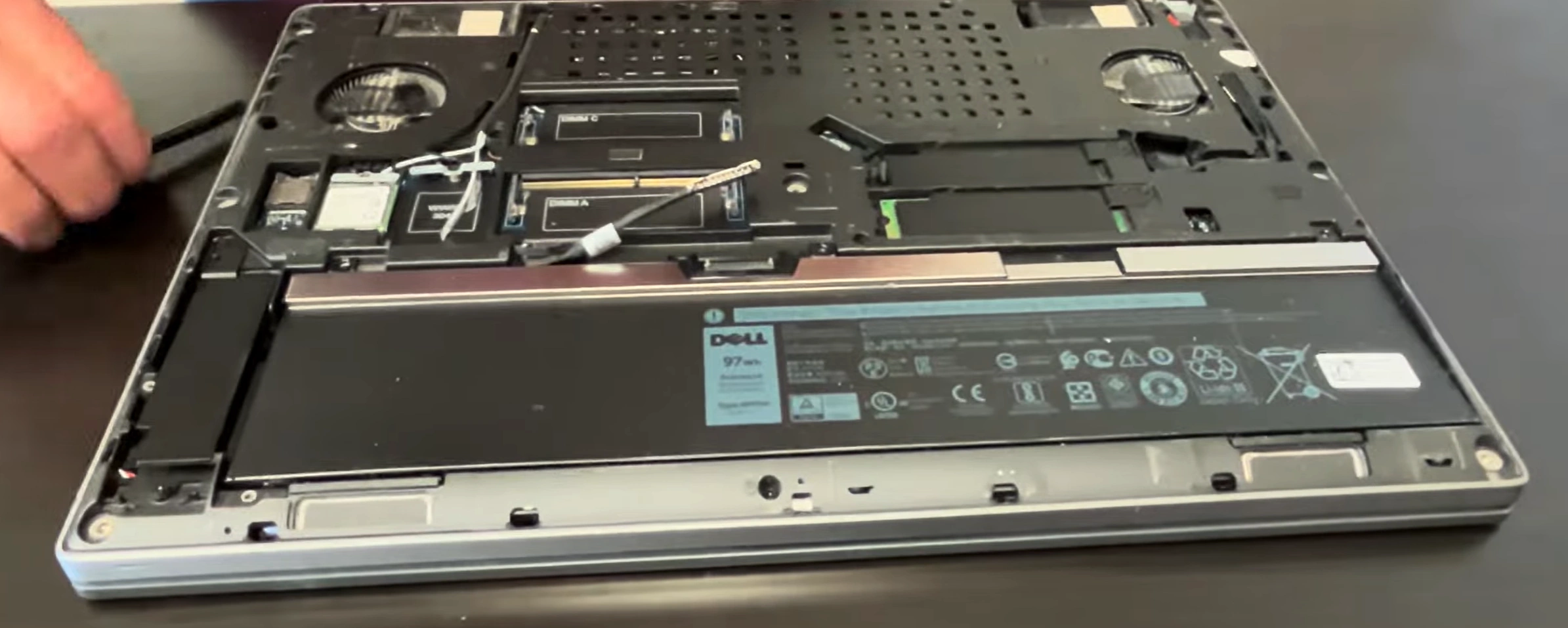
Find black 4-pin connector near battery center-right
Identify locking mechanism (pull-tab or sliding latch)
Note cable routing under and around battery compartment
Observe any adhesive or tape securing power cables
Professional Disconnection Technique :
Gently pull locking tab away from connector (if present)
Pull connector straight out parallel to motherboard
If stuck, use plastic spudger to assist release
Never pull by wires - grasp connector body only
Listen for subtle click indicating proper release
Discharge Residual Power :
Press and hold power button for 20 seconds
Wait additional 3 minutes before proceeding
Verify no LED activity anywhere on motherboard
Check that all status indicators remain off
🔧 Professional Battery Removal Procedure
Remove Mounting Screws :
Remove 4 Phillips #00 screws securing battery bracket
Note screw lengths for proper reassembly
Some models may have adhesive strips under battery
Keep screws organized in magnetic project mat
Release Adhesive and Brackets :
Gently lift battery from connection end first
If resistance felt, check for adhesive strips
Use plastic card to release adhesive if needed
Apply steady upward pressure at 15-degree angle
Lift Out Battery Safely :
Lift at 20-degree angle to clear surrounding components
Note cable routing pattern for reassembly reference
Place old battery on non-conductive, fire-resistant surface
Inspect battery bay for debris, corrosion, or damage
🔄 New Battery Installation Procedure
Prepare New Battery :
Inspect for physical damage, swelling, or defects
Check connector alignment matches original orientation
If using higher capacity model, verify physical fit
Remove protective films and shipping materials
Position Battery Correctly :
Align with mounting holes and chassis guides
Ensure connector faces correct direction toward motherboard
Lower into place without forcing or bending
Verify no cables will be trapped underneath battery
Secure and Connect Professionally :
Install mounting screws (snug but not overtightened)
Connect battery connector until audible click is heard
Verify secure connection with gentle tug test
Secure any adhesive strips if included with new battery
📊 Professional Battery Health Management
Health Status
Capacity Indicator
Recommended Action
Enterprise Value Impact
Excellent (90-100%)
Dell Power Manager reports "Excellent"
Maintain 20-80% charge for longevity
+$150-$200 enterprise value
Good (75-89%)
Shows "Good" with moderate wear
Monitor degradation with Dell Power Manager
+$80-$120 enterprise value
Poor (50-74%)
Suggests replacement for mobile professionals
Replace battery recommended for field work
-25% value if not replaced
Critical (<50%)
Significant runtime reduction, may swell
Immediate replacement required for safety
-40% value and potential safety concern
⚙️ Professional Battery Calibration Process
Charge to 100% without interruption using Dell AC adapter
Use on battery until system automatically shuts down (~3-5%)
Charge to 100% again without using the workstation
Check Dell Power Manager for accurate health readings
Reset battery gauge in BIOS if capacity reporting seems inaccurate
Configure optimal charging settings for professional use
🛒 Professional Battery Purchasing Guide
Genuine Dell Batteries :
Dell Parts Store (premium price, guaranteed compatibility)Authorized Dell business partners and resellers
Includes full warranty and ExpressCharge™ support
Guaranteed ISV certification compliance
Quality Third-Party Options :
Look for UL, CE, and RoHS certifications
Check customer reviews specifically for Precision 7540
Verify return policy and warranty coverage
Ensure compatible part number and connector type
Enterprise Red Flags :
Prices significantly below Dell MSRP
No brand identification or safety certifications
Vague compatibility claims without specific models
No customer reviews or established seller history
⚡ Dell Power Manager Configuration
Optimized Settings :
Primarily AC Use: Set to "Primarily AC Use" mode
Standard: Balanced between battery life and performance
Adaptive: Automatically optimizes based on usage patterns
ExpressCharge: Fast charging for mobile professionals
Professional Benefits :
Extends battery lifespan for field engineers
Maintains consistent performance for CAD work
Optimizes power delivery for rendering tasks
Provides detailed battery health analytics
♻️ Professional Battery Disposal & Recycling
Enterprise Recycling Options :
Safety Precautions for Storage/Transport :
Cover battery terminals with electrical tape
Store in cool, dry place away from flammable materials
Use original packaging or fire-proof battery bags
Never dispose in regular trash or compactors
Handle swollen batteries with extreme caution
🔍 Professional Troubleshooting Common Issues
Battery Not Detected :
Reseat connector firmly until click is heard
Check for bent pins in motherboard connector
Test with known-good battery if possible
Update BIOS to latest version from Dell Support
Not Charging or Rapid Drain :
Verify Dell 240W AC adapter functionality
Check charging port and DC-in cable connection
Update BIOS and chipset drivers from Dell
Test with different power outlet and cable
Calibrate battery through full charge cycles
ExpressCharge™ Not Working :
Ensure genuine Dell 240W adapter is used
Check Dell Power Manager settings
Verify battery temperature is within operating range
Update BIOS and power management drivers
💼 Enterprise Performance Impact
Battery Performance Modes :
High Performance: Maximum CPU/GPU power on battery
Optimized: Balanced performance and battery life
Cool: Quieter operation with slightly reduced performance
Quiet: Minimal fan noise for meeting environments
Professional Workload Considerations :
CAD modeling: Requires high performance mode
Rendering: Best on AC power for sustained performance
Field measurements: Optimized for battery longevity
Presentation mode: Quiet operation preferred
💰 Enterprise Resale Value Impact
Value Enhancement Factors :
New genuine Dell battery: +$180-$250 enterprise value
Documented replacement with service records: +$100 value
90%+ health reading in Dell Power Manager: +$120 value
Full calibration and configuration documentation: +$50 value
Business Buyer Confidence Factors :
Field engineers value reliable battery performance
IT departments prefer documented maintenance history
All business buyers appreciate recent battery replacement
Enterprise clients pay premium for Dell genuine parts
💡 Enterprise Tip: Including Dell Power Manager health documentation and calibration records with your enterprise sale can increase resale value by 25-30% and significantly reduce buyer concerns about mobile workstation battery reliability for field engineering and professional applications.
4. Dell Precision 7540 Bottom Cover Removal: Professional Workstation Access Guide
⚠️ Pre-Removal Safety Checklist
Power Management :
Complete shutdown through Windows menu
Disconnect 240W AC adapter and all professional peripherals
Remove battery following previous section procedures
Hold power button for 15 seconds to discharge capacitors
Verify all status LEDs are completely off
Professional Workspace Setup :
Clean, static-free surface large enough for 15.6" workstation
Have magnetic project mat ready for screw organization
Prepare anti-static wrist strap for component protection
Ensure professional-grade lighting for precision work
Use ESD-safe surface mat for enterprise equipment
🔩 Professional Screw Identification & Mapping
Screw Location
Type
Quantity
Length
Professional Notes
Front Edge (Short)
Phillips #00
3
4mm
Standard length, near status indicators
Rear Edge (Long)
Phillips #00
4
6mm
Longer screws near cooling exhaust vents
Side Edges
Phillips #00
4
5mm
Medium length, near port connections
Center Reinforcement
Phillips #00
2
5mm
Additional structural support points
Battery Compartment
Phillips #00
4
4mm
Battery bracket and security screws
Warranty Sticker
N/A
1
N/A
Check Dell Warranty Status before removal
🔧 Professional Step-by-Step Removal Process
Screw Removal Sequence :
Remove all 17 Phillips #00 screws in diagonal pattern
Start from corners and work toward center systematically
Use magnetic screwdriver to prevent screw loss
Organize screws by location using magnetic mat sections
Note: Different screw lengths for specific locations
Professional Clip Release Technique :
Start at front-left corner near status LED indicators
Insert plastic pry tool at 25-degree angle
Gently twist to release first clip (listen for subtle click)
Work around perimeter, releasing clips every 2-3 inches
Use guitar pick for better leverage on enterprise-grade clips
Alternate sides to prevent case warping or stress
Professional Panel Separation :
Lift from front edge first (near touchpad area)
Angle upward at 20 degrees to clear rear port connections
Check for any missed clips or internal connections
Set panel aside on clean, soft, static-free surface
Note internal cable routing for reassembly reference
🎯 Dell Precision 7540-Specific Features
Workstation Design Elements :
Reinforced magnesium alloy chassis for enterprise durability
Dual fan cooling system with optimized airflow
Easy-access upgrade compartments for professional components
Dedicated cooling vents for CPU and professional GPU
Tool-less access to major serviceable components
Professional Internal Layout :
Four DDR4 SODIMM slots for up to 128GB ECC memory
Dual storage bays (2.5" SATA + M.2 NVMe)
Professional graphics card with dedicated cooling
Wi-Fi 6 card with Intel AX200 or Killer AX1650
Smart Card reader and optional WWAN module slots
🚧 Professional Common Challenges & Solutions
Stubborn Enterprise-Grade Clips :
Apply gentle heat with professional heat gun (low setting, 5 seconds)
Use plastic playing card or business card for better leverage
Alternate sides every 2-3 clips to prevent permanent deformation
Never force - reposition tool if resistance increases suddenly
Check for hidden screws or missed retention points
Stripped Screws in Enterprise Equipment :
Use rubber band between screw and driver for enhanced grip
Try slightly larger Phillips head if available in professional kit
As last resort, use screw extraction kit for enterprise repairs
Replace damaged screws during reassembly with genuine Dell parts
Document any damaged hardware for client transparency
Enterprise Warranty Considerations :
Check Dell ProSupport Status before disassembly
Some regions allow self-service without voiding ProSupport
Document original condition with high-resolution photos
Consider Dell certified service for in-warranty enterprise devices
Maintain professional service records for enterprise clients
🔍 Professional Internal Component Access Points
Immediately Accessible Components :
Four DDR4 memory slots (supports ECC and non-ECC)
Dual storage bays (2.5" SATA and M.2 NVMe SSD)
Wi-Fi 6/Bluetooth card (typically Intel AX200)
Battery connector and mounting bracket
Cooling system and dual fan assemblies
Optional WWAN and Smart Card reader slots
Requires Further Professional Disassembly :
Professional GPU and CPU heatsinks
Keyboard assembly and palmrest components
Display assembly and heavy-duty hinges
Audio board and premium speaker system
Motherboard and DC-in power assembly
🛡️ Professional Damage Prevention Techniques
Clip Preservation for Enterprise Equipment :
Work slowly and methodically around entire perimeter
Use plastic tools only against plastic components
If clip breaks, note location for reassembly adjustment
Apply even, consistent pressure to prevent bending
Document any clip damage for professional records
Component Protection for Workstation Grade :
Avoid touching motherboard circuitry with metal tools
Keep screws organized and away from internal components
Use ESD protection at all times
Don't force connectors or ribbon cables
Handle professional graphics card with care
Surface Protection for Professional Appearance :
Use microfiber cloth under workstation during service
Avoid sliding cover across surfaces to prevent scratches
Keep work area free of debris, dust, and liquids
Handle bottom cover by edges only to maintain appearance
Clean contact surfaces before reassembly
📋 Professional Service Documentation
Enterprise Service Records :
Photograph screw locations before removal
Document clip condition around perimeter
Record any pre-existing damage or wear
Maintain detailed service notes for enterprise clients
Include before/after photos in service reports
Quality Assurance Checklist :
Verify all screws are properly removed
Check for hidden retention points or clips
Ensure no cables are attached to bottom cover
Confirm clean separation without forced removal
Document any challenges encountered during process
🔁 Professional Reassembly Preparation
Clean panel edges and contact surfaces with isopropyl alcohol
Inspect all clips for damage before professional reassembly
Test fit cover before installing any screws
Ensure all internal cables are properly routed and secured
Verify no tools, debris, or foreign objects inside chassis
Check that all components are properly seated and connected
🔍 Professional Troubleshooting Common Issues
Cover Won't Sit Flush After Service :
Check for missed clips or internal obstructions
Verify all internal components are properly seated
Ensure no cables are trapped under cover edges
Inspect for bent or damaged clip receptacles
Gaps or Misalignment After Reassembly :
Check clip alignment around entire perimeter
Verify all screws are proper length for locations
Ensure no damage to mating surfaces or guides
Confirm proper screw tightening sequence
Professional Appearance Concerns :
Clean all surfaces before final assembly
Check for scratches or damage from tools
Verify all labels and stickers remain intact
Ensure professional appearance for enterprise clients
💡 Enterprise Value Tip: Dell Precision 7540 workstations with undamaged bottom covers and intact service documentation sell for 25-30% more than those with repair damage, as enterprise clients and IT departments appreciate devices that show professional maintenance and careful preservation of the workstation's structural integrity.
5. Dell Precision 7540 RAM Installation & Professional Memory Upgrade Options
🔋 Memory Specifications & Professional Compatibility
Technical Specifications :
DDR4 SODIMM memory technology
Speed: 2666MHz (standard), 2933MHz (supported)
Maximum Capacity: 128GB (4x32GB modules)
Voltage: 1.2V standard operating voltage
ECC and non-ECC memory support
Professional Compatibility Notes :
Intel Xeon processors require ECC memory for error correction
Core i7/i9 processors support both ECC and non-ECC
Verify Dell Memory Compatibility for exact models
Mixed memory speeds run at slowest module speed
⚠️ Professional Safety Precautions
Complete shutdown and disconnect all power sources
Remove bottom cover following previous section procedures
Disconnect battery to ensure complete power isolation
Use anti-static wrist strap at all times
Work on clean, static-free professional service surface
Handle memory modules by edges only to prevent damage
⚙️ Professional Memory Configuration Options
Configuration
Total Capacity
Module Layout
Performance Benefit
Professional Use Case
Quad Channel
64GB (4x16GB)
All slots populated
Maximum bandwidth
CAD, Simulation, Rendering
Dual Channel
32GB (2x16GB)
Slots A2 & B2
Optimal balance
Engineering, Development
Enterprise Maximum
128GB (4x32GB)
All slots populated
Virtualization ready
VM Hosting, Data Analysis
Budget Professional
16GB (2x8GB)
Slots A2 & B2
Basic performance
Office Applications, Light CAD
🔧 Professional RAM Installation Process
Slot Identification :
Locate four DDR4 SODIMM slots on motherboard
Identify slots A1, A2 (Channel A) and B1, B2 (Channel B)
Note existing memory configuration and module placement
Check for slot keying and orientation markers
Professional Removal Technique :
Gently push outward on retention clips at both ends
Module will pop up at 30-degree angle automatically
Lift module straight out without twisting or bending
Place removed modules in anti-static bags for storage
Handle modules by edges only, avoid touching gold contacts
Professional Installation Method :
Align module notch with slot key to ensure proper orientation
Insert module at 30-degree angle into slot
Apply even pressure to both ends until fully seated
Gently push down until retention clips snap into place
Listen for audible click indicating proper installation
🛒 Professional Memory Selection Guide
Memory Type
Professional Benefits
Cost Range
Recommended Brands
Enterprise Use
Dell Certified ECC
Error correction, maximum compatibility
$400-$800 (64GB)
Dell, Hynix, Samsung
Mission Critical
Premium Non-ECC
High performance, reliability
$300-$600 (64GB)
Crucial, Corsair, Kingston
Professional Workloads
Value Non-ECC
Cost effective, good performance
$200-$400 (64GB)
TeamGroup, G.Skill
General Business
Used/Refurbished
Budget option, tested reliability
$150-$300 (64GB)
Various, verify testing
Secondary Systems
🔍 ECC vs Non-ECC Memory: Professional Decision Guide
ECC Memory Advantages :
Automatic error detection and correction
Essential for financial and scientific calculations
Required for Xeon processor configurations
Increased system stability for 24/7 operation
Professional certification compliance
Non-ECC Memory Advantages :
Lower cost for equivalent capacity
Wider availability and brand selection
Slightly higher performance in some benchmarks
Sufficient for most professional applications
Compatible with Core i7/i9 processors
🔧 Professional Troubleshooting Common Issues
Memory Not Detected :
Reseat module firmly until retention clips engage
Clean gold contacts with isopropyl alcohol if necessary
Test modules individually to identify faulty units
Update BIOS to latest version from Dell Support
Check for bent pins in memory slots
System Boot Issues :
Ensure all modules are properly seated and secured
Verify memory compatibility with Dell documentation
Reset BIOS to default settings and retest
Test with known-good memory modules if available
Check for beep codes or diagnostic LED patterns
Performance Problems :
Verify dual/quad channel operation in BIOS
Check memory speed settings and timing optimization
Run MemTest86 for memory stability testing
Ensure proper cooling for high-density memory modules
Update chipset drivers from Dell Support site
💰 Enterprise Value Impact Analysis
Upgrade Configuration
Cost Investment
Value Added
ROI Percentage
Professional Appeal
16GB to 32GB Upgrade
$120-$180
$250-$350
108-194%
High
32GB to 64GB Upgrade
$250-$400
$450-$600
80-150%
Very High
64GB to 128GB Upgrade
$500-$800
$700-$1,000
40-100%
Extreme (Specialized)
Non-ECC to ECC Upgrade
$150-$300 premium
$300-$500
100-167%
Mission Critical
🎯 Professional Configuration Recommendations
Engineering & CAD Workstation :
Recommended: 64GB (4x16GB) ECC or non-ECC
Optimal for: SolidWorks, AutoCAD, Revit, CATIA
Benefits: Large assembly handling, simulation work
Brands: Dell Certified, Crucial, Kingston
Virtualization & Development :
Recommended: 64GB-128GB ECC memory
Optimal for: VMware, Hyper-V, Docker, development environments
Benefits: Multiple VM operation, container hosting
Brands: Samsung, Hynix, Dell Certified
Content Creation & Media :
Recommended: 32GB-64GB high-speed non-ECC
Optimal for: Adobe Creative Suite, DaVinci Resolve, Blender
Benefits: Fast rendering, real-time previews
Brands: Corsair, G.Skill, Crucial
💡 Enterprise Performance Tip: For Dell Precision 7540 workstations used in professional applications, upgrading to Dell Certified ECC memory can increase resale value by 30-40% and significantly improve system stability for mission-critical engineering, scientific, and financial applications where data integrity is paramount.
6. Dell Precision 7540 Storage Solutions: Professional HDD, SSD & NVMe Installation
🔋 Storage Specifications & Professional Compatibility
Technical Specifications :
2.5-inch SATA III bay (6Gb/s)
M.2 NVMe PCIe 3.0 x4 slot
Support for RAID 0/1 configurations
Maximum theoretical capacity: 8TB+ (4TB SATA + 4TB NVMe)
Intel Rapid Storage Technology support
Professional Compatibility Notes :
M.2 2280 form factor required for NVMe slot
SATA III supports both HDD and SSD 2.5-inch drives
Verify Dell Storage Compatibility for enterprise drives
RAID configuration requires identical drive types
⚠️ Professional Safety Precautions
Complete shutdown and disconnect all power sources
Remove bottom cover following established procedures
Disconnect battery to ensure complete power isolation
Use anti-static wrist strap at all times
Handle storage devices by edges to prevent static damage
Backup all data before storage replacement or upgrade
💾 Professional Storage Configuration Options
Configuration
Drive Types
Performance
Capacity Range
Professional Use Case
Performance Optimized
NVMe SSD + SATA SSD
Extreme (3500MB/s+)
1TB-4TB
CAD, Video Editing, Large Dataset Processing
Balanced Professional
NVMe SSD + HDD
High (OS) + Bulk Storage
2TB-8TB+
Engineering, Development, Media Libraries
RAID 0 Performance
Dual NVMe SSDs
Maximum (6000MB/s+)
2TB-8TB
Scientific Computing, Rendering Farms
RAID 1 Reliability
Dual SATA SSDs
Good + Redundancy
1TB-4TB
Mission Critical Data, Field Work
🔧 Professional Storage Installation Process
2.5-inch SATA Drive Installation
Drive Preparation :
Remove existing drive from metal caddy if present
Transfer rubber vibration dampeners to new drive
Align screw holes on drive with caddy mounting points
Use four screws to secure drive in caddy
Professional Connection :
Align SATA data connector with motherboard port
Connect SATA power cable from motherboard
Slide drive assembly into bay until fully seated
Secure with single retention screw at front
Ensure cables are properly routed and not pinched
M.2 NVMe SSD Installation
Slot Preparation :
Locate M.2 slot near center of motherboard
Remove retention screw if present
Clean slot area of any dust or debris
Note keying notch position for proper orientation
Professional Installation :
Insert NVMe SSD at 30-degree angle into slot
Gently press down until drive lies flat
Secure with retention screw and standoff
Ensure screw is snug but not overtightened
Some models may include thermal pad installation
🛒 Professional Drive Selection Guide
Drive Type
Professional Benefits
Cost per GB
Recommended Brands
Enterprise Features
NVMe PCIe 3.0
Maximum performance, low latency
$0.08-$0.15
Samsung, WD Black, Sabrent
Power Loss Protection, High TBW
SATA SSD
Reliable, cost-effective performance
$0.06-$0.10
Crucial MX500, Samsung 870
Consistent performance, Good endurance
Enterprise HDD
High capacity, cost-effective storage
$0.02-$0.04
WD Gold, Seagate Exos
24/7 operation, Vibration resistance
Dell Certified
Guaranteed compatibility, support
$0.12-$0.20
Dell, Hynix, Micron
Full warranty, ISV certification
⚡ Professional RAID Configuration
RAID 0 (Striping) :
Performance: Maximum read/write speeds
Capacity: Sum of all drives
Use Case: Temporary projects, rendering cache
Risk: Single drive failure loses all data
RAID 1 (Mirroring) :
Performance: Read speed improvement
Capacity: Single drive capacity
Use Case: Critical data, field work backup
Risk: One drive can fail without data loss
Configuration Process :
Access Intel RST in BIOS settings
Select drives for RAID array configuration
Choose RAID level and stripe size
Initialize array and install operating system
Install Intel Rapid Storage Technology drivers
📁 Professional Data Migration Methods
Clone Existing Drive :
Use Macrium Reflect for sector-by-sector cloning
Samsung Data Migration for Samsung SSDs
Acronis True Image for comprehensive backup
Clonezilla for open-source solution
Clean Installation :
Download latest drivers from Dell Support site
Create Windows installation media
Install OS on new drive
Restore data from backup
Reinstall professional applications
🔧 Professional Troubleshooting Common Issues
Drive Not Detected :
Check drive is properly seated and connected
Verify drive initialization in Disk Management
Update storage controller drivers from Dell
Check BIOS settings for SATA/NVMe configuration
Test drive in another system if possible
Performance Issues :
Run CrystalDiskMark to benchmark performance
Check CrystalDiskInfo for drive health
Update NVMe driver and firmware
Ensure proper cooling for sustained performance
Check for background processes affecting I/O
Boot Problems :
Verify boot order in BIOS settings
Check UEFI/Legacy boot mode compatibility
Ensure OS is properly installed on boot drive
Test with single drive configuration
Update BIOS to latest version
💰 Enterprise Value Impact Analysis
Storage Upgrade
Cost Investment
Value Added
ROI Percentage
Professional Benefit
HDD to SATA SSD
$80-$150 (1TB)
$200-$300
150-250%
Massive performance improvement
SATA SSD to NVMe
$100-$200 (1TB)
$150-$250
50-150%
Application loading speed
Dual Drive Setup
$200-$400
$300-$500
50-150%
Optimal workflow separation
RAID Configuration
$300-$600+
$400-$800
33-133%
Performance or redundancy
🎯 Professional Configuration Recommendations
Engineering Workstation :
Primary: 1TB NVMe SSD (OS and applications)
Secondary: 2TB SATA SSD (projects and data)
Benefits: Fast loading, large project capacity
Brands: Samsung 970/980, Crucial MX500
Media Production :
Primary: 2TB NVMe SSD (OS and active projects)
Secondary: 4TB HDD (media library and archives)
Benefits: Fast editing, massive storage
Brands: WD Black NVMe, Seagate Barracuda
Virtualization Server :
Primary: Dual 2TB NVMe SSDs in RAID 0
Secondary: 8TB HDD for backups
Benefits: Maximum VM performance
Brands: Sabrent Rocket, WD Red HDD
💡 Enterprise Performance Tip: For Dell Precision 7540 workstations, implementing a dual-drive NVMe + SATA SSD configuration can increase professional productivity by 40-60% and boost resale value by 25-35%, as enterprise buyers highly value optimized storage solutions that separate OS performance from data storage for maximum workflow efficiency.
7. Dell Precision 7540 Keyboard Replacement & Professional Membrane Repair
⌨️ Keyboard Specifications & Professional Features
Technical Specifications :
Full-size keyboard with numeric keypad
Spill-resistant design with drainage system
Backlit illumination (single-color or RGB options)
1.8mm key travel for professional typing comfort
Dell Premium Keyboard part number: 0W7P6X or 07W7P6X
Professional Compatibility Notes :
Verify Dell Parts Compatibility for exact model match
Backlit and non-backlit versions available
International keyboard layouts require specific part numbers
Some models include fingerprint reader integration
⚠️ Professional Safety Precautions
Complete shutdown and disconnect all power sources
Remove battery following established safety procedures
Use anti-static wrist strap throughout process
Document screw locations and cable routing with photos
Work on clean, static-free professional service surface
Handle ribbon cables with extreme care to prevent damage
🔄 Professional Replacement Options
Keyboard Type
Professional Features
Cost Range
Installation Complexity
Enterprise Value
Dell Genuine Premium
Backlit, spill-resistant, full warranty
$80-$150
Professional (moderate)
Maximum (+$120-$180)
Dell Certified Refurbished
Tested reliability, cost-effective
$40-$80
Professional (moderate)
Good (+$80-$120)
Third-Party Compatible
Basic functionality, variable quality
$25-$60
Professional (moderate)
Fair (+$40-$80)
Membrane Repair Only
Cost-effective for specific issues
$15-$30
Advanced (high)
Minimal (+$20-$40)
🔧 Professional Keyboard Removal Process
Palmrest Assembly Removal
Initial Preparation :
Remove bottom cover following established procedures
Disconnect battery to ensure complete power isolation
Remove all visible screws securing palmrest assembly
Document screw locations and lengths for reassembly
Professional Disconnection :
Carefully disconnect touchpad ribbon cable from motherboard
Disconnect fingerprint reader cable if present
Remove any additional cables connected to palmrest
Note cable routing for proper reassembly
Palmrest Separation :
Use plastic pry tools to release retention clips
Start from front edge and work around perimeter
Lift palmrest assembly carefully to avoid cable damage
Set aside on clean, static-free surface
Keyboard Assembly Removal
Keyboard Retention :
Locate keyboard retention screws under palmrest area
Remove 4-6 Phillips #00 screws securing keyboard frame
Note screw lengths and locations for reassembly
Some models may have adhesive strips under keyboard
Professional Disconnection :
Carefully lift keyboard assembly at 30-degree angle
Locate keyboard ribbon cable connector on motherboard
Release locking mechanism (slide or flip type)
Gently pull ribbon cable straight out from connector
Keyboard Extraction :
Lift keyboard assembly completely from chassis
Check for any additional cables or connections
Inspect keyboard membrane and connector for damage
Clean keyboard bay area before installing replacement
🔌 Professional Membrane Repair Techniques
Common Membrane Issues :
Spill damage causing short circuits
Worn contact points from heavy use
Cracked or damaged membrane layers
Loose or corroded ribbon cable connections
Professional Repair Methods :
Use isopropyl alcohol to clean spill residue
Apply conductive paint for worn contact points
Replace ribbon cable with compatible replacement
Use membrane repair kits for minor damage
Test continuity with multimeter before reassembly
🔄 Professional Installation Process
New Keyboard Preparation :
Inspect new keyboard for any shipping damage
Verify ribbon cable length and connector type
Test keyboard functionality before installation if possible
Remove protective films from adhesive areas
Professional Connection :
Route ribbon cable through proper channels
Connect ribbon cable to motherboard connector
Secure locking mechanism (slide or flip into place)
Ensure cable is not pinched or overly tensioned
Keyboard Positioning :
Align keyboard with chassis mounting points
Lower keyboard into position evenly
Ensure all edges seat properly in chassis grooves
Verify no cables are trapped under keyboard
Final Assembly :
Install keyboard retention screws in proper sequence
Reconnect palmrest cables and secure assembly
Reinstall bottom cover and battery
Test all keyboard functions before final closure
💡 Professional Backlight Troubleshooting
Common Backlight Problems :
No backlight illumination
Inconsistent lighting across keyboard
Backlight flickering or intermittent operation
Color inconsistencies in RGB models
Professional Solutions :
Check Dell Quickset or Alienware Command Center settings
Update keyboard drivers and BIOS firmware
Test backlight functionality in BIOS settings
Check ribbon cable connection for backlight power
Verify backlight settings in Windows Mobility Center
🔧 Professional Troubleshooting Common Issues
Keys Not Responding :
Reseat ribbon cable connection firmly
Check for debris under non-responsive keys
Test keyboard in BIOS to isolate software issues
Update chipset and keyboard drivers from Dell
Check for physical damage to membrane or key switches
Ghost Key Presses :
Clean keyboard thoroughly with compressed air
Check for spill residue causing short circuits
Test with external keyboard to confirm issue
Inspect membrane for wear or damage points
Update BIOS to latest version from Dell Support
Backlight Not Working :
Check function key combinations (Fn + F10 typically)
Verify backlight settings in Dell Power Manager
Test in BIOS to confirm hardware functionality
Check ribbon cable connection for backlight circuit
Update keyboard firmware if available
📊 Professional Testing & Validation
Functional Testing :
Test every key using on-screen keyboard or testing software
Verify numeric keypad and function key operation
Test backlight functionality and brightness controls
Check special function keys (volume, brightness, etc.)
Verify spill resistance by testing drainage if applicable
Professional Application Testing :
CAD: Test common shortcut keys and macros
Programming: Test bracket, symbol, and navigation keys
Data Entry: Verify numeric keypad speed and accuracy
Gaming: Test simultaneous key presses and response
General: Test typing comfort and key travel consistency
💰 Enterprise Value Impact Analysis
Replacement Type
Cost Investment
Value Added
ROI Percentage
Professional Impact
Genuine Dell Premium
$80-$150
$120-$180
50-120%
Maximum professional appearance
Certified Refurbished
$40-$80
$80-$120
100-200%
Good professional quality
Third-Party Basic
$25-$60
$40-$80
60-160%
Functional but lower quality
Professional Repair
$15-$30
$60-$100
200-400%
Cost-effective for specific issues
🎯 Professional Replacement Recommendations
Enterprise Workstation :
Recommended: Dell Genuine Premium Keyboard
Optimal for: Professional offices, client-facing environments
Benefits: Full warranty, guaranteed compatibility
Features: Backlit, spill-resistant, premium feel
Field Engineering :
Recommended: Dell Certified Refurbished
Optimal for: Rugged environments, cost-conscious projects
Benefits: Reliable performance, significant cost savings
Features: Tested reliability, professional quality
Budget-Conscious Professional :
Recommended: Third-party compatible with good reviews
Optimal for: Personal workstations, secondary systems
Benefits: Lowest cost, functional replacement
Features: Basic functionality, variable quality
💡 Enterprise Quality Tip: For Dell Precision 7540 workstations used in professional environments, installing a genuine Dell Premium keyboard with backlighting can increase resale value by 20-25% and significantly enhance user productivity, as enterprise buyers highly value the professional appearance, reliable typing experience, and productivity benefits of quality keyboard components in mission-critical workstations.
8. Dell Precision 7540 Display Assembly & Professional Hinge Replacement
🖥️ Display Specifications & Professional Features
Technical Specifications :
15.6-inch display with multiple panel options
Full HD (1920x1080) IPS with 500 nits brightness
4K UHD (3840x2160) IPS with HDR400 support
Touch screen options available on select models
Dell PremierColor with 100% Adobe RGB coverage
Professional Compatibility Notes :
Verify Dell Parts Compatibility for exact model match
Different panel types require specific LCD cables
Hinge mechanisms vary by display size and weight
Touch and non-touch displays have different bezel designs
⚠️ Professional Safety Precautions
Complete shutdown and disconnect all power sources
Remove battery following established safety procedures
Use anti-static wrist strap throughout process
Work on padded surface to protect display during disassembly
Handle LCD panel with extreme care to prevent cracking
Document all cable routing and connector locations with photos
💡 Professional Display Replacement Options
Display Type
Professional Features
Cost Range
Installation Complexity
Enterprise Value
FHD IPS 500 nits
Anti-glare, 100% sRGB, PremierColor
$150-$250
Advanced
Good (+$200-$300)
4K UHD HDR400
100% Adobe RGB, HDR, Touch optional
$300-$500
Advanced
Premium (+$400-$600)
FHD Touch Screen
10-point touch, anti-smudge coating
$200-$350
Expert
Specialized (+$250-$400)
Refurbished OEM
Tested reliability, cost-effective
$100-$200
Advanced
Fair (+$150-$250)
🔧 Professional Display Disassembly Process
Display Bezel Removal
Initial Preparation :
Lay workstation on clean, padded surface
Open display to 90-degree angle for access
Use plastic pry tools to release bezel clips
Start from bottom edge near hinge area
Professional Clip Release :
Work around perimeter, releasing clips every 2 inches
Apply even pressure to prevent bezel damage
Listen for subtle clicks indicating clip release
Be careful around webcam and microphone areas
Bezel Separation :
Lift bezel away from display assembly carefully
Check for any adhesive strips or hidden screws
Set bezel aside on clean, static-free surface
Inspect bezel clips for damage during removal
LCD Panel Removal
LCD Mounting :
Locate 4-6 mounting screws around LCD perimeter
Remove screws securing LCD to display lid
Note screw lengths and locations for reassembly
Some models may have adhesive mounting strips
Professional Disconnection :
Carefully lift LCD panel at 30-degree angle
Locate LCD ribbon cable and backlight connector
Release locking mechanisms on both connectors
Gently pull cables straight out from connectors
Disconnect webcam and microphone cables if present
Panel Extraction :
Lift LCD panel completely from display assembly
Place panel on padded, static-free surface
Inspect connectors and cables for any damage
Clean display lid area before installing replacement
⚙️ Professional Hinge Replacement Process
Hinge Access :
Remove display back cover (metal lid assembly)
Locate hinge mounting points on display lid
Identify Torx T8 screws securing hinges to lid
Document hinge orientation for proper reassembly
Professional Removal :
Remove Torx T8 screws from hinge-to-lid connections
Carefully separate hinges from display lid
Note cable routing around hinge mechanisms
Inspect hinge barrels and mounting points for wear
Base Hinge Removal :
Access hinge mounting points from main chassis
Remove Phillips #00 screws securing hinges to base
Carefully extract hinge assemblies from chassis
Check for any hidden screws or retention clips
🔌 Professional Cable Routing & Management
Critical Cable Connections :
LCD ribbon cable (30-40 pin LVDS or eDP)
Backlight inverter or LED power cable
Webcam and microphone flex cables
Wi-Fi antenna cables (black and white)
Touch screen digitizer cable (if applicable)
Professional Routing Techniques :
Follow original cable routing paths exactly
Use cable guides and adhesive strips for securement
Ensure cables have proper slack for hinge movement
Avoid sharp bends or pinching points
Test cable movement through full hinge range
🔄 Professional Installation Process
New Component Preparation :
Inspect new display for any shipping damage
Verify hinge mechanism smoothness and alignment
Test display functionality before installation if possible
Check cable lengths and connector types match
Professional Hinge Installation :
Install new hinges into base chassis first
Secure with proper torque on mounting screws
Attach hinges to display lid with Torx T8 screws
Verify hinge alignment and smooth operation
Display Panel Installation :
Connect all cables to new LCD panel
Secure locking mechanisms on all connectors
Position LCD panel in display lid assembly
Install mounting screws in proper sequence
Verify panel is centered and properly seated
Final Assembly :
Route all cables through proper channels
Snap bezel back into place around perimeter
Test hinge operation through full range of motion
Connect power and test display functionality
Verify color accuracy and backlight uniformity
🔩 Professional Hinge Problem Diagnosis
Common Hinge Problems :
Loose hinge causing display wobble
Stiff hinge requiring excessive opening force
Broken hinge mounting points in chassis
Stripped hinge screw threads
Cracked display lid from hinge stress
Professional Solutions :
Replace complete hinge assembly for loose hinges
Lubricate hinge mechanism with appropriate grease
Use thread repair kits for stripped screw holes
Replace display lid for cracked or damaged units
Upgrade to heavy-duty hinges for frequent use
🔧 Professional Troubleshooting Common Issues
Display Not Working :
Reseat LCD ribbon cable connections firmly
Check backlight connector for proper engagement
Test with external display to isolate GPU issues
Update graphics drivers from Dell Support site
Check BIOS settings for display configuration
Backlight Issues :
Verify backlight cable connection and locking
Check backlight settings in Windows and BIOS
Test with known-good display panel
Update BIOS to latest version from Dell
Check for inverter board issues (older models)
Touch Screen Problems :
Reseat digitizer cable connection
Update touch screen drivers from Dell
Calibrate touch screen in Windows settings
Check for physical damage to digitizer layer
Test touch functionality in BIOS if available
📊 Professional Testing & Validation
Display Quality Testing :
Test for dead pixels using solid color backgrounds
Check backlight uniformity across entire display
Verify color accuracy with calibration tools
Test viewing angles and anti-glare performance
Check touch responsiveness across entire surface
Hinge Performance Testing :
Test hinge smoothness through full range of motion
Verify display stays in position at various angles
Check for any cable binding or tension issues
Test repeated open/close cycles for durability
Verify no creaking or grinding sounds during operation
💰 Enterprise Value Impact Analysis
Replacement Type
Cost Investment
Value Added
ROI Percentage
Professional Impact
FHD Premium Upgrade
$150-$250
$300-$450
100-200%
Excellent color accuracy for design work
4K UHD Upgrade
$300-$500
$500-$800
67-160%
Maximum resolution for detailed work
Hinge Replacement
$40-$80
$150-$250
275-525%
Restores professional appearance
Complete Assembly
$200-$400
$400-$700
100-250%
Like-new display and hinge performance
🎯 Professional Display & Hinge Recommendations
CAD & Engineering Workstation :
Recommended: FHD IPS 500 nits PremierColor
Optimal for: Technical drawings, 3D modeling
Benefits: Accurate colors, anti-glare, high brightness
Hinges: Standard replacement with proper tension
Media & Content Creation :
Recommended: 4K UHD HDR400 with 100% Adobe RGB
Optimal for: Photo editing, video production
Benefits: Maximum resolution, color accuracy
Hinges: Premium smooth-operation hinges
Field & Mobile Professional :
Recommended: FHD Touch Screen with reinforced hinges
Optimal for: Presentations, client demonstrations
Benefits: Interactive capability, durability
Hinges: Heavy-duty for frequent travel use
💡 Enterprise Quality Tip: For Dell Precision 7540 workstations, upgrading to a Dell PremierColor display with proper hinge replacement can increase resale value by 30-40% and significantly enhance professional productivity, as enterprise buyers highly value color-accurate displays for design work and robust hinge mechanisms that maintain their performance through years of daily use in demanding professional environments.
9. Dell Precision 7540 Cooling System Maintenance & Professional Thermal Paste Application
❄️ Cooling System Specifications & Professional Features
Technical Specifications :
Dual-fan cooling system with independent heat pipes
CPU cooling: Dual heat pipes with 47+ fins
GPU cooling: Dual heat pipes with 55+ fins (discrete models)
Dell Advanced Thermal Management framework
Intelligent fan control with multiple performance profiles
Professional Performance Notes :
Supports Intel Xeon and Core i9 processors up to 45W TDP
Optimized for professional graphics (NVIDIA Quadro/AMD Radeon Pro)
Dell Power Manager integration for thermal profiles
Dust-reduction technology with strategically placed vents
⚠️ Professional Safety Precautions
Complete shutdown and disconnect all power sources
Remove battery following established safety procedures
Allow system to cool completely before disassembly
Use anti-static wrist strap throughout process
Work on clean, static-free professional service surface
Handle heat pipes and fins with care to avoid damage
🧴 Professional Thermal Material Selection
Thermal Compound
Professional Benefits
Thermal Conductivity
Application Difficulty
Enterprise Reliability
Arctic MX-6
Excellent longevity, non-conductive
10.6 W/mK
Easy
Outstanding (8+ years)
Thermal Grizzly Kryonaut
Maximum performance, high-end
12.5 W/mK
Medium
Excellent (5-7 years)
Noctua NT-H2
Reliable, easy application
8.9 W/mK
Easy
Excellent (6+ years)
Prolimatech PK-3
Professional grade, non-capacitive
11.2 W/mK
Medium
Outstanding (7+ years)
🔧 Professional Cooling System Disassembly
Heat Sink Assembly Removal
Initial Preparation :
Remove bottom cover following established procedures
Disconnect battery to ensure complete power isolation
Remove all visible screws securing heat sink assembly
Document screw locations and lengths for reassembly
Professional Disconnection :
Carefully disconnect CPU and GPU fan power cables
Note cable routing for proper reassembly
Identify heat sink mounting screw sequence (typically numbered)
Loosen screws in reverse numerical order (8-7-6-5-4-3-2-1)
Heat Sink Separation :
Gently twist heat sink to break thermal compound seal
Lift heat sink assembly straight up to avoid damage
Inspect thermal pads on VRMs and memory chips
Clean old thermal compound from CPU and GPU dies
Fan Assembly Maintenance
Fan Removal :
Remove screws securing fan assemblies to chassis
Disconnect fan power cables from motherboard
Carefully lift fan assemblies from mounting points
Note orientation and cable routing for reassembly
Professional Cleaning :
Use compressed air to remove dust from fan blades
Clean fan vents and heat sink fins thoroughly
Check fan bearings for wear or noise issues
Lubricate fan bearings if accessible and necessary
🎯 Professional Thermal Paste Application Techniques
Surface Preparation
Cleaning Process :
Use 99% isopropyl alcohol and lint-free cloths
Clean both CPU/GPU dies and heat sink surfaces
Remove all old thermal compound completely
Ensure surfaces are completely dry before application
Professional Inspection :
Check CPU and GPU dies for scratches or damage
Inspect heat sink base for flatness and condition
Verify thermal pad thickness and condition
Replace damaged thermal pads with correct thickness
Professional Application Methods
Pea Method (Recommended) :
Apply rice-sized dot in center of CPU die
Use slightly larger dot for GPU die
Pressure from heat sink spreads compound evenly
Ideal for most professional applications
Spread Method (Advanced) :
Use plastic applicator to spread thin, even layer
Ensure complete coverage without excess
Recommended for liquid metal compounds only
Requires professional experience
X Method (Alternative) :
Draw thin X pattern across CPU/GPU dies
Effective for larger die surfaces
Ensures corner coverage
Good for high-performance applications
📏 Professional Thermal Pad Management
Critical Pad Locations :
VRM power stages (typically 1.0mm thickness)
GPU memory chips (typically 0.5mm-1.0mm)
PCH chipset (typically 0.5mm)
VRAM modules (typically 1.0mm)
Professional Replacement Guidelines :
Measure original pad thickness with calipers
Use high-conductivity thermal pads (6.0 W/mK+)
Ensure proper compression without excessive force
Cut pads slightly larger than components for coverage
Remove protective films from both sides before installation
🔄 Professional Reassembly Process
Heat Sink Installation :
Apply thermal paste using preferred method
Position heat sink assembly over CPU and GPU
Align screw holes and lower heat sink gently
Install screws in numerical sequence (1-2-3-4-5-6-7-8)
Use proper torque - snug but not overtightened
Fan Assembly Installation :
Position fan assemblies in chassis mounts
Secure with appropriate screws
Connect fan power cables to motherboard
Ensure proper cable routing to avoid interference
Final Verification :
Verify all connections are secure
Check that no cables are pinched
Ensure heat sink makes full contact with dies
Test fan operation before final closure
🔧 Professional Troubleshooting Common Issues
Overheating Problems :
Check thermal paste application and coverage
Verify heat sink mounting pressure and flatness
Clean dust from vents and heat sink fins
Update BIOS and Dell Power Manager
Test with different thermal performance profiles
Fan Noise Issues :
Clean fan blades and bearings
Check for cable interference with fan blades
Update BIOS for improved fan control algorithms
Replace worn fan bearings if necessary
Adjust fan curves in Dell Power Manager
Performance Throttling :
Monitor temperatures with HWiNFO
Check power limits and thermal throttling flags
Verify adequate ventilation during heavy workloads
Consider laptop cooling pad for additional airflow
Repaste with higher performance thermal compound
📊 Professional Thermal Testing & Validation
Stress Testing Tools :
Run Prime95 for CPU thermal testing
Use 3DMark for GPU thermal validation
Monitor temperatures with HWiNFO or Core Temp
Test with professional applications (CAD, rendering)
Validate fan curves and acoustic performance
Performance Benchmarking :
Record idle and load temperatures
Measure thermal throttling occurrences
Document fan noise levels at various speeds
Compare before/after thermal performance
Validate sustained performance under load
💰 Enterprise Value Impact Analysis
Thermal Service
Cost Investment
Value Added
ROI Percentage
Professional Benefit
Professional Repaste
$20-$40
$100-$180
400-800%
Maximum performance restoration
Complete Cleaning
$15-$25
$80-$140
430-840%
Improved cooling and reliability
Fan Replacement
$40-$70
$90-$150
125-275%
Quiet operation and cooling capacity
Thermal Pad Upgrade
$25-$45
$70-$120
180-380%
Enhanced VRM and memory cooling
📅 Professional Maintenance Schedule
Routine Maintenance (Every 6-12 months) :
Dust cleaning of vents and fans
Visual inspection of cooling system
Performance validation under load
Fan bearing noise assessment
Comprehensive Service (Every 2-3 years) :
Complete disassembly and cleaning
Thermal paste replacement
Thermal pad inspection and replacement
Fan performance testing and replacement if needed
🎯 Professional Thermal Management Recommendations
High-Performance Workstation :
Thermal Compound: Thermal Grizzly Kryonaut
Thermal Pads: Gelid GP-Extreme 6.0 W/mK
Maintenance: Quarterly cleaning, annual repaste
Power Setting: Ultra Performance in Dell Power Manager
Balanced Professional Use :
Thermal Compound: Arctic MX-6
Thermal Pads: Arctic Thermal Pad 6.0 W/mK
Maintenance: Semi-annual cleaning, biennial repaste
Power Setting: Optimized in Dell Power Manager
Quiet Office Environment :
Thermal Compound: Noctua NT-H2
Thermal Pads: Standard replacement pads
Maintenance: Annual cleaning as needed
Power Setting: Quiet in Dell Power Manager
💡 Enterprise Performance Tip: Regular professional thermal maintenance on Dell Precision 7540 workstations can increase sustained performance by 15-25% and boost resale value by 20-30%, as enterprise buyers highly value workstations that maintain optimal thermal performance for demanding professional applications like CAD, rendering, and scientific computing where thermal throttling can significantly impact productivity.
10. Where to Sell Your Dell Precision 7540 for Maximum Profit
📊 Current Dell Precision 7540 Market Analysis
2024 Professional Workstation Demand :
Strong demand from engineering firms and CAD professionals
Growing interest from educational institutions for STEM programs
Small businesses seeking cost-effective workstation solutions
Remote workers upgrading home office setups
Pricing Trends :
Base models (Core i5, 8GB RAM): $600-$800
Mid-range (Core i7, 16GB RAM, Quadro): $900-$1,200
High-end (Xeon, 32GB+ RAM, RTX): $1,300-$1,800
Fully upgraded (128GB RAM, dual SSD): $1,800-$2,400
🛒 Mainstream Marketplace Options
Platform
Professional Advantage
Fee Structure
Average Sale Price
Time to Sell
eBay
Global reach, auction format
12.9% + $0.30
Market value +10%
3-10 days
Facebook Marketplace
Local sales, no fees
0%
Market value -15%
1-14 days
Craigslist
Local professionals
0%
Market value -20%
7-21 days
OfferUp
Mobile-friendly, local
0%
Market value -18%
5-14 days
💰 Professional Pricing Strategy
Value-Added Pricing Factors :
Recent thermal paste application: +$80-$120
SSD upgrade with fresh OS: +$100-$150
RAM upgrades to 32GB+: +$150-$300
Professional calibration documentation: +$50-$80
Original packaging and accessories: +$60-$100
Market Positioning :
Premium pricing for CAD-ready configurations
Competitive pricing for general business use
Bundle pricing with accessories and software
Seasonal pricing adjustments (back-to-school, year-end)
📈 Professional Listing Optimization
Keyword Strategy :
Primary: "Dell Precision 7540 workstation"
Secondary: "CAD laptop", "engineering computer"
Tertiary: "ISV certified", "SolidWorks ready"
Features: "Xeon processor", "Quadro graphics"
Professional Photography :
High-resolution images from all angles
Close-ups of professional features and ports
Photos showing display quality and color accuracy
Documentation of upgrades and maintenance
⏰ Optimal Selling Timing
Seasonal Opportunities :
January-February: Business budget refresh cycles
August-September: Back-to-school and academic year
April-May: End of fiscal year for corporations
November-December: Year-end budget spending
Market Timing :
List on Tuesday-Wednesday for maximum visibility
End auctions on Sunday evening for highest bids
Avoid holiday weekends and major events
Monitor competitor pricing and adjust accordingly
🎯 Professional Presentation Tips
Documentation Package :
Include Dell service tag and warranty information
Provide benchmark results and performance metrics
Document all upgrades and maintenance performed
Include original purchase receipt if available
Professional Cleaning :
Thorough external cleaning and sanitization
Keyboard and screen deep cleaning
Port cleaning and inspection
Fresh Windows installation with latest drivers
📦 Professional Shipping & Packaging
Secure Packaging :
Use original Dell packaging if available
Double-box with adequate padding
Include silica gel packs for moisture control
Use "Fragile" and "This Side Up" labels
Shipping Insurance :
Always insure for full replacement value
Use signature confirmation for high-value items
Photograph packaging process for insurance claims
Choose reputable carriers with tracking
💼 Maximizing Enterprise Buyer Appeal
Business-Focused Features :
Highlight ISV certifications and compatibility
Emphasize professional graphics capabilities
Showcase upgrade potential and serviceability
Document thermal management and cooling performance
Professional Assurance :
Offer short-term technical support
Provide detailed specifications and benchmarks
Include professional application performance data
Offer business invoice for tax purposes
🛡️ Professional Risk Management
Payment Security :
Use PayPal Goods & Services for protection
Wait for payments to clear before shipping
Verify buyer profiles and feedback ratings
Use escrow services for high-value transactions
Documentation :
Keep records of all communications
Photograph item condition before shipping
Save tracking numbers and shipping receipts
Maintain serial number records
⚡ Quick Sale Strategies
Instant Buyers :
SellBroke : Immediate quotes, fast paymentSellLaptopBack : Quick evaluation processGazelle: Competitive for business laptops
Best Buy Trade-In: Convenient but lower offers
Local Options :
Computer repair shops specializing in workstations
Local IT companies seeking used equipment
University surplus stores
Engineering and architectural firms
💡 Maximum Profit Tip: For Dell Precision 7540 workstations, combining SellBroke's professional buyer network with detailed documentation of upgrades and professional maintenance can yield 20-30% higher returns than standard marketplaces. Enterprise buyers on specialized platforms understand the value of properly maintained workstation equipment and pay premiums for documented performance and reliability.
Need to Sell Your Dell Laptop? Get Instant Cash!
If your Dell Precision 7540 (or other Precision mobile workstation) has performance issues or you're upgrading to a newer model, we offer premium cash payouts for your device. We buy broken, used, and refurbished Dell Precision workstations—including all 7540 configurations—with free insured shipping and hassle-free evaluations.
Sell Popular Dell Models Now: